Can You Plug A Usb 3 0 Into A 3 2 Header Right Now
Yes, you can plug a USB 3.0 connector into a USB 3.2 header in most cases, but there are important compatibility caveats you need to know. The physical shape of the connector matters, and using the wrong cable can limit your speeds or cause connection issues. This guide breaks down every scenario so you can make the right choice without guesswork.
Have you ever stared at the back of your computer, holding a USB cable in one hand and a motherboard manual in the other, wondering if it will even fit? You are not alone. The world of USB connectors and headers can feel like a maze, especially when new standards keep popping up. Can you plug a USB 3.0 into a 3.2 header? The short answer is yes, but the full story is more interesting than a simple yes or no.
In this guide, we will walk through every detail you need to know. We will cover physical compatibility, speed differences, connector types, and common mistakes people make when connecting USB cables to headers. By the end, you will feel confident making the right connection every single time.
Key Takeaways
- Physical Compatibility: USB 3.0 Type-A connectors can often fit into USB 3.2 headers, but the reverse is not always true.
- Speed Limitations: Plugging a USB 3.0 device into a USB 3.2 header may cap your transfer speed at USB 3.0 levels.
- Connector Types Matter: USB 3.2 primarily uses Type-C connectors, while USB 3.0 uses Type-A, and this difference affects compatibility.
- Motherboard Manuals Are Key: Always check your motherboard manual before connecting any USB header cable.
- Adapters Can Help: USB adapters exist to bridge the gap between different USB standards and connector types.
- Power Delivery Differs: USB 3.2 headers may supply different power levels than USB 3.0 headers.
- Backward Compatibility Works Both Ways: USB 3.0 devices work on USB 3.2 headers, but you lose the speed boost.
📑 Table of Contents
- What Is a USB 3.2 Header?
- What Is USB 3.0 and How Does It Connect?
- Can You Physically Plug USB 3.0 Into a USB 3.2 Header?
- Backward Compatibility and Speed Considerations
- Common Mistakes When Connecting USB Headers
- Expert Tips for USB Header Compatibility
- Quick Tips for USB Header Connections
- How USB Standards Have Evolved
- Conclusion
What Is a USB 3.2 Header?
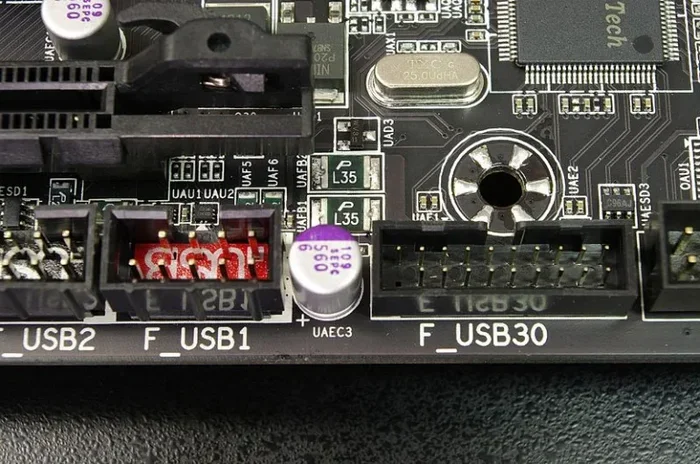
A USB 3.2 header is a set of pins on your motherboard designed to connect front-panel USB ports or internal USB devices. Think of it as the bridge between your computer’s motherboard and the external ports you use every day. The USB 3.2 standard brought faster data transfer speeds and improved power delivery compared to older versions.
How USB 3.2 Headers Work
USB 3.2 headers come in different configurations depending on your motherboard. Some use a 19-pin setup, while others use a 20-pin design. The number of pins determines what kind of USB connector you can plug in. Most modern motherboards from brands like ASUS, MSI, and Gigabyte include at least one USB 3.2 header for front-panel use.
The USB 3.2 standard operates over PCIe lanes, which gives it a significant bandwidth advantage over older USB standards. This means your front USB ports can deliver superSpeed USB performance without bottlenecks. But here is where things get tricky when you mix different USB versions.
What Is USB 3.0 and How Does It Connect?
USB 3.0 was a big deal when it launched. It offered transfer speeds of up to 5 Gbps, which was ten times faster than USB 2.0. The standard uses a USB Type-A connector with a distinctive blue plastic insert inside the port. You have probably seen these blue ports on desktops, laptops, and external hard drives.
The USB 3.0 Connector Shape
The USB 3.0 Type-A connector has a specific shape that fits into matching ports and headers. It is wider than the older USB 2.0 connector. The keying on the connector ensures you can only plug it in one way, which prevents accidental damage. When you look at a USB 3.0 cable, the connector is rectangular with a blocky plastic piece inside.
Many people still use USB 3.0 devices every day. External SSDs, flash drives, and card readers often rely on this standard. The question of USB port compatibility becomes important when you are building or upgrading a PC and need to connect these devices to a newer header.
Can You Physically Plug USB 3.0 Into a USB 3.2 Header?
This is the million-dollar question, and the answer depends on the connector type. Can you plug a USB 3.0 into a 3.2 header? In many cases, yes. But the details matter a lot.
Type-A to Type-A Compatibility
If your USB 3.0 cable has a Type-A connector on the end that plugs into the header, it will often physically fit into a USB 3.2 header that accepts Type-A connections. The pin layout is similar enough that the connector makes contact. However, the speed you get will be limited to USB 3.0 speeds, which is 5 Gbps.
Think of it like plugging an older HDMI cable into a newer HDMI port. It works, but you do not get the newest features. The same principle applies here. Your USB 3.0 device will function, but it will not take advantage of the faster speeds that USB 3.2 offers.
Type-C Connectors and the Difference
USB 3.2 headers often use Type-C connectors, which look completely different from USB 3.0 Type-A. The Type-C connector is smaller, oval-shaped, and reversible. You cannot plug a USB 3.0 Type-A cable into a USB 3.2 Type-C header without an adapter. The shapes simply do not match.
This is where many people get confused. They assume all USB 3.x connectors are the same. They are not. The standard defines the speed and protocol, while the connector type defines the physical shape. Always check what kind of connector your header expects before plugging anything in.
Backward Compatibility and Speed Considerations
One of the best things about USB technology is backward compatibility. USB 3.2 headers are designed to work with older USB devices. This means your USB 3.0 gear will still function when connected to a USB 3.2 header. The system automatically negotiates the highest common speed between the device and the port.
What Speed Will You Actually Get?
If you plug a USB 3.0 device into a USB 3.2 header, the connection will default to USB 3.0 speeds. You will get 5 Gbps transfer rates, not the 10 Gbps or 20 Gbps that USB 3.2 supports. The connection works, but you are leaving performance on the table.
Here is a quick comparison to help you understand the speed differences:
- USB 3.0: Up to 5 Gbps transfer speed
- USB 3.1 Gen 1: Up to 5 Gbps (same as USB 3.0)
- USB 3.1 Gen 2: Up to 10 Gbps
- USB 3.2 Gen 1: Up to 5 Gbps (renamed USB 3.0)
- USB 3.2 Gen 2: Up to 10 Gbps
- USB 3.2 Gen 2×2: Up to 20 Gbps
As you can see, data transfer speed depends heavily on which version both your device and header support. The slowest link in the chain determines the overall speed.
Power Delivery Differences
USB 3.2 headers can deliver more power than USB 3.0 headers. USB 3.0 provides up to 900 mA of power, while USB 3.2 can deliver more depending on the configuration. This matters if you are charging devices or powering external drives that need more juice. A USB 3.0 device plugged into a USB 3.2 header will still charge and work normally, but you will not get the extra power benefits.
Common Mistakes When Connecting USB Headers
Even experienced PC builders make mistakes with USB headers. Let us look at the most common errors so you can avoid them.
Forcing a Connector That Does Not Fit
Never force a USB connector into a header. If it does not fit, the connector type is wrong. Forcing it can bend pins, damage the motherboard, or ruin the cable. USB connector types are designed with keying to prevent this, so if you meet resistance, stop and check what you are doing.
Ignoring the Motherboard Manual
Your motherboard manual is your best friend. It tells you exactly which header supports which USB standard. Some headers are labeled clearly, while others use confusing shorthand. Take five minutes to read the section on internal headers before you start plugging things in.
Mixing Up USB 2.0 and USB 3.0 Headers
USB 2.0 headers have fewer pins than USB 3.0 or 3.2 headers. Plugging a USB 3.0 cable into a USB 2.0 header will work, but you will only get USB 2.0 speeds. This is a common mistake that leads to frustration when external drives seem slow.
Using Damaged or Low-Quality Cables
Cheap USB cables can cause all sorts of problems. They may not support the full speed of USB 3.0 or 3.2, or they might not make proper contact with the header pins. Invest in good quality cables from reputable brands. A $5 cable is not worth risking your hardware for.
Assuming All Headers Are the Same
Not all headers on your motherboard are USB 3.2 headers. Some might be USB 3.1, USB 3.0, or even USB 2.0. The labels can be confusing. Always double-check which header you are using and what standard it supports.
Expert Tips for USB Header Compatibility
Getting the most out of your USB connections comes down to a few smart habits. Here are some expert tips that will save you time and headaches.
Label Your Cables
After you build or upgrade your PC, take a moment to label your USB cables. Use small pieces of tape or cable ties with labels. This way, when you need to connect something later, you know exactly which cable goes where. It sounds simple, but it saves a ton of confusion.
Use Adapters When Needed
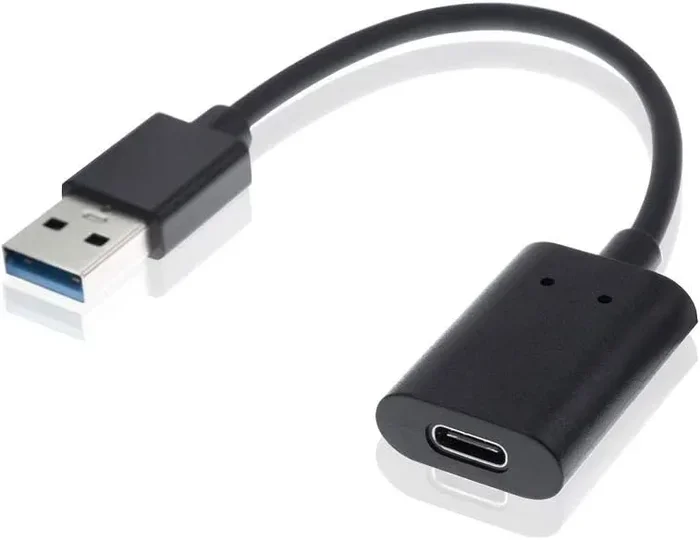
If you have a USB 3.0 Type-A device but only a USB 3.2 Type-C header, do not panic. USB adapters exist that let you bridge the gap. A simple USB adapter can convert Type-A to Type-C, giving you the physical connection you need. Just remember that the adapter will not upgrade your speed beyond what your device supports.
Keep Your BIOS Updated
Motherboard manufacturers sometimes release BIOS updates that improve USB compatibility and performance. Keeping your BIOS current ensures your headers work with the widest range of devices. Check your motherboard manufacturer’s website every few months for updates.
Consider a USB Expansion Card
If your motherboard does not have enough USB 3.2 headers, a PCIe USB expansion card is a great solution. These cards add extra USB ports directly to your system. They connect through PCIe lanes, just like your built-in headers, and can deliver full USB 3.2 speeds. This is especially useful if you use many external drives or peripherals.
Test Your Connections
After plugging in a USB device, test it thoroughly. Copy a large file and check the transfer speed. If the speed is much lower than expected, you might have the wrong header or a cable issue. Use tools like CrystalDiskMark or USBDeview to diagnose problems.
Quick Tips for USB Header Connections
- Always match the connector shape to the header type before plugging anything in.
- Check your motherboard manual for the exact header layout and supported standards.
- Use the shortest cable possible to maintain signal quality and speed.
- Do not mix USB 2.0 and USB 3.0 headers if you want full-speed performance.
- Keep a spare USB 3.0 cable on hand for emergencies or new devices.
- Clean your header pins occasionally with compressed air to prevent dust buildup.
- When in doubt, consult your motherboard manufacturer for specific compatibility guidance.
How USB Standards Have Evolved
Understanding where USB technology has been helps you make better decisions today. The USB standard has gone through several major revisions over the years. Each version brought faster speeds, better power delivery, and improved connector designs.
USB 1.0 and 2.0 laid the foundation with speeds up to 480 Mbps. USB 3.0 jumped to 5 Gbps and introduced the blue Type-A connector we all recognize. Then came USB 3.1, which refined the standard and introduced the Type-C connector. Finally, USB 3.2 brought even faster speeds using the Type-C connector and multi-lane PCIe technology.
The evolution of USB standards has been driven by the need for faster data transfer and more power. Today, USB 3.2 is the mainstream standard for most new motherboards. But millions of USB 3.0 devices are still in use, which is exactly why understanding compatibility matters so much.
The technology behind these standards is fascinating. USB 3.2 uses a protocol called USB Power Delivery that allows devices to negotiate the right amount of power. It also supports alternate modes that let a single USB-C port handle video, data, and power simultaneously. This is why modern laptops can charge and connect to monitors through a single USB-C port.
For the average user, the evolution of USB standards means one thing: your old devices still work with new hardware, but you need to know how to make the right connections. That is exactly what this guide helps you do.
When you are shopping for cables, adapters, or new hardware, keep these standards in mind. Look for products that support the USB 3.2 standard if you want the best performance. And always check the connector type to ensure physical compatibility with your ports and headers.
The world of USB connectivity keeps evolving, but the fundamentals remain the same. A good connection depends on the right connector, the right header, and a little bit of knowledge. With what you have learned here, you are well equipped to handle any USB connection challenge that comes your way.
Take a moment to review your current setup. Check which USB headers you have on your motherboard. Look at the cables and devices you use most often. Make sure everything is connected correctly and running at the best possible speed. A few minutes of attention now can save you hours of frustration later.
Technology should make your life easier, not harder. Understanding how your USB connections work is a small investment of time that pays big dividends. Whether you are a casual user or a power user, knowing the ins and outs of USB headers gives you confidence and control over your setup.
Conclusion
So, can you plug a USB 3.0 into a 3.2 header? The answer is yes, in most cases, with a few important caveats. The physical connector must match, the speed will default to USB 3.0 levels, and you will not get the full benefit of USB 3.2 performance. But your device will work, and that is what matters most.
Remember to always check your motherboard manual, use the right cables, and never force a connector. These simple habits will keep your USB connections running smoothly for years to come. Share this guide with anyone who might benefit from it, and feel free to bookmark it for future reference.
Technology changes fast, but the basics of USB compatibility remain constant. Stay curious, keep learning, and enjoy the seamless connectivity that modern USB standards provide. Your devices and your sanity will thank you.
Frequently Asked Questions
Can I plug a USB 3.0 device into a USB 3.2 Type-C header?
Not directly. USB 3.0 uses a Type-A connector, while USB 3.2 Type-C headers use the oval-shaped Type-C connector. You will need a Type-A to Type-C adapter to make the connection work. The adapter will not improve your speed, which will still be limited to USB 3.0 levels.
Will my USB 3.0 flash drive work on a USB 3.2 header?
Yes, it will work perfectly fine. USB 3.2 headers are backward compatible with USB 3.0 devices. Your flash drive will connect and function normally, but the transfer speed will be capped at USB 3.0 speeds of up to 5 Gbps.
What happens if I plug a USB 2.0 device into a USB 3.2 header?
The device will work, but it will operate at USB 2.0 speeds, which max out at 480 Mbps. The USB 3.2 header will automatically negotiate the highest common speed with your device. You will not damage anything, but you will not get the faster speeds either.
Do I need a special cable to connect USB 3.0 to a USB 3.2 header?
You do not need a special cable. A standard USB 3.0 cable will work as long as the connector type matches the header. If your header uses Type-C and your cable has a Type-A connector, you will need an adapter. Always use high-quality cables for the best results.
Can a USB 3.2 header provide more power than a USB 3.0 header?
Yes, USB 3.2 headers can deliver more power than USB 3.0 headers. USB 3.0 provides up to 900 mA, while USB 3.2 can deliver more depending on the configuration and USB Power Delivery specifications. This is useful for charging larger devices like tablets or external hard drives.
How do I know which USB header on my motherboard is USB 3.2?
Check your motherboard manual for the header layout. USB 3.2 headers are usually labeled clearly with the standard name. They typically have 19 or 20 pins, while USB 2.0 headers have 9 pins. If you are still unsure, contact your motherboard manufacturer for confirmation.
=== INTERNAL LINKS ===
For more information on technology standards and compatibility, check out our guide on the advantages and disadvantages of a proprietary operating system to understand how different systems handle hardware compatibility.
You might also want to learn about advantages and disadvantages of using a value added network for electronic commerce communication, which covers how connectivity standards impact data transfer in business environments.