Can You Stream Video Through Usb To Tv Without Extra Gear
Yes, you can stream video through USB to TV without extra gear in most cases. Modern TVs support direct USB playback, letting you watch movies, shows, and photos from a simple flash drive or hard drive. This guide walks you through everything you need to know about USB streaming to TV — from compatible formats to common problems and easy fixes.
Have you ever wanted to watch your favorite videos on the big screen without buying a fancy streaming stick? Can you stream video through USB to TV without spending extra money on gadgets? The short answer is yes. Most modern TVs come with USB ports that let you play videos directly from a flash drive or external hard drive. No extra boxes. No monthly fees. No complicated setup.
In this guide, we will walk you through everything you need to know about USB streaming to TV. You will learn how it works, what formats your TV supports, and how to fix common problems. Whether you want to watch movies stored on a USB stick or share vacation photos with the family, this guide has you covered. Let us dive in and make your TV work smarter.
Key Takeaways
- USB streaming works on most modern TVs: You can plug a USB drive directly into your TV and watch videos without any extra devices.
- Format compatibility is key: Your TV may only support certain video formats like MP4, AVI, or MKV, so check before you copy files.
- No extra gear is often needed: A standard USB cable or flash drive is all you need for basic playback.
- File size limits exist: Some TVs struggle with large files or drives formatted as NTFS, so FAT32 is often safer.
- Common issues are easy to fix: Problems like unsupported formats or faulty cables usually have simple solutions.
- USB streaming saves money: You avoid buying streaming sticks or subscriptions when you already have the content on a drive.
📑 Table of Contents
What Is USB Streaming to TV?
USB streaming to TV means playing video files directly from a USB device through your television. Your TV reads the files on the drive and displays them on screen. It is one of the simplest ways to watch your own content without internet access or extra hardware.
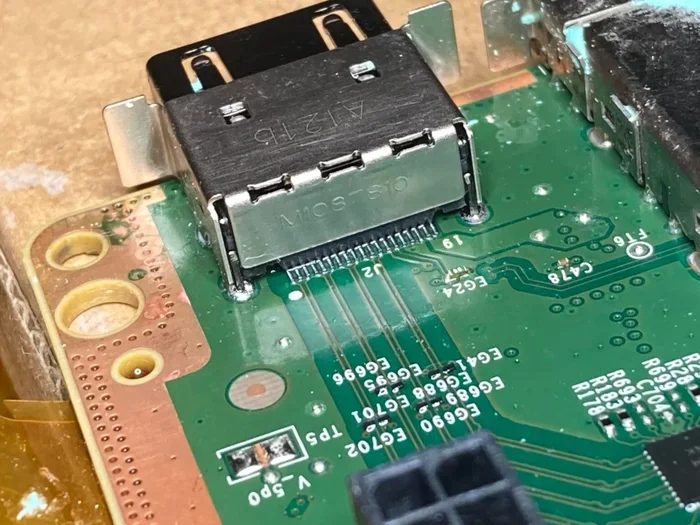
Most smart TVs and even basic LED TVs made in the last decade include at least one USB port. This port serves two purposes. It can power small devices like a USB fan or phone charger. It can also read media files like videos, music, and photos. When you plug in a USB drive with video files, your TV acts as a built-in media player.
How Does USB Playback Work on a TV?
When you insert a USB drive into your TV, the TV scans the device for media files. It looks for video files in supported formats. Once it finds them, it displays a list or a thumbnail view. You simply pick the file you want to watch, and the TV starts playing it. Some TVs even let you browse folders, sort by date, or create playlists.
The process is straightforward. You do not need Wi-Fi. You do not need a streaming app. You just need a USB cable or flash drive with your videos saved on it. This makes USB video playback on TV one of the most reliable methods for watching your own content.
How to Stream Video Through USB to TV
Setting up stream video via USB on your TV is easier than you might think. Follow these simple steps to get started.
Step-by-Step Connection Guide
Here is how to connect your USB device to your TV and start watching videos:
- Check your TV’s USB port. Look at the back or side of your TV. Find the USB port. It usually looks like a small rectangular slot with a USB icon next to it.
- Prepare your USB drive. Make sure your flash drive or external hard drive has your video files saved on it. Copy the files over if needed.
- Plug the USB drive into the TV. Insert the drive gently into the USB port. Do not force it. Most USB ports are designed to fit one way.
- Turn on your TV and switch to the USB input. Use your remote control to select the USB source. On some TVs, this is labeled as “Media,” “USB,” or “Input.”
- Browse and play your video. Your TV should display the files on your USB drive. Use the remote to navigate and select the video you want to watch.
That is it. No apps to download. No accounts to create. Your TV handles everything on its own.
Compatible Video Formats for USB TV Playback
Not all video formats work on every TV. Before you copy a bunch of files to your USB drive, check which formats your TV supports. Here are the most common ones:
- MP4 (H.264): This is the most widely supported format. Almost every TV can play MP4 files without any issues.
- AVI: Another common format that most TVs handle well. Quality may vary depending on the codec used.
- MKV: Supports high-quality video and multiple audio tracks. Many modern TVs support MKV, but some older models may not.
- MOV: Apple’s format. Some TVs play it, but compatibility is less consistent than MP4.
- FLV and WMV: These older formats may not work on all TVs. Try converting them to MP4 if you run into trouble.
If your TV does not recognize a file, the format is likely the problem. You can use free software like HandBrake or VLC to convert videos to MP4 before copying them to your drive.
Benefits of USB Streaming Without Extra Gear
There are many reasons to choose direct USB video playback over other methods. Here are the biggest advantages.
Cost Savings and Convenience
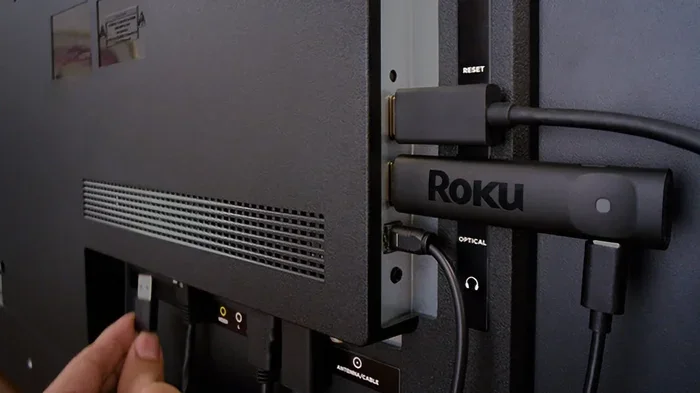
When you stream video through USB to TV, you skip the cost of streaming sticks like Roku, Chromecast, or Apple TV. Those devices can cost anywhere from $30 to $150. A basic USB flash drive costs less than $10. Your TV already has the port you need. You save money and avoid clutter on your entertainment center.
USB streaming is also incredibly convenient. You do not need an internet connection. You do not need to buffer or wait for videos to load. You just plug in and play. This makes it perfect for watching offline content, sharing large files with family, or setting up a movie night quickly.
No Subscription Fees
With streaming services, you pay monthly fees. With USB streaming, you pay nothing extra once you have the video file. You own your content. You control what you watch and when you watch it. There are no ads (unless the file itself has them). No terms of service. No data caps.
Privacy and Security
When you use USB playback, your videos stay on your device. They do not get uploaded to the cloud or tracked by streaming platforms. This is a big plus if you value privacy. Your personal videos, family recordings, and private files remain exactly where they are — on your USB drive.
Limitations and Common Problems
USB streaming to TV is not perfect. There are some limitations you should know about before you get started.
File Size and Format Restrictions
Some TVs cannot read files larger than 4 GB. This is because older TVs use the FAT32 file system, which has a 4 GB file size limit. If you have a large video file, you may need to split it into smaller parts or reformat your drive to exFAT or NTFS.
Another common issue is the USB video format for TV. If your TV does not support the format your video is in, it simply will not play. Always convert your videos to MP4 (H.264) for the best compatibility across different TV brands and models.
Drive Compatibility Issues
Not all USB drives work the same way on every TV. Some TVs work best with flash drives that have low power requirements. External hard drives that need their own power source may not work when plugged directly into a TV USB port. If your drive is not recognized, try using a smaller flash drive instead.
Audio and Subtitle Problems
Even if your video plays, the audio or subtitles might not work. This happens when the TV does not support the audio codec or subtitle format used in the file. For example, some TVs cannot play DTS audio tracks. In those cases, you may need to re-encode the video file with a more compatible audio format like AAC.
USB Streaming vs Other Methods
How does USB video playback on TV compare to other ways of watching video? Let us look at the most common alternatives.
| Method | Needs Internet? | Extra Gear Needed? | Cost | Best For |
|---|---|---|---|---|
| USB Streaming | No | No (just a USB drive) | Very low | Offline viewing, personal files |
| Smart TV Apps (Netflix, etc.) | Yes | No | Monthly fees | Streaming services, live TV |
| Streaming Stick (Roku, Fire Stick) | Yes | Yes (the stick) | Medium | App-based streaming |
| HDMI from Laptop | No | Yes (HDMI cable) | Low | Screen mirroring, presentations |
| Chromecast / AirPlay | Yes | Yes (dongle) | Medium | Wireless casting from phone |
As you can see, USB streaming to TV stands out for its simplicity and low cost. It does not require internet or extra devices. It is the go-to option when you want to watch your own files on the big screen with zero hassle.
However, streaming sticks and smart TV apps offer a much wider selection of content. They give you access to thousands of apps, live channels, and on-demand libraries. If you want variety, those options win. But if you just want to watch your own videos, USB is hard to beat.
Tips for the Best USB Streaming Experience
Want to get the most out of watch videos on TV from USB? Follow these practical tips to avoid problems and enjoy smooth playback.
Quick Tips for Better Performance
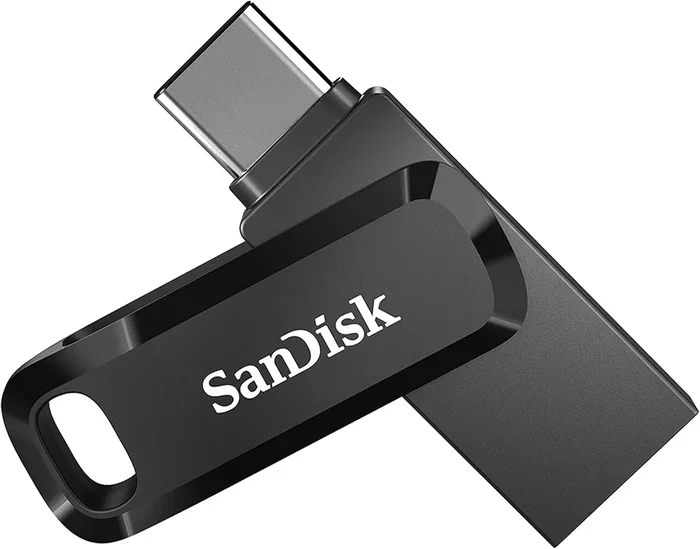
- Use a high-quality USB drive. Cheap, no-name drives can have slow read speeds that cause stuttering or lag during playback. Look for drives from trusted brands like SanDisk, Samsung, or Kingston.
- Format your drive as FAT32 or exFAT. FAT32 works on almost every TV. exFAT supports larger files and is also widely compatible. Avoid NTFS if your TV is older.
- Keep your video files organized. Put movies in one folder and TV shows in another. This makes it much easier to find what you want on your TV screen.
- Use short file names. Some TVs cannot display long or special character file names. Keep names simple and under 30 characters.
- Eject the drive properly. Always use the TV’s menu to safely remove the USB drive. Pulling it out while the TV is reading it can damage your files.
- Check your cable. If you are using a USB extension cable, make sure it is short and high quality. Long or cheap cables can cause connection drops.
Common Mistakes to Avoid
Here are some mistakes people make when trying to play movies from USB on TV that can cause frustration:
- Assuming all formats work: Not every TV supports every format. Always check your TV manual for supported file types before copying files.
- Using a drive that is too large: Some older TVs cannot recognize drives larger than 32 GB or 64 GB. If your drive is not showing up, try a smaller one.
- Ignoring video resolution: A 4K video may not play on a TV that only supports 1080p or lower. Check your TV’s maximum resolution before copying high-res files.
- Using a powered USB hub: Some TVs cannot provide enough power through the USB port. A hub may cause the drive to disconnect or not be recognized at all.
- Copying files while the drive is plugged into the TV: Always remove the drive from the TV first before adding or changing files on your computer.
Expert Insights on USB TV Streaming
USB streaming to TV has come a long way over the past decade. Early smart TVs could barely handle basic MP4 files. Today, many models support 4K playback, multiple audio tracks, and even subtitle files loaded from the same USB drive. The technology has improved dramatically, and TVs continue to get better at reading media files directly from external devices.
According to industry experts, the biggest factor in successful USB playback is format compatibility. The USB video format for TV matters more than the drive brand or cable quality. If you stick with MP4 (H.264) and keep your files under 4 GB, you will have a smooth experience on virtually any TV made in the last 8 to 10 years.
Another expert tip is to keep a backup copy of your USB files. USB drives can fail without warning. If you have important videos you want to watch on your TV, keep a copy on your computer or in the cloud as well. This way, you never lose your content if the drive stops working.
Final Thoughts on USB Video Playback
Can you stream video through USB to TV without extra gear? Absolutely. It is one of the easiest, cheapest, and most reliable ways to watch your own video content on the big screen. You do not need internet. You do not need subscriptions. You do not need fancy equipment. A simple USB drive and a TV with a USB port are all you need.
USB streaming to TV offers real benefits. It saves you money, protects your privacy, and gives you full control over your content. While it may not offer the vast library of a streaming service, it excels at what it does best — playing your personal videos with zero hassle.
If you have not tried USB video playback on TV yet, now is the perfect time. Grab a flash drive, copy a few of your favorite videos, and plug it into your TV. You will be amazed at how simple and satisfying it is. Once you experience the ease of direct USB video playback, you may never go back to complicated streaming setups again.
Remember the tips in this guide. Use the right formats. Organize your files. Keep your drive healthy. With these habits, your USB streaming to TV experience will be smooth and enjoyable every single time. Happy watching.
Frequently Asked Questions
Can I play any video file from USB on my TV?
Not every video file will work on every TV. Most TVs support MP4, AVI, and MKV formats. If your file is in an unsupported format, you may need to convert it to MP4 using free software like HandBrake or VLC before it will play on your TV.
What is the best USB format for TV playback?
FAT32 is the most compatible format with almost all TVs. It supports files up to 4 GB. If you need to play larger files, format your drive as exFAT, which is supported by most modern TVs and handles files larger than 4 GB.
Why is my TV not recognizing my USB drive?
This usually happens for one of a few reasons. The drive may be formatted in a format your TV does not support, like NTFS. The drive may need too much power that the TV USB port cannot provide. Or the drive may be faulty. Try a different USB drive or reformat it to FAT32 to see if that fixes the issue.
Can I watch 4K videos from USB on my TV?
Yes, but only if your TV supports 4K resolution and the video format is compatible. Most 4K TVs can play 4K MP4 files from USB. Check your TV manual to confirm it supports 4K playback through the USB port before copying large 4K files.
Do I need a special USB cable to connect my drive to the TV?
Usually no. Most TVs have standard USB-A ports that accept regular USB flash drives and external hard drives directly. If your drive uses USB-C, you may need a USB-C to USB-A adapter or cable, which is inexpensive and widely available.
Is USB streaming faster than Wi-Fi streaming?
Yes, in most cases. USB playback does not depend on your Wi-Fi speed or internet connection. The video loads directly from the USB drive, which means no buffering and no lag. This makes USB streaming more reliable, especially for large or high-quality video files.