Can You Use Hdmi Switch For Dual Monitors Explained
Yes, you can use an HDMI switch for dual monitors, but the right choice depends on your setup and needs. An HDMI switch lets you connect multiple sources to one or two displays, making it a handy tool for home offices, gaming setups, and electronic commerce workstations. This guide walks you through everything you need to know.
Have you ever wanted to run two monitors but only had one HDMI port on your computer? You are not alone. Many people face this problem every day, whether they are working from a home office, setting up a gaming station, or building a professional electronic commerce workstation. The idea of using an HDMI switch for dual monitors sounds simple enough. But the truth is, it is not always straightforward.
The good news is that it can work. The bad news is that not all HDMI switches are created equal. Some will give you a smooth experience with crisp display resolution on both screens. Others will leave you frustrated with flickering images, no audio, or constant signal drops. This guide breaks it all down for you. You will learn how HDMI switches work, what types exist, what to look for, and how to set everything up without a headache.
We also cover common mistakes people make when setting up a dual monitor configuration with an HDMI switch. By the end, you will know exactly what to buy, what to avoid, and how to get the best signal quality for your money. Let us dive in.
Key Takeaways
- An HDMI switch can work with dual monitors if you choose the right type and configuration for your needs.
- HDMI splitters and HDMI switches are different devices. A switch lets you toggle between sources, while a splitter sends one source to multiple displays.
- 4K resolution and refresh rate support are critical factors when choosing an HDMI switch for dual monitors.
- KVM switches offer more control by sharing keyboard and mouse between two computers and two monitors.
- Signal quality loss is a common issue with cheap HDMI switches. Always invest in a reliable brand.
- EDID management plays a big role in how well your dual monitor setup works with an HDMI switch.
📑 Table of Contents
- What Is an HDMI Switch and Why Do You Need One for Dual Monitors?
- How Does an HDMI Switch Work with Two Displays?
- Types of HDMI Switches for Dual Monitor Setups
- Key Features to Look for in an HDMI Switch for Dual Monitors
- Step-by-Step Guide to Setting Up Your HDMI Switch for Dual Monitors
- Common Problems and How to Fix Them
- Expert Tips for Getting the Best Performance
- Conclusion
What Is an HDMI Switch and Why Do You Need One for Dual Monitors?
Understanding the Basics of an HDMI Switch
An HDMI switch is a device that lets you connect multiple video input sources to a single display or, in some cases, multiple displays. Think of it like a traffic director for your HDMI cable signals. Instead of plugging and unplugging cables every time you want to switch between a laptop, a desktop, a game console, or a streaming box, the switch handles it all for you.
The device typically has several HDMI input ports and one or more output ports. You press a button or use a remote control to select which source you want to see on your screen. Some advanced models also support audio pass-through, which means your sound travels along with the video without needing a separate audio cable.
Why Dual Monitors Need Special Attention
Using a single HDMI switch for one monitor is relatively easy. But when you add a second monitor, things get more complex. Your computer needs to recognize both displays. The HDMI switch must be able to handle the display resolution and refresh rate demands of two screens at once. Not every switch on the market can do this reliably.
Many people assume that any HDMI switch will work for a dual monitor setup. That is a dangerous assumption. Some switches only support a single output. Others may support two outputs but limit the resolution or drop the refresh rate below what your monitors need. This is why understanding your specific needs matters before you buy anything.
For those running electronic commerce platforms or managing online stores, a reliable dual monitor setup is essential. Having two screens allows you to manage inventory, respond to customer messages, and monitor sales dashboards simultaneously. An HDMI switch can simplify this workflow by letting you toggle between different workstations or devices with ease, especially when integrated with a value added network for secure and efficient communication between systems. You can explore the advantages and disadvantages of using a value added network for electronic commerce communication to understand how network infrastructure impacts your setup.
How Does an HDMI Switch Work with Two Displays?
The Role of EDID in Dual Monitor Setups
EDID stands for Extended Display Identification Data. It sounds technical, but the concept is simple. Every monitor has an EDID chip that tells your computer what it can display. It shares information about supported resolutions, refresh rates, and color depths. When you add an HDMI switch into the mix, the switch must properly pass this EDID information to your computer.
If the HDMI switch does not handle EDID correctly, your computer might not recognize one or both monitors. You could experience a black screen, incorrect display resolution, or audio/video sync issues. This is one of the most common problems people face when setting up a dual monitor configuration with a switch.
Signal Routing: How the Switch Directs Video to Two Screens
When you use an HDMI switch for dual monitors, the switch routes the video input from your chosen source to both output ports. The key question is whether it does this without degrading the signal. A high-quality switch maintains full 4K resolution and a smooth refresh rate on both screens. A cheap switch might downgrade the signal or cause lag.
There are two main ways a switch handles dual outputs:
- Mirrored mode: Both monitors show the same image. This is useful for presentations or when you want identical displays.
- Extended mode: The monitors act as one large workspace. Your desktop spans across both screens, giving you more room for windows and applications.
Not all HDMI switches support extended mode. Some only support mirroring. This is a critical distinction you must check before purchasing. For gaming setups or productivity-heavy home office environments, extended mode is usually the better choice.
Types of HDMI Switches for Dual Monitor Setups
Basic HDMI Switches
A basic HDMI switch has multiple inputs and one or two outputs. You manually select which source to display using a button on the device or a remote control. These switches are affordable and work well for simple setups. They are great for people who want to connect a laptop, a desktop, and a game console to two monitors without spending a lot of money.
However, basic switches often lack advanced features like EDID management, automatic source detection, or support for the latest HDMI 2.1 standards. If you need high refresh rates or 8K resolution, a basic switch will likely not meet your needs.
HDMI Splitters vs. HDMI Switches
People often confuse HDMI splitters with HDMI switches, but they serve very different purposes. An HDMI splitter takes one input and sends it to multiple displays. Every screen shows the same content. An HDMI switch takes multiple inputs and lets you choose which one goes to your display or displays.
For a true dual monitor setup where each monitor shows different content from different sources, you need a switch, not a splitter. Some hybrid devices combine both functions, but they tend to be more expensive. Understanding this difference can save you money and a lot of frustration.
For users managing complex electronic commerce environments where multiple devices need to feed into displays for monitoring sales, customer interactions, and inventory, choosing between a splitter and a switch is a decision that directly impacts workflow efficiency. The communication infrastructure behind such setups, including value added network configurations, plays a significant role in how smoothly everything runs. You can read more about the pros and cons of value added networks for electronic commerce communication to see how network choices affect your hardware decisions.
KVM Switches: The All-in-One Solution
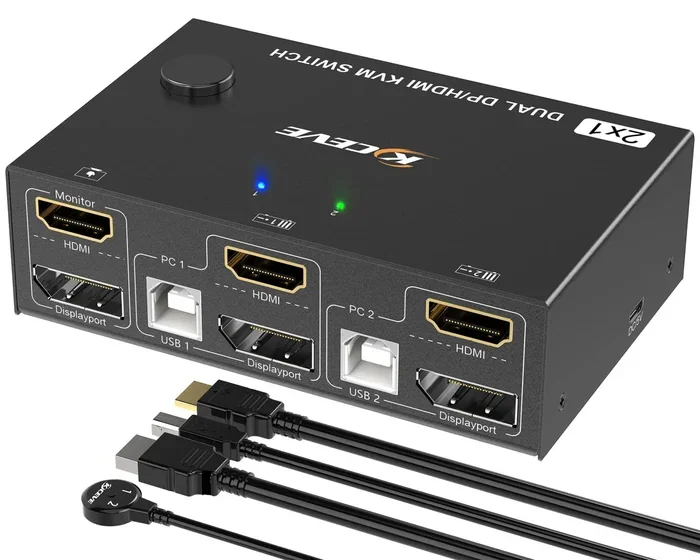
A KVM switch (Keyboard, Video, Mouse) is the most powerful option for dual monitor setups. It lets you share not just the displays but also a single keyboard and mouse between two or more computers. This is ideal for people who work with two PCs but want a clean, clutter-free desk.
KVM switches with dual monitor support are more expensive than basic HDMI switches. But they offer unmatched convenience. You can switch between computers with a single button press or keyboard shortcut. Your peripheral devices stay connected to both machines seamlessly. For professionals who switch between a work computer and a personal machine throughout the day, a KVM switch is a game changer.
Key Features to Look for in an HDMI Switch for Dual Monitors
Resolution and Refresh Rate Support
The most important spec to check is the maximum display resolution the switch supports. If your monitors are 4K, your switch must handle 4K. If you want a high refresh rate for gaming or video editing, make sure the switch supports at least 120Hz or 144Hz at your desired resolution.
Many budget switches only support 1080p or 4K at 30Hz. This can cause noticeable lag and a poor viewing experience. Always check the product specifications carefully before buying.
Number of Inputs and Outputs
Count your devices. How many sources do you want to connect? How many monitors do you need to feed? A switch with three or four inputs and two outputs covers most home office and gaming setups. If you need more, look for models with five or more inputs.
Keep in mind that more inputs and outputs usually mean a higher price tag. But for power users who connect multiple devices daily, the investment pays off quickly.
EDID Management and Auto-Switching
Good EDID management ensures your computer always recognizes both monitors correctly. Look for switches that offer EDID emulation or learning features. Auto-switching is another handy feature. It detects which source is active and switches to it automatically, saving you the trouble of pressing a button every time.
Build Quality and Cable Length
A well-built HDMI switch with quality components will deliver better signal quality over longer cable runs. Cheap plastic housings and thin internal wiring can introduce signal loss, especially if your cables are long. If your desk setup requires cables longer than six feet, invest in a switch with a strong signal amplifier.
Step-by-Step Guide to Setting Up Your HDMI Switch for Dual Monitors
Step 1: Gather Your Equipment
Before you start, make sure you have everything you need:
- An HDMI switch with dual output support
- Two HDMI cables (one for each monitor)
- Your video source (laptop, desktop, game console, etc.)
- A power supply for the switch if required
Step 2: Connect the HDMI Switch to Your Monitors
Plug one HDMI cable from the switch output port to your first monitor. Plug the second HDMI cable from the other output port to your second monitor. Make sure both connections are firm and secure. Loose cables are a common cause of signal problems.
Step 3: Connect Your Video Source to the Switch
Run an HDMI cable from your computer or device to one of the input ports on the switch. If you have multiple sources, connect each one to a separate input port.
Step 4: Power On and Configure Display Settings
Turn on your monitors and your video source. Go to your computer display settings and configure the dual monitor layout. Choose between mirrored or extended mode based on your preference. If the monitors are not detected, check the EDID settings on your switch and try reseating the cables.
For those using dual monitor setups in electronic commerce environments where seamless communication between systems is vital, ensuring proper EDID and signal routing is especially important. A stable value added network infrastructure can complement your hardware setup by ensuring consistent data flow across connected devices. Explore more about the advantages and disadvantages of value added networks for electronic commerce communication to optimize your entire setup.
Step 5: Test and Fine-Tune
Switch between your sources using the switch controls. Check for any flickering, resolution drops, or audio issues. Adjust your display settings as needed. If you experience problems, try different HDMI cables or ports. Sometimes the issue is not the switch but a faulty cable.
Common Problems and How to Fix Them
No Signal on One Monitor
This is the most common issue. It usually happens because of incorrect EDID settings or a loose cable connection. Try reseating both HDMI cables. If that does not work, check your switch for EDID emulation options and enable them. Restarting your computer can also help it re-detect the second monitor.
Flickering or Intermittent Signal
Flickering often points to a bandwidth problem. Your HDMI cable might be too long, or the switch might not handle the required refresh rate at your chosen resolution. Try lowering the resolution temporarily to see if the flickering stops. If it does, the switch or cable is the bottleneck.
No Audio Through HDMI
Some HDMI switches do not support audio pass-through. Check your switch specifications to confirm audio support. You can also try setting the HDMI output as the default audio device in your computer sound settings. If neither works, a separate audio cable can serve as a backup solution.
Resolution Drops When Switching Sources
When you switch between sources, the new source might have a different native display resolution than the previous one. Your computer may temporarily adjust the resolution during the switch. To fix this, manually set your preferred resolution in display settings after each switch.
Expert Tips for Getting the Best Performance
Here are some practical tips from people who have set up dozens of dual monitor configurations with HDMI switches:
- Buy a switch with HDMI 2.0 or higher for the best 4K support and color depth.
- Keep your HDMI cables short to minimize signal degradation. Six feet or less is ideal.
- Firmware updates can improve compatibility. Check the manufacturer website for updates after purchase.
- Avoid daisy-chaining switches. Connecting one switch to another almost always causes problems.
- Use a powered USB hub if your switch requires external power. A weak power supply can cause intermittent disconnections.
- Test your setup with all your devices before mounting monitors on your wall or desk permanently.
For professionals in fields like electronic commerce where reliable multi-device connectivity is non-negotiable, these tips can make a real difference in daily productivity. A well-configured HDMI switch setup, combined with a robust communication network, ensures you never miss a beat when managing online sales and customer interactions.
Conclusion
So, can you use an HDMI switch for dual monitors? Absolutely. The key is choosing the right type of switch for your specific needs and setup. Whether you need a simple basic HDMI switch for toggling between a laptop and a game console, or a full KVM switch for managing two computers with shared peripherals, the right device can transform your workspace.
Remember to check resolution support, EDID handling, and signal quality before making a purchase. Avoid the common mistakes outlined in this guide, and follow the setup steps carefully. With the right equipment and a little patience, your dual monitor configuration will run smoothly and efficiently.
Take what you learned here and apply it to your own setup. You will save money, avoid frustration, and enjoy a better computing experience on your dual monitors. Happy setup!
Frequently Asked Questions
Can any HDMI switch support dual monitors?
Not every HDMI switch supports dual monitors. You need a switch specifically designed with two output ports. Basic switches often have only one output. Always check the product specifications to confirm dual output support before buying.
Will an HDMI switch reduce my display quality?
A cheap or low-quality HDMI switch can reduce your display resolution and refresh rate. High-quality switches maintain full signal quality. Look for switches that support your monitor’s native resolution and refresh rate to avoid any quality loss.
What is the difference between an HDMI switch and an HDMI splitter?
An HDMI switch lets you choose between multiple input sources and display them on one or more screens. An HDMI splitter takes one input and sends the same signal to multiple displays. They serve different purposes and are not interchangeable.
Do I need a KVM switch instead of a regular HDMI switch?
It depends on your needs. If you just want to switch video sources between two monitors, a regular HDMI switch works fine. If you also want to share a keyboard and mouse between two computers, a KVM switch is the better choice.
Can I use an HDMI switch for gaming on dual monitors?
Yes, but you need a switch that supports high refresh rates and low input lag. Look for HDMI 2.0 or HDMI 2.1 switches that handle at least 120Hz at 4K. Budget switches may introduce lag that affects your gaming experience.
Why does one of my monitors show no signal when using an HDMI switch?
This is usually caused by EDID issues or loose cable connections. Try reseating your HDMI cables, enabling EDID emulation on your switch, and restarting your computer. If the problem persists, the switch may not be compatible with your monitor’s display settings.