Can You Use Ss Usb For Display And See The Difference
Yes, you can use SS USB for display — SuperSpeed USB connections, especially USB Type-C, can carry video signals to external monitors. This guide breaks down how SS USB for display works, which cables and adapters you need, and the speed and quality differences you will see.
Key Takeaways
- SS USB Can Carry Video: SuperSpeed USB, especially through USB Type-C, supports display output via Alt Mode and USB4 protocols.
- USB-C Is the Star: Most modern laptops and devices use USB-C, making it the easiest path to connect an external monitor.
- You Need the Right Cable: Not all USB cables support display. Look for cables rated for video output and sufficient bandwidth.
- Adapters Work Too: USB-C to HDMI or DisplayPort adapters let you connect almost any monitor to a USB-C port.
- Speed Matters for Quality: Higher USB versions mean better resolution support, smoother refresh rates, and less lag.
- Thunderbolt Supercharges Display: Thunderbolt 3 and 4 use the USB-C connector and offer the best display performance.
📑 Table of Contents
- Can You Use SS USB For Display And See The Difference
- What Is SS USB and Why Does It Matter for Display?
- Can You Use SS USB for Display? The Short Answer
- Types of SS USB Connectors for Display
- How to Set Up SS USB for Display
- Benefits of Using SS USB for Display
- Limitations You Should Know
- SS USB for Display vs. Traditional Video Connections
- Expert Tips for Getting the Best Display Quality
- Common Mistakes to Avoid
- Final Thoughts
Can You Use SS USB For Display And See The Difference
Have you ever plugged in a cable and wondered if your SuperSpeed USB port could actually drive a display? You are not alone. Many people have a USB-C port on their laptop or desktop and assume it only handles data and charging. The truth is, SS USB for display is not only possible but increasingly common in modern devices.
SuperSpeed USB has come a long way. What started as a simple data cable now carries video, audio, and power all at once. Whether you want to hook up an external monitor for work or build a dual-screen setup at home, understanding how SS USB for display works can save you time, money, and frustration. In this guide, we will walk you through everything you need to know.
We will cover the basics of SuperSpeed USB, explain how it connects to your screen, and give you practical tips to get the best results. By the end, you will know exactly what to look for and how to set it up like a pro.
What Is SS USB and Why Does It Matter for Display?
SS USB stands for SuperSpeed USB. It is the branding used by the USB Implementers Forum for USB 3.0 and later versions. Each new version brings faster data transfer speeds and better capabilities. But the big question is whether these connections can also send video to a display.
Understanding SuperSpeed USB
SuperSpeed USB started with USB 3.0 back in 2008. It offered speeds up to 5 Gbps. That was a huge jump from USB 2.0, which topped out at 480 Mbps. Since then, we have seen USB 3.1 (10 Gbps), USB 3.2 (20 Gbps), and now USB4 (40 Gbps and beyond).
Each new version improved bandwidth. More bandwidth means more data can flow through the cable at once. This is important because video signals need a lot of data. A 4K video stream, for example, requires significant bandwidth. So the faster the connection, the better the display quality you can support.
Here is a quick look at the different versions:
- USB 3.0 (SuperSpeed): Up to 5 Gbps. Supports basic 1080p display output.
- USB 3.1 Gen 2 (SuperSpeed+): Up to 10 Gbps. Handles 4K at 60Hz.
- USB 3.2 Gen 2×2: Up to 20 Gbps. Supports higher refresh rates and resolutions.
- USB4: Up to 40 Gbps. Can drive dual 4K displays or a single 8K display.
How USB Connects to Your Screen
Modern devices use a technology called Alt Mode to send video over USB-C cables. Alt Mode lets the USB-C port carry non-USB signals, like DisplayPort or HDMI, directly through the cable. This means you do not always need a separate video cable.
When you plug a USB-C cable into a port that supports Alt Mode, the port can switch from data mode to display mode. Your device then sends video signals through the same cable that charges your laptop and transfers files. It is a very elegant solution.
Not every USB-C port supports Alt Mode, though. Some ports are designed only for data and power. So before you buy a cable or adapter, check your device specifications. Look for terms like “DisplayPort Alt Mode” or “Thunderbolt” to confirm video support.
Can You Use SS USB for Display? The Short Answer
The short answer is yes. You can absolutely use SS USB for display in most modern setups. The key is understanding which USB version and connector type your device supports. Once you know that, you can choose the right cable or adapter.
USB-C Alt Mode Explained
USB-C Alt Mode is the technology that makes display output over USB possible. It allows a USB-C port to carry video signals using the DisplayPort or HDMI protocol. The port essentially splits its capabilities, handling both data and video at the same time.
Most laptops made after 2016 with USB-C ports support Alt Mode. This includes devices from Apple, Dell, HP, Lenovo, and many others. If your laptop has a USB-C port and it is not labeled as “charging only,” there is a good chance it supports display output.
Here are some quick signs your USB-C port supports Alt Mode:
- The port has a small lightning bolt or DisplayPort icon next to it.
- Your device manual mentions “display output” or “video over USB-C.”
- The port supports USB Power Delivery (USB-PD) for charging.
Which USB Versions Support Display Output?
Not all USB versions can carry video. Here is a simple breakdown:
- USB 2.0: No native display support. You need an active adapter, and quality will be limited.
- USB 3.0 (SS): Supports basic display through Alt Mode. Good for 1080p monitors.
- USB 3.1 and 3.2 (SS+): Full display support with good bandwidth for 4K.
- USB4: Best display support. Handles multiple high-resolution monitors with ease.
As you can see, SS USB for display works best with USB 3.0 and later. If you are still using USB 2.0 ports, you will need an active converter, and the experience will not be as smooth.
Types of SS USB Connectors for Display
Not all USB connectors are the same. The type of connector you use affects how you connect to your display and what quality you get. Let us look at the most common options.
USB Type-C and Display Capabilities
USB Type-C is the most popular connector for display output today. It is small, reversible, and supports Alt Mode. Most modern laptops, tablets, and even some desktops now come with USB-C ports.
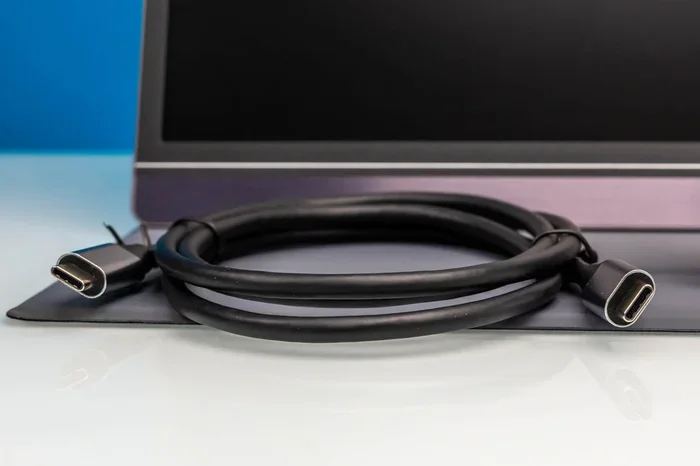
The beauty of USB-C is that one cable can do everything. It can charge your device, transfer files, and send video to a monitor. This makes it incredibly convenient for people who travel or work in tight spaces.
Here are some practical tips for using USB-C for display:
- Use a certified USB-C cable rated for video output.
- Check the cable’s bandwidth rating — look for 10 Gbps or higher for 4K.
- Avoid very long cables (over 6 feet) unless they are active, as signal quality can drop.
- If your monitor has USB-C input, a direct cable gives you the simplest setup.
USB-A to Display Adapters
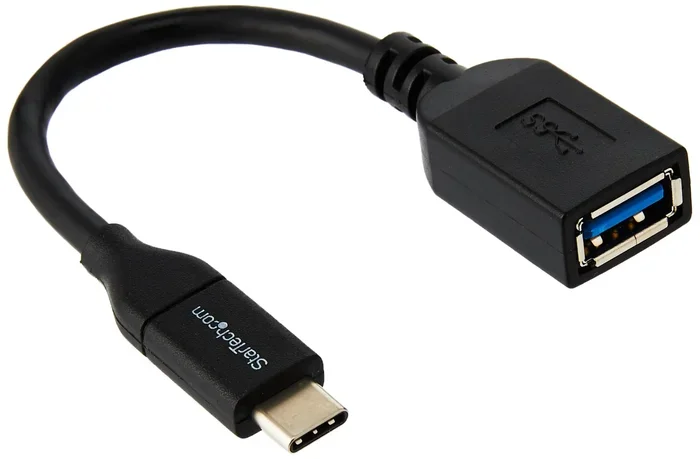
If your computer only has USB-A ports (the traditional rectangular ones), you can still connect a display. You just need an adapter. USB-A to HDMI or USB-A to DisplayPort adapters are widely available and affordable.
However, keep in mind that USB-A ports on older computers may not be SuperSpeed. A USB 2.0 port will give you a much worse experience than a USB 3.0 or USB-C port. For the best results, try to use a USB 3.0 or later port with your adapter.
How to Set Up SS USB for Display
Setting up a display over SS USB for display is straightforward once you have the right equipment. Here is a step-by-step guide to help you get started.
What You Need
Before you begin, gather these items:
- A computer or laptop with a USB-C or USB 3.0 port that supports video output.
- A monitor with a compatible input (USB-C, HDMI, or DisplayPort).
- The right cable or adapter. Options include:
- USB-C to USB-C cable: Best for monitors with USB-C input.
- USB-C to HDMI adapter or cable: Works with most HDMI monitors.
- USB-C to DisplayPort adapter or cable: Ideal for DisplayPort monitors.
- USB-C docking station: Great for multi-monitor setups and added ports.
Step-by-Step Setup
Follow these steps to connect your display:
- Check your computer’s USB port. Look for the lightning bolt or DisplayPort icon to confirm Alt Mode support.
- Choose the right cable or adapter based on your monitor’s input type.
- Plug the USB-C end into your computer.
- Connect the other end to your monitor (direct cable, HDMI cable, or DisplayPort cable).
- Turn on your monitor and select the correct input source.
- Go to your computer’s display settings and configure the output. You can choose to mirror or extend your screen.
That is it. In most cases, the display will work immediately. If it does not, try a different cable or check your display settings.
Benefits of Using SS USB for Display
Using SS USB for display offers several real advantages. Let us look at why this approach is gaining popularity.
Speed and Bandwidth
SuperSpeed USB provides generous bandwidth for video signals. USB 3.1 and USB 3.2 can handle 4K resolution at 60Hz without any issues. USB4 pushes even further, supporting 8K and multiple displays simultaneously.
This means you get a crisp, clear image with smooth motion. Whether you are editing video, playing games, or working with spreadsheets across multiple screens, the performance is excellent.
Convenience and Versatility
One cable for data, video, and power is a game changer. You do not need to manage three separate cables cluttering your desk. A single USB-C cable handles it all.
This is especially useful for people who use docking stations. A single USB-C connection to your laptop can power your monitor, charge your battery, and connect to peripherals like keyboards, mice, and external drives.
Cost Savings
Because USB-C is so common, cables and adapters are very affordable. You do not need expensive proprietary connectors. A good USB-C to HDMI cable costs just a few dollars and works with most setups.
Limitations You Should Know
While SS USB for display is powerful, there are some limitations you should be aware of before you set up your system.
Cable Length and Signal Quality
USB signals can degrade over long distances. For passive cables, keep the length under 6 feet (about 2 meters) for the best quality. If you need a longer run, use an active cable that includes a signal booster.
Signal degradation can cause flickering, resolution drops, or no signal at all. This is especially true at higher resolutions like 4K and 8K.
Compatibility Issues
Not all devices and monitors play nicely together. Some older monitors only have HDMI or DisplayPort inputs, which require adapters. Some adapters are passive and some are active, and this matters for compatibility.
Here are common issues and how to fix them:
- No signal: Try a different cable or adapter. Check that your port supports Alt Mode.
- Low resolution: Your cable may not support the bandwidth needed for higher resolutions.
- Flickering display: The cable may be too long or damaged. Replace it with a shorter, high-quality cable.
- No audio: Some USB-C to HDMI setups need you to select the audio output in your system settings.
Power Delivery Conflicts
USB-C cables that carry video can also carry power. But sometimes, the power delivery can interfere with the display signal, especially with long cables or low-quality adapters. If you experience issues, try a cable that separates power and video delivery.
SS USB for Display vs. Traditional Video Connections
How does SS USB for display compare to traditional video connections like HDMI and DisplayPort? Here is a quick comparison.
| Feature | USB-C (SS USB) | HDMI | DisplayPort |
|---|---|---|---|
| Max Resolution | 8K (with USB4) | 4K to 8K (HDMI 2.1) | 8K (DisplayPort 2.1) |
| Max Refresh Rate | 240Hz (with USB4) | 240Hz (HDMI 2.1) | 240Hz (DP 2.1) |
| Carries Power | Yes (USB-PD) | No | No |
| Carries Data | Yes | No | No |
| Cable Reversibility | Yes | No | No |
| Common on Laptops | Very Common | Less Common | Rare |
As you can see, USB-C with SuperSpeed capabilities offers the most versatility. It combines video, data, and power in one small connector. Traditional connections like HDMI and DisplayPort still have their place, especially for dedicated home theater setups or high-end gaming monitors. But for everyday use and productivity, SS USB for display is hard to beat.
Expert Tips for Getting the Best Display Quality
Want to squeeze every bit of performance from your SS USB for display setup? Follow these expert tips.
- Buy certified cables: Look for USB-IF certification or Thunderbolt certification. These cables meet strict quality standards and ensure reliable performance.
- Check your GPU support: Your graphics card or integrated graphics must support the resolution and refresh rate you want. A USB-C cable alone cannot improve your GPU’s capabilities.
- Use a docking station for multi-monitor setups: A good USB-C docking station can drive two or more monitors with ease. Look for one that supports the resolution and refresh rate you need.
- Keep cables short: Shorter cables maintain better signal quality. Under 6 feet is ideal for passive cables.
- Update your drivers: Graphics drivers and USB firmware updates can improve display performance and fix compatibility issues.
- Use Thunderbolt when possible: Thunderbolt 3 and 4 offer the best display performance over USB-C. If your device supports it, take advantage of it.
Common Mistakes to Avoid
Setting up a display over SS USB for display is simple, but people still make avoidable mistakes. Here are the most common ones.
- Using a USB 2.0 cable for display: USB 2.0 does not have enough bandwidth for video. Always use a USB 3.0 or later cable.
- Assuming all USB-C ports support video: Some USB-C ports are charging only. Check your device specs before buying a cable.
- Buying cheap, uncertified cables: Low-quality cables can cause flickering, low resolution, or no signal at all. Stick with reputable brands.
- Using too long a passive cable: Long passive cables lose signal quality. Go with an active cable for runs over 6 feet.
- Ignoring adapter quality: A bad adapter can ruin your display experience. Invest in a quality adapter from a trusted brand.
Final Thoughts
SS USB for display is a practical, versatile, and increasingly essential technology. Whether you are a student, a professional, or a casual user, being able to connect your monitor through a single USB-C cable simplifies your workspace and boosts productivity.
The key is knowing your device’s capabilities and choosing the right cable or adapter. With SuperSpeed USB 3.0 and later, you can enjoy high-resolution displays, smooth refresh rates, and the convenience of a single cable for everything.
Now that you understand how SS USB for display works, you can make informed decisions about your setup. Check your ports, grab the right cable, and enjoy the difference a quality connection makes.
Frequently Asked Questions
Can any USB-C port be used for display output?
No, not all USB-C ports support video output. Look for ports labeled with a DisplayPort icon or a lightning bolt symbol. Check your device manual to confirm that the port supports Alt Mode or Thunderbolt.
What is the difference between USB 3.0 and USB 3.1 for display?
USB 3.0 (SuperSpeed) offers up to 5 Gbps and handles 1080p and basic 4K. USB 3.1 (SuperSpeed+) doubles the speed to 10 Gbps, which supports smoother 4K at 60Hz. The higher the speed, the better the display quality you can achieve.
Do I need a special cable for SS USB display?
You need a cable that supports video output. A standard USB-C data cable may not carry a display signal. Look for cables rated for display or Thunderbolt, and make sure they are certified by USB-IF or a similar organization.
Can I connect a 4K monitor using SS USB?
Yes, you can connect a 4K monitor using SuperSpeed USB. USB 3.1 and later versions support 4K at 60Hz. For the best experience, use a high-quality USB-C cable or a Thunderbolt connection.
Does SS USB for display support audio?
Yes, most SS USB for display setups carry audio along with video. When you connect via USB-C Alt Mode, both audio and video signals are transmitted through the same cable. You may need to select the USB-C audio output in your system sound settings.
Is Thunderbolt the same as SuperSpeed USB for display?
Thunderbolt uses the USB-C connector and is backward compatible with USB. Thunderbolt 3 and 4 offer the best display performance, supporting higher resolutions and refresh rates than standard SuperSpeed USB. If your device has Thunderbolt, use it for the best display experience.
=== CONCLUSION ===
SS USB for display is a powerful and convenient way to connect your monitors to modern devices. With SuperSpeed USB 3.0 and later, you get fast data transfer, high-quality video output, and the ability to charge your device all through a single cable. The technology has matured, and today it is one of the simplest and most versatile display solutions available.
Remember to check your port capabilities, use certified cables and adapters, and avoid the common mistakes we outlined. Whether you are setting up a single external monitor or a multi-screen workstation, SS USB for display delivers the performance and convenience you need. Try it out and see the difference for yourself.