Can You Talk To Google Wifi Points Here Is Everything
Can you talk to Google WiFi points? Absolutely. You can manage, control, and troubleshoot your Google WiFi system using the Google Home app, voice commands through Google Assistant, and the Google WiFi app. This guide covers everything from setup and placement to advanced settings, common issues, and expert tips that will help you get the most out of your mesh WiFi network.
Can you talk to Google WiFi points? If you have a Google WiFi mesh system at home, this is probably a question you have asked yourself at some point. Maybe your WiFi is acting up, or you just want to understand what your points can do. The short answer is yes. You can absolutely communicate with your Google WiFi points in several ways. You can use the Google Home app, the Google WiFi app, and even voice commands through Google Assistant.
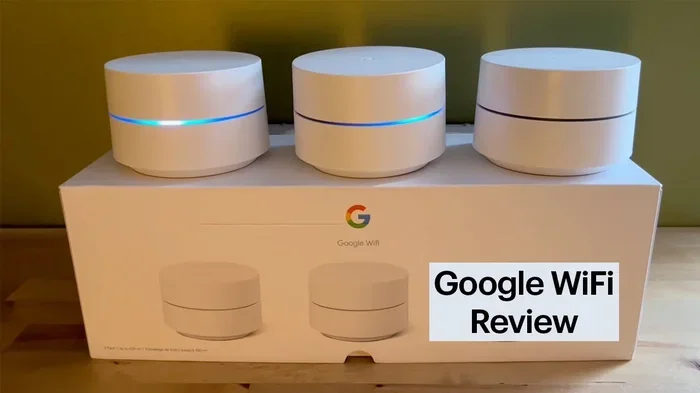
Google WiFi is a mesh networking system made by Google. It replaces your traditional router and gives you strong, reliable WiFi coverage throughout your entire home. Instead of one router doing all the work, Google WiFi uses multiple points. These points talk to each other. They share the load. They spread the signal evenly. And you can control them all from one place.
In this article, we will cover everything you need to know about talking to your Google WiFi points. We will walk through setup, voice commands, app controls, troubleshooting, and expert tips. Whether you are a beginner or a tech-savvy user, you will find something useful here.
Key Takeaways
- You can talk to Google WiFi points using the Google Home app, Google WiFi app, and voice commands through Google Assistant.
- Google WiFi points work as a mesh network, giving you seamless coverage throughout your home or office.
- Placing your WiFi points correctly is essential for the best signal strength and internet speeds.
- Voice commands let you restart your network, check WiFi status, and manage connected devices hands-free.
- Troubleshooting common issues like slow speeds or connection drops is simple with the right steps.
- Advanced settings and expert tips can help you optimize your Google WiFi setup for peak performance.
📑 Table of Contents
- What Are Google WiFi Points?
- Can You Talk To Google WiFi Points Using the Google Home App
- Using Voice Commands With Google Assistant
- Troubleshooting Your Google WiFi Points
- Google WiFi Point Placement Tips
- Advanced Settings and Features
- Expert Tips for Getting the Most From Your Google WiFi
- Frequently Asked Questions
- Conclusion
What Are Google WiFi Points?
Before we dive into how you can talk to Google WiFi points, let us quickly understand what they are. Google WiFi points are small devices that work together to create a mesh network. A mesh network is a type of WiFi setup where multiple devices share the workload. Instead of one router broadcasting a signal from one spot, multiple points spread the signal across your home.
Each Google WiFi point acts as a mini router. It connects to your modem. It connects to other WiFi points. And it sends a strong, stable signal to every corner of your house. This is very different from a traditional WiFi extender. A mesh system like Google WiFi creates one unified network. Your phone and laptop do not need to switch between networks as you move around your home.
How Do WiFi Points Communicate With Each Other?
Google WiFi points use a dedicated wireless backhaul channel. This means the points talk to each other on a separate frequency. This keeps your main WiFi band free for your devices. The result is faster speeds and better performance. The points share data between them automatically. You do not need to configure anything manually.
Each point also has an LED light on top. This light tells you the status of your WiFi point. A solid white light means everything is working. An orange light means there is an issue. And a blue light means the point is ready for setup. Understanding these lights helps you monitor your network without opening any app.
Can You Talk To Google WiFi Points Using the Google Home App
Yes, you can. The Google Home app is the primary way to talk to your Google WiFi points. It is available for both Android and iOS devices. Once you download the app and set up your WiFi points, you can access a full dashboard. This dashboard gives you control over your entire network.
What Can You Do Through the Google Home App?
The Google Home app gives you a lot of power over your Google WiFi points. Here are some of the things you can do:
- Check WiFi speed: Run a speed test directly from the app to see how fast your connection is.
- See connected devices: View a list of all devices connected to your network.
- Pause internet: Pause WiFi access for specific devices or for the whole network.
- Restart your network: Reboot your Google WiFi points with a single tap.
- Update firmware: Keep your WiFi points running the latest software.
- Set up guest access: Create a separate WiFi network for visitors.
- Change WiFi settings: Adjust channel width, band steering, and more.
The app is very user-friendly. Even if you are not tech-savvy, you can navigate it easily. The main screen shows all your WiFi points. You can tap on any point to see its status, signal strength, and connected devices. This makes network management simple and straightforward.
Setting Up Your WiFi Points Through the App
Setting up Google WiFi points through the app is a breeze. Here is a quick step-by-step guide:
- Download the Google Home app from the App Store or Google Play Store.
- Plug in your Google WiFi point and wait for the light to turn solid white.
- Open the app and tap the plus sign to add a new device.
- Follow the on-screen instructions to connect your point to your modem.
- Once connected, add more points in other rooms if needed.
- The app will automatically position each point on your home map.
During setup, the app will ask you to name your WiFi network and create a password. Make sure you pick a strong password. This keeps your network secure from unwanted users. You can also name each WiFi point individually. This helps you identify them easily in the app.
Using Voice Commands With Google Assistant
Can you talk to Google WiFi points using your voice? Yes, you can. Google Assistant is built into many Google devices. This includes Google Nest speakers, Google Home Mini, Google Nest Hub, and Android phones. You can use voice commands to control your Google WiFi mesh system without touching your phone.
Voice Commands You Can Use
Google Assistant supports a variety of voice commands for your WiFi points. Here are some of the most useful ones:
- “Hey Google, restart my WiFi.” This reboots your entire Google WiFi network.
- “Hey Google, how is my WiFi?” Google Assistant can check your connection status.
- “Hey Google, pause the WiFi in the living room.” You can pause internet for specific groups of devices.
- “Hey Google, run a WiFi speed test.” Get instant results on your network speed.
- “Hey Google, connect to the guest network.” Switch between your main and guest networks.
These voice commands make managing your network super convenient. You do not need to open an app. You do not need to type anything. Just speak, and Google Assistant handles the rest. This is especially helpful when you have guests over and need to quickly restart the network or check the speed.
Setting Up Voice Control for Your WiFi Points
To use voice commands, make sure your Google WiFi points are linked to the same Google account as your Google Assistant device. Open the Google Home app. Go to Settings. Tap Google Assistant. Make sure your WiFi network is listed under your connected services. Once linked, you can start using voice commands right away.
You can also create custom routines. For example, you could set up a routine called “Goodnight.” When you say “Hey Google, goodnight,” it could turn off your WiFi for certain devices, lock your doors, and lower your smart lights. The possibilities are endless with Google Assistant integration.
Troubleshooting Your Google WiFi Points
Even the best mesh WiFi systems can have issues from time to time. If you are having trouble with your Google WiFi points, you can troubleshoot them directly through the app or with voice commands. Here are the most common problems and how to fix them.
Slow WiFi Speeds
Slow speeds are one of the most common complaints. If your Google WiFi points are not delivering the speed you expect, try these steps:
- Run a speed test in the Google Home app to see what you are getting.
- Move your WiFi points closer together. Mesh points need a strong connection to each other.
- Check for interference. Microwaves, baby monitors, and other electronics can disrupt WiFi signals.
- Restart your network. A simple reboot can often fix speed issues.
- Make sure your internet plan from your ISP is fast enough for your needs.
Sometimes slow speeds are not a Google WiFi issue at all. They could be caused by your internet service provider. Contact your ISP if you suspect the problem is on their end. But most of the time, a quick restart or repositioning of your points solves the issue.
WiFi Point Not Connecting
If one of your Google WiFi points is not connecting, here is what you can do:
- Check the LED light on the point. A solid white light means it is connected. An orange light means there is a problem.
- Restart the point by unplugging it and plugging it back in.
- Move the point closer to your router or another connected point.
- Remove the point from the app and add it back again.
- Make sure your firmware is up to date through the Google Home app.
Most connection issues are resolved with a simple restart. If the problem persists, removing and re-adding the point in the app usually does the trick. This resets the connection without losing any of your settings.
Devices Not Connecting to WiFi
If your phone, tablet, or laptop cannot connect to your Google WiFi network, try these steps:
- Make sure you are connecting to the correct network name.
- Forget the network on your device and reconnect with the password.
- Restart your device.
- Check if other devices can connect. If they can, the issue is with that specific device.
- Pause and unpause the network through the Google Home app.
Sometimes devices just need a fresh connection. Forgetting the network and reconnecting clears any cached data that might be causing the problem. This is a quick fix that works more often than you might think.
Google WiFi Point Placement Tips
Where you place your Google WiFi points matters a lot. Good placement means better coverage, faster speeds, and fewer connection drops. Bad placement can cause dead zones and slow internet in parts of your home.
Best Practices for WiFi Point Placement
Here are some tips to help you get the most out of your Google WiFi points:
- Place points in central locations. Do not hide them in corners or behind furniture. Central placement gives the best spread.
- Keep points within range of each other. Each point needs to be close enough to the next to maintain a strong connection.
- Avoid placing points near metal objects. Metal blocks WiFi signals and can weaken your connection.
- Elevate your points. Place them on shelves or tables rather than on the floor.
- Keep them away from water sources. Water absorbs WiFi signals and can reduce performance.
- Use the Google Home app heat map. The app shows you signal strength in different areas of your home. Use this to find the best spots.
A good rule of thumb is to place your WiFi points about 30 to 40 feet apart. This gives you solid coverage without signal degradation. If you have a large home, you may need more points. Google WiFi supports up to several points in one network. You can add as many as you need to cover your entire space.
Common Placement Mistakes to Avoid
Here are some mistakes that many people make when setting up their Google WiFi points:
- Placing the main point too far from the modem.
- Hiding points inside cabinets or closets.
- Stacking points on top of each other.
- Placing points near thick walls or concrete surfaces.
- Ignoring the LED indicators that tell you about signal strength.
Avoiding these mistakes will save you a lot of frustration. Your WiFi points need open space and clear line of sight to each other. Treat them like any other electronic device that needs good airflow and minimal interference.
Advanced Settings and Features
Once you have your Google WiFi points set up and running smoothly, you can explore some advanced settings. These features give you more control over your network and help you get the best performance possible.
Network Management and Device Controls
The Google Home app lets you manage your network in detail. You can see which devices are using the most bandwidth. You can prioritize certain devices for faster speeds. You can also set up parental controls to manage screen time for your kids.
Parental controls are a standout feature of Google WiFi. You can pause internet access for specific devices at certain times. You can also set up content filters to block inappropriate websites. This is a great tool for families who want to keep their kids safe online.
Guest Network Setup
Setting up a guest network is easy with Google WiFi. You can create a separate network for visitors. This keeps your main network secure. Guests get internet access without being able to see your shared files or smart home devices.
To set up a guest network, open the Google Home app. Tap on your WiFi point. Go to Settings. Select Guest Network. Turn it on and set a password. Your guests can now connect to a separate network. When they leave, you can turn it off or change the password.
WiFi Band Steering
Google WiFi uses band steering to automatically direct your devices to the best frequency band. Most Google WiFi points support both 2.4 GHz and 5 GHz bands. The 2.4 GHz band covers a wider area but has slower speeds. The 5 GHz band is faster but has a shorter range. Band steering ensures your devices use the best band for their location and activity.
You can also disable band steering if you prefer manual control. This is useful if you have older devices that do not handle 5 GHz well. The Google Home app gives you the option to adjust these settings based on your needs.
Expert Tips for Getting the Most From Your Google WiFi
Here are some expert tips that can help you squeeze every bit of performance out of your Google WiFi system:
- Restart your network regularly. A weekly restart clears caches and refreshes connections. Use a voice command or the app to do this in seconds.
- Keep your firmware updated. Google releases updates that improve performance and fix bugs. The Google Home app notifies you when updates are available.
- Use Ethernet backhaul when possible. If you can run an Ethernet cable between your points, your speeds will be even faster.
- Name your networks clearly. Give each WiFi point a descriptive name like “Living Room” or “Bedroom” so you can easily identify them in the app.
- Monitor your network usage. Check the Google Home app regularly to see which devices are using the most data. This helps you spot issues early.
- Position your main point near your modem. The main point is the hub of your mesh network. It needs a strong connection to your internet source.
- Use the Google WiFi app for advanced settings. The Google WiFi app offers more detailed controls than the Google Home app. It is worth downloading if you want deeper access to your network settings.
These tips may seem small, but they add up to a big difference in your WiFi experience. A well-maintained Google WiFi system can last for years and deliver consistent, reliable performance throughout your home.
Frequently Asked Questions
Can You Talk To Google WiFi Points Without the App?
Yes, you can use voice commands through Google Assistant to control your WiFi points without the app. Simply say “Hey Google” followed by your command. However, the app provides more detailed controls and settings that voice commands cannot access.
How Many Google WiFi Points Can You Use in One Network?
Google WiFi supports up to several points in a single network. The exact number depends on your home size and layout. Most users find that 2 to 3 points are enough for a standard home. Larger homes may need more points for full coverage.
Can You Use Google WiFi Points With Any Modem?
Google WiFi points work with most modems. You just need a modem that provides an Ethernet connection. If you are unsure, check with your internet service provider. They can tell you if your modem is compatible with mesh WiFi systems.
Do Google WiFi Points Work Without the Internet?
Google WiFi points need an active internet connection to provide full functionality. However, they can still create a local network between your devices. This means you can share files and print wirelessly even without internet access. But you will not be able to browse the web or stream content.
How Do You Reset a Google WiFi Point?
To reset a Google WiFi point, press and hold the reset button on the back of the device for about 8 seconds. The LED light will flash, indicating the point has been reset. You can then set it up again through the Google Home app.
Is Google WiFi Better Than a Traditional Router?
For most homes, Google WiFi is better than a traditional single router. The mesh system provides wider coverage, fewer dead zones, and better performance in multi-story homes. However, if you live in a small apartment, a traditional router might be sufficient. Google WiFi really shines in larger homes with multiple rooms and floors.
Conclusion
Can you talk to Google WiFi points? The answer is a clear yes. You have multiple ways to communicate with and control your Google WiFi mesh system. The Google Home app gives you full control over your network. Google Assistant lets you use voice commands to manage your WiFi hands-free. And the Google WiFi app offers advanced settings for power users.
Your Google WiFi points are more than just signal boosters. They are smart devices that can be managed, monitored, and optimized. With the right placement, regular maintenance, and smart use of features like parental controls and guest networks, you can get the best possible WiFi experience in your home.
Take some time today to explore your Google WiFi settings. Try out a few voice commands. Check your network speed. And make sure your points are positioned for the best coverage. A little effort goes a long way when it comes to getting the most out of your Google WiFi system.
Now that you know everything about talking to your Google WiFi points, you are ready to take control of your home network. Enjoy faster speeds, better coverage, and the peace of mind that comes with a well-managed mesh WiFi system.