How Do I Change My Iphone Bluetooth Name in Seconds
Changing your iPhone Bluetooth name is quick and simple. This guide answers how do I change my iPhone Bluetooth name in just a few taps. You will learn step-by-step instructions, helpful tips, and troubleshooting fixes to rename your Bluetooth device perfectly.
Have you ever looked at a list of Bluetooth devices and thought, “Which one is mine?” It happens all the time. Your phone shows up as “iPhone” alongside a dozen other iPhones in the room. That is frustrating when you are trying to pair a device or share files. The good news is that changing your Bluetooth name takes only a few seconds. You do not need any tech skills or a computer. This guide walks you through every step clearly and simply.
Many people do not realize that your iPhone Bluetooth name is tied to your overall device name. When you change one, the other updates too. This means your personal hotspot name, your AirDrop name, and your Bluetooth device name all stay in sync. That is actually a big help. It saves you from having to update names in multiple places. In this article, we will cover exactly how to change your name, why it matters, and what to do if something goes wrong.
Whether you want a fun new name, a more professional label, or just need to fix a pairing issue, you are in the right place. We will walk through each step with clear instructions and practical tips. By the end, you will know exactly how to rename your Bluetooth device and make it work for you. Let us get started.
Key Takeaways
- Easy Access: You can change your Bluetooth name right from the iPhone settings app in under a minute.
- One Name Rules Them All: Your Bluetooth name, hotspot name, and AirDrop name all pull from the same iOS device name.
- No Computer Needed: You can rename your Bluetooth device directly on your iPhone without a PC or Mac.
- Quick Fix for Issues: A simple rename can solve Bluetooth pairing and visibility problems.
- Personalization Matters: A unique Bluetooth name helps you stand out in crowded Bluetooth environments.
- Syncs Across Devices: Changing your iCloud name updates your Bluetooth name on all linked Apple devices.
📑 Table of Contents
- Why You Might Want to Change Your iPhone Bluetooth Name
- Step-by-Step: How Do I Change My iPhone Bluetooth Name
- How iPhone Bluetooth Names Connect to Other Features
- Tips for Choosing the Best Bluetooth Name
- Troubleshooting: Bluetooth Name Not Changing?
- Expert Tips for Better Bluetooth Naming
- Conclusion
Why You Might Want to Change Your iPhone Bluetooth Name
There are many good reasons to rename your Bluetooth device name. Some reasons are practical. Others are just for fun. Let us look at the most common ones.
Stop the “iPhone” Confusion
This is the number one reason. When you walk into a coffee shop or a meeting room, every iPhone shows up as “iPhone.” If you have several people nearby trying to connect, things get messy. A unique Bluetooth name helps others find your device fast. You might use your first name, your job title, or something creative. Anything that makes you stand out works.
Make Bluetooth Pairing Easier
A clear Bluetooth name makes Bluetooth pairing smoother. When your friend or colleague sees “Sarah’s iPhone” or “John’s Studio Phone,” they know exactly which device to tap. This reduces back-and-forth and saves time. It is a small change that makes a big difference in daily use.
Keep Your Hotspot and AirDrop Names Consistent
Your iPhone hotspot name and AirDrop name pull from the same source as your Bluetooth name. So when you rename your device, everything updates together. This is great for people who use their phone as a personal hotspot often. Your hotspot guests will see your new name right away.
Add a Personal Touch
Let us be honest. Customizing your Bluetooth renaming is fun. You can add a emoji, a nickname, or a clever phrase. It makes your iPhone identification feel more like you. There is no rule that says your name has to be boring.
Step-by-Step: How Do I Change My iPhone Bluetooth Name
Here is the core of this guide. Changing your iPhone Bluetooth name is done through the iPhone settings app. The process is the same across most iOS versions. Follow these steps carefully.
Step 1: Open the Settings App
Unlock your iPhone. Find the Settings app on your home screen. It looks like a gray gear icon. Tap it once to open. The iPhone settings app is where you control almost every feature on your phone. If you cannot find it, swipe down on your home screen and use the search bar. Type “Settings” and tap the app when it appears.
Step 2: Go to General Settings
Scroll down until you see “General.” Tap on it. This section holds many important controls for your iOS device name and system settings. It is located near the top of the Settings menu, so you should not have to scroll far.
Step 3: Tap on About
Inside the General menu, look for “About.” Tap on it. This screen shows detailed information about your iPhone. You will see your current device name at the very top. This is the name that controls your Bluetooth name, your hotspot name, and your AirDrop name all at once.
Step 4: Tap on the Device Name
Right at the top of the About screen, you will see your current name. It might say “iPhone” or something you set before. Tap on that name field. A keyboard will pop up, and you can now edit the text.
Step 5: Type Your New Name
Delete the old name and type your new one. Keep it short and recognizable. A name like “Alex’s iPhone” or “Work Phone – Sam” works great. Avoid using special characters that might confuse other devices. Once you are happy with the name, tap “Done” on the keyboard.
Step 6: Confirm the Change
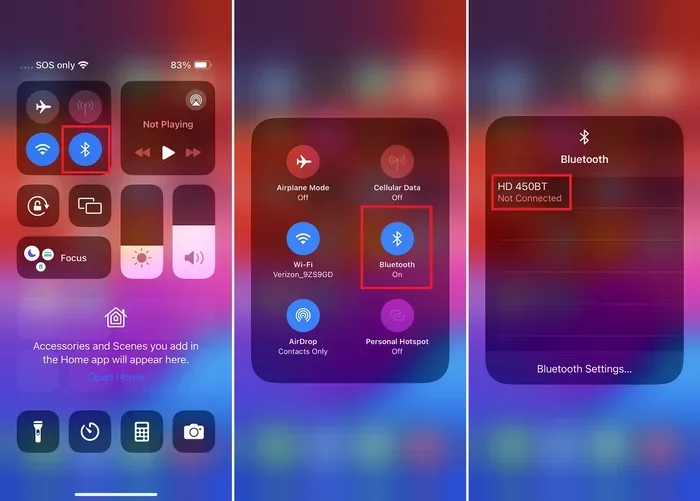
Press the back button to return to the About screen. You should see your new name displayed at the top. Now go to your Bluetooth settings and check your list of available devices. Your new Bluetooth device name should appear right away. If it does not show up immediately, try turning Bluetooth off and back on.
How iPhone Bluetooth Names Connect to Other Features
Understanding how your iOS device name connects to other features is really important. Many people do not realize that one name controls several things at once. Let us break this down.
The Link Between Bluetooth Name and Hotspot Name
When you turn on your personal hotspot, other devices see your iPhone hotspot name. That name comes directly from your iOS device name. So if you change your device name in Settings, your hotspot name updates automatically. This is very convenient. You do not need to go into a separate hotspot menu to rename anything.
The Link Between Bluetooth Name and AirDrop Name
AirDrop uses the same iOS device name for identification. When someone tries to AirDrop a photo to you, they see your device name. If your name is still the default “iPhone,” you might miss transfers in a crowded room. A unique name makes AirDrop faster and more reliable.
The Link Between Bluetooth Name and iCloud
Your iCloud name also ties into this system. When you sign into iCloud, your device name syncs across all your Apple devices. This means changing your name on one iPhone can affect how your iPad or Mac shows up in Bluetooth connectivity lists. Keep this in mind if you use multiple Apple devices.
Comparison: Default vs. Custom Bluetooth Names
Here is a quick look at how default and custom Bluetooth names compare in real-world use.
- Default Name (“iPhone”): Hard to identify in crowds. May cause confusion during pairing. Works fine for personal use at home.
- Custom Name (“Jamie’s iPhone 15”): Easy to spot in any setting. Makes pairing faster. Reduces mix-ups with other devices. Looks more professional in work settings.
As you can see, a custom Bluetooth renaming gives you a clear advantage in almost every situation. It only takes a few seconds to set up.
Tips for Choosing the Best Bluetooth Name
Not all names are created equal. Some work better than others for Bluetooth visibility and daily use. Here are some tips to help you pick a great name.
Keep It Short
Other devices have limited space to display names. Aim for under 20 characters. Names like “Sam’s Phone” or “Office iPhone” are perfect. Long names might get cut off on other screens, which defeats the purpose.
Use Something Recognizable
Avoid generic words like “Phone” or “Device.” Instead, add something that makes your iPhone identification clear. Your first name, your initials, or your role all work well. For example, “Dr. Lee’s iPhone” or “Mom’s iPhone” are easy to spot.
Avoid Special Characters
Some devices struggle with emojis, symbols, or unusual punctuation in Bluetooth device names. Stick to letters, numbers, and basic punctuation like periods or hyphens. This ensures your name displays correctly on all devices you try to pair with.
Make It Fun If You Want
There is no rule against having fun with this. Names like “BatPhone” or “The Communicator” can bring a smile to people in the room. Just make sure it is still easy to read and remember.
Update When You Share Devices
If you share an iPhone with a family member, consider updating the name to reflect that. A name like “Family iPad” or “Shared iPhone” helps everyone know whose device it is. This is especially useful for Bluetooth connectivity in households with multiple people.
Troubleshooting: Bluetooth Name Not Changing?
Sometimes things do not work as expected. If your new name does not show up right away, do not worry. This is a common issue, and it usually has a simple fix.
Restart Bluetooth
The most common fix is to toggle Bluetooth off and back on. Go to Bluetooth settings and turn it off. Wait about 10 seconds. Then turn it back on. Your new name should appear in the list of available devices. This simple step resolves the issue most of the time.
Restart Your iPhone
If toggling Bluetooth does not work, try restarting your phone. A full restart refreshes your Bluetooth module and clears any temporary glitches. To restart, press and hold the power button. Swipe to power off. Wait a few seconds, then turn your phone back on.
Check for iOS Updates
Sometimes outdated software causes Bluetooth connectivity issues. Go to Settings, then General, then Software Update. Install any available updates. Newer iOS versions often include fixes for Bluetooth visibility and naming problems.
Reset Network Settings
If none of the above works, you can reset your network settings. Go to Settings, then General, then Transfer or Reset iPhone, then Reset. Choose “Reset Network Settings.” This clears all saved Bluetooth pairings and network data. You will need to reconnect your devices, but it often fixes stubborn naming issues.
Check for iCloud Sync Delays
If you changed your name on one device and it has not updated on another, wait a few minutes. iCloud sync can take a little time. Make sure all your devices are connected to the internet and signed into the same Apple ID. Once sync completes, your Bluetooth device name should match across all devices.
Expert Tips for Better Bluetooth Naming
Here are some extra insights from people who work with iPhone settings and Bluetooth connectivity every day.
Use a naming convention. If you manage multiple devices, use a consistent format. For example, “Work – iPhone” and “Home – iPhone” make it easy to tell devices apart at a glance. This is especially helpful for families or small teams.
Update your name when you get a new phone. Many people keep the old name even after switching to a new iOS device. This causes confusion during Bluetooth pairing. Take 30 seconds to update the name when you set up a new phone.
Test your name before important meetings. If you plan to share files via AirDrop or use your personal hotspot in a meeting, check your name beforehand. Make sure it displays correctly on other people’s devices. A quick test saves embarrassment later.
Keep your name professional when needed. If you use your phone for work, consider a more formal name. Something like “Firstname Lastname – iPhone” works well in professional settings. You can always switch to a fun name on weekends.
Conclusion
Changing your iPhone Bluetooth name is one of those small things that makes a big difference. It takes less than a minute, and you do not need any special tools or technical knowledge. You now know exactly how do I change my iPhone Bluetooth name, and you understand why it matters for pairing, hotspot sharing, and AirDrop transfers.
Your Bluetooth device name affects more than just Bluetooth. It shapes how you show up across your entire Apple ecosystem. From your personal hotspot name to your AirDrop identity, one simple change in the iPhone settings app updates everything.
Take a moment today to rename your device. Pick something recognizable, something you like, and something that works for your daily life. You will wonder why you did not do it sooner. A great Bluetooth name is a small upgrade that pays off every single day.
Frequently Asked Questions
Can I change my iPhone Bluetooth name without using the Settings app?
No, the Settings app is the primary way to change your iOS device name, which controls your Bluetooth name. There is no shortcut or third-party app that can do this safely. Stick to the Settings app for the most reliable results.
Will changing my Bluetooth name affect my paired devices?
No, your existing Bluetooth pairing connections will remain intact. Your paired devices will simply see your new name the next time they search for available devices. You do not need to unpair and re-pair anything.
How long does it take for my new Bluetooth name to appear on other devices?
Usually, the new name appears immediately. If it does not, try turning Bluetooth settings off and back on. In rare cases, restarting your iPhone helps the new name spread across all connected devices and networks.
Can I use emojis in my iPhone Bluetooth name?
You can, but not all devices display emojis correctly. Some Android devices and older Bluetooth speakers may show a blank or broken character instead. For the best compatibility, stick to letters, numbers, and basic punctuation in your Bluetooth device name.
Does changing my Bluetooth name also change my iCloud name?
Yes, your iCloud name and your Bluetooth name are linked through your iOS device name. When you update your device name in Settings, it syncs across iCloud. This means your AirDrop name, hotspot name, and Bluetooth connectivity list all reflect the same updated name.
What should I do if my Bluetooth name keeps reverting to “iPhone”?
This usually happens if your iCloud sync is not working properly or if another device is overwriting the name. Make sure all your Apple devices are signed into the same Apple ID and connected to Wi-Fi. If the problem continues, restart your iPhone and check for any pending iOS updates that might fix the issue.