Do Motherboards Have A Max Internet Speed Limit Explained
Do motherboards have a max internet speed? Yes, every motherboard has a built-in network controller that sets a ceiling on your connection. Your motherboard internet speed depends on the ethernet port speed and wireless adapter installed. Most modern boards support gigabit ethernet at 1 Gbps, while older boards may cap at 100 Mbps. Understanding your board’s limits helps you choose the right internet plan speed and avoid a network bottleneck.
Let us get straight to the point. Do motherboards have a max internet speed? The short answer is yes. Every single motherboard comes with a built-in network controller that determines how fast your computer can connect to the internet. This controller sets the bandwidth limit for your wired and wireless connections. If you have a fast internet plan but a slow board, you will never get the speeds you are paying for.
Many people never think about this. They buy a router speed plan, plug in their cable, and wonder why things feel slow. The truth is, your motherboard internet speed plays a huge role in how fast your data actually moves. Whether you are gaming, streaming, or working from home, understanding your board’s limits is essential. This guide breaks it all down in plain language.
We will walk you through how ethernet port speed works, what Wi-Fi speed your board can handle, and how to check your own setup. You will also learn simple fixes to boost your network throughput. By the end, you will know exactly what your motherboard can do and how to get the most out of it.
Key Takeaways
- Every motherboard has a max internet speed limit set by its onboard network controller and ports.
- Gigabit ethernet on modern boards supports up to 1 Gbps, while older boards may only handle 100 Mbps.
- Built-in Wi-Fi speeds vary widely, from Wi-Fi 5 (866 Mbps) to Wi-Fi 6 (up to 1.2 Gbps).
- Your internet plan speed must match your board’s capability, or you will waste money on unused bandwidth.
- Adding a PCIe network card or USB adapter can upgrade your motherboard internet speed beyond onboard limits.
- Outdated drivers and cheap cables are common mistakes that slow down your network throughput.
- Checking your board’s specs takes just a few minutes and saves you from buying the wrong internet hardware.
📑 Table of Contents
- How Motherboards Handle Internet Connections
- Onboard Ethernet vs. Wi-Fi: What Your Board Supports
- Does The Motherboard Actually Limit Your Internet Speed?
- How To Check Your Motherboard’s Network Speed
- Upgrading Your Motherboard’s Internet Capabilities
- Common Mistakes That Slow Down Your Internet
- Expert Insights
- Key Takeaways
- Conclusion
How Motherboards Handle Internet Connections
Your motherboard is the main circuit board inside your computer. It connects every part together. But it also handles your internet connection. Every modern board has a small chip called a network interface card, or NIC. This chip is what talks to your modem or router. Without it, your computer would have no way to reach the internet.
The network controller on your board can be wired or wireless. Wired connections use an ethernet port. Wireless connections use a built-in wireless adapter. Both types have speed limits. These limits are set by the hardware on the board itself. You cannot change them without adding new hardware.
What Is A Network Interface Card?
A network interface card is a small chip or circuit on your motherboard. It converts digital data from your PC into signals that travel over a cable or through the air. Think of it as a translator between your computer and the internet. The quality and type of this chip directly affect your internet connection speed.
Older boards used basic NICs that only supported 10 or 100 Mbps. Modern boards use much faster controllers. Most new boards today support gigabit ethernet, which handles up to 1 Gbps. That is 1,000 Mbps. Some high-end boards even support faster speeds through advanced controllers.
The Role Of The Onboard LAN Chip
The onboard LAN chip is the part of your board that manages wired connections. It is built right into the board. You do not need to buy anything extra. Just plug an ethernet cable into the LAN port, and you are connected.
The speed of this chip depends on the board’s price and target audience. Budget boards often use basic LAN chips. Mid-range and high-end boards use faster ones. Here is a quick look at common onboard LAN speeds:
- 10 Mbps – Very old boards, rare today
- 100 Mbps – Common on budget and older boards
- 1 Gbps (Gigabit) – Standard on most modern boards
- 2.5 Gbps or 10 Gbps – Found on premium and gaming boards
As you can see, the motherboard internet speed for wired connections varies a lot. The type of chip your board uses is the biggest factor.
Onboard Ethernet vs. Wi-Fi: What Your Board Supports
Most motherboards offer both wired and wireless options. But the speeds they support can be very different. Let us look at both types so you understand what your board can really do.
Understanding Ethernet Ports On Modern Boards
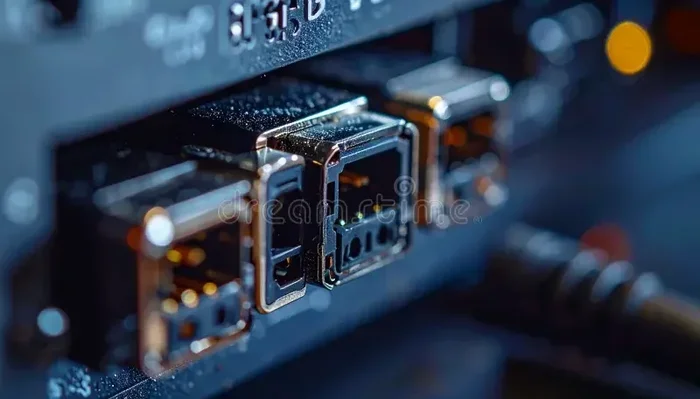
An ethernet port is the rectangular slot on the back of your PC. You plug a cable into it to get a wired internet connection. Wired connections are almost always faster and more stable than wireless ones.
Here are the most common ethernet port speed ratings you will find:
- Fast Ethernet (100 Mbps) – Found on older and budget boards
- Gigabit Ethernet (1 Gbps) – Standard on most modern boards
- 2.5 Gigabit Ethernet (2.5 Gbps) – Found on mid-range and gaming boards
- 10 Gigabit Ethernet (10 Gbps) – Found on premium and workstation boards
If your board has a 1 Gbps port and your internet plan gives you 500 Mbps, you are good. But if your plan offers 2 Gbps and your board only supports 1 Gbps, you will hit a bandwidth limit. That is a wasted opportunity.
Built-In Wi-Fi: What Speeds Can You Expect?
Not all boards have built-in Wi-Fi. Those that do include a wireless adapter right on the board. The Wi-Fi standard your board supports determines your Wi-Fi speed. Here is a simple breakdown:
- Wi-Fi 4 (802.11n) – Max speed around 600 Mbps. Very old standard.
- Wi-Fi 5 (802.11ac) – Max speed around 866 Mbps. Common on boards from 2016-2020.
- Wi-Fi 6 (802.11ax) – Max speed around 1.2 Gbps. Found on modern boards.
- Wi-Fi 6E and Wi-Fi 7 – Even faster. Found on high-end and latest boards.
Keep in mind that these are theoretical maximums. Real-world Wi-Fi speed is usually lower. Walls, distance, and interference all play a role. But the standard your board supports sets the upper ceiling for your wireless connection.
Does The Motherboard Actually Limit Your Internet Speed?
This is the question most people want answered. And the answer is: it depends. Your motherboard can limit your speed, but only in certain situations. Let us break this down clearly.
When The Board Becomes The Bottleneck
A network bottleneck happens when your hardware cannot keep up with your internet plan. Imagine you have a 1 Gbps internet plan. But your board only has a 100 Mbps LAN port. Your speed will be capped at 100 Mbps. You are paying for 1 Gbps but only getting 100 Mbps. That is a bottleneck caused by your board.
This is more common than you might think. Many people buy a new internet plan without checking their internet hardware. If your board is older, it may not support the speeds you are paying for. Here are some common scenarios where the board is the limit:
- You have a 1 Gbps plan but a 100 Mbps ethernet port
- Your board only supports Wi-Fi 5 but you need faster wireless speeds
- Your onboard NIC is older and cannot handle modern network throughput
- You are using a budget board that lacks advanced networking features
In all these cases, your motherboard internet speed is holding you back. The good news is that this is easy to fix, which we will cover shortly.
How Your Internet Plan Factors In
Your internet plan speed is what your ISP (Internet Service Provider) promises you. But your board must be able to handle that speed. If your plan offers 500 Mbps and your board supports 1 Gbps, you are fine. But if your plan offers 2 Gbps and your board only supports 1 Gbps, you will never reach 2 Gbps.
Here is a simple comparison to help you understand:
- Internet Plan: 100 Mbps – Any board made after 2010 can handle this easily
- Internet Plan: 500 Mbps – You need at least a gigabit ethernet port or Wi-Fi 5
- Internet Plan: 1 Gbps – You need a gigabit port or Wi-Fi 6 for full speed
- Internet Plan: 2 Gbps or higher – You may need a 2.5 Gbps or 10 Gbps port or a newer board
The key takeaway is simple. Always match your internet plan speed to your board’s capabilities. Otherwise, you are leaving speed on the table.
How To Check Your Motherboard’s Network Speed
Not sure what speed your board supports? Checking is easy. You do not need to be a tech expert. Here are two simple ways to find out.
Built-In Windows Tools
Windows has built-in tools that show your network adapter details. Here is how to use them:
- Right-click the Start button and select Device Manager
- Expand the Network Adapters section
- Look for your wired or wireless adapter name
- Right-click the adapter and select Properties
- Go to the Advanced tab to see supported speeds
The adapter name often tells you a lot. If you see “Realtek PCIe GbE Family Controller,” that means your board has a gigabit ethernet port. If you see “Intel Wi-Fi 6 AX200,” that means your board supports Wi-Fi 6 at up to 1.2 Gbps.
Using Third-Party Software
If you prefer a simpler method, you can use free software like CPU-Z or HWiNFO. These tools read your board’s specs directly. They show you the exact network controller model and its supported speeds. This is a great way to confirm what your board can do without digging through settings.
Another option is to just run a speed test at speedtest.net. This tells you your actual internet connection speed. If your speed test results are much lower than your plan promises, your board might be the culprit.
Upgrading Your Motherboard’s Internet Capabilities
If your board’s internet speed limit is holding you back, you have options. You do not need to buy a whole new computer or motherboard. There are simple upgrades that can make a big difference.
Adding A PCIe Network Card
A PCIe network card is one of the best ways to upgrade your wired speed. You simply plug it into an empty PCIe slot on your motherboard. These cards are affordable and easy to install.
For example, you can buy a 2.5 Gbps PCIe card for around $20-$30. This instantly upgrades your wired speed from 1 Gbps to 2.5 Gbps. Some cards even support 5 Gbps or 10 Gbps. Here are a few popular options:
- Budget pick: A basic 1 Gbps PCIe card for under $15
- Mid-range pick: A 2.5 Gbps card for $20-$35
- Premium pick: A 10 Gbps card for $100-$200
Adding a PCIe card is the most reliable way to boost your motherboard internet speed. It bypasses the onboard controller completely and gives you a dedicated, faster connection.
USB Network Adapters As A Quick Fix
If your board does not have an empty PCIe slot, a USB network adapter is a great alternative. These small devices plug into any USB port. They add wired or wireless networking to your PC instantly.
USB adapters are plug-and-play. You do not need to open your PC case. Just plug it in, install the driver, and you are good to go. Here are some quick tips for choosing one:
- Look for a USB 3.0 adapter for the best speeds
- Choose a card that matches your needs (ethernet or Wi-Fi)
- Check the supported speed before you buy
- Brands like TP-Link and ASUS make reliable USB adapters
A USB adapter is not as fast as a PCIe card, but it is much more convenient. It is a great option if you need a quick upgrade without opening your computer.
Common Mistakes That Slow Down Your Internet
Sometimes the problem is not your board at all. It is something simple that you can fix in minutes. Here are the most common mistakes that slow down your internet connection speed.
Using Outdated Network Drivers
Your network adapter needs drivers to work properly. Outdated drivers can cause slow speeds, dropped connections, and other issues. This is one of the most overlooked causes of slow internet.
Here is how to keep your drivers up to date:
- Visit your motherboard manufacturer’s website
- Find the support page for your specific model
- Download the latest LAN and Wi-Fi drivers
- Install them and restart your computer
Doing this once every few months can make a noticeable difference. It takes just five minutes and costs nothing.
Ignoring Cable Quality
If you use a wired connection, the cable matters more than you think. A cheap or damaged ethernet cable can cap your speed. A Cat5e cable supports up to 1 Gbps. A Cat6 cable supports up to 10 Gbps over short distances. Using the wrong cable is a simple mistake that wastes your speed.
Always use a good quality cable that matches your speed needs. If you have a 2.5 Gbps port, use at least a Cat6 cable. If you have gigabit, Cat5e is fine. This small change can unlock better network throughput instantly.
Other Quick Tips To Maximize Speed
Here are a few more tips to get the best motherboard internet speed possible:
- Restart your router and modem regularly
- Place your router in a central location for better Wi-Fi coverage
- Use a wired connection when possible for the most stable speeds
- Close background apps that use bandwidth during important tasks
- Check for malware or unwanted programs using your network
These small steps add up. They can help you get the most out of your internet hardware and your board’s capabilities.
Expert Insights
Networking experts agree that the motherboard internet speed is often the hidden factor people overlook. Many assume their slow internet is the ISP’s fault when it is actually their board’s limitation. A quick check of your network controller and ethernet port speed can save you a lot of frustration.
Experts also recommend checking your board’s specs before buying a new internet plan. If you are planning to upgrade to a faster plan, make sure your board can handle it first. Otherwise, you will pay for speed you cannot use.
One more tip from the pros: always keep your firmware updated. Motherboard manufacturers release BIOS updates that can improve network performance and fix bugs. A simple firmware update can sometimes boost your Wi-Fi speed and stability without any extra hardware.
Key Takeaways
- Every motherboard has a max internet speed limit set by its onboard network controller and ports.
- Gigabit ethernet on modern boards supports up to 1 Gbps, while older boards may only handle 100 Mbps.
- Built-in Wi-Fi speeds vary widely, from Wi-Fi 5 (866 Mbps) to Wi-Fi 6 (up to 1.2 Gbps).
- Your internet plan speed must match your board’s capability, or you will waste money on unused bandwidth.
- Adding a PCIe network card or USB adapter can upgrade your motherboard internet speed beyond onboard limits.
- Outdated drivers and cheap cables are common mistakes that slow down your network throughput.
- Checking your board’s specs takes just a few minutes and saves you from buying the wrong internet hardware.
Conclusion
So, do motherboards have a max internet speed? Yes, they absolutely do. Every board has a built-in limit based on its network controller, ports, and wireless adapter. This limit affects how fast your internet actually feels. Understanding this is the first step to getting the best performance from your setup.
The good news is that you have options. Whether you stick with onboard networking or add a PCIe card or USB adapter, you can push past your board’s limits. The key is knowing what your board supports and matching it to your needs. Check your specs, update your drivers, and use good cables. These simple steps go a long way.
Do not let an old network bottleneck hold you back. Take a few minutes to understand your motherboard internet speed today. You might be surprised at how much faster your internet can be with just a small upgrade. Your future self will thank you every time you stream, game, or work without a single lag spike.
Frequently Asked Questions
Can a motherboard limit Wi-Fi speed even if I have a fast internet plan?
Yes, absolutely. If your board’s built-in wireless adapter only supports Wi-Fi 5, your wireless speed will cap around 866 Mbps no matter how fast your plan is. To get the full speed of a fast internet plan over Wi-Fi, you need a board with Wi-Fi 6 or newer. Always check the Wi-Fi standard your board supports before buying a high-speed plan.
How do I know if my motherboard is slowing down my internet?
Run a speed test at speedtest.net and compare the results to your internet plan. If your wired speed is much lower than what your plan promises, your board’s ethernet port speed might be the issue. You can also check your network adapter details in Device Manager to see the supported maximum speed of your onboard controller.
Is it worth upgrading a motherboard just for better internet speed?
It depends on your situation. If you have a 1 Gbps plan and a 100 Mbps board, adding a cheap PCIe network card is a much better option than buying a whole new motherboard. However, if you are already planning to upgrade your board for other reasons, choosing one with better networking features is a smart move.
What is the difference between onboard LAN and a PCIe network card?
Onboard LAN is the network controller built into your motherboard. It is convenient and costs nothing extra. A PCIe network card is a separate card you plug into your motherboard. It usually offers faster speeds and better performance. Think of onboard LAN as the basic option and a PCIe card as the upgraded choice.
Can a bad ethernet cable affect my motherboard’s internet speed?
Yes, a poor-quality cable can definitely limit your speed. If your board supports 1 Gbps but you use an old Cat5 cable, your speed will be capped at 100 Mbps. Always use a Cat5e or Cat6 cable to match your board’s capabilities. The cable is the bridge between your board and your router, so it matters.
Do USB network adapters work as well as built-in networking?
USB adapters are convenient and work well for most users. However, they are usually slower than built-in or PCIe networking because they share the USB bus bandwidth. A USB 3.0 adapter is much better than a USB 2.0 one. For the fastest speeds, a PCIe network card is still the best choice over any USB option.
=== CONCLUSION ===
Do motherboards have a max internet speed limit? Yes, and now you know exactly what it is. Your board’s network controller, ethernet port, and wireless adapter all set the ceiling for your internet connection speed. The good news is that this limit is not set in stone. You can upgrade it with a PCIe card, a USB adapter, or even better drivers and cables.
Take a few minutes today to check your board’s specs. See what your motherboard internet speed really is. Then compare it to your internet plan. If there is a gap, you now know exactly how to close it. Better speed, better streaming, and smoother gaming are all within reach. You have the knowledge, so go make the most of it.