Can Google Wifi Be An Access Point For Your Network
Yes, Google Wifi can function as an access point to extend and improve your network coverage. By switching a Google Wifi point to access point mode, you can create a seamless mesh network that eliminates dead zones and boosts signal strength throughout your home. This guide covers everything you need to know about setting up Google Wifi as an access point, from configuration steps to real-world performance tips.
Have you ever wondered if your Google Wifi system can do more than just sit on a shelf and broadcast a signal? The answer is yes, and it opens up a world of possibilities for your home network. Many people buy a Google Wifi system and never realize its full potential as a wireless access point.
Using Google Wifi as an access point means you can stretch your internet coverage to every corner of your home. No more dead zones in the bathroom or buffering during movie night in the basement. Whether you live in a small apartment or a large house with thick walls, this setup can make a real difference.
In this article, we will walk you through everything you need to know. You will learn what access point mode is, how to set it up, and why it might be the best move for your home network. We will also cover common mistakes, expert tips, and answer the most frequently asked questions about using Google Wifi in this way.
Key Takeaways
- Google Wifi Can Work As An Access Point: You can put any Google Wifi point into access point mode to extend your existing network.
- Easy Setup Through The Google Home App: The process is simple and takes just a few minutes with no technical expertise needed.
- Seamless Mesh Networking: When used as an access point, Google Wifi creates a unified network with smooth roaming between devices.
- Improved Network Coverage: Access point mode helps eliminate dead zones and weak signal areas in larger homes.
- Better Performance Than Traditional Extenders: Google Wifi offers faster speeds and more stable connections compared to standard Wi-Fi extenders.
- Ethernet Backhaul Support: You can connect Google Wifi points via ethernet for even stronger and more reliable network performance.
- Works With Both Google Wifi And Nest Wifi: Both product lines support access point mode and mesh networking features.
📑 Table of Contents
- What Does It Mean To Use Google Wifi As An Access Point
- How To Set Up Google Wifi In Access Point Mode
- Benefits Of Using Google Wifi As An Access Point
- Google Wifi Vs Traditional Wi-Fi Extenders
- Common Mistakes To Avoid When Setting Up Access Point Mode
- Expert Tips For Maximizing Your Google Wifi Access Point Setup
- Frequently Asked Questions
- Final Thoughts
What Does It Mean To Use Google Wifi As An Access Point
An access point is a device that lets wireless devices connect to a wired network. Think of it as a bridge between your internet router and your phone, laptop, or smart home gadgets. When you put Google Wifi into access point mode, it stops acting as a main router and instead extends the signal from your existing router.
Most people set up their Google Wifi as a mesh router right out of the box. It works great for most homes. But in some cases, you already have a powerful router and just need better coverage in certain areas. That is where access point mode shines.
How Access Point Mode Differs From Router Mode
In router mode, Google Wifi handles everything. It assigns IP addresses, manages traffic, and runs the firewall. In access point mode, it hands those jobs to your main router. The Google Wifi point simply receives the wired connection and rebroadcasts the Wi-Fi signal to a wider area.
This distinction matters because it affects how your network behaves. You get a single network name, or SSID, across all your devices. Your phone will automatically switch to the strongest signal as you move around the house. This is called seamless roaming, and it is one of the biggest benefits of using Google Wifi in access point mode.
When Should You Use Access Point Mode
There are a few clear situations where access point mode makes sense. If your internet service provider gave you a modem and router combo, you might want to keep that router and add Google Wifi points for better coverage. Another common scenario is when you already have a high-end router but struggle with signal strength in certain rooms.
Large homes with multiple floors benefit the most from this setup. Thick walls, long hallways, and distance from the main router can all weaken your Wi-Fi signal. Adding a Google Wifi point in access point mode can solve these problems without buying a whole new system.
How To Set Up Google Wifi In Access Point Mode
Setting up Google Wifi as an access point is straightforward. You do not need to be a tech expert. The Google Home app walks you through the entire process step by step. Let us break it down so you can get started right away.
Step By Step Setup Guide
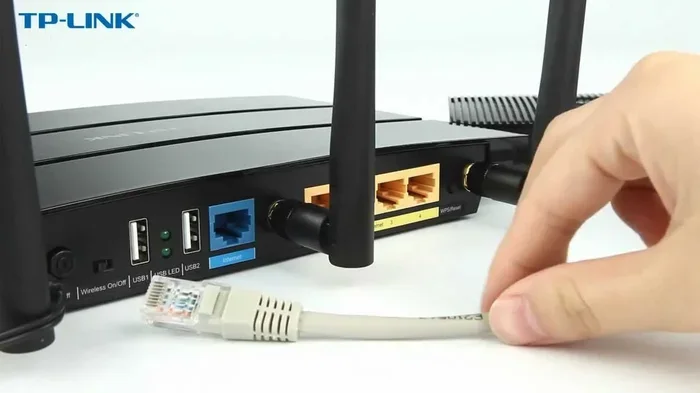
First, make sure your main router is connected to the internet. You will need an ethernet cable to connect your Google Wifi point to the router. Plug one end into the router and the other into the Google Wifi point.
Next, open the Google Home app on your phone. If you have not already added your Google Wifi point, follow the on-screen instructions to add it. Once it is in your network, go to the device settings and look for the option to change its mode. Select access point mode, and the device will restart with the new settings.
Here are a few tips to make the process smoother:
- Use a high quality ethernet cable for the best connection.
- Place the Google Wifi point halfway between your router and the area with weak signal.
- Make sure the Google Home app is updated to the latest version.
- Restart your main router before starting the setup process.
- Give the device a minute to fully reboot after switching modes.
Using The Google Home App For Configuration
The Google Home app is your main tool for managing Google Wifi. Once you are in the app, tap on the specific Google Wifi point you want to configure. Scroll down to find the network settings. From there, you can switch between router mode and access point mode with just a few taps.
The app also lets you check signal strength, update firmware, and manage connected devices. It is a powerful tool that makes network management simple. Even if you are not tech savvy, you will find the interface intuitive and easy to navigate.
Connecting Multiple Google Wifi Points As Access Points
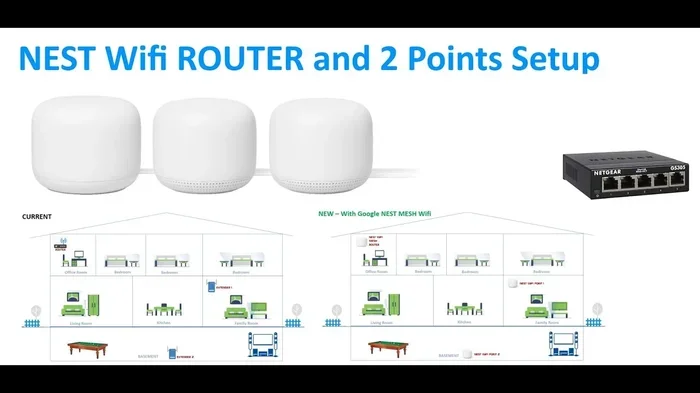
You can add more than one Google Wifi point in access point mode. This is great for larger homes or offices. Each point connects back to the main router, either wirelessly or through ethernet cables, and extends your network coverage.
When you use multiple points in access point mode, they work together as a mesh network. Your devices will automatically connect to the strongest signal. This creates a seamless experience as you move from room to room. You will not have to manually switch between Wi-Fi networks.
Benefits Of Using Google Wifi As An Access Point
There are many reasons to put your Google Wifi into access point mode. Let us look at the biggest benefits that make this setup worth considering.
Better Network Coverage
The most obvious benefit is better coverage. Access point mode lets you place Google Wifi points in strategic locations around your home. This fills in the gaps where your main router signal is weak or nonexistent.
For example, if your router is in the living room and the bedroom on the second floor has a weak signal, you can add a Google Wifi point in that room. It will pick up the signal from the router and rebroadcast it with full strength. The result is a network that reaches every room in your home.
Faster And More Stable Connections
Traditional Wi-Fi extenders often cut your speed in half. Google Wifi works differently. When used in access point mode, it maintains the full speed of your internet plan. The dual band technology ensures that your devices get the best possible connection.
Stability is another major advantage. Google Wifi uses advanced mesh technology to keep your connection strong. Even if one access point experiences interference, the others can pick up the slack. This means fewer dropped connections and smoother streaming, gaming, and video calls.
Seamless Roaming Across Your Home
One of the standout features of Google Wifi is seamless roaming. When you move around your home with a phone or tablet, the device automatically connects to the access point with the strongest signal. You will not experience the annoying pauses that come with switching between different networks.
This is especially helpful for video calls and online gaming. A smooth, uninterrupted connection makes a big difference in your daily use. You can walk from the kitchen to the bedroom on a call without any drop in quality.
Simple Network Management
Managing your network becomes much easier when all your Google Wifi points work together. The Google Home app gives you a single dashboard to control everything. You can see which devices are connected, check speeds, and run speed tests from one place.
Parental controls, guest networks, and device prioritization are all available through the app. These features make it easy to manage your home network without any technical knowledge. You can set up a guest network for visitors or prioritize your home office connection for video calls.
Google Wifi Vs Traditional Wi-Fi Extenders
Many people wonder how Google Wifi compares to traditional Wi-Fi extenders. The answer is that Google Wifi offers a significantly better experience in most cases. Let us look at the key differences.
| Feature | Google Wifi (Access Point Mode) | Traditional Wi-Fi Extender |
|---|---|---|
| Network Name | Single SSID across all points | Often creates a separate network name |
| Speed Loss | Minimal speed loss | Can cut speeds in half |
| Seamless Roaming | Yes, automatic switching | Manual switching between networks |
| Setup Process | Simple, through Google Home app | Often requires separate app and manual configuration |
| Mesh Technology | Yes, built in | No, operates independently |
| Ethernet Backhaul | Supported | Not always available |
| Firmware Updates | Automatic through Google Home | Manual updates often required |
As you can see from the table, Google Wifi has several clear advantages. The single network name and automatic roaming make it feel like one cohesive system. Traditional extenders often feel clunky by comparison.
However, traditional extenders do have one advantage: price. They are usually cheaper than a Google Wifi system. But if you value performance and ease of use, Google Wifi is the better choice for most households.
Common Mistakes To Avoid When Setting Up Access Point Mode
Even though the setup process is simple, there are a few common mistakes that can cause problems. Knowing what to avoid will save you time and frustration.
Placing The Access Point Too Far From The Router
One of the biggest mistakes is placing the Google Wifi point too far from the main router. If the signal between the two is weak, the access point will not be able to provide strong coverage in its area. Try to keep the access point within a reasonable distance of the router.
A good rule of thumb is to place it in a central location between the router and the area that needs better coverage. This ensures a strong backhaul connection and reliable performance throughout your home.
Forgetting To Use Ethernet Backhaul
While Google Wifi supports wireless backhaul, using an ethernet cable for the connection between your router and the access point is always better. Wired connections are faster, more stable, and less prone to interference. If you can run an ethernet cable, do it.
Many people skip this step because it seems like extra work. But the performance improvement is well worth the effort. You will notice faster speeds and a more stable connection almost immediately.
Not Updating Firmware Regularly
Google releases firmware updates for Google Wifi that improve performance and fix bugs. If you do not keep your device updated, you might miss out on these improvements. The Google Home app usually handles updates automatically, but it is good to check now and then.
To check for updates, open the Google Home app, tap on your Google Wifi point, and look for any available updates. Keeping your firmware current ensures the best possible network performance and security.
Ignoring Network Congestion
If you have many devices connected to your network, congestion can become a problem. This is especially true in households with smart home devices, streaming services, and multiple users. Access point mode helps distribute the load, but you should still be mindful of how many devices are connected.
Consider using the device prioritization feature in the Google Home app. This lets you give priority to specific devices, like your work laptop or gaming console, so they get the best performance even when the network is busy.
Expert Tips For Maximizing Your Google Wifi Access Point Setup
Getting the most out of your Google Wifi access point setup takes a little planning. Here are some expert tips that can help you get the best performance possible.
Position Your Access Points Strategically. The placement of your Google Wifi points matters a lot. Place them in central locations, away from walls and obstructions. Avoid putting them in closets or behind furniture, as this can block the signal.
Use The 5GHz Band When Possible. Google Wifi supports both 2.4GHz and 5GHz bands. The 5GHz band offers faster speeds but shorter range. For devices close to the access point, switch to 5GHz for the best performance. For devices farther away, 2.4GHz provides better range.
Run A Speed Test After Setup. Once you have everything configured, run a speed test in different rooms. This will help you identify any remaining weak spots. If you find areas with poor coverage, consider adding another Google Wifi point in access point mode.
Keep Your Main Router Up To Date. Your Google Wifi access points depend on your main router for the internet connection. Make sure your router is also running the latest firmware for the best compatibility and performance.
Restart Your Network Periodically. Just like any technology, your network benefits from occasional restarts. Power cycling your router and access points once a month can help clear out any temporary issues and keep everything running smoothly.
Frequently Asked Questions
Can I Use Google Wifi As An Access Point With Any Router?
Yes, Google Wifi can work as an access point with most routers. You just need a wired connection between your main router and the Google Wifi point. The setup process is the same regardless of your router brand or model. Make sure your main router is connected to the internet before you begin.
Will Using Google Wifi In Access Point Mode Slow Down My Internet Speed?
No, using Google Wifi in access point mode should not significantly slow down your internet speed. In fact, it often improves performance by bringing the Wi-Fi signal closer to your devices. The dual band technology ensures that you get the best possible speeds. Using an ethernet cable for backhaul will give you the fastest results.
How Many Google Wifi Points Can I Use In Access Point Mode?
You can use up to 32 Google Wifi points in a mesh network, including those in access point mode. However, most homes do not need that many. Three to five points usually provide excellent coverage for a typical house. The exact number depends on the size of your home and the materials your walls are made of.
Do I Need To Buy Extra Equipment To Use Google Wifi As An Access Point?
You will need an ethernet cable to connect the Google Wifi point to your main router. Beyond that, no extra equipment is required. If you want to run ethernet cables through your walls, you might need some basic tools or professional help. But the setup itself is simple and does not require any additional hardware.
Can I Switch Back And Forth Between Router Mode And Access Point Mode?
Yes, you can switch between modes at any time through the Google Home app. The process is quick and does not require a full reset. Simply go to the device settings, select the mode you want, and the device will restart with the new configuration. This flexibility makes it easy to experiment with different setups.
Does Access Point Mode Work With Google Nest Wifi Devices?
Yes, both Google Wifi and Google Nest Wifi support access point mode. The setup process is essentially the same for both product lines. Nest Wifi points can also be used as access points to extend your network coverage. They work seamlessly together in a mesh network configuration.
Final Thoughts
Using Google Wifi as an access point is one of the smartest things you can do for your home network. It gives you better coverage, faster speeds, and a more reliable connection throughout your entire house. The setup process is simple, and the results are well worth the effort.
Whether you are dealing with dead zones in the basement or just want stronger signal in every room, Google Wifi in access point mode delivers. It outperforms traditional Wi-Fi extenders and gives you the tools to manage your network with ease through the Google Home app.
Take the time to set up your Google Wifi points properly, position them strategically, and enjoy a network that actually works the way you want it to. Your internet experience will never be the same once you see what a proper access point setup can do. Start today and feel the difference in your home network performance.