Can An Hdmi Tv Be Used As A Computer Monitor For Work
Yes, you can use an HDMI TV as a computer monitor for work. It gives you a bigger screen, sharper visuals, and a more comfortable viewing experience. However, you need to consider factors like input lag, text size, and viewing distance. This guide walks you through everything from setup to choosing the right TV for your workspace.
Have you ever looked at your big flat-screen TV and thought, “Could I just use this as my computer monitor?” The answer is yes. Can an HDMI TV be used as a computer monitor for work? Absolutely. More and more people are ditching traditional monitors and hooking up their computers to their living room TVs or bedroom screens. It is a simple change that can make your workday feel completely different.
Using an HDMI TV as a computer monitor gives you a larger workspace, better visuals, and a more enjoyable experience. Whether you are writing reports, designing graphics, or attending video calls, a big screen can boost your comfort and productivity. But it is not all perfect. There are a few things you need to know before you plug in that cable.
This guide covers everything you need to think about when using a TV as a monitor. We will look at how to connect them, what the benefits are, what the downsides might be, and how to set things up the right way. By the end, you will know exactly whether an HDMI TV is the right choice for your work setup.
Key Takeaways
- It works great: An HDMI TV can serve as a fully functional computer monitor for most work tasks.
- Bigger is better: A larger screen reduces eye strain and makes multitasking easier during long work hours.
- Check input lag: Low input lag is essential for smooth cursor movement and responsive typing.
- 4K resolution is ideal: Higher resolution means sharper text and clearer images for productivity.
- Setup is simple: Most modern TVs and computers connect easily with a standard HDMI cable.
- Watch your distance: Sitting too far from a large TV can make on-screen text difficult to read.
📑 Table of Contents
- Why Use an HDMI TV as a Computer Monitor for Work
- How to Connect Your HDMI TV to Your Computer
- Benefits of Using an HDMI TV as a Computer Monitor for Work
- Potential Drawbacks of Using a TV as a Computer Monitor
- Best TVs for Using as a Computer Monitor
- Expert Setup Tips for the Best Experience
- Common Mistakes to Avoid When Using a TV as a Monitor
- Conclusion
Why Use an HDMI TV as a Computer Monitor for Work
The Appeal of a Bigger Screen
There is something undeniably appealing about a large screen. When you open your laptop and stare at a tiny 15-inch display for eight hours a day, your eyes get tired. Your neck hurts. Your productivity drops. A bigger screen changes all of that. When you use an HDMI TV as a computer monitor, you open up your workspace in a way that a standard monitor simply cannot match.
Think about it. A typical computer monitor ranges from 24 to 32 inches. A TV? You are looking at 43 inches, 55 inches, or even bigger. That extra screen real estate means you can have multiple windows open side by side without squinting or constantly alt-tabbing. You can have your email on one side, your spreadsheet on the other, and a video call taking up the top half of the screen. It feels like a whole new world of efficiency.
How It Compares to a Traditional Monitor
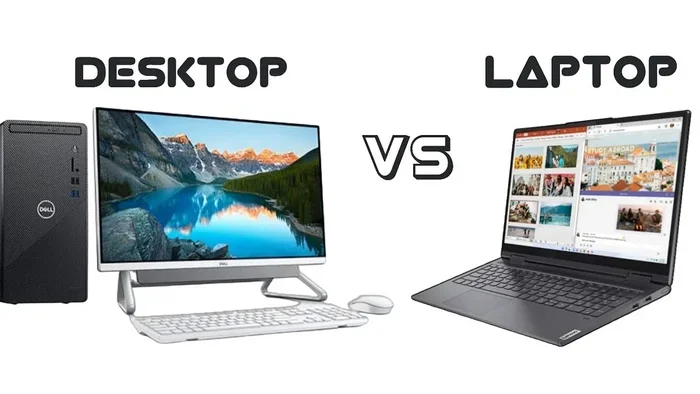
So how does a TV stack up against a regular computer monitor? Let us break it down. Traditional monitors are built specifically for close-up desk work. They are designed with features like low input lag, high pixel density, and sharp text rendering. TVs, on the other hand, are built for watching shows and movies from a distance.
But here is the thing. Modern TVs have come a long way. Many of them now offer 4K resolution, which means incredibly sharp images and text. Some even have features that make them great for computer work. The key is knowing what to look for and how to set things up properly. A monitor vs TV comparison is not as clear-cut as it used to be.
How to Connect Your HDMI TV to Your Computer
What You Need to Get Started
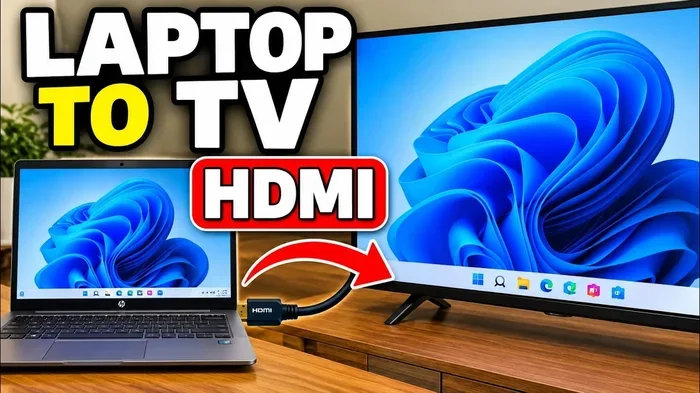
Setting up an HDMI connection between your computer and TV is surprisingly easy. Here is what you will need:
- An HDMI cable: This is the most important piece. Make sure you get a high-quality cable that supports the resolution you want. For 4K, you need an HDMI 2.0 or higher cable.
- A computer with an HDMI output: Most laptops and desktops made in the last decade have an HDMI port. If yours does not, you can use an adapter.
- A TV with an HDMI input: Almost every modern TV has at least one HDMI port. Check the back or side of your TV to find it.
That is it. No fancy equipment needed. Just a cable and two devices. The cable compatibility is straightforward, which makes this one of the easiest upgrades you can make to your workspace.
Step-by-Step Connection Process
Here is how to get everything connected:
- Plug one end of the HDMI cable into your computer’s HDMI output port.
- Plug the other end into one of your TV’s HDMI input ports.
- Turn on your TV and switch to the correct HDMI input using your remote.
- Go to your computer’s display settings. On Windows, right-click the desktop and select Display Settings. On Mac, go to System Preferences and then Displays.
- Choose your display mode. You can extend your desktop to the TV, mirror it, or use it as the primary display.
- Adjust the resolution. Set it to the TV’s native resolution for the sharpest image. For most modern TVs, this will be 1920×1080 (Full HD) or 3840×2160 (4K).
Once you have done these steps, your TV should display your computer screen. It really is that simple. The display settings on your computer give you full control over how everything looks and behaves.
Benefits of Using an HDMI TV as a Computer Monitor for Work
Better Visual Quality for Work Tasks
One of the biggest advantages of using a TV as a monitor is the visual quality. Modern TVs offer stunning 4K resolution, which means every image, every line of text, and every detail looks incredibly crisp. When you are working with spreadsheets, editing photos, or reading long documents, that clarity makes a real difference.
Many TVs also have excellent color accuracy and brightness. This makes your screen easy on the eyes, even during long work sessions. Some models come with blue light filtering features that reduce eye strain. If you spend hours in front of a screen, these features can genuinely improve your comfort.
Another benefit is the aspect ratio. Most TVs use a 16:9 widescreen format, which is great for widescreen content and multitasking. You can split your screen into two or three windows and have plenty of room for each one.
Improved Productivity with a Larger Display
Let us talk about productivity. When you have more screen space, you can do more at once. Research has shown that dual-monitor setups increase productivity by up to 30 percent. Well, using a large TV gives you even more space than two standard monitors combined.
You can keep your main work document front and center while having reference materials, chat windows, or browser tabs open on the sides. This reduces the need to constantly switch between windows. The result is fewer distractions and a smoother workflow.
Video conferencing also benefits greatly. Instead of squinting at a tiny webcam window on a small monitor, you can see your colleagues clearly on a big TV screen. It makes remote meetings feel more natural and engaging.
Audio and Entertainment Value
Here is a bonus benefit that people often overlook. TVs have built-in speakers that are far better than most computer monitors. When you are working from home and need a quick break, you can switch to streaming content without any extra equipment. The audio output on a TV is usually rich and clear, making it perfect for music, podcasts, or background noise while you work.
You can also use wireless display or casting features if your TV supports them. This means you can mirror your screen without any cables at all. It adds flexibility to your workspace setup and lets you move around more freely.
Potential Drawbacks of Using a TV as a Computer Monitor
Input Lag and Response Time Issues
Here is where things get tricky. TVs are designed for watching movies, not for fast-paced computer work. Many TVs have something called input lag. This is the delay between when you move your mouse or press a key and when the action appears on screen.
For casual work like writing emails or browsing the web, input lag is usually not a big deal. But if you are a gamer, a video editor, or someone who does precision work, even a small delay can be frustrating. The good news is that many modern TVs have a “Game Mode” that significantly reduces input lag. Always look for this feature when choosing a TV for computer use.
Text Size and Readability Concerns
A big TV screen from far away looks amazing for movies. But when you sit close to it as you would with a monitor, text can sometimes appear too large or not sharp enough. This is because TVs have lower pixel density than monitors of the same size. Pixels are more spread out on a TV screen.
The solution? Choose a TV with high resolution, ideally 4K. At 4K, even a 55-inch TV will have sharp, readable text when you sit at a normal desk distance. If you go with a 1080p TV and sit too close, you might notice the text looking slightly fuzzy or pixelated.
Power Consumption and Eye Strain
TVs use more power than monitors. A large TV can draw 100 watts or more, while a typical monitor uses around 30 to 50 watts. If you are concerned about energy costs, this is worth keeping in mind.
Eye strain is another consideration. Sitting too close to a large screen or using poor lighting can cause discomfort over time. Make sure your workspace has good lighting and that you sit at an appropriate viewing distance. A good rule of thumb is to sit at least 1.5 to 2 times the diagonal screen size away from the TV.
Best TVs for Using as a Computer Monitor
What to Look For in a TV for Work
Not all TVs are created equal when it comes to computer use. Here are the key features to prioritize:
- Resolution: Go for 4K (3840×2160) for the sharpest text and images. If budget is a concern, 1080p (Full HD) still works well for most tasks.
- Screen Size: 43 to 55 inches is the sweet spot for desk use. Anything larger may require you to sit farther back.
- Input Lag: Look for TVs with low input lag or a dedicated Game Mode. This ensures smooth cursor movement and responsive typing.
- Refresh Rate: A 60Hz refresh rate is fine for most work tasks. Higher refresh rates like 120Hz are nice but not essential for office work.
- HDMI Ports: Make sure the TV has enough HDMI ports for your devices. At least one dedicated input for your computer is ideal.
- Adjustable Stand: A stand that allows height and tilt adjustment helps you position the TV at the right eye level.
Comparison: Monitor vs TV for Computer Work
| Feature | Computer Monitor | TV as Monitor |
|---|---|---|
| Screen Size | 24-32 inches | 43-65+ inches |
| Resolution | 1080p to 4K | 1080p to 4K |
| Pixel Density | Higher | Lower (at same size) |
| Input Lag | Very Low | Higher (unless Game Mode) |
| Built-in Speakers | Rare | Yes |
| Price for Similar Quality | Higher per inch | Lower per inch |
| Portability | More portable | Heavier and bulkier |
| Eye Comfort (Close Distance) | Better | Good with 4K |
Expert Setup Tips for the Best Experience
Adjusting Display Settings on Your Computer
Once your TV is connected, take a few minutes to tweak your display settings. This alone can make or break your experience. Here is what to do:
- Set the resolution to the TV’s native resolution. This ensures the sharpest possible image. On Windows, go to Display Settings and select the recommended resolution.
- Scale your text and apps. On a large TV, everything might look tiny. Increase the scaling to 125% or 150% so text and icons are comfortable to read.
- Adjust brightness and contrast. Match the TV brightness to your room lighting. Too bright in a dark room causes eye strain. Too dim in a bright room makes everything hard to see.
- Turn on Night Light or Blue Light Filter. This reduces harsh blue light, especially during evening work sessions.
Optimizing Your Workspace for a TV Screen
Your workspace setup matters just as much as the TV itself. Here are some practical tips:
- Position the TV at eye level. The top of the screen should be at or slightly below your eye level. Use a monitor arm or a sturdy stand to achieve this.
- Maintain proper viewing distance. For a 55-inch TV, sit about 5 to 7 feet away. This gives you the best balance of screen coverage and text readability.
- Use an external keyboard and mouse. When using a TV as a monitor, a wireless keyboard and mouse let you work comfortably from your desk.
- Consider a wireless display option. If running cables is a problem, look into wireless casting or Miracast support. It is not as responsive as a wired connection, but it works well for basic tasks.
Quick Tips for Success
Quick Tip 1: Always enable Game Mode on your TV. It reduces input lag and makes the cursor feel more responsive.
Quick Tip 2: Use a high-speed HDMI cable. A cheap or old cable may not support 4K resolution or may cause flickering.
Quick Tip 3: Test your setup before committing. Spend a day working on the TV before deciding if it is right for you.
Quick Tip 4: Adjust font sizes in your browser and apps. Bigger fonts are easier to read on a large TV screen.
Quick Tip 5: Consider your room lighting. A TV in a bright room may look washed out. Use blinds or adjust your desk lamp.
Common Mistakes to Avoid When Using a TV as a Monitor
Ignoring Viewing Distance
The most common mistake people make is sitting too close to a large TV. When you watch a movie from the couch, distance does not matter as much. But when you are working, you need to be able to read text comfortably. Sitting too close to a big screen causes eye fatigue and makes it hard to focus on individual elements on the screen.
Always measure your viewing distance before you set up. A simple formula is to sit at least 1.5 times the diagonal screen size away. For a 55-inch TV, that means at least 6.5 feet from the screen.
Using the Wrong Cable or Port
Not all HDMI cables are the same. Using an older HDMI 1.4 cable with a 4K TV will limit you to 30Hz refresh rates, which can make the screen feel sluggish. Always use an HDMI 2.0 or higher cable for the best experience. Also, make sure you are plugging into the right HDMI port on your TV. Some ports may not support the full resolution or features you need.
Forgetting to Adjust Scaling and Text Size
When you first connect a TV to your computer, everything might look tiny. This is because the TV has a much larger screen than a standard monitor. If you do not adjust the scaling settings, you will strain your eyes trying to read small text. Always go into your display settings and increase the scale to a comfortable level before you start working.
Conclusion
The answer to can an HDMI TV be used as a computer monitor for work is a resounding yes. It is one of the simplest and most effective upgrades you can make to your workspace. A large, high-resolution TV gives you more screen space, better visuals, and a more enjoyable computing experience. Whether you are writing documents, attending video calls, or working on creative projects, the extra screen real estate can genuinely transform how you work.
Of course, it is not without its challenges. Input lag, pixel density, and viewing distance all play a role in how well a TV works as a monitor. But with the right setup, the right cable, and the right TV, these issues are easy to overcome. The key is to choose a 4K TV with low input lag, position it at the right distance, and take a few minutes to adjust your display settings.
If you have been on the fence about making the switch, now is a great time to try it. The next time you sit down at your computer, imagine having a massive, vibrant screen that makes every task easier and more comfortable. That is what using an HDMI TV as a computer monitor can offer you. Give it a try, and you might never go back to a small monitor again.
Frequently Asked Questions
Is it bad to use a TV as a computer monitor?
No, it is not bad at all. Using a TV as a computer monitor works well for most tasks, especially if you choose a 4K TV with low input lag. The main things to watch out for are viewing distance, text size, and cable quality. As long as you set things up properly, a TV makes an excellent monitor for work.
What size TV is best for use as a computer monitor?
A 43 to 55-inch TV is generally the best size for desk use. Anything smaller might not give you the screen real estate benefit, and anything larger might require you to sit too far back to read text comfortably. The ideal size depends on your desk space and how far you sit from the screen.
Do I need a special HDMI cable to connect my PC to a TV?
You need a decent HDMI cable that supports the resolution you want. For 4K at 60Hz, use an HDMI 2.0 or higher cable. Standard HDMI cables work fine for 1080p. There is no need for expensive premium cables unless you are using advanced features like HDR.
Can I use a smart TV as a computer monitor wirelessly?
Yes, you can. Many smart TVs support wireless display protocols like Miracast or Chromecast. You can cast your screen without any cables. However, a wired HDMI connection is always more responsive and reliable for work tasks. Wireless works best for casual use or presentations.
Will using a TV as a monitor damage the TV?
No, using a TV as a computer monitor will not damage it. Modern TVs are built to handle various input sources for extended periods. Just make sure you adjust the brightness to a comfortable level and avoid leaving a static image on the screen for very long periods to prevent burn-in on OLED models.
How do I reduce input lag when using a TV as a monitor?
The easiest way is to enable Game Mode on your TV. This mode bypasses many of the image processing features that cause input lag. You can also lower the resolution slightly or use a wired connection instead of wireless. These steps make your TV feel much more responsive for everyday computer tasks.