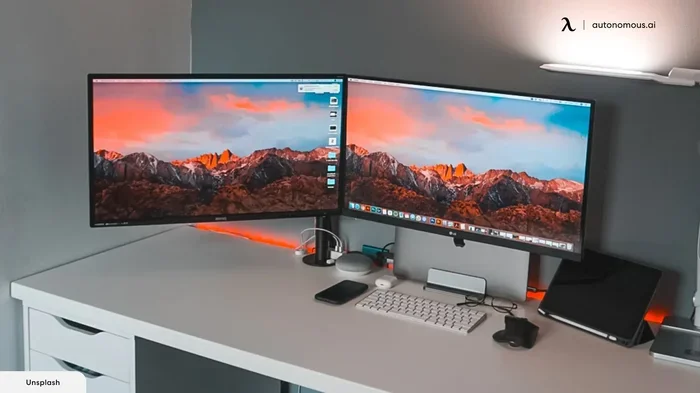
Can I Connect Two Monitors To Laptop With One HDMI Port
Yes, you can connect two monitors to your laptop even if it has only one HDMI port. There are several practical solutions, including HDMI splitters, USB-C adapters, and docking stations. Each method has its own benefits depending on your needs and budget. This guide walks you through every option step by step. By the end, you will know exactly which solution works best for your dual monitor setup.
This is a comprehensive guide about Can I Connect Two Monitors To My Laptop With Only One Hdmi Port.
Key Takeaways
- HDMI Splitter: An affordable and simple way to duplicate or extend your display using one HDMI port.
- USB-C or Thunderbolt Adapter: A versatile solution that adds multiple video outputs through a single USB-C port.
- Docking Station: The most reliable and feature-rich option for a permanent dual monitor workspace.
- DisplayLink Technology: Uses software and a USB adapter to add extra monitors without needing extra video ports.
- Wireless Display: A cable-free option that uses Wi-Fi to cast your screen to a second monitor.
- Check Your Laptop Specs First: Always verify what ports your laptop has before buying any adapter or accessory.
[FEATURED_IMAGE_PLACEHOLDER]
Can I Connect Two Monitors to My Laptop With Only One HDMI Port?
You sit at your desk. Your laptop has one HDMI port. You want two monitors. It feels impossible, right? Not at all. You absolutely can set up a dual monitor workspace even with limited ports. The key is knowing which solution fits your situation.
Many laptop users face this exact problem. You buy a second monitor, plug it in, and then realize there is only one HDMI output. It is a frustrating moment. But the tech world has plenty of workarounds. Some cost just a few dollars. Others offer a more permanent and powerful fix. This guide covers every method in detail so you can pick the right one.
Whether you work from home, edit videos, or just want more screen space, a multi-monitor setup can boost your productivity significantly. Studies show that dual monitors can improve work efficiency by up to 30 percent. So let us dive into the solutions that will get you there.
Why Do People Want Two Monitors?
The demand for dual monitors is not just a trend. It is a practical need. More screen space means you can keep multiple windows open at once. You can reference a document on one screen while writing on the other. Video editors, programmers, and traders all rely on extended displays daily.
Even casual users benefit. Imagine watching a movie on one screen while browsing the web on the other. It changes how you use your laptop. The question is never really “do I need two monitors?” It is “how do I make it work with my laptop?”
Understanding Your Laptop’s Video Output Options
Before you buy any gear, you need to understand what your laptop can do. Every laptop has different ports and capabilities. Knowing your options saves time and money.
Common Video Ports Found on Laptops
Most modern laptops come with a mix of these ports:
- HDMI: The most common port for external displays. Found on almost all laptops.
- USB-C: A versatile port that can carry video signals with the right adapter.
- Thunderbolt 3 or 4: Similar to USB-C but faster and more capable for video output.
- DisplayPort: Less common on laptops but found on some gaming or workstation models.
- VGA or DVI: Older ports you may still find on some business laptops.
Your laptop might have a combination of these. The fewer ports you have, the more creative your solution needs to be. But remember, having just one HDMI port does not limit you to one monitor.
How Your Graphics Card Affects Multi-Monitor Setups
Your laptop’s graphics card plays a big role. Most modern integrated graphics chips can handle two or even three displays. Dedicated GPUs, like those from NVIDIA or AMD, are even more capable. Check your graphics card specifications online to confirm how many displays it supports.
Sometimes the limitation is not your graphics card. It is just the number of physical ports. That is where adapters and docks come in handy.
Method 1: Using an HDMI Splitter
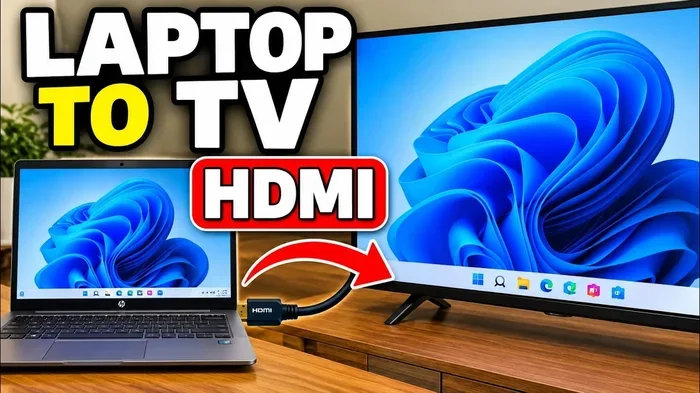
The simplest and most affordable method is an HDMI splitter. This small device plugs into your laptop’s single HDMI port and splits the signal to two monitors.
How Does an HDMI Splitter Work?
An HDMI splitter takes one video output and duplicates it across two screens. You plug the splitter into your laptop, then connect two HDMI cables from the splitter to each monitor. It is a plug-and-play solution that requires no software installation.
Most HDMI splitters cost between $10 and $30. You can find them on Amazon or at any electronics store. They are small enough to fit in your laptop bag.
Pros and Cons of HDMI Splitters
Here is a quick look at what to expect:
- Pros: Very affordable, easy to set up, no drivers needed, portable.
- Cons: Both displays show the same image, limited resolution support on cheaper models, no extended display mode on basic splitters.
Most budget splitters only mirror your screen. That means both monitors show the exact same content. If you want to extend your desktop across two screens, you need a smarter solution.
When to Use an HDMI Splitter
An HDMI splitter works best for presentations, watching videos with friends, or showing the same content on two screens. It is not ideal for productivity work where you need separate windows on each monitor.
Method 2: Using a USB-C or Thunderbolt Adapter
If your laptop has a USB-C or Thunderbolt port, this is your best bet. A quality adapter can add multiple video outputs through a single connection.
What to Look for in a USB-C Adapter
Not all adapters are created equal. Look for these features:
- Multiple video outputs: HDMI, DisplayPort, or VGA outputs built into one adapter.
- DisplayLink support: Some adapters use software to drive extra monitors.
- Power delivery: Many adapters also charge your laptop while you use them.
- Resolution support: Make sure the adapter supports your monitor’s resolution.
Popular brands like CalDigit, Anker, and Satechi make reliable USB-C adapters. Expect to pay between $50 and $150 depending on features.
Setting Up a USB-C Adapter for Dual Monitors
The setup process is straightforward. Plug the adapter into your laptop’s USB-C port. Connect your first monitor via HDMI from the adapter. Connect your second monitor through another port on the same adapter, or use your laptop’s built-in HDMI port if available.
Go to your laptop display settings and choose “Extend these displays.” Now you have two separate screens with different content on each.
Method 3: Using a Docking Station
A docking station is the most complete solution for a dual monitor setup. It connects to your laptop through one cable and provides multiple ports for monitors, peripherals, and charging.
Why a Docking Station Is Worth It
Docking stations offer several advantages over simple adapters:
- Stability: A single cable connection means fewer disconnections.
- Port variety: Multiple HDMI, DisplayPort, and USB ports in one device.
- Power delivery: Most docks charge your laptop while in use.
- Build quality: Docks are designed for daily, long-term use.
If you work from home permanently, a docking station is a game-changer. You plug in one cable when you sit down, and everything just works.
Top Docking Station Brands to Consider
Here are some trusted brands in the market:
- CalDigit TS4: Premium build with excellent performance.
- Anker PowerExpand: Great value for the price.
- Belkin Thunderbolt Dock: Reliable and well-supported.
- Plugable USB-C Dock: Budget-friendly with solid features.
Method 4: DisplayLink Adapter for Extended Displays
A DisplayLink adapter uses your laptop’s USB port to drive additional monitors. It relies on software that compresses and sends video data through USB.
How DisplayLink Technology Works
DisplayLink adapters are different from traditional video adapters. They do not need a dedicated video output. Instead, they use your laptop’s USB port and a small driver to render a second or third display. The software handles the video compression and transmission.
This technology is incredibly useful when your laptop has no extra video ports at all. You can add two or even three monitors through USB alone.
Who Should Use a DisplayLink Adapter?
DisplayLink is perfect for these situations:
- Your laptop has only USB ports and no HDMI or DisplayPort output.
- You need three or more monitors and traditional adapters are not enough.
- You want a flexible setup that you can reconfigure easily.
The main downside is that DisplayLink relies on software. This can cause slight latency compared to native video outputs. For most office work, this is not noticeable at all.
Method 5: Wireless Display Solutions
Not all solutions require cables. Wireless display technology lets you cast your laptop screen to a second monitor without any physical connection.
Wireless Display Options Available
Here are the most common wireless methods:
- Miracast: Built into Windows 10 and 11. Lets you wirelessly project to compatible monitors or TVs.
- Chromecast: Works well with Chrome browsers and Android devices.
- AirPlay: For Mac users casting to Apple TV or AirPlay-compatible displays.
- Third-party wireless docks: Devices like the IOGEAR Wireless HDMI Kit transmit video through your home Wi-Fi network.
Wireless solutions offer freedom from cables, but they can have a slight delay. They work great for presentations and media consumption but may not be ideal for fast-paced gaming or video editing.
Comparison Table: Which Method Is Right for You?
| Method | Cost | Setup Difficulty | Extended Display | Best For |
|---|---|---|---|---|
| HDMI Splitter | $10-$30 | Very Easy | No (Mirroring Only) | Presentations, casual use |
| USB-C Adapter | $50-$150 | Easy | Yes | Most laptop users |
| Docking Station | $100-$300 | Easy | Yes | Home office, permanent setups |
| DisplayLink Adapter | $40-$100 | Moderate | Yes | Laptops with no video ports |
| Wireless Display | $30-$100 | Easy | Yes (with slight delay) | Presentations, casual use |
Step-by-Step Setup Guide for a Dual Monitor Workspace
Once you have chosen your method, here is how to set everything up properly.
Step 1: Connect Your Hardware
Plug your adapter, dock, or splitter into your laptop. Connect each monitor using the appropriate cable. Make sure both monitors are powered on.
Step 2: Configure Display Settings
On Windows, right-click your desktop and select “Display Settings.” On macOS, go to System Settings and click “Displays.” You will see both monitors listed.
Choose “Extend these displays” if you want separate content on each screen. Choose “Duplicate these displays” if you want the same image on both.
Step 3: Arrange Your Monitors
Drag the monitor icons in your display settings to match their physical position on your desk. This ensures your mouse moves naturally between screens.
Step 4: Adjust Resolution and Scaling
Click on each monitor in the settings and set the recommended resolution. Adjust scaling if the text looks too small or too large on either screen.
Common Mistakes to Avoid When Setting Up Dual Monitors
Even with the right gear, people make avoidable mistakes. Here are the most common ones:
- Buying the wrong adapter: Always check your laptop ports before purchasing. An HDMI splitter will not work if you only have USB-C.
- Ignoring cable quality: Cheap cables can cause flickering or low resolution. Invest in good quality HDMI cables or USB-C cables.
- Not updating drivers: DisplayLink and USB-C adapters need updated drivers for best performance. Check the manufacturer’s website regularly.
- Overlooking power delivery: Some adapters drain your laptop battery faster. Choose a dock or adapter that also charges your device.
- Placing monitors incorrectly: Position your main monitor directly in front of you and the second monitor at a comfortable angle to reduce neck strain.
Expert Tips for Maximizing Your Dual Monitor Productivity
Setting up two monitors is just the start. Here are some tips to get the most out of your multi-monitor setup:
- Use monitor stands or arms: A proper monitor stand or arm helps you position screens at the perfect height and angle.
- Match monitor sizes: Using two identical monitors creates a seamless visual experience.
- Use keyboard shortcuts: Learn shortcuts like Windows + P to quickly switch between display modes.
- Organize windows intentionally: Place your primary work app on the main screen and reference materials on the second.
- Adjust brightness to match: Mismatched brightness between monitors causes eye strain over time.
Conclusion
So, can you connect two monitors to your laptop with only one HDMI port? Absolutely. You have multiple paths to choose from. An HDMI splitter works for simple mirroring on a budget. A USB-C adapter or docking station gives you a full extended display setup. DisplayLink technology opens doors when your laptop has no extra video ports at all. And wireless display options let you go completely cable-free.
The best solution depends on your budget, your laptop’s ports, and how you plan to use the monitors. Take a moment to assess your setup, pick the right method, and enjoy the productivity boost that comes with a dual monitor workspace. Your workflow will never look the same again.
Start small if you are unsure. Try a budget HDMI splitter first. If you find the dual setup helpful, invest in a proper docking station or USB-C adapter for a permanent and polished workspace. The upgrade is worth every penny.
Frequently Asked Questions
Can I connect two monitors if my laptop only has one HDMI port and no USB-C?
Yes, you can use an HDMI splitter to duplicate your screen on two monitors. However, for an extended display where each monitor shows different content, you will need a DisplayLink adapter that uses a USB port or another available output on your laptop. Check what other ports your laptop has before deciding.
Does an HDMI splitter reduce display quality?
Most HDMI splitters pass the signal without any quality loss. However, very cheap splitters may not support high resolutions like 4K or 1440p. Always check the specifications of the splitter to ensure it supports your monitor’s resolution. Spending a little more on a quality splitter is worth it.
Is a docking station better than a USB-C adapter for dual monitors?
Generally yes. A docking station offers better build quality, more ports, and more stable performance than a simple USB-C adapter. Docks are designed for daily use and often include power delivery to charge your laptop. A USB-C adapter is a good budget alternative if you do not need all the extra ports.
Can I use a wireless monitor instead of buying a second physical monitor?
Yes, wireless display solutions like Miracast or Chromecast can cast your laptop screen to a compatible TV or monitor. This works well for extending your display without running cables. However, wireless setups may have slight input lag, so they are better for office work than for gaming or video editing.
Do I need special software for a DisplayLink adapter?
Yes, DisplayLink adapters require you to install their software driver from the DisplayLink website. The driver handles the video compression and transmission through USB. Once installed, the adapter works like a normal second monitor. Keep the driver updated for the best performance and compatibility.
Will connecting two monitors drain my laptop battery faster?
Yes, running two external monitors uses more power than a single display or your laptop screen alone. You can reduce battery drain by lowering the brightness on your monitors and using an adapter or dock that also charges your laptop while you work. For extended battery use, consider a dock with power delivery built in.
Frequently Asked Questions
What is Can I Connect Two Monitors To My Laptop With Only One Hdmi Port?
Can I Connect Two Monitors To My Laptop With Only One Hdmi Port is an important topic with many practical applications.