Does Zoom Work On Spirit Wi Fi Complete Setup Guide
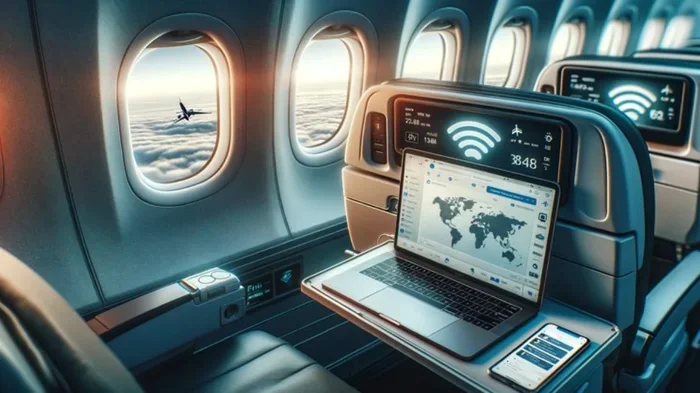
Yes, Zoom works on Spirit Wi-Fi, but your experience depends on your flight route, the Wi-Fi plan you choose, and the connection speed available at the time. Spirit Airlines offers in-flight internet through partnerships with leading providers, and you can run Zoom video calls as long as you have a stable and fast enough connection. This guide covers everything you need to know, from buying the right Wi-Fi plan to troubleshooting common problems and getting the best possible call quality.
Have you ever wondered whether you can join a Zoom meeting while flying on Spirit Airlines? Maybe you have a work call scheduled during a trip, or you want to catch up with family mid-flight. The good news is that Spirit Wi-Fi makes video conferencing on flights possible, but the experience is not always perfect. In this guide, we walk you through everything you need to know about using Zoom on Spirit Wi-Fi, from setup to troubleshooting.
Spirit Airlines has expanded its in-flight Wi-Fi options over the past few years. The airline partners with leading internet providers to offer passengers a way to stay connected at 30,000 feet. However, not all Wi-Fi plans are created equal, and your results will vary depending on several factors. Whether you are a frequent flyer or planning a one-time trip, understanding how Zoom and Spirit Wi-Fi work together will help you make the most of your time in the air.
This guide covers the full setup process, common problems, and practical tips to improve your Zoom connectivity on a Spirit flight. We also compare Spirit’s offering with other airline Wi-Fi options so you can set realistic expectations. By the end, you will know exactly what to do before, during, and after your flight to get the best possible video call experience.
Key Takeaways
- Zoom works on Spirit Wi-Fi: You can use Zoom for video calls, but speed and stability vary by route, altitude, and plan.
- Purchase a Wi-Fi plan first: You must buy a Spirit Wi-Fi pass before you can connect to the in-flight network.
- Higher-speed plans deliver better Zoom performance: The Basic plan may work for simple calls, but premium plans offer a smoother experience.
- Connection quality varies during the flight: Factors like the number of users, route, and cellular tower proximity all affect your in-flight connectivity.
- Simple troubleshooting fixes most issues: Restarting the app, switching planes, or adjusting Zoom settings can resolve common problems.
- Pre-flight preparation is key: Download Zoom, charge your device, and test your audio before you board to save time.
📑 Table of Contents
How Spirit Airlines Wi-Fi Works
What Is Spirit Airlines In-Flight Wi-Fi
Spirit Airlines offers in-flight Wi-Fi through a satellite-based or air-to-ground connection system. This means your phone, tablet, or laptop connects to a network provided by the airline, which then routes your data through satellites or ground-based cell towers. The type of connection you get depends on the aircraft, the route, and the Wi-Fi plan you purchase.
The Spirit Wi-Fi service is not available on every flight or route. Some shorter domestic flights may not offer Wi-Fi at all. Longer routes and mainline flights are more likely to have working internet. Before assuming you will have access, check the Spirit Airlines website or app to confirm Wi-Fi availability for your specific flight.
How To Connect To Spirit Wi-Fi
Connecting to Spirit Wi-Fi is a straightforward process. Once you board and the cabin crew announces that Wi-Fi is available, follow these steps:
- Open your device’s Wi-Fi settings and select the Spirit Airlines network.
- A captive portal page will open automatically. If it does not, open your browser and visit any website.
- Choose a Wi-Fi plan and complete the purchase.
- Wait for the connection to establish. You may need to refresh your browser or toggle airplane mode once.
Keep in mind that connecting to airplane internet is different from your home Wi-Fi. The Wi-Fi speed on a plane is shared among all passengers, so it can slow down during peak usage times. This is important to remember when planning a Zoom call during your flight.
Does Zoom Work On Spirit Wi Fi – The Short Answer
What You Need For Zoom On Spirit Wi-Fi
The short answer to does Zoom work on Spirit Wi-Fi is yes. You can use Zoom for video calls, screen sharing, and chat while flying on Spirit Airlines. However, there are a few things you need in place for it to work well:
- A purchased Spirit Wi-Fi plan that supports browsing and video streaming.
- A device with the Zoom app installed and updated to the latest version.
- A fully charged device or access to a power outlet.
- A seat with a working Wi-Fi signal, which depends on your location on the aircraft.
The Zoom connectivity experience on Spirit Wi-Fi can range from smooth and clear to choppy and frustrating. It all comes down to the plan you choose, the number of people using the network, and the route you are on. Bandwidth limitations are real on airplane Wi-Fi, and video calls are among the most demanding activities you can perform.
Zoom Performance On Different Spirit Wi-Fi Plans
Spirit Airlines typically offers multiple Wi-Fi tiers. The lower-tier plans may work for text-based Zoom calls or simple one-on-one meetings. Higher-tier plans with faster speeds handle group calls and screen sharing much better. Here is a quick look at what you can expect:
- Basic Plan: Works for audio-only Zoom calls and simple messaging. Video may lag or freeze during busy flights.
- Standard Plan: Handles basic video calls with moderate quality. Suitable for small group meetings with cameras on.
- Premium Plan: Delivers the best streaming quality for Zoom. Supports group video calls, screen sharing, and HD video when conditions allow.
Remember that even with the premium plan, you are still sharing a connection with dozens or hundreds of other passengers. The in-flight connectivity experience is never as fast as your home or office Wi-Fi. Set your expectations accordingly, and you will be pleasantly surprised when things work well.
Step-by-Step Setup Guide
Before Your Flight
Preparation before your flight makes a huge difference in your Zoom experience at 35,000 feet. Here is what you should do before you leave home:
- Download and update Zoom. Go to your app store and make sure you have the latest version of the Zoom app installed. This ensures you have the newest features and bug fixes.
- Check your Spirit flight Wi-Fi status. Visit the Spirit Airlines website or app and look up your flight. Confirm that Wi-Fi is available on your aircraft.
- Charge your device fully. Airplane outlets are not always available or working. A fully charged device gives you a safety net in case the power outlet near your seat is out of order.
- Download any files or presentations you need. If you plan to share your screen on Zoom, download the files locally. Relying on a slow airplane internet connection to pull up a file can cause delays and frustration.
- Test your audio and camera. Run a quick test call before you leave. Make sure your microphone and speakers work properly.
Also, consider the time zone of your destination. If your flight is overnight, you may want to schedule your Zoom call during a time when the Wi-Fi network is less congested. Early morning and late-night flights tend to have fewer users online.
Connecting To Wi-Fi Mid-Flight
Once you are in the air and the crew announces that Wi-Fi is available, it is time to connect. Follow these steps carefully:
- Turn off airplane mode on your device, or toggle Wi-Fi on if airplane mode is still active.
- Search for available networks and select the Spirit Airlines Wi-Fi network.
- Open your browser and you will be redirected to the Spirit Wi-Fi portal page.
- Select your desired plan and complete the payment.
- Wait for the connection to confirm. You may see a “Connected” message or be able to browse the web.
If the portal does not open automatically, try typing any URL into your browser. Sometimes the page gets stuck, and a quick refresh solves the problem. Once connected, open Zoom and check if your microphone and camera work before the meeting starts.
Launching Zoom And Making Your Call
With Wi-Fi connected, launch the Zoom app and join or start your meeting. Here are a few things to keep in mind for a smooth experience:
- Start with audio only. If the connection is slow, join the call with your video off first. Turn your camera on once you confirm the audio is stable.
- Use the Zoom mobile app instead of the desktop version. The mobile app is optimized for lower bandwidth and tends to perform better on flight Wi-Fi.
- Turn off screen sharing if not needed. Screen sharing uses a lot of data and bandwidth. Only share your screen when absolutely necessary.
- Mute when not speaking. This reduces the amount of data being sent and helps maintain a stable connection for everyone on the call.
These small adjustments can make a big difference in call quality. The goal is to use as little bandwidth as possible while still participating effectively in the meeting.
Common Issues And How To Fix Them
Slow Connection Speeds
Slow internet is the most common complaint about airplane Wi-Fi, and Spirit is no exception. When the connection is slow, your Zoom call may freeze, audio may drop out, or video may become pixelated. Here is what you can do:
- Move to a different seat on the aircraft. Seats near the front or over the wing sometimes get a stronger signal.
- Ask other passengers to limit their internet usage if possible.
- Switch to audio-only mode to reduce bandwidth demand.
- Close other apps and browser tabs that are using data in the background.
Sometimes the slow speed is simply due to the number of people connected. If you are on a full flight, everyone is competing for the same Wi-Fi speed. Patience and flexibility go a long way.
Zoom Failing To Connect
If Zoom will not connect at all, try these steps:
- Make sure you are actually connected to the Spirit Wi-Fi network. Check your Wi-Fi settings.
- Toggle airplane mode on and off to reset the connection.
- Restart the Zoom app completely and try again.
- Check if the Spirit Wi-Fi portal page loads. If it does not, the Wi-Fi itself may not be working yet.
- Try joining the meeting by phone instead. Zoom allows you to dial in using a regular phone number, which bypasses the Wi-Fi issue entirely.
It is also worth noting that some flights may not have fully operational Wi-Fi. In those cases, you might want to explore alternatives like using your phone as a portable Wi-Fi hotspot if you have a cellular signal. This is similar to how people use mobile Wi-Fi on the go, such as when traveling in a car with a Verizon hotspot.
Audio Or Video Problems
If your Zoom call connects but the audio or video is poor, try these fixes:
- Turn off your video and rely on audio only.
- Switch your Zoom audio output to the phone call option instead of the computer or device speakers.
- Check that no other apps are using your microphone or camera in the background.
- Reduce your Zoom video quality in the settings. Lower resolution uses less bandwidth and often results in a more stable call.
For audio issues specifically, using headphones can help reduce echo and background noise, which makes it easier for others to hear you. This is especially helpful in a noisy cabin environment.
Tips For Better Zoom Calls On Spirit Wi-Fi
Choose The Right Seat
Your seat location on the aircraft affects your Wi-Fi signal strength. Seats near the front of the plane or over the wings tend to have better connectivity because they are closer to the Wi-Fi antennas. If you know you need a strong connection for a Zoom call, consider paying a bit extra for a preferred seat or arriving early to pick a good spot.
Adjust Your Zoom Settings
Before your flight, go into the Zoom settings and make a few adjustments that can help with a low-bandwidth connection:
- Turn off HD video by default.
- Disable virtual backgrounds, as they require extra processing power and bandwidth.
- Enable “Turn off my video when joining a meeting” so you can control when your camera is on.
- Set your audio to the phone dial-in option as a backup.
These settings reduce the amount of data your Zoom session uses, which helps it run more smoothly on flight Wi-Fi. Small tweaks can lead to a much better experience.
Download Content Before You Fly
One of the best ways to ensure a smooth Zoom call is to download everything you need before the flight. This includes presentations, documents, and any files you plan to share. Once you are in the air, you will not have to rely on a slow airplane internet connection to pull up files or join the meeting.
Also, download offline entertainment for the rest of your flight. If the Wi-Fi is too slow for a productive meeting, having movies or music ready makes the rest of the trip much more enjoyable. Just like how you would prepare for a long road trip with a portable Wi-Fi hotspot, preparing your device before a flight sets you up for success.
Comparing Spirit Wi-Fi With Other Airline Wi-Fi Options
How Spirit Stacks Up Against Major Carriers
Spirit Airlines is a budget carrier, and its Wi-Fi offering reflects that. The Wi-Fi plans are generally more affordable than those of major airlines like Delta or United, but the speeds and reliability may not match. Here is a quick comparison:
- Spirit Airlines: Affordable plans, basic connectivity, and variable speeds. Best for light browsing and simple video calls.
- Delta Airlines: Offers free basic messaging and paid streaming plans. Generally faster and more reliable.
- United Airlines: Provides multiple speed tiers with a focus on streaming. Premium plans offer near-home Wi-Fi speeds on select routes.
If you frequently travel for work and need reliable video conferencing on flights, you may want to compare airline options before booking. However, if Spirit is your carrier of choice, the tips in this guide will help you get the most out of the available Wi-Fi.
Alternatives When Spirit Wi-Fi Is Not Enough
Sometimes Spirit Wi-Fi simply cannot handle a Zoom call, especially on crowded flights or routes with limited coverage. In those situations, you have a few alternatives:
- Use Zoom audio-only mode. This uses much less data and often works even on slow connections.
- Use a cellular hotspot. If you have a strong cellular signal, you can tether your device to your phone. This works similarly to how people connect to mobile Wi-Fi on the go, like using a Verizon hotspot in the car.
- Wait until you land. Not every meeting needs to happen in real time during the flight. Use the offline time to prepare, and join the call once you have a stable ground connection.
Knowing your alternatives gives you a backup plan and reduces the stress of relying entirely on in-flight connectivity. Sometimes the best solution is simply to adjust your expectations and adapt to the situation.
Final Thoughts
Does Zoom work on Spirit Wi-Fi? Yes, it does, and with the right preparation, you can have a productive and smooth video call while flying. The key is to choose the right Wi-Fi plan, prepare your device before you board, adjust your Zoom settings for low bandwidth, and stay flexible when the connection is not perfect.
Airplane Wi-Fi technology is improving every year, and airlines like Spirit are continuously working to offer better speeds and more reliable connections. What feels slow today may be much faster tomorrow. In the meantime, the tips and strategies in this guide will help you make the most of your Spirit Wi-Fi Zoom experience.
Remember that every flight is different. The same route on the same aircraft can have varying Wi-Fi performance depending on the time of day, weather conditions, and how many passengers are online. Treat each flight as its own experience, and you will be better prepared for whatever the connection brings.
With this guide in hand, you are ready to take on your next Spirit Airlines flight with confidence. Download Zoom, buy your Wi-Fi plan, and stay connected even at 35,000 feet. Safe travels and happy calling.
Frequently Asked Questions
Can I use Zoom on a Spirit Airlines flight for free?
Spirit Airlines charges for Wi-Fi access, so you will need to purchase a Wi-Fi plan to use Zoom. The airline occasionally offers free basic messaging passes, but these do not support video calls. You must buy a paid plan that includes browsing and streaming to use Zoom on a Spirit flight.
What is the best Spirit Wi-Fi plan for Zoom calls?
The premium or streaming-tier plan works best for Zoom calls. It offers faster speeds and more bandwidth, which is essential for stable video and audio. The basic plan may work for audio-only calls, but it can struggle with video, especially during busy flights.
Does Zoom work on all Spirit Airlines flights?
No, not all Spirit flights offer Wi-Fi. Short-haul domestic flights and certain aircraft may not have Wi-Fi installed. Check the Spirit Airlines website or app for your specific flight to confirm Wi-Fi availability before you travel.
Can I make a Zoom call using my phone’s cellular data instead of Spirit Wi-Fi?
Yes, you can use your phone’s cellular data to make Zoom calls during a flight, but this depends on your carrier and plan. Some carriers allow voice and data at cruising altitude, while others block it. Check with your carrier before relying on cellular data for a Zoom call.
Why does my Zoom call keep freezing on Spirit Wi-Fi?
Zoom calls freeze on Spirit Wi-Fi because of slow speeds, high passenger usage, or weak signal strength. To fix this, switch to audio-only mode, move to a different seat, close other apps using data, or restart your device. These steps often resolve freezing issues quickly.
Is it better to use Zoom on a phone or a laptop on Spirit Wi-Fi?
The Zoom mobile app is generally better for low-bandwidth connections like flight Wi-Fi. It is optimized for smaller screens and uses less data than the desktop version. If you must use a laptop, reduce the video quality and turn off HD to improve performance.