How Can I Connect To A Wifi Printer Without Any Trouble
Connecting to a wifi printer is easier than most people think. This guide walks you through every step, from initial setup to fixing common connection problems. You will learn how to connect your wifi printer to your home network, troubleshoot issues, and get printing in minutes.
Setting up a wifi printer at home or in the office feels like it should be simple. And most of the time, it is. But when the setup screen freezes or the printer refuses to find your network, it can turn into a frustrating experience fast. You are not alone if you have ever stared at a printer screen wondering, “How can I connect to a wifi printer without all this hassle?”
The good news is that connecting a wireless printer to your home network does not require a computer science degree. With the right steps and a little patience, you can have your wifi printer up and running in under 15 minutes. This guide covers everything from the initial setup process to fixing common connection problems. We will also share tips on improving your printer’s wifi signal so you never have to deal with dropped prints again.
Whether you just bought a new wireless printer or are trying to reconnect an existing one, this article has you covered. We will walk through each method, explain what to do when things go wrong, and give you practical advice that actually works. Let us get your printer online.
Key Takeaways
- Simple Setup: You can connect to a wifi printer using your printer’s control panel or a mobile app in just a few minutes.
- 2.4GHz Matters: Most wifi printers work best on the 2.4GHz band, so make sure your router supports it before you begin.
- Troubleshooting Is Easy: Common issues like printer offline status or weak signal have quick fixes you can do at home.
- WiFi Boosters Help: If your printer is far from the router, a wifi booster can strengthen the connection significantly.
- Mobile Printing Works: You can print from your phone or tablet once the wifi printer is properly connected to your network.
📑 Table of Contents
Why Connecting to a Wifi Printer Matters
A wifi printer gives you the freedom to print from any device in your home. You do not need to plug in a USB cable or sit right next to the machine. This kind of convenience changes how you work, especially if you move between a laptop, a tablet, and a phone throughout the day.
Wireless printing also means multiple people can share one printer. Your kids can print homework from their Chromebook while you send documents from your work laptop. Everyone connects to the same network and sends print jobs wirelessly. It is one of the simplest upgrades you can make to a home office setup.
How Wifi Printers Work
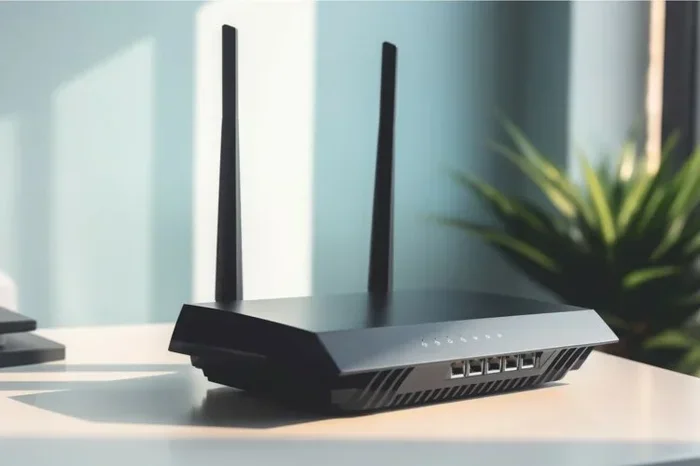
Your wireless printer connects to your home router using the same wifi network your phone and laptop use. Once connected, it gets an IP address on your local network. This lets any device on the same network find the printer and send print jobs to it.
Most modern printers use the 2.4GHz frequency band because it has a longer range than 5GHz. Some printers also support 5GHz, but 2.4GHz is more reliable for printing. If you have trouble connecting, check whether your phone or laptop is on the same frequency band as your printer. You can learn more about managing frequency bands in our guide on how to force your phone to use 2.4GHz wifi.
How to Connect to a Wifi Printer Step by Step
The setup process varies slightly depending on your printer brand. But the general steps are very similar across most models. Here is a clear walkthrough that works for the majority of wireless printers on the market today.
Step 1: Unbox and Power On Your Printer
Start by placing your printer on a flat surface near your router. You want a strong wifi signal in the area where the printer sits. Plug in the power cable, turn the printer on, and wait for it to finish its startup cycle. Most printers display a welcome screen or a setup wizard when they first power on.
Make sure you have the power cable, the installation CD or a downloaded driver, and your wifi network name and password ready. Having these things prepared before you start saves a lot of time.
Step 2: Install the Printer Software
Most printers come with a setup CD, but downloading the latest driver from the manufacturer’s website is better. Go to the brand’s support page, enter your model number, and download the driver for your operating system. Run the installer and follow the on-screen prompts.
The software will search for available printers on your network. When it finds your wireless printer, select it and continue. The installer will guide you through entering your wifi password and linking the printer to your home network.
Step 3: Connect Using the Printer Control Panel
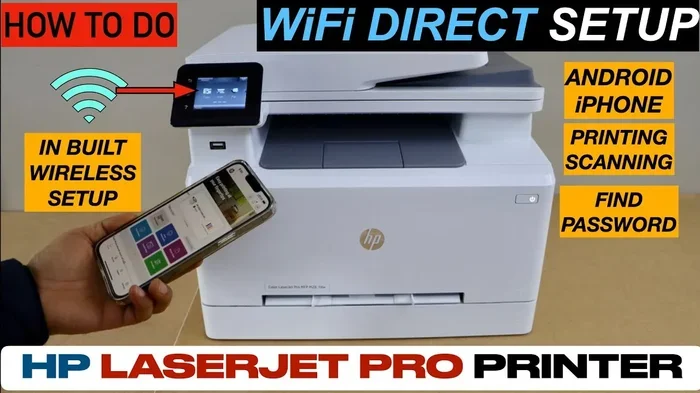
Many printers let you connect to wifi directly from the built-in screen. Use the arrow keys or touchscreen to navigate to the Settings menu. Look for Network Settings, then select Wireless Setup Wizard.
The printer will scan for available networks. Select your network from the list, enter the password, and wait for the connection to complete. A wifi icon on the printer’s display usually confirms a successful connection. This method works well if you prefer not to use a computer during setup.
Step 4: Print a Test Page
Once the connection is set up, print a test page to confirm everything works. You can do this from the printer’s menu or from your computer. Go to Settings, then Printers, select your wireless printer, and choose Print Test Page.
If the test page prints clearly, you are all set. If not, do not worry. The next section covers the most common issues and how to fix them.
Common Problems When Connecting to a Wifi Printer
Even with careful setup, things can go wrong. Wireless printers depend on a stable network connection, and small issues can cause big headaches. Here are the most common problems and how to solve them.
Printer Shows Offline or Unavailable
This is the most common issue people face. When your printer shows as offline, your computer cannot send print jobs to it. The fix is usually simple. First, check that the printer is powered on and connected to the same wifi network as your computer. Then restart both the printer and your router. Sometimes just turning the printer off and back on resolves the offline status.
If restarting does not work, try removing the printer from your device’s list and adding it again. On Windows, go to Settings, then Devices, then Printers and Scanners. Remove the printer and click Add Device to rediscover it on the network. On Mac, go to System Preferences, then Printers and Scanners, and re-add the printer.
Printer Will Not Find the Wifi Network
If your printer cannot detect your wireless network, the first thing to check is the frequency band. Most wireless printers only support 2.4GHz networks. If your router combines both 2.4GHz and 5GHz under one network name, try splitting them. Set up a separate 2.4GHz network and connect your printer to that one.
Another reason could be distance. If the printer is too far from the router, the signal may be too weak to detect. Moving the printer closer to the router during setup can help. Once connected, you can move it back to its permanent location. For homes with thick walls or multiple floors, consider a wifi booster to extend the signal range. Our guide on extending wifi coverage can help you find the right solution.
Print Jobs Get Stuck in the Queue
Sometimes print jobs send successfully but get stuck waiting to print. This usually happens when the printer and computer lose their network connection mid-job. Clear the print queue by going to your printer settings and cancelling all pending documents. Then restart the printer and resend the job.
Updating the printer driver also helps prevent stuck print jobs. Outdated drivers can cause communication errors between your computer and the wireless printer. Check the manufacturer’s website for the latest driver updates for your model.
Tips to Improve Your Wifi Printer Connection
A strong wifi signal makes all the difference when printing. Here are practical tips to keep your wireless printer connected and running smoothly.
Place the Printer Close to Your Router
The closer your printer is to the router, the stronger the signal. Ideally, place the printer in the same room as your router or within 30 feet of it. Walls, floors, and large furniture can weaken the wifi signal significantly.
If moving the printer closer to the router is not an option, consider a wifi booster or a mesh network system. These devices extend your wireless coverage and can reach areas where the signal is weak. You can learn more about wifi extenders and boosters in our article on buying a wifi booster.
Use a 2.4GHz Network for Best Compatibility
Most wireless printers work best on the 2.4GHz band. This band has a longer range and better wall penetration than 5GHz. If your router broadcasts both bands under one name, your printer might accidentally connect to the 5GHz band and lose connection.
To avoid this, log into your router settings and set up a separate network name for the 2.4GHz band. Then connect your printer to that network specifically. This simple step prevents many connection headaches.
Keep Your Printer Firmware Updated
Printer manufacturers release firmware updates that fix bugs and improve wifi connectivity. Check the printer’s settings menu or the manufacturer’s app for available updates. Keeping your firmware current ensures the best performance and security.
Restart Your Router Regularly
Routers benefit from occasional restarts, just like any other device. Restarting your router once a week clears the memory and refreshes network connections. This simple habit keeps your wireless printer and all other devices running smoothly.
Connecting a Phone or Tablet to a Wifi Printer
One of the best things about a wireless printer is the ability to print from your mobile devices. Both iPhone and Android phones support wireless printing through built-in features and dedicated apps.
Printing from iPhone or iPad
Apple devices use AirPrint to connect to wireless printers. Make sure your iPhone and printer are on the same wifi network. Open the document or photo you want to print, tap the Share button, and select Print. Your printer should appear in the list of available printers. Tap it and hit Print.
If your printer does not show up, make sure AirPrint is enabled in the printer settings. Some older printers do not support AirPrint and may require a third-party app from the manufacturer.
Printing from Android Devices
Android phones use Google Cloud Print or the manufacturer’s mobile app for wireless printing. Download the printer manufacturer’s app from the Google Play Store. Follow the setup instructions to connect the app to your wireless printer.
Once connected, you can print photos, documents, and web pages directly from your phone. This is incredibly handy for printing boarding passes, recipes, or quick documents without touching a computer.
When to Use a Wired Connection Instead
While wireless printing is convenient, there are times when a wired connection makes more sense. If you need very reliable, high-speed printing, a USB or Ethernet cable connection beats wifi every time.
Wired connections also eliminate wifi interference issues. If you live in a crowded apartment building with many networks competing for the same channels, a wired connection gives you a stable, uninterrupted print experience. Some people keep their printer on wifi for casual use and switch to USB for important documents.
You can also connect your printer to a network switch if you want a wired connection without running a cable all the way from your router. This gives you the reliability of a wired link with more placement flexibility.
Final Thoughts
Connecting to a wifi printer does not have to be a stressful experience. Follow the steps in this guide, and you will have your wireless printer up and running quickly. Start with the basic setup, keep your printer close to the router during initial connection, and use the 2.4GHz band for the most reliable performance.
When problems do come up, the troubleshooting tips above will help you get back on track quickly. Most issues are simple fixes like restarting the printer, clearing the print queue, or updating the driver. Keep your firmware current and your wifi signal strong, and your wireless printer will serve you well for years to come.
Take a few minutes today to set up or reconnect your wifi printer. You will wonder why you did not do it sooner. Happy printing!
Frequently Asked Questions
How do I find the wifi password for my printer setup?
Your wifi password is the same one you use to connect your phone or laptop to the network. You can usually find it printed on a sticker on your router. If you changed it and forgot, you can log into your router settings to view or reset it.
Can I connect a wifi printer without a computer?
Yes, most modern wireless printers let you connect directly through their control panel. Use the Wireless Setup Wizard on the printer screen to find your network and enter the password. You do not need a computer at all for this method.
Why does my wifi printer keep disconnecting from the network?
This usually happens when the printer is too far from the router or when the network signal is weak. Moving the printer closer to the router or switching to the 2.4GHz band often fixes this. You can also try restarting your router and printer to refresh the connection.
Do I need a special app to print wirelessly from my phone?
iPhone users can use AirPrint without any extra apps. Android users may need the manufacturer’s app for the best experience. Most printer brands offer free mobile apps that make wireless printing easy and straightforward.
What is the difference between a wifi printer and a wireless printer?
There is no real difference. Both terms refer to printers that connect to your network without a cable. Some people use “wifi printer” to mean a printer that connects directly to your wireless router, while “wireless printer” is a broader term that includes all network-free printing options.
Can I connect my wifi printer to a guest network?
Yes, you can connect a wireless printer to a guest network as long as it is on the same router. The guest network just needs to be enabled and share the same local network settings. This is useful for keeping your main network secure while still allowing printing access.
=== CONCLUSION ===
Connecting to a wifi printer is a straightforward process once you know the steps. From powering on the printer and installing the software to troubleshooting common issues and improving your signal, this guide covers everything you need. Keep your printer close to the router, use the 2.4GHz band, and update your firmware regularly for the best experience. With a little effort, you will enjoy the convenience of wireless printing from any device in your home.