Can I Put A Graphics Card In Any Computer Explained
Not every computer can accept a graphics card, and compatibility depends on your motherboard, power supply, and physical space. Adding a dedicated GPU can boost PC gaming performance and productivity, but you need to check several factors first. This guide walks you through everything from PCIe slots to card length and driver installation.
So you want to upgrade your PC with a new graphics card, but you are not sure if your computer can even handle one. This is a question that comes up all the time, and the answer is not as simple as yes or no. Can I put a graphics card in any computer? The truth is, it depends on several important factors that we will explore in detail below.
Adding a dedicated graphics card to your system can completely transform your experience. Whether you want smoother PC gaming performance, faster video editing, or better display output for creative work, a GPU upgrade can make a huge difference. But before you rush out to buy one, you need to make sure your computer is ready. This guide will help you understand every piece of the puzzle, from motherboard compatibility to power supply requirements and everything in between.
Key Takeaways
- Compatibility matters: Not every computer can support a graphics card. Your motherboard, PSU, and case all play a role.
- Check your PCIe slot: Most modern desktops have a PCIe x16 slot, which is what you need for a GPU upgrade.
- Power supply is critical: Your PSU wattage must meet the demands of the new card, or you will face stability issues.
- Physical size matters: Card length, width, and case clearance can prevent a GPU from fitting properly.
- Laptops are different: Most laptops cannot be upgraded with a new graphics card because the GPU is soldered to the motherboard.
- Driver installation is essential: Always download the latest drivers from the manufacturer for the best performance.
- External GPUs exist: If your system cannot support an internal card, an external GPU enclosure is a viable alternative.
📑 Table of Contents
- Understanding Graphics Card Compatibility
- What Your Motherboard Needs To Support A Graphics Card
- Power Supply Requirements For GPU Upgrades
- Physical Size And Space Constraints Inside Your PC
- How To Know If Your Computer Can Handle A New Card
- Step-By-Step Guide To Installing A Graphics Card
- Common Mistakes People Make When Upgrading Graphics Cards
- When Your Computer Simply Cannot Support A Graphics Card
- Conclusion
Understanding Graphics Card Compatibility
The first thing you need to know is that not every computer can accept every graphics card. Graphics card compatibility is determined by a combination of hardware and software factors. Let us break this down so it is easy to understand.
What Is a Graphics Card and Why Does It Matter?
A graphics card, also called a video card or GPU, is the component in your computer that handles visual tasks. It takes the heavy lifting away from your processor when you are gaming, watching videos, or running creative software. If your computer only has integrated graphics, it means the graphics processing is built into the CPU. This works fine for basic tasks like browsing the web, watching videos, and using office apps. But it falls short when you need serious visual power.
When you add a dedicated graphics card, you get a separate processor designed specifically for graphics work. This means better frame rates, smoother gameplay, and faster rendering times. But your computer needs the right setup to support this kind of upgrade. Not every system is built to handle a powerful GPU, and that is exactly why compatibility checks matter so much.
The Role of the PCIe Slot
Graphics cards connect to your motherboard through a PCIe slot, which stands for Peripheral Component Interconnect Express. This is the standard expansion slot used for graphics cards, sound cards, and network adapters. Most modern motherboards have at least one PCIe x16 slot, which is the slot you need for a graphics card.
Here is the good news. The vast majority of desktop computer motherboards built in the last 10 to 15 years have a PCIe x16 slot. This means motherboard compatibility is usually not a problem for most users. However, older computers or very budget builds might only have PCIe x1 or x4 slots, which will not work with a full-size graphics card. Always verify what slots your motherboard has before purchasing a GPU.
It is also worth noting that PCIe has different versions, like PCIe 3.0 and PCIe 4.0. A newer card will work in an older slot, but it will run at the speed of the older slot. For most users, this does not cause a noticeable difference in everyday use. But if you are chasing maximum performance, matching PCIe versions can give you a small but meaningful boost.
What Your Motherboard Needs To Support A Graphics Card
Your motherboard plays a big role in determining whether you can add a new card. Let us look at the specific things you need to check before making a purchase.
Checking Your Motherboard Model
Every motherboard has a model number printed directly on the board itself. You can find this by opening your PC case and looking at the board, or by checking your system information in Windows. Once you know your model, you can look up its specifications online to see what expansion slots it supports.
Most desktop computer motherboards from trusted brands like ASUS, MSI, Gigabyte, and ASRock will have at least one PCIe x16 slot. If you have a laptop, the situation is very different. Laptop graphics are usually soldered directly onto the motherboard, which means you cannot swap them out. There are some rare exceptions with certain gaming laptops that support MXM modules, but for the vast majority of laptops, a GPU upgrade is simply not possible.
BIOS and UEFI Considerations
Your motherboard’s BIOS or UEFI firmware also matters when planning a GPU upgrade. In some cases, you may need to update your BIOS before installing a newer graphics card. This is especially true for very old motherboards that do not recognize newer GPU architectures. A quick BIOS update from the manufacturer’s website can often solve this problem and prevent headaches down the road.
Another thing to check is whether your motherboard supports the card’s power connector requirements. Some high-end cards need extra power delivered through the motherboard, and your board needs to be set up to handle that properly. Always read the card’s installation guide carefully to understand any special motherboard requirements.
Power Supply Requirements For GPU Upgrades
This is one of the most overlooked parts of putting in a new graphics card. Your power supply unit, commonly called a PSU, needs to be strong enough to handle the new card. If it is not, you will run into problems ranging from poor performance to complete system shutdowns. Checking your PSU should be one of the first steps before buying any GPU.
How To Check Your PSU Wattage
Every PSU has a wattage rating printed on its label or listed in its specifications. You can also use a free online PSU wattage calculator to estimate your total system power needs. These calculators take into account your CPU, RAM, storage drives, and the graphics card you want to install. They give you a clear picture of whether your current power supply is up to the task.
As a general rule of thumb, a mid-range graphics card needs around 450 to 550 watts from your PSU. A high-end card can demand 650 watts or more, especially when paired with a powerful processor. If your current PSU does not meet these requirements, you will need to upgrade it before you can install the new card. Skipping this step is the fastest way to end up with an unstable system.
Power Connectors on Graphics Cards
Modern graphics cards use different types of power connectors. The most common ones are the 6-pin, 8-pin, and 12-pin connectors. Some cards need just one connector, while others need two or even three power cables. Make sure your PSU has the right cables to match what your card requires. Using adapters is possible, but it is not always the safest or most reliable solution.
If your PSU does not have the correct connectors, you can buy adapter cables from most electronics retailers. But this is not always the best approach. A dedicated PSU with the right connectors built in will provide cleaner, more stable power to your video card. When in doubt, invest in a PSU that meets or exceeds the card’s requirements without needing adapters.
Physical Size And Space Constraints Inside Your PC
Even if your motherboard and PSU are fully compatible, the physical size of the graphics card matters a great deal. Graphics card size varies widely across different models and brands, and a card that is too big simply will not fit inside your case. This is something many people overlook when shopping for a new GPU.
Measuring Your Case for Card Length
Before buying any card, measure the available space inside your PC case. You need to know the maximum card length your case can support. This measurement is usually listed in the case specifications, often given in millimeters. A quick measurement with a ruler or tape measure can save you from buying a card that simply will not fit.
Full-size graphics cards can be over 300 millimeters long. Smaller cases, especially compact or mini-ITX builds, may only fit cards that are 200 millimeters or less. Always double-check the dimensions of both your case and the card you want to buy. A few minutes of measuring can save you a lot of money and frustration.
Width and Clearance Issues
Length is not the only concern. You also need to think about width. Some high-end cards are very thick and take up two or even three PCIe slot spaces. If your case does not have enough clearance, the card will not install properly or may block airflow to other components. This can lead to overheating and reduced performance.
Heat management is another important factor. A large, powerful card needs good airflow to stay cool. If your case has poor ventilation or too few fans, a powerful graphics card might overheat under heavy load. Consider adding extra case fans or choosing a card with a strong cooling system if you have a smaller or tightly packed case. Good airflow keeps your entire PC build running smoothly and quietly.
How To Know If Your Computer Can Handle A New Card
Now that you understand the main factors, let us talk about how to actually check if your computer is ready for a GPU upgrade. This is the practical part where you put your knowledge to work and make a confident decision.
Using System Information Tools
Windows has a built-in tool called System Information that lets you see your current hardware specs in detail. You can also use free third-party tools like CPU-Z or HWiNFO to get a complete picture of your motherboard, PSU, and available slots. These tools will tell you exactly what system requirements your current setup meets and what it might be missing.
These programs make it much easier to decide if you need to upgrade other components before adding a new graphics card. For example, you might discover that your PSU is fine but your case cannot fit a longer card. Or you might find that your motherboard supports the slot but needs a BIOS update first. Gathering this information before you buy saves time, money, and disappointment.
Checking Your Current Setup
Start by identifying what you currently have in your system. Do you have integrated graphics or a dedicated card already installed? What PCIe version does your motherboard support? How much wattage does your PSU actually provide? Answering these questions gives you a clear picture of where you stand and what you need.
Next, look at the graphics card you want to buy. Check its official specifications for the recommended PSU wattage, required PCIe slot type, and physical dimensions. Compare these numbers against your system’s capabilities carefully. If everything lines up and your system meets or exceeds the requirements, you are good to move forward with confidence.
Step-By-Step Guide To Installing A Graphics Card
Once you have confirmed compatibility, the actual installation process is straightforward and surprisingly simple. Here is a detailed walkthrough to help you do it safely and correctly.
What You Will Need Before You Start
Before you begin the installation, make sure you have everything you need. You will need a Phillips-head screwdriver, an anti-static wrist strap (optional but recommended), and of course, the new graphics card. It is also a smart idea to back up any important files before you start working inside your PC. A quick backup takes minutes but can save you from data loss if something unexpected happens.
Installation Steps
Follow these steps carefully for a smooth and safe installation:
- Power off your computer completely and unplug it from the wall outlet. This is the single most important safety step you can take.
- Open your PC case by removing the side panel. Most modern cases use thumbscrews or regular screws to hold the panel in place.
- Ground yourself by touching a metal part of the case before handling any components. This prevents static electricity from damaging sensitive parts like your new video card.
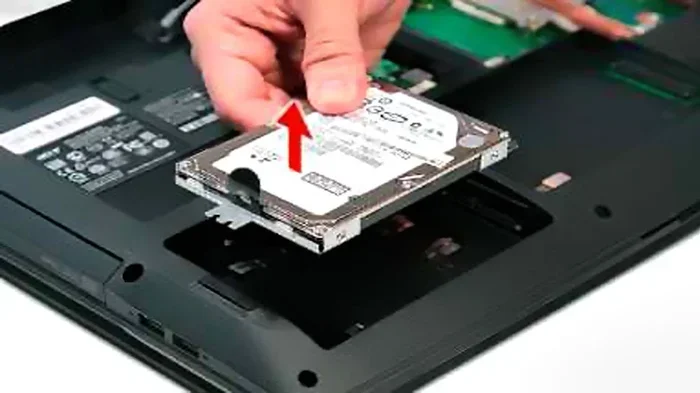
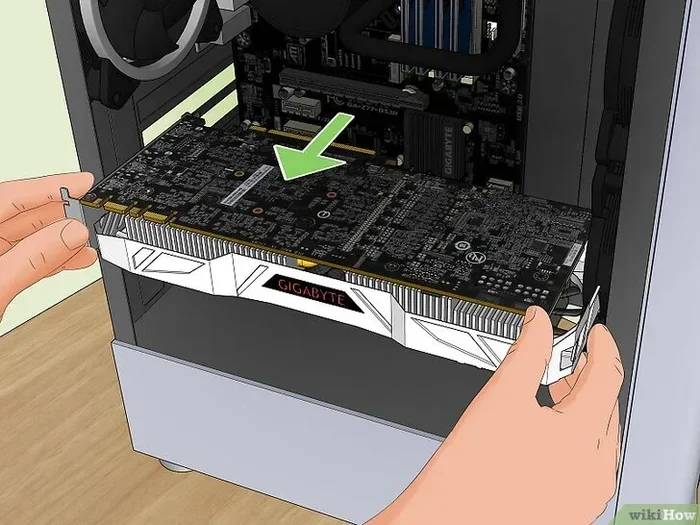
- Remove the old graphics card if you have one already installed. Unscrew the bracket screw at the back of the case and gently pull the card straight out of the PCIe slot.
- Insert the new card into the PCIe x16 slot. Press down firmly and evenly until you hear or feel it click into place.
- Secure the card with the bracket screw. Make sure it is snug but do not overtighten, as this can damage the motherboard.
- Connect the power cables from your PSU to the graphics card. Make sure each connector is fully seated and locked in place.
- Close the case and plug your computer back in to the power outlet.
- Turn on your PC and install the latest drivers directly from the GPU manufacturer’s website. This step is crucial for optimal performance and proper driver installation.
Testing Your New Card
After installation, run a benchmark test or a demanding game to test the new card. You should see a noticeable improvement in performance compared to your previous setup. If you experience any issues like screen flickering or crashes, check that all connections are secure and that the drivers are fully up to date. A fresh driver install often resolves most early-stage problems.
Common Mistakes People Make When Upgrading Graphics Cards
Even with the best intentions, people make avoidable mistakes during GPU upgrades. Learning from these errors can save you time, money, and a lot of frustration.
Skipping the PSU Check
The single most common mistake is not checking the power supply before buying a new card. A powerful GPU in a weak or underpowered PSU can cause random shutdowns, system instability, or even damage to other components over time. Always verify your PSU wattage first and make sure it has the right connectors before you commit to a purchase.
Ignoring Physical Dimensions
Buying a card without checking if it physically fits inside your case is another frequent and costly error. A card that is too long or too wide will not install properly, and you may end up returning it or dealing with poor airflow. Always measure your case and compare those measurements to the card’s official specifications before you buy.
Forgetting to Update Drivers
Some people install a new graphics card and assume everything will just work out of the box. While Windows may install basic display drivers automatically, you should always download the latest drivers directly from NVIDIA or AMD. Updated drivers improve performance, fix known bugs, and often add new features that enhance your overall experience with the card.
When Your Computer Simply Cannot Support A Graphics Card
There are situations where upgrading your graphics is simply not possible within your current system. If you have a laptop with soldered graphics, a very old desktop with no PCIe slots, or a system with no available power connectors, you may not be able to add a dedicated card. In these cases, do not despair, because there are still options available to you.
An external GPU enclosure, often called an eGPU, connects to your computer through a Thunderbolt or USB-C port. This lets you use a desktop graphics card with a laptop or a compact PC that would otherwise not support one. An eGPU is not as fast as an internal installation because of the bandwidth limitation of the connection, but it is a great option when internal upgrades are simply not possible. It gives you a way to enjoy better PC gaming performance and display output without replacing your entire system.
If none of these options work for your situation, it may be time to consider a full system replacement. Modern computers are more powerful and versatile than ever, and investing in a new PC build can give you the best possible foundation for years of use. But for most users, checking the factors we covered above will reveal that a GPU upgrade is very much within reach.
Conclusion
The answer to can I put a graphics card in any computer is not a simple yes or no. It depends on your motherboard, power supply, physical space, and overall system design. By checking each of these factors before you buy, you can avoid wasted money and frustrating compatibility issues. A GPU upgrade can breathe exciting new life into an older PC and give you a massive boost in PC gaming performance and everyday productivity.
Take your time, do your research, and make sure your PC build is ready for the upgrade. The effort is absolutely worth it when you see the difference a dedicated graphics card makes in your daily computing experience. With the right preparation and a little patience, you can enjoy smoother visuals, faster rendering, and a much more responsive system. Start by checking your compatibility today, and take the first step toward a better computing experience.
Frequently Asked Questions
Can I put a graphics card in any laptop?
In most cases, no. Laptop graphics cards are soldered directly onto the motherboard, which makes them impossible to swap out. A very small number of gaming laptops support MXM modules, but these are rare. If you want better graphics on a laptop, an external GPU enclosure connected through Thunderbolt or USB-C is your best option.
Do I need a special motherboard to install a graphics card?
You need a motherboard with a PCIe x16 slot, which is standard on virtually all modern desktop motherboards. Very old or extremely budget boards may only have smaller PCIe slots that cannot support a full-size GPU. Always check your motherboard specifications before purchasing a graphics card to ensure compatibility.
What happens if my power supply is not strong enough for a new graphics card?
If your PSU does not provide enough wattage, your system may experience random shutdowns, crashes, or instability under heavy load. In some cases, the computer simply will not turn on with the new card installed. Always check the recommended PSU wattage for your chosen GPU and upgrade your power supply if needed before installing the card.
Can I use a graphics card that is too long for my PC case?
No, a graphics card that exceeds your case’s maximum supported length will not fit properly. It may block other components, prevent the case from closing, or restrict airflow leading to overheating. Always check both the card length and your case specifications before making a purchase to avoid this common mistake.
Do I need to install drivers after putting in a new graphics card?
Yes, installing the latest drivers is an essential step after any GPU upgrade. While Windows may install basic drivers automatically, downloading the latest version directly from NVIDIA or AMD ensures you get the best performance, stability, and access to new features. Always visit the official manufacturer website for the most current driver downloads.
Is it worth upgrading my graphics card on an older computer?
It can be worth it if the rest of your system is still capable. A GPU upgrade can significantly improve gaming performance and productivity tasks on older computers. However, if your processor or RAM is a major bottleneck, the new card will not reach its full potential. Consider your entire system balance when deciding if a graphics card upgrade makes sense for your setup.