Can I Replace My Laptop Keyboard With A Backlit One Today
Yes, you can replace your laptop keyboard with a backlit one, but it depends on your model and compatibility. This guide walks you through everything you need to know about backlit keyboard replacement, from checking if your laptop supports it to a full DIY swap. You’ll learn the benefits, risks, and exact steps to upgrade your typing experience.
- Backlit replacement is possible on many laptops, but you must verify compatibility first.
- DIY swap saves money and can transform your laptop’s look and feel.
- Check the ribbon cable and layout before buying a new backlit keyboard.
- Common mistakes like forcing keys or skipping grounding can damage your laptop.
- Benefits include better visibility, improved typing speed, and a premium aesthetic.
- Not all backlit keyboards fit — model-specific parts are essential.
- Consider professional help if you’re uncomfortable with disassembly.
📑 Table of Contents
- Can I Replace My Laptop Keyboard With A Backlit One?
- What Is a Backlit Laptop Keyboard and Why Upgrade?
- Can You Replace Your Laptop Keyboard With a Backlit One?
- How to Check Compatibility for Your Laptop Model
- Tools and Preparation for the Keyboard Swap
- Step-by-Step Replacement Process
- Benefits and Drawbacks of a Backlit Upgrade
- Common Mistakes to Avoid During Keyboard Replacement
- Expert Insights: When to Call a Professional
- Key Takeaways
- Conclusion
Can I Replace My Laptop Keyboard With A Backlit One?
The short answer is yes. You can replace a standard laptop keyboard with a backlit one in many cases. But the real question is whether your specific laptop model supports this upgrade. The process is not always plug-and-play. It requires checking compatibility, finding the right part, and carefully handling internal components.
This guide covers every step you need. I’ll explain how backlit keyboards work, how to verify compatibility, and how to perform the swap safely. You’ll also learn the pros and cons of upgrading. By the end, you’ll know if a backlit keyboard replacement makes sense for you.
Let’s dive in. No jargon, no fluff — just clear, practical advice you can use today.
What Is a Backlit Laptop Keyboard and Why Upgrade?
How Backlit Keyboards Work
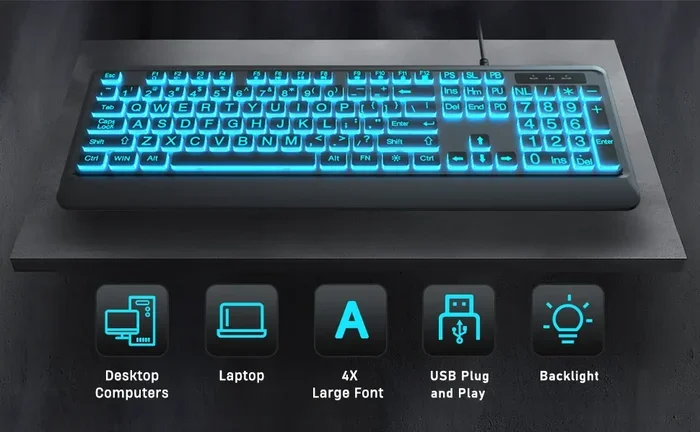
A backlit keyboard has LEDs or fiber optics beneath the keycaps. These lights shine through the letters and symbols. The result is a glowing keyboard that makes typing in dark rooms much easier. Most modern laptops use either edge-lit or per-key LED lighting. Edge-lit systems shine light from the sides. Per-key LEDs give you more control over brightness and color.
Upgrading to a backlit keyboard can change how you use your laptop. You can work late without straining your eyes. You can game or type in dim environments with ease. The glow also adds a sleek, premium look to your device.
Benefits of a Backlit Keyboard
- Better visibility in low-light conditions.
- Improved typing speed and accuracy at night.
- Aesthetic appeal that makes your laptop stand out.
- Customizable lighting on some models (RGB or single-color).
- Reduced eye strain during long work sessions.
These benefits make a strong case for upgrading. But you can’t just buy any backlit keyboard and expect it to fit. That’s where compatibility comes in.
Can You Replace Your Laptop Keyboard With a Backlit One?
Built-In vs. External Keyboards
Before you start, understand the difference between a built-in keyboard and an external one. A built-in keyboard is attached directly to the laptop chassis. It connects via a ribbon cable to the motherboard. Replacing it means opening the laptop and swapping the entire assembly. An external keyboard plugs in via USB or connects wirelessly. It doesn’t require any internal work.
When people ask “Can I Replace My Laptop Keyboard With A Backlit One?”, they usually mean the built-in keyboard. The answer depends on your laptop’s design. Some laptops have keyboards that are easily swappable. Others have keyboards fused to the palm rest or secured with special screws. You must research your exact model first.
When Replacement Is Possible
Most business and consumer laptops from brands like Dell, HP, Lenovo, and Asus use standardized keyboard assemblies. These are designed to be user-replaceable. Gaming laptops often have backlit keyboards as standard, but you can still upgrade to a brighter or RGB version. Ultrabooks and thin laptops sometimes use custom keyboards that are harder to find. In those cases, an external backlit keyboard may be the only option.
How to Check Compatibility for Your Laptop Model
Finding the Right Keyboard Part Number
The first step is to identify your laptop’s exact model number. You can find this on a sticker on the bottom of the laptop or in the system BIOS. Once you have the model, search for the keyboard part number. This number is often printed on the existing keyboard’s label. It looks something like “Dell 0K519” or “Lenovo 42T4875”.
Use this part number to search online retailers. Look for a backlit version of the same part. If a backlit variant exists, your laptop likely supports the swap. If you can’t find a backlit version, the manufacturer may not offer one. In that case, you might need to consider an external keyboard or a different laptop model.
Checking the Ribbon Cable and Layout
Even if you find a backlit keyboard with the same part number, double-check the ribbon cable connector. Some laptops use different connector types across revisions. The keyboard layout must also match your region. A US layout keyboard won’t work correctly with a UK layout laptop without remapping. Always compare the photos of the old and new keyboard before purchasing.
Tools and Preparation for the Keyboard Swap
What You’ll Need
Gather these tools before you begin. Having everything ready prevents frustration and delays.
- Phillips-head screwdriver (small size, usually #0 or #1).
- Plastic spudger or guitar pick for prying off the bezel.
- Anti-static wrist strap to prevent electrostatic discharge.
- Soft work surface like a microfiber cloth.
- Bright light source to see tiny screws and connectors.
- The new backlit keyboard assembly with all mounting screws.
Quick Tips Before You Start
Power off your laptop completely. Unplug the charger and remove the battery if possible. Work on a clean, dry surface. Take photos of every step before you disconnect anything. These photos will help you reassemble correctly. Ground yourself by touching a metal object to discharge static electricity. Static can fry sensitive laptop components.
Step-by-Step Replacement Process
Step 1: Remove the Battery (If Possible)
Many laptops have a removable battery on the bottom. Slide the release latch and lift the battery out. For built-in batteries, you may need to remove the bottom cover first. Disconnecting the battery is the safest way to avoid short circuits during the swap.
Step 2: Remove the Bezel and Keyboard Screws
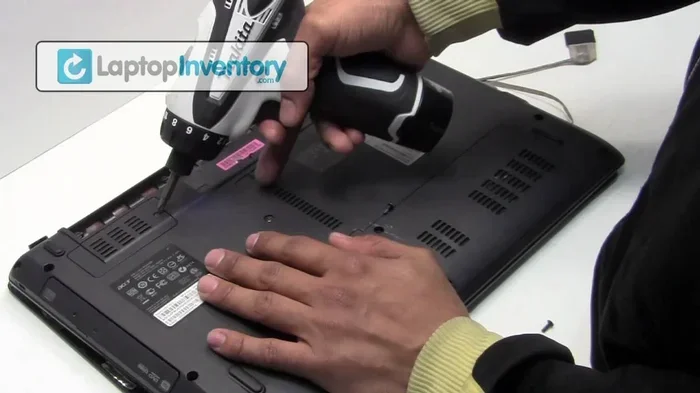
Flip the laptop face-down. Use a plastic spudger to gently pry off the keyboard bezel. Start at the corners and work your way around. The bezel is usually held by small clips. Once it’s loose, set it aside. You’ll now see screws holding the keyboard down. Remove each screw and keep them in a safe place.
Step 3: Disconnect the Ribbon Cable
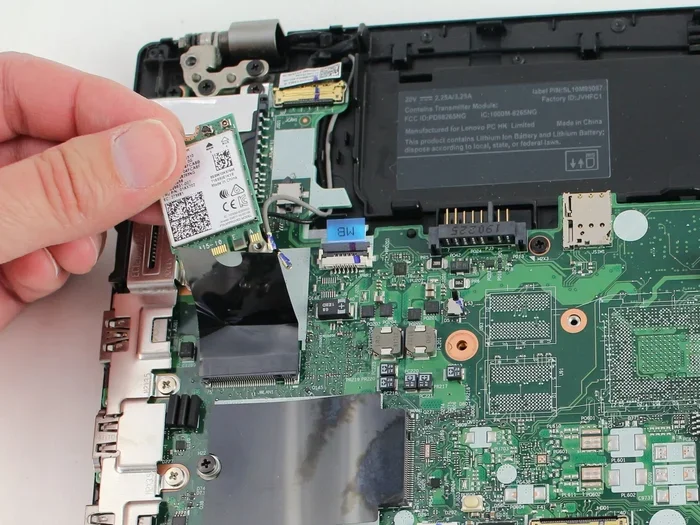
Lift the keyboard slightly to reveal the ribbon cable connector. The connector often has a small latch or tab. Gently flip the latch up and pull the cable out. Never yank the cable itself. Hold the connector and slide it free. This is the most delicate part of the process.
Step 4: Install the New Backlit Keyboard
Take your new backlit keyboard and align it with the laptop frame. Plug the ribbon cable into the motherboard connector. Push the latch down gently to secure it. Lower the keyboard into place and press it firmly. Replace the screws you removed earlier. Snap the bezel back on until it clicks. Reconnect the battery and power on the laptop.
Test the keyboard immediately. Check every key for proper lighting and function. Adjust the backlight brightness in your operating system if needed.
Benefits and Drawbacks of a Backlit Upgrade
Upgrading to a backlit keyboard has clear advantages. But it also comes with trade-offs. Let’s weigh them carefully.
| Aspect | Backlit Keyboard | Standard Keyboard |
|---|---|---|
| Visibility in Dark | Excellent | Poor |
| Aesthetic Appeal | High | Basic |
| Cost | Higher | Lower |
| Replacement Complexity | Same as standard | Same |
| Battery Impact | Slight drain | None |
| Typing Feel | Identical | Identical |
The main drawbacks are cost and potential battery impact. A backlit keyboard assembly can cost 20-50% more than a standard one. The LEDs draw a tiny amount of power, which may reduce laptop battery life by 5-10 minutes during heavy use. For most users, this is negligible. The benefits of improved visibility and style often outweigh the downsides.
Common Mistakes to Avoid During Keyboard Replacement
DIY keyboard swaps can go wrong if you’re not careful. Here are the most common mistakes people make.
- Forcing the bezel or keys. Plastic clips break easily. Use gentle, even pressure.
- Skipping the anti-static wrist strap. A single static shock can damage the motherboard.
- Mixing up screw lengths. Some laptops use different screw sizes for the keyboard and palm rest. Mixing them can strip threads.
- Bending the ribbon cable too far. The cable is fragile. Avoid sharp bends or twists.
- Forgetting to test before full reassembly. Always power on and test the new keyboard before putting the bezel back on.
Avoiding these mistakes saves you from costly repairs and frustration. Take your time and stay patient.
Expert Insights: When to Call a Professional
If you’re not comfortable opening your laptop, don’t force it. Some laptops have keyboards that are glued or soldered to the chassis. These require professional tools and expertise. A certified technician can perform the swap safely. They also have warranty access if something goes wrong. I’ve seen many people damage their laptops by trying to replace a keyboard that wasn’t meant to be user-replaceable. Know your limits.
If your laptop is still under warranty, check with the manufacturer first. Opening the laptop may void the warranty. In that case, a professional repair or an external backlit keyboard is the safer route.
Key Takeaways
- Backlit replacement is possible on many laptops, but you must verify compatibility first.
- DIY swap saves money and can transform your laptop’s look and feel.
- Check the ribbon cable and layout before buying a new backlit keyboard.
- Common mistakes like forcing keys or skipping grounding can damage your laptop.
- Benefits include better visibility, improved typing speed, and a premium aesthetic.
- Not all backlit keyboards fit — model-specific parts are essential.
- Consider professional help if you’re uncomfortable with disassembly.
Conclusion
So, can I replace my laptop keyboard with a backlit one? Yes, you can — provided your laptop model supports it and you find the correct backlit assembly. The process is straightforward if you follow the steps carefully. You’ll gain better visibility, a stylish look, and a more comfortable typing experience. Just remember to check compatibility, use the right tools, and avoid common pitfalls. Whether you do it yourself or hire a pro, a backlit keyboard upgrade is a worthwhile investment for any laptop user.
Take the time to research your model, gather your tools, and enjoy the glow. Your laptop will feel brand new again.
Frequently Asked Questions
Is a backlit keyboard replacement hard to do?
It’s not extremely difficult if you’re comfortable with basic electronics. Most laptops require removing a few screws and disconnecting a ribbon cable. The hardest part is finding the right compatible part. If you follow a video tutorial for your specific model, the swap usually takes 20-30 minutes.
Will a backlit keyboard drain my laptop battery faster?
The impact is minimal. LEDs use very little power. You might see a slight reduction in battery life, but it’s usually unnoticeable during normal use. You can always turn off the backlight to save power when needed.
Can I install a backlit keyboard myself?
Yes, many users successfully replace their own laptop keyboards. You need basic tools like a screwdriver and a plastic spudger. The key is to work slowly, ground yourself, and follow the correct disassembly steps for your laptop model.
What if my laptop model doesn’t support a backlit keyboard?
Some thin or older laptops don’t offer backlit keyboard replacements. In that case, you can use an external USB backlit keyboard. These come in many styles and connect easily. They’re a great alternative if internal upgrades aren’t possible.
How do I know if my laptop keyboard is compatible with a backlit version?
Check your laptop’s model number and find the keyboard part number. Search online for a backlit variant of that exact part. If a backlit version exists, it’s compatible. Always compare the ribbon cable connector and key layout before purchasing.
Are RGB backlit keyboards available for laptops?
Some gaming laptops support RGB keyboard replacements. These allow you to customize colors and lighting effects. Check your laptop’s specifications and available parts to see if an RGB upgrade is possible for your model.