Can I Replace The Wifi Card In My Laptop Here Is How
Yes, you can replace the WiFi card in your laptop. Most laptops allow you to swap out the internal wireless adapter for a newer model. This simple WiFi card replacement can boost your wireless speed, improve signal strength, and add support for the latest WiFi standards. Whether you want a WiFi 6 upgrade or need better Bluetooth support, this guide walks you through every step with clear instructions and practical tips.
Can I Replace The Wifi Card In My Laptop? The short answer is yes. You absolutely can. Most laptops come with a removable wireless network card that you can swap out for a newer or better model. This is one of the easiest laptop hardware upgrades you can do at home.
If your laptop WiFi feels slow or keeps dropping connections, a WiFi card replacement might be the fix you need. A new laptop wireless adapter can give you faster speeds, better range, and support for the latest wireless standards. You do not need to be a tech expert. With a few simple tools and this guide, you will have it done in no time.
In this article, we will cover everything you need to know. From understanding what a WiFi card does, to picking the right replacement, to the actual step-by-step process. We will also share tips to avoid common mistakes and get the best wireless performance from your new card.
Key Takeaways
- WiFi Card Replacement Is Possible: Most laptops let you swap the internal wireless adapter with a compatible new card.
- It Boosts Performance: A newer WiFi card can give you faster speeds and stronger signal strength.
- You Need The Right Tools: A small screwdriver, anti-static wrist strap, and compatible replacement card are all you need.
- Driver Updates Matter: After installing a new card, always update the network adapter driver for best results.
- Check Compatibility First: Not every card fits every laptop. Match the card type and size before buying.
- It Saves Money: Replacing a card is cheaper than buying a new laptop or USB adapter.
- DIY Is Easy: With basic steps and care, you can do this at home in under 30 minutes.
📑 Table of Contents
- Understanding Your Laptop WiFi Card
- Can I Replace The Wifi Card In My Laptop?
- Types Of WiFi Cards For Laptops
- Tools And Preparation For WiFi Card Replacement
- Step By Step WiFi Card Replacement Guide
- Common Mistakes To Avoid During WiFi Card Replacement
- Expert Tips For Better Wireless Performance After Upgrade
- How Much Does A WiFi Card Replacement Cost?
- When Should You NOT Replace Your WiFi Card?
- Frequently Asked Questions
- Conclusion
Understanding Your Laptop WiFi Card
Before you start any project, it helps to know what you are working with. A WiFi card is the small internal component in your laptop that connects you to wireless networks. It handles all the heavy lifting of sending and receiving data over the air.
What Is A WiFi Card?
A WiFi card is also called a wireless adapter or wireless network card. It is a small circuit board that plugs into your laptop’s motherboard. It has antennas that send and receive radio signals. These signals are what let you connect to your home router or public WiFi hotspots.
Most modern laptops use either an M.2 WiFi card or a Mini PCIe WiFi card. The type you have depends on your laptop model and age. Newer laptops almost always use the M.2 form factor. Older models may still use Mini PCIe.
How Does A WiFi Card Work?
Your internal wireless adapter works by converting data from your laptop into radio waves. Those waves travel through the air to your router. The router sends back its own radio waves, and your card converts them back into data your laptop can use.
This whole process happens in milliseconds. But the speed and reliability of it depend on the card’s capabilities. A WiFi 6 card will perform much better than an older WiFi 4 or WiFi 5 card. The card also affects your signal strength and how far you can move from the router while staying connected.
Can I Replace The Wifi Card In My Laptop?
The answer is a clear yes. In most cases, you can replace the WiFi card inside your laptop. This is one of the most straightforward laptop WiFi upgrade projects you can tackle.
When Should You Replace Your WiFi Card?
There are several good reasons to replace your wireless adapter. Here are the most common ones:
- Slow speeds: Your current card does not support modern WiFi standards like WiFi 6 or WiFi 6E.
- Poor signal: You lose connection when you move to another room.
- No Bluetooth: Some older cards do not include Bluetooth support.
- Frequent drops: Your connection keeps cutting out for no clear reason.
- Hardware failure: The card is physically damaged and no longer works.
- Better range: You want a stronger, more reliable wireless connection.
Signs Your WiFi Card Needs Upgrading
How do you know it is time for a WiFi card replacement? Watch for these signs:
- Your internet speed tests are much slower than what your plan promises.
- You see frequent buffering when streaming videos.
- Your laptop does not show available networks that your phone can see.
- The WiFi icon in your taskbar keeps showing a warning symbol.
- Your current card only supports 2.4 GHz and not 5 GHz or 6 GHz bands.
If you notice any of these, a laptop WiFi upgrade could make a big difference.
Types Of WiFi Cards For Laptops
Not all WiFi cards are the same. Before you buy a replacement, you need to know which type fits your laptop. Here is a quick look at the main options.
M.2 WiFi Cards vs Mini PCIe Cards
M.2 WiFi cards are the newer standard. They are small, flat, and slide into an M.2 slot on the motherboard. Most laptops made after 2018 use this format. M.2 WiFi cards also often include Bluetooth support built in.
Mini PCIe WiFi cards are older but still found in some laptops. They are slightly larger and use a different slot. If you have an older laptop, check which type it uses before buying a new card.
WiFi 6 vs WiFi 6E vs WiFi 7
Here is a quick comparison of the latest WiFi standards:
| Standard | Max Speed | Frequency Bands | Best For |
|---|---|---|---|
| WiFi 6 | 9.6 Gbps | 2.4 GHz and 5 GHz | Most homes and offices |
| WiFi 6E | 9.6 Gbps | 2.4 GHz, 5 GHz, and 6 GHz | Less crowded connections |
| WiFi 7 | 46 Gbps | 2.4 GHz, 5 GHz, and 6 GHz | Future-proofing and heavy use |
For most users, a WiFi 6 card is a great choice. It offers a big jump over older standards. If you want the latest, a WiFi 6E card gives you access to the less crowded 6 GHz band. WiFi 7 cards are still new and expensive, but they offer the best future-proof wireless performance.
Popular WiFi Card Brands
Some brands you will see often include Intel WiFi cards and Qualcomm Atheros cards. Both make reliable options. Intel is the most common in laptops. Qualcomm Atheros cards are also popular and work well. When shopping, look for models that match your laptop’s slot type and include the features you need, like Bluetooth.
Tools And Preparation For WiFi Card Replacement
Replacing a WiFi card is simple, but you do need the right tools and a bit of preparation. This section covers everything you need before you start.
What You Need Before Starting
Gather these items before you begin your WiFi card replacement:
- A small Phillips-head screwdriver (usually size #0 or #1).
- A plastic spudger or pry tool (to avoid scratching parts).
- An anti-static wrist strap (to protect your components).
- A clean, flat workspace with good lighting.
- Your new WiFi card (make sure it is compatible).
- The network adapter driver for your new card (download it before you start).
Safety Tips For Laptop Hardware Upgrades
Safety matters when you open up your laptop. Follow these tips:
- Power off your laptop completely and unplug it from the wall.
- Remove the battery if it is removable. If not, disconnect the internal battery connector.
- Wear an anti-static wrist strap to prevent static damage to sensitive parts.
- Work on a non-magnetic surface to avoid attracting dust or metal particles.
- Take photos of each step. This makes reassembly much easier.
Taking a few extra minutes to prepare will save you a lot of frustration later.
Step By Step WiFi Card Replacement Guide
Now for the fun part. Here is how to actually replace your WiFi card. Follow these steps carefully and you will be done in about 20 to 30 minutes.
Step 1: Back Up Your Data
Before you open your laptop, back up any important files. Just in case something goes wrong. You can use an external drive or cloud storage. This is a quick step that gives you peace of mind.
Step 2: Open Your Laptop
Turn your laptop face down. Remove the screws from the bottom panel. Keep the screws in a small bowl so you do not lose them. Use your plastic spudger to gently pry the panel open. Start at a corner and work your way around.
Every laptop is different, so check your specific model for instructions. Some laptops have clips instead of screws. Be gentle and do not force anything.
Step 3: Locate The WiFi Card
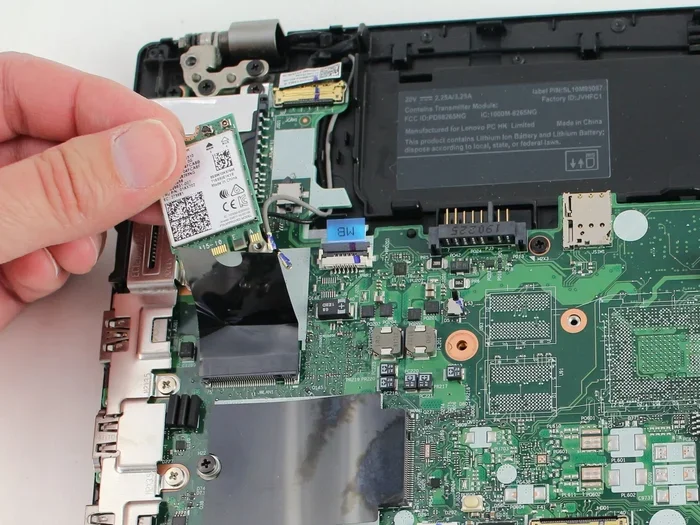
Once the panel is off, look for the WiFi card. It is a small card plugged into the motherboard. It usually has one or two thin wires or connectors leading to the antennas. These WiFi antenna connectors are small and easy to accidentally pull off, so be careful.
Take a photo of the card and its connections before you do anything else. This will be your reference later.
Step 4: Remove The Old Card
Start by disconnecting the antenna wires. Gently pull the tiny connectors straight up. Do not yank or twist. Next, remove any screw holding the card in place. Slide the old card out of its slot gently.
Set the old card aside. You may want to keep it as a spare or recycle it properly.
Step 5: Install The New Card
Take your new WiFi card out of its packaging. Hold it by the edges to avoid touching the circuitry. Align it with the slot and slide it in gently. Secure it with any screw that was on the old card.
Now reconnect the antenna wires. Push the connectors firmly into place. Double-check that they are seated properly.
Step 6: Reassemble And Test
Put the bottom panel back on. Replace all the screws. Reconnect the battery if you removed it. Power on your laptop.
Go to your network settings and check if the new card is detected. If it is, install the network adapter driver you downloaded earlier. Then connect to your WiFi network and test your speed.
You should notice a difference right away if you upgraded to a newer standard like WiFi 6.
Common Mistakes To Avoid During WiFi Card Replacement
Even simple projects can go wrong if you are not careful. Here are the most common mistakes people make when doing a WiFi card replacement.
Skipping Driver Updates
This is the number one mistake. After installing a new laptop wireless adapter, you must install the correct driver. Windows may install a generic driver, but it will not unlock the full performance of your new card. Go to the manufacturer’s website and download the latest network adapter driver before you finish reassembling your laptop.
Buying The Wrong Card
Not all WiFi cards fit all laptops. Some laptops only support one slot type. Buying the wrong card means you cannot use it. Always check your laptop’s manual or look up your model online before purchasing a replacement.
Forcing Connections
If a connector does not fit easily, do not force it. WiFi antenna connectors are fragile. Forcing them can damage the antenna or the card. Go back and check the alignment before trying again.
Forgetting To Reconnect The Antenna
This sounds obvious, but it happens often. If you forget to reconnect the antenna wires, your new card will not get a signal. Always double-check your connections before closing up the laptop.
Expert Tips For Better Wireless Performance After Upgrade
Replacing your WiFi card is just the first step. Here are some expert tips to get the most out of your new internal wireless adapter.
Antenna Placement Matters
Where you place your laptop affects your signal strength. Keep your laptop on a flat surface when using WiFi. Avoid blocking the antenna areas, which are usually near the hinge or the sides of the screen. If you use your laptop on a bed or couch, the signal can get blocked by soft surfaces.
Keep Your Drivers Updated
Manufacturers regularly release driver updates that improve wireless performance. Check for updates every few months. You can usually find them on the laptop or WiFi card manufacturer’s website.
Use The 5 GHz Band When Possible
If your router supports it, connect to the 5 GHz band instead of 2.4 GHz. The 5 GHz band is faster and less congested. A good dual band WiFi card will let you switch between bands easily for the best experience.
Consider A WiFi Analyzer App
A WiFi analyzer app can show you which channels are least crowded in your area. You can then change your router’s channel to reduce interference. This simple step can dramatically improve your connection quality.
Clean Your Router Too
Do not forget about your router. A firmware update or a repositioned router can do wonders for your wireless performance. Sometimes the problem is not the card at all but the router setup.
How Much Does A WiFi Card Replacement Cost?
The cost of a WiFi card replacement varies. A basic WiFi 6 card costs between 15 and 30 dollars. More advanced WiFi 6E or WiFi 7 cards can run 40 to 80 dollars. Compare that to the cost of a new laptop or a USB WiFi adapter, and the savings are clear.
Plus, you get the satisfaction of doing it yourself. A laptop WiFi upgrade like this can breathe new life into an older machine. You get faster speeds, better range, and fewer connection drops without spending hundreds of dollars.
When Should You NOT Replace Your WiFi Card?
There are times when a WiFi card replacement is not the right fix. If your laptop does not have a removable card, you may be out of luck. Some ultra-thin laptops have WiFi chips soldered to the motherboard. In those cases, you cannot swap the card.
Also, if your slow WiFi is caused by a bad router, outdated internet plan, or interference from other devices, a new card will not solve the problem. It is worth troubleshooting the basics first before opening up your laptop.
Frequently Asked Questions
Can I Replace The Wifi Card In My Laptop Myself?
Yes, you can. Most laptops allow you to replace the WiFi card yourself with basic tools. You just need a small screwdriver and about 20 to 30 minutes. Just be gentle with the internal connectors and make sure you get a compatible replacement card.
What Happens If I Put The Wrong WiFi Card In My Laptop?
If the card does not fit the slot, it simply will not work. Some cards are physically different sizes or use different connectors. Always check your laptop model and the card specifications before purchasing. The wrong card will not damage your laptop, but it will not function either.
Do I Need To Install Drivers After Replacing My WiFi Card?
Yes, you absolutely do. After installing a new internal wireless adapter, you need to install the correct network adapter driver. Windows may install a generic driver, but it will not unlock the full performance of your new card. Download the latest driver from the manufacturer’s website before you finish the installation.
Will Replacing My WiFi Card Improve My Internet Speed?
It can, but it depends on your current card and your internet plan. If your old card only supports WiFi 4 or WiFi 5, upgrading to a WiFi 6 card can significantly boost your speeds. However, your internet speed is also limited by your ISP plan and your router’s capabilities.
Can I Add Bluetooth By Replacing My WiFi Card?
Yes, many modern WiFi cards include Bluetooth support built in. If your current card does not have Bluetooth, replacing it with a card that does is an easy way to add wireless audio, file transfers, and other Bluetooth features to your laptop.
How Long Does A WiFi Card Replacement Take?
The actual WiFi card replacement process takes about 15 to 30 minutes for most laptops. If you need to download drivers or troubleshoot after reassembly, add another 10 to 15 minutes. Overall, you should be done in less than an hour.
Conclusion
Can I Replace The Wifi Card In My Laptop? Yes, and now you know exactly how to do it. A WiFi card replacement is one of the easiest and most rewarding laptop hardware upgrades you can perform. It costs very little, takes under an hour, and can dramatically improve your wireless performance.
Whether you need a laptop WiFi upgrade for faster speeds, better range, or Bluetooth support, the process is straightforward. Just make sure you pick a compatible card, follow the steps carefully, and install the right drivers afterward.
Do not let a slow or unreliable WiFi connection hold you back. With the right wireless network card, your laptop can feel fast and responsive again. Grab your screwdriver, pick up a new card, and give your laptop the WiFi upgrade it deserves.