Can I Use My Laptop With A Monitor If I Broke My Screen
Yes, you can absolutely use your laptop with a monitor if you broke your screen. Connecting an external monitor lets you keep working, gaming, or browsing without replacing the display right away. This guide shows you how to set up a laptop with external display, adjust settings, and avoid common pitfalls.
Yes, you can still use your laptop even if the screen is cracked or completely dark. The computer itself is fine. All you need is an external monitor, a cable, and a few minutes. Can I use my laptop with a monitor if I broke my screen? Absolutely. This guide walks you through every step, from picking the right cable to setting up clamshell mode. You will learn how to keep working, gaming, or watching movies without spending money on a new laptop right away.
A broken laptop screen does not mean your computer is dead. The motherboard, processor, and memory are all inside the shell. They keep running whether you see them or not. An external display simply gives you a way to view what the computer is doing. Many people keep using their laptops this way for weeks or even months while they decide on a repair. It is a smart, low-cost workaround that anyone can do.
In this article, we cover the exact steps to connect a laptop with external display. We also share quick tips, common mistakes, and expert insights. By the end, you will feel confident hooking up any monitor to your broken laptop. Let us get started.
Key Takeaways
- Your laptop still works: The computer functions normally even with a cracked or dead screen when you attach an external monitor.
- Simple connection: You can plug in an HDMI, USB-C, or VGA cable to get a picture on a second display within minutes.
- Clamshell mode is handy: You can close the laptop lid and use only the external monitor as your main screen.
- Check your ports first: Knowing what cables your laptop and monitor support saves time and money.
- Repair or replace later: Using an external monitor buys you time to decide whether a screen repair makes sense.
- Avoid common mistakes: Don’t force a closed lid without enabling clamshell mode, and always use the right adapter.
📑 Table of Contents
What Happens When Your Laptop Screen Breaks?
Why the Laptop Still Works
A cracked or shattered screen only affects the display panel. The rest of the laptop keeps running. You can hear sounds, feel the keyboard click, and use the trackpad. The graphics card still sends a video signal. It just cannot reach your eyes through the damaged panel. That is why connecting a broken laptop screen to an external monitor works so well. The signal goes out through a port on the side or back of the machine.
Sometimes the screen goes completely black. Other times you see lines, flickering, or colors. In all cases, the laptop is still a fully working computer. You just need another way to see the output. An external monitor solves that problem instantly.
Quick Tips: Immediate Steps
- Plug in your charger. Using an external monitor uses a bit more power. Keep the laptop charged or plugged in.
- Back up important files. If the screen is hard to read, connect a temporary external display first, then copy your data to a USB drive or cloud storage.
- Handle the laptop gently. A cracked screen can get worse with pressure. Avoid pressing on the lid.
- Find your video ports. Look at the sides of your laptop. You might see HDMI, USB-C, VGA, or DisplayPort holes.
Key Takeaways
- The laptop’s internal computer is still fully functional.
- A broken screen only blocks the visual output, not the processing power.
- You can use the laptop with an external monitor right away.
- Backing up data early prevents loss if the screen becomes unreadable.
Using an External Monitor: The Simple Solution
Why an External Monitor Saves the Day
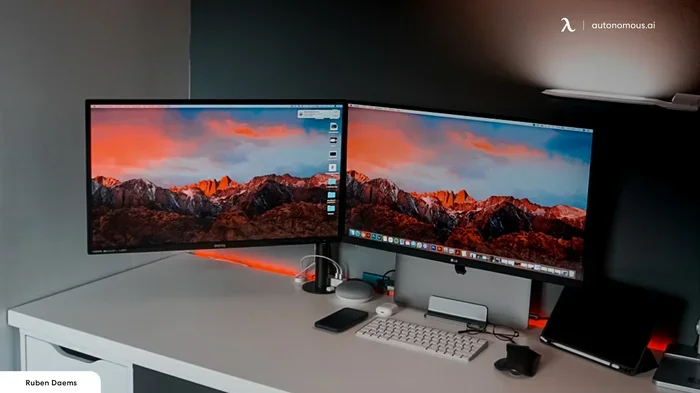
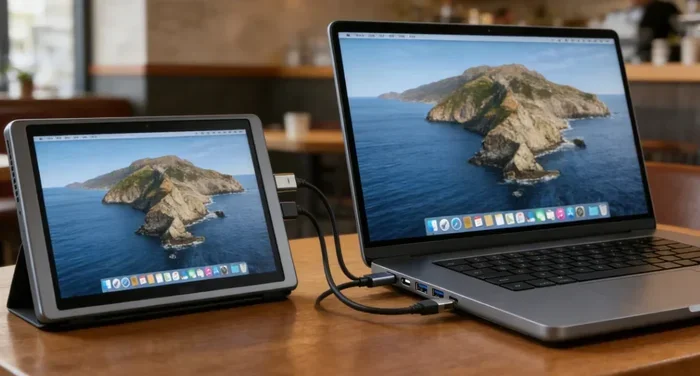
An external monitor gives you a fresh, bright screen. You get a larger workspace, better comfort, and the ability to work for hours without eye strain. Whether you use the laptop for work, school, or entertainment, a second screen makes everything easier. You can type on the laptop keyboard while looking at the monitor. This setup feels almost like a desktop computer.
Many people keep using their broken laptops this way for months. It is far cheaper than buying a new computer. The monitor can be any size you already own. You do not need a special brand or model. Any laptop with external display support works the same way.
Common Mistakes to Avoid
- Using a damaged cable. A frayed or bent HDMI cord can cause flickering or no signal. Try a different cable first.
- Ignoring the power adapter. Some monitors need their own power plug. Do not rely only on the laptop’s USB port to power the display.
- Forcing the lid closed too early. Closing the laptop without enabling clamshell mode can put it to sleep or cause display issues.
- Not checking the monitor input. Make sure the monitor is set to the correct input source like HDMI 1 or USB-C.
Key Takeaways
- An external monitor restores full usability to a broken laptop.
- Any standard monitor with a matching port will work.
- Avoid simple cable and power mistakes to save time.
Connecting Your Laptop to a Monitor
Comparison of Cable Types
Your laptop and monitor probably share at least one common port type. Knowing which cable to use helps you set up fast. Here is a quick comparison of the most common options.
| Cable Type | Best For | Pros | Cons |
|---|---|---|---|
| HDMI | Most laptops and TVs | ||
| USB-C / Thunderbolt | Modern laptops | ||
| VGA | Older monitors | ||
| DisplayPort | High-performance setups |
Step-by-Step Setup
- Turn off both the laptop and the monitor. This prevents electrical spikes and helps the devices recognize each other.
- Plug the cable into the laptop. Match the port type. If you need an adapter, connect it now.
- Plug the other end into the monitor. Make sure it clicks in firmly.
- Turn on the monitor. Use the monitor’s button to select the correct input source.
- Turn on the laptop. Wait a few seconds. The desktop should appear on the external screen.
- Adjust the display settings. Right-click the desktop and choose Display Settings to extend or mirror the screen.
Expert Insights: Which Cable to Choose?
If your laptop has a USB-C port that supports video output, use a USB-C cable. It is the simplest setup because it also charges the laptop. If your laptop only has HDMI and the monitor has HDMI, use an HDMI cable. It delivers great picture quality and audio. For older monitors, a VGA adapter works in a pinch, but the image may look fuzzy. A docking station is a great investment if you use multiple cables often. It connects to the laptop with one USB-C plug and offers HDMI, USB, and Ethernet ports.
Key Takeaways
- Match the cable type to your laptop and monitor ports.
- USB-C is the easiest modern option.
- A docking station simplifies cable management.
- Always check the monitor’s input source after connecting.
Display Settings: Extend, Mirror, or Second Screen
How to Change Display Modes
Once the external monitor is connected, Windows and macOS let you choose how the screens work together. The three main modes are extend, mirror, and second screen only.
Extend mode spreads your desktop across both screens. You can drag windows from the laptop screen to the monitor. This is the most popular choice for productivity. You get more space for spreadsheets, web browsers, and documents.
Mirror mode shows the exact same image on both screens. It is useful for presentations. Everyone in the room sees the same content. However, it does not give you extra workspace.
Second screen only turns off the laptop display and uses just the external monitor. This saves battery and reduces glare. It is great when you close the laptop lid.
Quick Tips for Perfect Setup
- Use the keyboard shortcut. On Windows, press Windows key plus P to cycle through display modes quickly.
- Arrange displays in settings. Drag the rectangles in Display Settings to match the physical position of your screens.
- Set the external monitor as primary. In Display Settings, check the box that says “Make this my main display.”
- Adjust scaling. If text looks tiny on the monitor, increase the scale percentage in the Display Settings menu.
Key Takeaways
- Extend mode gives you the most workspace.
- Mirror mode is best for presentations.
- Second screen only saves battery and reduces distractions.
- Keyboard shortcuts make switching modes effortless.
Clamshell Mode: Using Your Laptop with the Lid Closed
What Is Clamshell Mode?
Clamshell mode means you close the laptop lid and use only the external monitor as your screen. The laptop keyboard and trackpad are hidden, but they still work. You can plug in an external keyboard and mouse, or just use the laptop’s built-in ones by opening the lid slightly. This mode turns your laptop into a compact desktop setup. It is perfect for small desks or when you want a clean workspace.
Many people use clamshell mode every day with a broken laptop screen. It keeps the laptop cool because the vents are not blocked by the lid. It also saves energy because the display panel is off.
How to Enable It Safely
- Connect the external monitor. Follow the steps in the previous section.
- Connect an external keyboard and mouse. You can use Bluetooth or USB. The laptop’s built-in keyboard and trackpad will not be visible when the lid is closed.
- Go to Power Settings. On Windows, search for “Power Options” and click “Choose what the lid does.”
- Set “When I close the lid” to “Do nothing.” Do this for both battery and plugged-in modes.
- Close the lid gently. The laptop will stay awake and the external monitor will remain active.
Common Mistakes in Clamshell Mode
- Closing the lid without changing power settings. The laptop will go to sleep and you will lose your work.
- Forgetting an external mouse. You cannot click anything on the closed laptop without a mouse or trackpad.
- Blocking the vents. Place the laptop on a hard, flat surface. A bed or pillow can trap heat.
- Using a non-charging USB-C hub. If you close the lid, the laptop may drain battery faster. Keep the charger plugged in.
Key Takeaways
- Clamshell mode turns a broken laptop into a sleek desktop.
- Always change the lid-close action to “Do nothing.”
- Use an external keyboard and mouse for full control.
- Keep the laptop on a hard surface to avoid overheating.
When to Repair or Replace the Screen
Cost vs. Benefit
Using an external monitor is a great temporary fix. But at some point, you might want to repair the broken laptop screen. The cost depends on the laptop brand and model. Some screens cost under $100 to replace. Others can be $300 or more. If your laptop is older or low-end, a screen repair might not be worth it. In that case, you can keep using the laptop with an external monitor indefinitely.
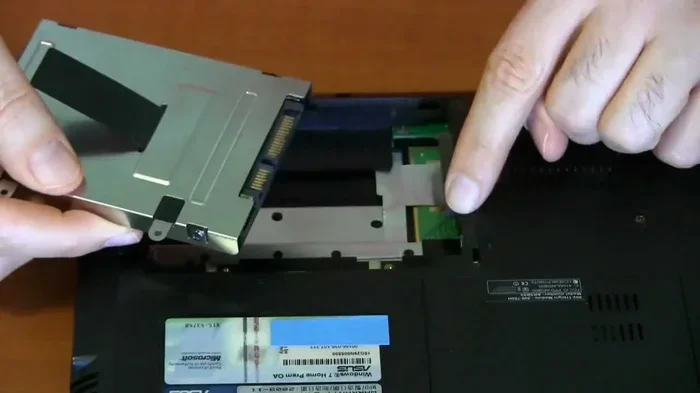
If the laptop is still fast and meets your needs, a new screen can bring it back to life. You will have the convenience of a portable screen again. You can close the lid and take it anywhere. Before spending money, check the price of the replacement panel online. Compare it to the cost of a new laptop.
Expert Insights: Repair or Replace?
Expert Tip: If the rest of the laptop is in good shape, screen repair is usually the better choice. A new screen gives you full portability. If the laptop has other issues like a slow hard drive or weak battery, you might consider upgrading the whole machine. Using an external monitor keeps the laptop usable while you make that decision. It is a flexible, budget-friendly approach.
Key Takeaways
- Screen repair costs vary widely. Check the price before deciding.
- An external monitor can serve as a permanent solution if repair is not economical.
- Keep the laptop usable with an external display while you weigh your options.
Can I use my laptop with a monitor if I broke my screen? The answer is a clear yes. You can connect an external monitor with a simple cable, adjust your display settings, and continue working as if nothing happened. Whether you choose clamshell mode or keep the lid open, the setup is easy and effective. This approach saves money, reduces waste, and gives you a comfortable workspace. Try it today and see how little a broken screen can slow you down.
Frequently Asked Questions
Do I need a special monitor to work with a broken laptop screen?
No. Any standard monitor with an HDMI, USB-C, or VGA input will work. The laptop does not care what brand or model the monitor is. As long as the ports match and the cable connects, you are good to go.
Will using an external monitor damage my laptop further?
Absolutely not. An external monitor simply displays the same signal the laptop would send to its own screen. It puts no extra strain on the internal components. In fact, it can reduce eye strain because you can position the monitor at eye level.
Can I use my laptop without opening the lid at all?
Yes. You can enable clamshell mode by changing the power settings so the laptop stays awake when the lid is closed. You will need an external keyboard and mouse, but the laptop will run perfectly on the external monitor alone.
What if my laptop only has USB-C and my monitor only has HDMI?
You just need a simple USB-C to HDMI adapter or cable. These adapters are cheap and widely available. Plug the USB-C end into the laptop and the HDMI end into the monitor. The image will appear instantly.
How do I know if my laptop’s USB-C port supports video output?
Check the laptop’s specifications online or in the user manual. Look for terms like “Thunderbolt 3,” “Thunderbolt 4,” or “USB-C with DisplayPort Alt Mode.” If those are listed, your USB-C port can carry video to an external monitor.
Is it safe to leave the laptop closed and the monitor on all day?
Yes, it is safe. Many people use their laptops in clamshell mode for hours every day. Just make sure the laptop is on a hard, flat surface to allow airflow. Also, keep the charger plugged in so the battery does not drain.