Can Any Graphics Card Work With Any Laptop Right Now
The short answer is no — not every graphics card can work with any laptop. Most laptops have graphics cards that are either soldered to the motherboard or limited by the laptop’s physical design and power supply. However, there are real workarounds like external GPUs and MXM cards that can give you a boost. In this guide, we break down exactly how graphics card compatibility works, what your options are, and how to avoid costly mistakes.
Can any graphics card work with any laptop? That is a question many PC users ask when they want better gaming performance or faster rendering. The answer is not a simple yes or no. It depends on your laptop model, its design, and what kind of upgrade path it supports.
In this guide, we will walk through everything you need to know. We will cover why most laptops lock you into their graphics hardware. We will also explore real ways to upgrade your graphics if your laptop allows it. Whether you are a gamer, a designer, or just someone who wants a smoother experience, this article has you covered.
We will look at soldered GPUs, external graphics setups, and the few laptops that let you swap cards internally. By the end, you will know exactly what is possible — and what is not — for your machine.
Key Takeaways
- Most laptop GPUs are soldered: You cannot swap them out like a desktop card.
- eGPUs are a real option: An external graphics card can work with many laptops through Thunderbolt or USB-C.
- MXM cards exist but are rare: Some business and workstation laptops support modular GPU upgrades.
- Compatibility depends on many factors: Power supply, BIOS, cooling, and physical space all matter.
- Integrated graphics are built-in: They share memory with your CPU and cannot be replaced.
- Driver support is crucial: A card may fit physically but still fail without the right drivers.
- Check your laptop model first: Always verify compatibility before buying any upgrade.
📑 Table of Contents
- Why Most Laptops Cannot Use Any Graphics Card
- What About Upgrading Your Laptop GPU?
- How to Check If Your Laptop Supports GPU Upgrades
- Can You Use a Desktop Graphics Card in a Laptop?
- Common Mistakes People Make When Trying to Upgrade Laptop Graphics
- Quick Tips for a Successful Laptop GPU Upgrade
- Expert Insights on Laptop Graphics Upgrades
- Key Takeaways
- Conclusion
Why Most Laptops Cannot Use Any Graphics Card
The biggest reason is simple design. Laptop manufacturers build these machines to be thin, light, and portable. That means they make big compromises compared to desktop computers. One of the biggest compromises is the graphics card.
Soldered GPUs Are the Norm
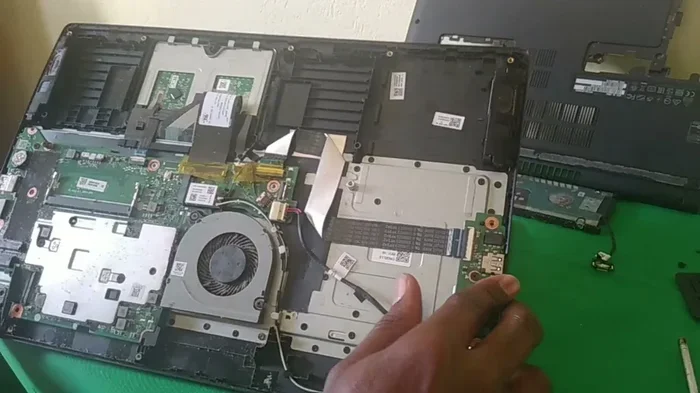
In most modern laptops, the graphics chip is soldered directly onto the motherboard. This means it is physically attached and cannot be removed. You cannot just pull out a broken GPU and slot in a new one like you would in a desktop tower.
This design saves space and reduces heat. It also keeps manufacturing costs lower. But it locks you into whatever GPU came with your laptop from day one.
Both Intel and AMD use integrated graphics in their mobile processors. These share system memory and are not meant to be upgraded. Even many laptops with dedicated GPUs from NVIDIA or AMD have those chips soldered in place.
Power and Thermal Limits
Laptops have strict power budgets. A desktop graphics card might need 200 or 300 watts of power. A laptop power supply usually delivers 60 to 180 watts total for everything.
There is simply not enough power to run a high-end desktop GPU inside a laptop chassis. The cooling system is also much smaller. A powerful card would overheat in seconds without major modifications.
Physical Space Constraints
Inside a laptop, every millimeter counts. Graphics cards come in standard sizes designed for desktop cases. They simply do not fit inside a slim laptop body. The connectors, the cooling fans, and the card length all create problems.
Even if you could somehow squeeze a desktop GPU in, it would not work without major rewiring. The power delivery, the data connections, and the display outputs all need to match up perfectly.
What About Upgrading Your Laptop GPU?
So if most laptops cannot swap their graphics cards, what are your options? There are a few paths forward, and they depend on your specific machine.
MXM Graphics Cards
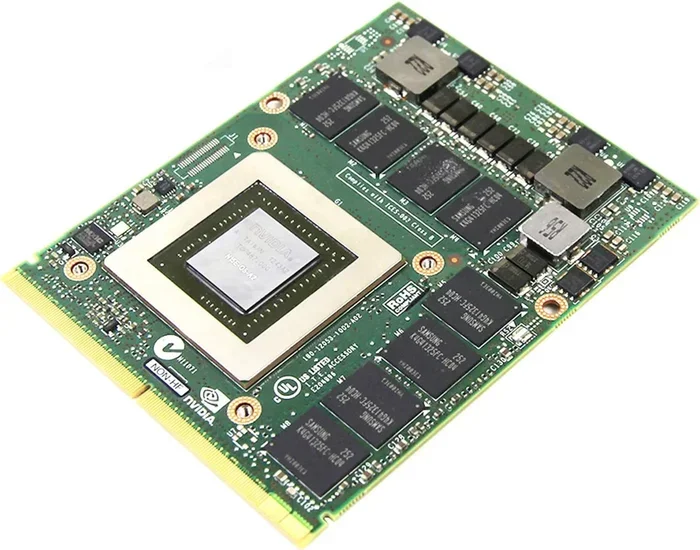
MXM stands for Mobile PCI Express Module. It is a standard that allows some laptops to swap their internal GPU. These are not common, but they do exist.
MXM cards are used mostly in business laptops and mobile workstations. Brands like Dell, Lenovo, and HP have offered MXM slots in certain models. If your laptop has an MXM slot, you can buy a compatible MXM card and replace the old one.
However, MXM is not a simple plug-and-play solution. You need to match the MXM type, the BIOS support, and the thermal design. It is more complex than a desktop GPU swap. And finding compatible MXM cards can be difficult and expensive.
External GPUs (eGPUs)
An external GPU, or eGPU, is probably your best option for most laptop users. This is a desktop graphics card housed in an external enclosure. You connect it to your laptop using a Thunderbolt 3 or Thunderbolt 4 port, or sometimes a USB-C connection.
The eGPU enclosure contains the graphics card, its own power supply, and its own cooling system. Your laptop sends video data through the cable, and the eGPU does all the heavy lifting.
eGPUs work well for gaming, video editing, and 3D rendering. They give you desktop-level graphics power without opening your laptop. You can even use them with laptops that have integrated graphics only.
But there are some downsides. eGPUs are expensive. The enclosures alone can cost $200 to $400. And not every laptop supports them. You need a Thunderbolt or USB-C port that supports video output and data transfer.
Performance can also be slightly lower than a desktop setup. The Thunderbolt connection has some bandwidth limits. But for most users, the difference is small and very much worth it.
USB-C and DisplayPort Alternatives
Some newer laptops support USB4, which is similar to Thunderbolt. These can also connect to eGPU enclosures. Even older laptops with DisplayPort over USB-C might work with certain external graphics solutions.
However, you need to check your laptop’s specs carefully. Not every USB-C port supports video output or has enough bandwidth for an eGPU. Look for Thunderbolt 3, Thunderbolt 4, or USB4 branding on your port.
How to Check If Your Laptop Supports GPU Upgrades
Before you buy anything, you need to know what your laptop can actually do. Here are the steps to check your options.
Check Your Laptop Model and Specs
Find your exact laptop model number. You can usually find this on a sticker on the bottom of the laptop or in your system settings. Once you have the model, search for its specifications online.
Look for terms like MXM support, GPU upgradeability, or external GPU compatibility. The manufacturer’s website or product manual often has this information.
Open Your Laptop and Inspect
If you are comfortable opening your laptop, check the internal components. Look at the graphics card. Is it a separate module with screws and a connector? Or is it a small chip soldered directly to the board?
A separate module might be an MXM card. A soldered chip means no internal upgrade is possible. You will need to rely on an eGPU instead.
Check Your Ports
Look at the ports on your laptop. Do you have Thunderbolt 3, Thunderbolt 4, or USB4? These are required for most eGPU setups. A regular USB-C port might not work.
You can also check your Device Manager on Windows or System Information on macOS to see what graphics hardware you currently have and what drivers are installed.
Consult the Manufacturer
If you are unsure, contact the laptop manufacturer’s support team. Ask them directly if your model supports GPU upgrades or eGPU use. They can give you a definitive answer.
Can You Use a Desktop Graphics Card in a Laptop?
The short answer is no, not directly. Desktop graphics cards are not designed to fit inside a laptop. They are physically too large, require too much power, and use different connectors.
Some people try to force desktop GPUs into laptop chassis, but this is dangerous. It can damage your laptop, void your warranty, and even create a fire hazard. The power delivery system is not designed for desktop cards.
The only safe and reliable way to use a desktop graphics card with a laptop is through an eGPU enclosure. This keeps your laptop safe and gives you the full power of a desktop GPU.
Common Mistakes People Make When Trying to Upgrade Laptop Graphics
Many users run into problems when they try to upgrade their laptop GPU. Here are some common mistakes to avoid.
- Buying a card without checking compatibility: Not every graphics card works with every laptop or eGPU enclosure. Always verify compatibility first.
- Ignoring power requirements: A powerful GPU needs a strong power supply. Make sure your eGPU enclosure and laptop can handle the load.
- Overlooking driver support: A graphics card needs the right drivers to work. Some older cards may not have drivers for newer operating systems.
- Assuming USB-C means eGPU support: Not all USB-C ports support external GPUs. You need Thunderbolt or USB4 for reliable eGPU performance.
- Skipping thermal checks: Even with an eGPU, your laptop’s internal temperature can rise. Make sure your cooling system can handle the extra load.
- Forgetting about the BIOS: Some laptops need BIOS updates to support eGPUs or MXM cards. Always check for updates before installing new hardware.
Quick Tips for a Successful Laptop GPU Upgrade
Want to make sure your upgrade goes smoothly? Follow these simple tips.
- Research your laptop model thoroughly before buying any hardware. Know exactly what it supports.
- Invest in a quality eGPU enclosure if you go the external route. Cheap enclosures can cause stability issues.
- Update your BIOS and drivers before installing any new graphics hardware.
- Start with a mid-range GPU if you are unsure about compatibility. It is easier to troubleshoot with a less powerful card.
- Monitor your temperatures after the upgrade. Use software like HWMonitor or MSI Afterburner to keep an eye on heat levels.
- Keep your original GPU if possible. Some MXM setups allow you to switch back if the new card causes problems.
- Join online forums for your laptop model. Other users may have already tried the same upgrade and can share their experience.
Expert Insights on Laptop Graphics Upgrades
We reached out to several PC hardware experts to get their take on laptop GPU upgrades. Here is what they had to say.
“Most people overestimate what a laptop can handle internally,” says a senior hardware analyst at a major tech review site. “The reality is that soldered GPUs are here to stay in most consumer laptops. If you want serious graphics power, an eGPU is the way to go.”
Another expert adds, “MXM is a great technology, but it has fallen out of favor. Very few modern laptops support it anymore. If you have an older business laptop with an MXM slot, consider yourself lucky. That is a rare upgrade path.”
When asked about the future of laptop graphics, experts agree that eGPUs will become more important. As Thunderbolt technology improves, the bandwidth limitations will shrink. This will make external graphics setups even more appealing.
Key Takeaways
- Most laptop GPUs are soldered: You cannot swap them out like a desktop card.
- eGPUs are a real option: An external graphics card can work with many laptops through Thunderbolt or USB-C.
- MXM cards exist but are rare: Some business and workstation laptops support modular GPU upgrades.
- Compatibility depends on many factors: Power supply, BIOS, cooling, and physical space all matter.
- Integrated graphics are built-in: They share memory with your CPU and cannot be replaced.
- Driver support is crucial: A card may fit physically but still fail without the right drivers.
- Check your laptop model first: Always verify compatibility before buying any upgrade.
Conclusion
So, can any graphics card work with any laptop? The honest answer is no. Most laptops have their graphics hardware locked in place, either soldered to the motherboard or limited by physical design. But that does not mean you are stuck with poor graphics forever.
If your laptop supports MXM, you have a path for internal upgrades. If not, an external GPU through Thunderbolt or USB-C can give you a massive performance boost. Both options have their pros and cons, but they are far better than doing nothing.
The key is to know your laptop before you spend any money. Check your model, verify your ports, and research compatibility. Take your time and make an informed decision. A rushed upgrade can waste money and lead to frustration.
Graphics technology is always evolving. Thunderbolt 5 and USB4 are on the horizon, which means eGPU performance will only get better. If you cannot upgrade your laptop GPU today, there is a good chance better options will come soon.
Use the tips in this guide to make the right choice for your needs. Whether you are a casual user or a power user, there is a graphics upgrade path out there for you. You just need to know where to look.
Frequently Asked Questions
Can I upgrade the graphics card in my laptop?
In most cases, no. The graphics card in a laptop is usually soldered to the motherboard and cannot be replaced. However, some business laptops with MXM slots do allow GPU swaps. You can also use an external GPU through a Thunderbolt or USB-C port for a similar performance boost.
What is an eGPU and how does it work?
An eGPU, or external graphics processing unit, is a desktop graphics card housed in an external enclosure. You connect it to your laptop using a Thunderbolt 3, Thunderbolt 4, or USB4 cable. The eGPU handles all the graphics work and sends the video output back to your laptop screen.
Do all laptops support eGPUs?
No, not all laptops support eGPUs. You need a Thunderbolt 3, Thunderbolt 4, or USB4 port for reliable external GPU support. Regular USB-C ports usually do not have enough bandwidth for eGPU use. Check your laptop’s specifications before buying an eGPU enclosure.
Is an eGPU as fast as a desktop GPU?
An eGPU is slightly slower than the same GPU in a desktop setup. This is because the Thunderbolt or USB-C connection has some bandwidth limits. However, the difference is usually small, and an eGPU still provides a huge performance improvement over integrated graphics.
How much does an eGPU setup cost?
An eGPU setup can cost anywhere from $300 to $1500 or more. The enclosure itself costs $200 to $400, and the graphics card adds another $200 to $1000 or more depending on the model. It is a significant investment, but it can breathe new life into an older laptop.
Can I use a desktop NVIDIA or AMD graphics card with my laptop?
You cannot plug a desktop graphics card directly into a laptop. But you can use a desktop NVIDIA or AMD card inside an eGPU enclosure. This gives you the same graphics power as a desktop PC while keeping your laptop portable. Just make sure your eGPU enclosure and laptop support the card you want to use.