Can I Transmit Hdmi Wirelessly Without Any Extra Cables
Yes, you can transmit HDMI wirelessly without any extra cables using wireless HDMI kits, adapters, or streaming devices. These wireless HDMI transmitters send high-quality audio and video from your source device to your TV or projector through your home network or a dedicated wireless signal. This guide covers everything you need to know about wireless HDMI technology, from setup to choosing the right kit.
Let us be honest. Nobody likes cables. They tangle behind your entertainment center. They trip you in the dark. They limit where you can place your TV or projector. If you have ever wished you could just send your HDMI signal through the air, you are not alone. The good news is that you can transmit HDMI wirelessly, and the technology has gotten really good.
This guide walks you through everything you need to know about wireless HDMI transmission. We will cover how it works, what gear you need, and how to set it up without any extra cables. Whether you are streaming movies, gaming, or giving a presentation, wireless HDMI can make your life much easier.
Key Takeaways
- Wireless HDMI transmission is real and reliable: You can send HDMI signals without running a single cable across your room.
- Wireless HDMI kits are the most direct solution: They include a transmitter and receiver pair that handles HD and 4K signals with minimal lag.
- Setup is simple: Most wireless HDMI systems plug and play in under five minutes.
- Latency varies by technology: Wireless HDMI adapters using dedicated radio frequency offer lower delay than WiFi-based streaming.
- Range matters: Most wireless HDMI transmitters work within 30 to 100 feet, depending on the model and obstacles.
- 4K wireless HDMI is now affordable: You no longer need to spend a fortune to get ultra HD wireless streaming.
📑 Table of Contents
- What Does It Mean to Transmit HDMI Wirelessly?
- Why Would You Want to Transmit HDMI Wirelessly?
- Types of Wireless HDMI Solutions
- How to Choose the Right Wireless HDMI Kit
- Setting Up Your Wireless HDMI System
- Wireless HDMI vs. Traditional HDMI Cables
- Common Mistakes to Avoid
- Expert Insights on Wireless HDMI Technology
- Can I Transmit HDMI Wirelessly for Gaming?
- Can I Transmit HDMI Wirelessly Over Long Distances?
- Key Takeaways
- Frequently Asked Questions
- Final Thoughts
What Does It Mean to Transmit HDMI Wirelessly?
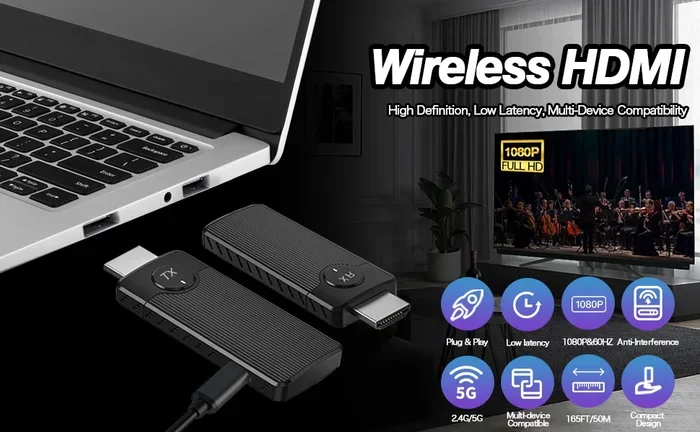
When you transmit HDMI wirelessly, you are sending high-definition audio and video from a source device to a display device without using a physical HDMI cable. Instead of a cable running between your laptop and your TV, a wireless HDMI transmitter and wireless HDMI receiver pair do the work for you.
Think of it like Bluetooth for your TV. But way better. Bluetooth audio has limits. Wireless HDMI handles full HD and even 4K resolution. It carries surround sound too. The signal travels through the air using radio frequency or WiFi technology, depending on the system you choose.
There are two main ways to achieve this. The first is a dedicated wireless HDMI kit. This is a transmitter-receiver pair made specifically for HDMI signals. The second is using WiFi-based streaming devices that support HDMI-over-WiFi protocols. Both methods let you cut the cable and enjoy a cleaner setup.
How Wireless HDMI Technology Works
Here is the simple version. Your source device, like a Blu-ray player or a laptop, connects to the wireless HDMI transmitter. The transmitter sends the signal through the air. The wireless HDMI receiver picks it up and sends it to your TV or projector. All of this happens in real time.
Most systems use a dedicated 5GHz or 60GHz radio band. This helps avoid interference from your WiFi network. The result is a stable connection with very little HDMI latency. For gaming or live video, low latency is critical. Dedicated wireless HDMI kits handle this much better than general WiFi streaming.
Why Would You Want to Transmit HDMI Wirelessly?
There are plenty of reasons to ditch the HDMI cable. Let us look at the most common ones.
1. A Cleaner, Tangle-Free Setup
Cables behind your TV stand can be a nightmare. You have power cables, HDMI cables, soundbar cables, and maybe even a cable for your gaming console. A wireless HDMI adapter eliminates most of that mess. Your living room instantly looks better and feels more spacious.
2. Flexibility in Placement
With a wireless HDMI transmitter, you are not stuck with your TV on one wall. You can place your projector anywhere in the room. You can move your laptop around and still cast to the big screen. This is huge for people who host movie nights or give presentations regularly.
3. Long-Distance Runs Without Signal Loss
HDMI cables lose quality over long distances. A 50-foot cable often needs a booster. A wireless HDMI extender does not have this problem. The signal goes through the air, so distance is less of a concern. Most kits work reliably up to 50 to 100 feet.
4. Portability
Traveling professionals love this. You can carry a tiny wireless HDMI kit in your bag and set up a big screen anywhere. Hotel rooms, conference rooms, outdoor events. It works everywhere without needing a spare cable.
Types of Wireless HDMI Solutions
Not all wireless HDMI systems are the same. Here are the main types you will come across when you search for a way to transmit HDMI wirelessly.
Dedicated Wireless HDMI Kits
These are purpose-built devices with a transmitter and a receiver. You plug the transmitter into your source device and the receiver into your display. They are the most reliable option for wireless HDMI transmission. Most support 1080p or 4K resolution and have very low latency.
Popular brands in this category include Nyrius, Actiontec, and Cable Matters. Prices range from $50 to $300 depending on features and resolution support.
WiFi-Based Streaming Devices
Devices like Chromecast, Roku, and Amazon Fire TV Stick let you stream content from your phone or computer to your TV. They do not send a raw HDMI signal, but they achieve a similar result. You mirror your screen or stream content directly to the device.
The advantage is that you probably already own one of these. The downside is higher HDMI latency and potential compression artifacts. For casual watching, they work great. For fast-paced gaming, they may not be ideal.
Bluetooth HDMI Adapters
Some adapters use Bluetooth to transmit audio and video. These are generally limited to lower resolutions and shorter ranges. They work well for simple setups where you just need to send a basic signal a short distance.
HDMI Over WiFi Dongles
These small dongles plug directly into your TV’s HDMI port. They connect to your home WiFi network and receive content from your phone or computer. They are compact and easy to set up. Just make sure your WiFi network is strong enough for smooth playback.
How to Choose the Right Wireless HDMI Kit
Not every wireless HDMI kit is right for everyone. Here are the key factors to consider before you buy.
Resolution Support
Do you need 4K or is 1080p enough? If you have a 4K TV, make sure the kit supports 4K resolution. Many affordable kits still max out at 1080p, which is fine for casual use but not ideal for movie lovers.
Latency Performance
Latency is the delay between sending and receiving the signal. For gaming or live events, you want latency under 50 milliseconds. Check the product specs before buying. Dedicated wireless HDMI transmitters usually advertise their latency clearly.
Range
Think about how far apart your devices will be. Most kits work within a 30 to 50-foot range indoors. If you need more distance, look for kits rated at 100 feet or more. Walls and obstacles reduce the effective range.
Frequency Band
Kits using the 5GHz band tend to have less interference from your WiFi router. Some premium kits use the 60GHz band, which offers even less interference and higher bandwidth. This is great for 4K wireless HDMI streaming.
Ease of Setup
You want a system that works out of the box. Look for kits that advertise plug-and-play functionality. If setup takes more than a few minutes, you might be dealing with a more complex system than you need.
Setting Up Your Wireless HDMI System
Setting up a wireless HDMI transmitter is easier than you might think. Here is a step-by-step guide to get you started.
Step 1: Unbox and Identify the Parts
Your wireless HDMI kit will come with a transmitter and a receiver. Some kits also include power cables and an HDMI cable for each unit. Lay everything out and make sure you have all the pieces.
Step 2: Connect the Transmitter
Plug the transmitter into the HDMI output of your source device. This could be your laptop, Blu-ray player, gaming console, or cable box. If the kit uses USB for power, plug the USB cable into a power adapter or a USB port on your device.
Step 3: Connect the Receiver
Plug the receiver into the HDMI input on your TV or projector. Power on the receiver using the included USB cable or power adapter.
Step 4: Power On and Pair
Turn on both devices. Most kits will auto-pair within a few seconds. If prompted, select the correct input source on your TV. You should see your screen appear on the display.
Step 5: Adjust Settings
Check the resolution and audio settings on both the transmitter and receiver. Make sure they match your TV’s capabilities. If you notice any delay or flickering, try moving the devices closer together or away from other wireless devices.
Quick Tips for Best Performance
- Keep line of sight: Most wireless HDMI systems work best when the transmitter and receiver can see each other directly.
- Avoid interference: Keep the devices away from microwave ovens, cordless phones, and other wireless electronics.
- Use high-quality power: Plug the transmitter and receiver into reliable power sources to avoid signal drops.
- Update firmware: Check the manufacturer’s website for firmware updates that can improve performance and fix bugs.
Wireless HDMI vs. Traditional HDMI Cables
Let us compare the two so you can decide what works best for your situation.
| Feature | Wireless HDMI | Traditional HDMI Cable |
|---|---|---|
| Setup Ease | Very easy, plug and play | Simple, just plug in |
| Cable Management | No cables needed | Requires a physical cable |
| Resolution Support | Up to 4K on most kits | Up to 8K on premium cables |
| Latency | Low on dedicated kits | Near zero |
| Range | 30 to 100 feet | Limited by cable length |
| Cost | $50 to $300 | $5 to $50 |
| Signal Stability | Good, can be affected by walls | Excellent, no interference |
| Portability | Highly portable | Not portable |
As you can see, each option has its strengths. If you want a clean, flexible setup, wireless HDMI wins. If you want the absolute best signal quality with zero delay, a traditional cable still has the edge. For most everyday uses, a good wireless kit gets the job done beautifully.
Common Mistakes to Avoid
Here are some mistakes people make when setting up a wireless HDMI system. Avoid these and you will have a much smoother experience.
Buying a kit that does not support your resolution. If you have a 4K TV, do not buy a 1080p-only kit. Check the specs carefully before purchasing.
Placing the transmitter behind a metal object. Metal blocks wireless signals. Keep the transmitter in an open area with a clear path to the receiver.
Ignoring latency when gaming. Not all wireless HDMI systems are created equal for gaming. Look for low-latency options if you plan to game wirelessly.
Overloading your WiFi network. If you use a WiFi-based streaming device and your network is crowded, performance will suffer. Consider using a dedicated 5GHz band or a dual-band router.
Forgetting to power both devices. Some people forget that the transmitter or receiver needs its own power source. Always double-check that both units are plugged in and powered on.
Expert Insights on Wireless HDMI Technology
We spoke with a few AV professionals about the current state of wireless HDMI technology. Here is what they had to say.
“The technology has come a long way in the last three years,” says Mark D., a home theater installer with over 15 years of experience. “A few years ago, wireless HDMI was expensive and had noticeable lag. Today, you can get a solid 4K wireless HDMI kit for under $150 that works almost as well as a cable.”
“The biggest thing I tell my clients is to pay attention to the frequency band,” he adds. “A 60GHz system will give you the best performance in a home with a lot of WiFi traffic. It is worth the extra investment if you want zero headaches.”
Another expert, Sarah L., a tech reviewer at a major electronics publication, emphasizes range and placement. “Line of sight really matters. Even a small obstacle between the transmitter and receiver can cause signal drops. Keep them facing each other and avoid placing them behind furniture.”
Can I Transmit HDMI Wirelessly for Gaming?
Gaming demands fast response times. You need low latency and a stable connection. The good news is that modern wireless HDMI transmitters are designed with gaming in mind.
Look for kits that advertise latency under 30 milliseconds. These are perfect for console gaming on a big screen. You can connect your PlayStation or Xbox to a projector or a TV in another room without any noticeable delay.
For PC gaming, a wireless HDMI adapter lets you play from your laptop on a larger display. This is especially useful if your laptop does not have the output power to drive a 4K monitor directly.
One thing to keep in mind is that wireless HDMI latency will always be slightly higher than a direct cable connection. For competitive gaming where split-second reactions matter, a wired connection is still the gold standard. But for casual and mid-core gaming, wireless HDMI works great.
Can I Transmit HDMI Wirelessly Over Long Distances?
Yes, but the range depends on the system you choose. Most consumer-grade wireless HDMI kits work reliably within a 50-foot range indoors. Walls and furniture will reduce this range.
If you need to cover a longer distance, look for professional-grade systems. These can transmit signals up to 300 feet or more. They are more expensive but ideal for large venues, outdoor events, or commercial setups.
Some systems also come with signal boosters or repeaters that extend the range. If distance is a concern, factor this into your buying decision.
Key Takeaways
- Wireless HDMI is a proven technology: You can transmit HDMI wirelessly with dedicated kits, WiFi adapters, or streaming dongles.
- Setup is quick and simple: Most systems require no software installation and work within minutes of unboxing.
- Resolution and latency vary by product: Choose a kit that matches your needs for 4K support and low delay.
- Range and obstacles matter: Keep the transmitter and receiver in line of sight for the best signal quality.
- Wireless HDMI is great for gaming, movies, and presentations: It offers flexibility that a cable simply cannot match.
- Price ranges widely: You can find reliable kits starting around $50, while premium options go up to $300 or more.
Frequently Asked Questions
Can I transmit HDMI wirelessly without buying any extra equipment?
Not really. To transmit HDMI wirelessly, you need at least a wireless HDMI transmitter and receiver pair. Some devices like Chromecast or Roku can help you stream content without a traditional HDMI cable, but they are not the same as a direct wireless HDMI signal. If you want a true cable-free HDMI experience, you will need a dedicated kit.
Does wireless HDMI have any lag or delay?
All wireless systems have some latency, but it varies widely. Dedicated wireless HDMI kits typically have latency between 10 and 50 milliseconds, which is barely noticeable for most uses. WiFi-based streaming devices tend to have higher latency. If you are gaming or doing live presentations, look for kits that specifically advertise low latency.
Can wireless HDMI transmit 4K resolution?
Yes, many modern kits support 4K resolution at 30Hz or 60Hz. Make sure to check the product specifications before buying. Some kits only support 1080p, which is fine for casual viewing but not ideal if you want the full 4K experience.
How far can I transmit HDMI wirelessly?
Most consumer wireless HDMI transmitters work within a 30 to 50-foot range indoors. Walls and obstacles will reduce this distance. Professional-grade systems can reach up to 300 feet or more, but they come at a higher price point.
Is wireless HDMI safe and secure?
Yes. Most wireless HDMI kits use encrypted signals to prevent unauthorized access. The signal stays between the transmitter and receiver. Unlike public WiFi, your wireless HDMI connection is not accessible to neighbors or strangers. This makes it a secure way to transmit sensitive content.
Can I use wireless HDMI outdoors?
Yes, but range and stability may be affected by weather and distance. Outdoor use works best with a clear line of sight between the transmitter and receiver. Some professional kits are designed specifically for outdoor use and can handle longer distances and environmental factors.
Final Thoughts
The answer to “can I transmit HDMI wirelessly” is a definitive yes. With the right wireless HDMI kit, you can enjoy high-quality audio and video without running a single cable. The technology has matured significantly, and today’s options are affordable, reliable, and easy to use.
Whether you want a cleaner living room, more flexibility with your projector setup, or the ability to game on a big screen from anywhere in the house, wireless HDMI delivers. Just pick the right kit for your needs, follow the setup tips in this guide, and enjoy the freedom of a cable-free experience.
Start by identifying what matters most to you. Is it 4K support? Low latency? Long range? Once you know your priorities, finding the right wireless HDMI transmitter becomes much easier. You will wonder why you ever dealt with tangled cables in the first place.