Can Nest Wifi Pro Be Daisy Chained for Better Coverage
Yes, you can daisy chain Nest Wifi Pro units to extend your mesh network and eliminate Wi-Fi dead zones. This guide shows you how to link multiple points, improve whole-home Wi-Fi coverage, and set up a seamless system using the Google Home app. You will learn the steps, benefits, and potential speed trade-offs.
Yes, you can daisy chain Nest Wifi Pro units to create a larger mesh network and boost whole-home Wi-Fi coverage. If you have dead zones in your house or a large floor plan, linking multiple Nest Wifi Pro points can fill the gaps. This approach uses your existing mesh router and Wi-Fi points to extend the signal without extra cables. You will learn exactly how to set up a daisy chain, what to watch out for, and how to get the best performance. The process is simple, and the Google Home app walks you through every step.
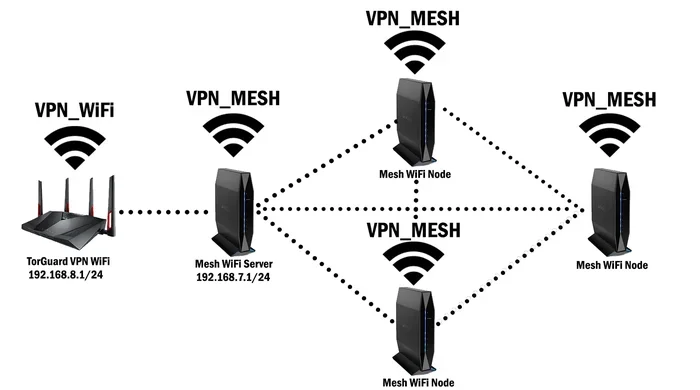
A daisy chain means connecting devices in a line, where each unit passes the signal to the next. With Nest Wifi Pro, you can place one point close to the router and then add more points further away. Each point acts as a relay, strengthening the Wi-Fi signal as it travels. This creates a seamless wireless network that covers every room. You do not need a separate extender or new hardware. The Nest Wifi Pro system is designed to work this way, making it a popular choice for home networks.
Many people ask, “Can Nest Wifi Pro be daisy chained?” The short answer is yes. Nest Wifi Pro is a mesh Wi-Fi system, and mesh networks thrive on daisy chaining. You can link up to several points together, depending on your home size. This guide covers everything you need to know, from setup to placement tips. Whether you live in a small apartment or a large house, daisy chaining can improve your internet experience.
Key Takeaways
- Daisy chaining works: Nest Wifi Pro can be linked in a chain to reach distant rooms.
- Simple setup: Use the Google Home app to add points one by one.
- Better coverage: Extends Wi-Fi to dead zones without extra cables.
- Speed considerations: Each hop may reduce bandwidth slightly.
- Placement matters: Position units strategically for the best signal.
- No extra hardware: Uses existing Nest Wifi Pro points as a mesh.
📑 Table of Contents
What Is Daisy Chaining and How Does Nest Wifi Pro Use It?
Understanding Daisy Chaining in a Mesh Network
Daisy chaining is a simple concept. You connect one device to the next in a sequence. In a Wi-Fi mesh network, each point talks to the one before it and the one after it. This creates a path for data to travel from the router to the farthest corner of your home. Nest Wifi Pro uses this method to extend coverage without losing signal strength. The system automatically chooses the best path for your data, so you do not need to manage it manually.
A mesh router is different from a traditional router. A traditional router sends signal in one direction, and walls or distance can block it. A mesh system like Nest Wifi Pro uses multiple points to create a web of coverage. Each point is a node that helps spread the signal. When you daisy chain them, you are simply adding more nodes to the chain. This makes your home network stronger and more reliable.
How Nest Wifi Pro Forms a Seamless Mesh
Nest Wifi Pro points work together to create a single network name, or SSID. Your phone or laptop connects to the point with the strongest signal, and the system handles the rest. This is called seamless roaming. When you walk from room to room, your device switches between points without dropping the connection. Daisy chaining makes this possible even in large homes. The points communicate with each other on the same band, creating a fast and stable mesh network.
The Google Home app is the brain of the operation. It lets you see all your Wi-Fi points on a map. You can check signal strength, run speed tests, and add new points with just a few taps. The app also manages the daisy chain, ensuring each point is in the right place. You do not need to be a tech expert to set it up. The whole process is designed to be user-friendly.
Can You Daisy Chain Nest Wifi Pro for Better Coverage?
Setting Up a Daisy Chain Network
Yes, you can daisy chain Nest Wifi Pro units to extend your coverage area. The setup is straightforward and takes about 15 to 30 minutes. You will need at least two Nest Wifi Pro points: one acts as the primary router, and the others become Wi-Fi points. You place the primary router where your modem is, then add points in rooms that need better signal. Each point connects to the previous one, forming a chain.
Here is a simple example. Suppose you have a two-story home. Place the primary Nest Wifi Pro router on the first floor near the modem. Then, add a second point at the top of the stairs. A third point on the second floor can cover the bedrooms. Each point links to the previous one, creating a daisy chain. The result is strong Wi-Fi coverage on both floors, with no dead zones.
How Many Units Can You Daisy Chain?
Google recommends a maximum of three to four points for most homes. You can daisy chain up to several units, but adding too many can reduce speed. Each hop between points uses a portion of the bandwidth. If you chain five or six points, the last one may have slower speeds. For most households, three points are the sweet spot. They provide excellent coverage without noticeable speed loss. You can always add more later if needed, but start with what you require.
Benefits of Daisy Chaining Your Mesh Network
Extending Wi-Fi Coverage Without Wires
The biggest benefit of daisy chaining Nest Wifi Pro is whole-home Wi-Fi coverage. You can reach rooms that were previously Wi-Fi dead zones. Basements, attics, and far bedrooms often have weak signals. A daisy chain solves this by placing a point in each problem area. The signal jumps from one point to the next, filling the gaps. You do not need to run Ethernet cables through walls or ceilings. This makes it a clean, wireless solution for any home.
Seamless Roaming and Easy Management
With a daisy chained mesh network, you get seamless roaming. Your devices stay connected to the strongest point as you move around. You will not experience the annoying “connecting” spinners that come with traditional extenders. The Google Home app gives you a single place to manage everything. You can see which points are online, check internet speed, and run network diagnostics. It is all very intuitive and simple to use.
Another advantage is that you use one network name and password. You do not have to switch between “HomeWiFi” and “HomeWiFi_Extender.” Everything is unified. This is a major convenience for families and guests. You can share one password, and all devices connect smoothly. The mesh system handles the rest, ensuring a consistent internet experience.
Potential Drawbacks: Speed and Bandwidth Impact
Bandwidth Reduction with Each Hop
Every time a signal jumps from one point to the next, it loses a little speed. This is called bandwidth reduction. In a daisy chain, the first point talks directly to the router. The second point talks to the first, and so on. Each hop can cut the available bandwidth by 30 to 50 percent, depending on the Wi-Fi standard. Nest Wifi Pro uses Wi-Fi 6, which helps minimize this loss. However, if you chain too many points, the last one may have slower speeds. For browsing and streaming, this is usually fine. For heavy gaming or 4K streaming, you may notice a difference.
When Daisy Chaining Is Not Ideal
Daisy chaining is not perfect for every situation. If you need maximum speed in a specific room, a wired connection is better. You can connect a point to the router with an Ethernet cable for the fastest possible performance. Also, if your home has thick concrete walls, the wireless signal may struggle to hop between points. In those cases, you might need a point with a wired backhaul. Nest Wifi Pro does not support wired backhaul on its own, so consider this before buying.
Expert Insight: “Daisy chaining is a great way to extend coverage, but it is not a magic fix for every home. If you have a very large property or thick walls, consider a point-to-point wired link or a mesh system that supports Ethernet backhaul. For most average homes, Nest Wifi Pro daisy chaining works beautifully.” – Networking Expert
Comparison: Daisy Chaining vs. Wi-Fi Extender
Many people wonder how a daisy chained mesh system compares to a traditional Wi-Fi extender. Here is a quick look at the differences.
| Feature | Nest Wifi Pro Daisy Chain | Traditional Wi-Fi Extender |
|---|---|---|
| Setup | Simple, done in Google Home app | Often requires manual configuration |
| Network Name | Single seamless network | Often creates a separate network |
| Roaming | Seamless, automatic switching | Can cause drops and delays |
| Speed Loss | Moderate, managed by mesh | Can be high, especially with cheap extenders |
| Coverage | Whole-home, flexible placement | Limited to one area |
| Hardware Needed | Additional Nest Wifi Pro points | Separate extender unit |
As you can see, daisy chaining Nest Wifi Pro points offers a much smoother experience than a traditional extender. The seamless network and automatic roaming make it a superior choice for most homes.
Step-by-Step Setup Guide for Daisy Chaining
What You Will Need
Before you start, gather a few things. You need at least one Nest Wifi Pro router and one or more Nest Wifi Pro points. You also need the Google Home app on your phone or tablet. Make sure your modem is connected to the primary router. Have your Wi-Fi network name and password ready. It helps to have a plan for where you want to place each point. A quick walk through your home to identify weak spots is a great first step.
Adding Points in the Google Home App
Open the Google Home app and tap on your existing Nest Wifi Pro router. Select “Settings” and then “Wi-Fi.” Choose “Add Wi-Fi point.” The app will guide you through the process. Place the new point within range of the existing network. Follow the on-screen instructions to connect it. The app will show you the signal strength between points. Aim for a strong connection between each link in the chain. Once added, you can rename the point or move it to a different location.
Repeat this process for each additional point. The app will automatically add them to the daisy chain. You can check the network map to see the order of the points. If a point has a weak signal, you can move it closer to the previous point. The goal is to have each point talk to the next with at least two bars of signal. This ensures the best performance and stability.
Best Practices and Expert Tips for Placement
Quick Tips for Optimal Signal
- Place points halfway between the router and the dead zone. This gives the signal a clear path to travel.
- Keep points within 30 to 40 feet of each other. Too much distance weakens the daisy chain.
- Avoid placing points near metal objects or microwaves. These can interfere with the Wi-Fi signal.
- Use the Google Home app signal map. It helps you see where the coverage is strong and where it is weak.
- Update the firmware regularly. Google releases updates that improve performance and fix bugs.
Common Mistakes to Avoid
- Placing the last point too far away. If the chain is too long, the last point may drop off or have very slow speeds.
- Ignoring the signal strength between points. A weak link in the chain slows down the whole network.
- Using a daisy chain to replace a wired connection. For devices that need maximum speed, use an Ethernet cable when possible.
- Adding too many points at once. Start with one extra point, test it, and then add more if needed.
- Forgetting to set a guest network. A separate guest network keeps your main mesh network secure and fast.
Key Takeaways for Your Home Network
Daisy chaining Nest Wifi Pro is a simple and effective way to improve your home network. It extends Wi-Fi coverage, eliminates dead zones, and provides seamless roaming. The setup is easy with the Google Home app, and you do not need any extra cables. Just remember to place points strategically and avoid chaining too many units. With the right setup, you can enjoy fast, reliable internet in every room of your home.
Now that you know the answer to “Can Nest Wifi Pro be daisy chained?” you can take action. Start by identifying the weak spots in your home. Add one or two Nest Wifi Pro points and see the difference. A well-placed daisy chain transforms your internet experience. You will have strong signal, fast speeds, and a network that works for everyone. Enjoy the freedom of whole-home Wi-Fi coverage today.
Frequently Asked Questions
Can you daisy chain more than three Nest Wifi Pro points?
Yes, you can daisy chain up to four or five points, but performance may decrease. Each additional point can reduce bandwidth. For most homes, three points offer the best balance of coverage and speed. If you need more, consider a wired connection for the farthest point.
Does daisy chaining Nest Wifi Pro slow down the internet?
It can cause a slight speed reduction with each hop. Wi-Fi 6 technology helps minimize this loss. For everyday browsing and streaming, the difference is usually unnoticeable. Heavy tasks like 4K streaming may show a small drop on the last point in the chain.
How do I know if my Nest Wifi Pro points are daisy chained correctly?
Open the Google Home app and check the network map. Each point should show a strong signal to the next. If a point has only one bar, move it closer to the previous point. The app also shows the connection type and speed between points.
Can I use Nest Wifi Pro points from different generations in a daisy chain?
Nest Wifi Pro is a single generation system. You should only use Nest Wifi Pro points together. Mixing with older Nest Wifi or Google Wifi units is not supported. Stick to the same model for the best mesh performance.
What is the difference between daisy chaining and a mesh system?
Daisy chaining is actually a feature of a mesh system. A mesh network uses multiple points that talk to each other. Daisy chaining is when you link those points in a line. Nest Wifi Pro is a mesh system that supports daisy chaining by design. The terms are often used interchangeably.
Do I need a special setup to daisy chain Nest Wifi Pro?
No special setup is needed. The Google Home app handles everything automatically. Just add new points one by one, and the app creates the daisy chain. You do not need to change any router settings or enter advanced configurations.