Can You Convert An Epson Printer Into A Sublimation Printer
Yes, you can convert many Epson printers into sublimation printers with the right tools and knowledge. This guide covers everything from choosing a compatible Epson model to swapping ink systems and setting up your sublimation printing workflow. You will learn the benefits, risks, and practical steps to get started.
Can You Convert An Epson Printer Into A Sublimation Printer? The short answer is yes. But the full answer involves a few important details you need to know before you start. Not every Epson printer is built for sublimation printing. Some models have print heads that work beautifully with dye-based sublimation ink, while others simply cannot handle the process.
If you are tired of buying expensive dedicated printers and want to repurpose your current Epson, this guide is for you. We will walk through the entire process step by step. You will learn which printers work, what supplies you need, and how to avoid common pitfalls.
Key Takeaways
- Not all Epson printers work: Only models with piezoelectric print heads can handle sublimation ink safely.
- A conversion kit is essential: You need sublimation ink, cartridges or tanks, and sublimation paper to start.
- Cost savings are real: Converting an existing printer is cheaper than buying a new dedicated sublimation printer.
- Maintenance matters: Regular cleaning and proper storage keep your converted printer running smoothly.
- Print quality improves: With the right setup, converted Epson printers produce vibrant, durable prints on blanks and fabrics.
- Warranty may be voided: Converting your printer could void the manufacturer warranty, so check before you start.
📑 Table of Contents
What Is Sublimation Printing and Why Convert Your Epson?
Sublimation printing is a digital printing method that uses heat to transfer dye onto materials like fabric, metal, and polyester-coated surfaces. The ink turns from a solid into a gas without passing through a liquid phase. This creates vibrant, long-lasting prints that do not crack or peel.
So why would you want to convert an existing Epson printer instead of buying a new one? The answer is simple: cost savings and flexibility. A brand-new sublimation printer can cost several hundred dollars. If you already own a compatible Epson, converting it saves you money and lets you use your printer for multiple projects.
Many hobbyists and small business owners start with a single Epson printer and expand their sublimation workflow over time. You can print custom mugs, t-shirts, phone cases, and home décor items. The possibilities are wide open once you know how to make the switch.
Before you dive in, it helps to understand the difference between dye sublimation and other printing methods. Traditional inkjet printers use liquid ink that sits on top of the paper. Sublimation ink bonds with the material at a molecular level. This difference is why not all printers can handle the conversion.
How the Conversion Process Works
Converting an Epson printer to sublimation involves replacing the existing ink system with sublimation ink. The process sounds simple, but there are important technical details to understand. Let us break it down into clear steps.
Step 1: Check Your Printer Compatibility
The most critical step is confirming your Epson printer has a piezoelectric print head. Epson uses two types of print head technologies: piezoelectric and thermal. Piezoelectric print heads use electrical charges to push ink through the nozzles. Thermal print heads use heat. Sublimation ink needs a piezoelectric system to work correctly.
Here is a quick list of popular Epson models that are commonly converted:
- Epson EcoTank ET-2720 and ET-2760
- Epson EcoTank ET-15000
- Epson Expression Photo XP-15000
- Epson Workforce WF-7720
- Epson EcoTank ET-8550
Always double-check your specific model before purchasing any supplies. Using the wrong printer can lead to poor print quality or a damaged machine.
Step 2: Gather Your Supplies
You will need a few key items to complete the conversion. Here is what to have ready:
- Sublimation ink (compatible with your Epson model)
- Sublimation paper (specialty paper designed for dye transfer)
- Printer cleaning solution (for flushing old ink from the system)
- Conversion kit (some kits include everything you need in one package)
- Heat press machine (needed to transfer designs onto blanks)
Investing in quality sublimation ink and paper makes a big difference in your final results. Cheap supplies often lead to faded prints and clogged print heads.
Step 3: Flush and Clean the Printer
Before installing sublimation ink, you must remove all traces of the original ink. Run the printer cleaning utility several times. Flush each color channel until the output runs clear. This step prevents ink contamination and ensures your print quality stays sharp.
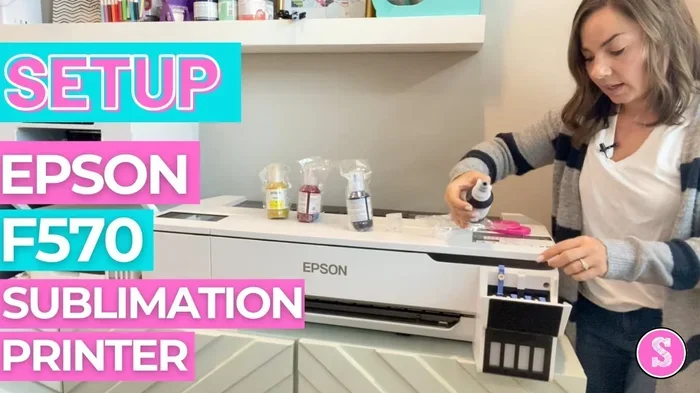
Step 4: Install Sublimation Ink
Once the printer is clean, fill the ink tanks or cartridges with sublimation ink. Follow the manufacturer instructions carefully. Make sure each color goes into the correct channel. Mixing up cyan and magenta, for example, will throw off your entire print job.
After filling, run a nozzle check to confirm all colors are printing correctly. You may need to run a few test prints before the output looks perfect.
Benefits of Converting Your Epson Printer
There are several strong reasons to convert an Epson printer for sublimation printing. Let us look at the biggest advantages.
Cost efficiency tops the list. A dedicated sublimation printer can set you back $300 to $700 or more. If you already have a compatible Epson, the conversion cost is usually under $100 for ink and paper. That is a significant saving.
Versatility is another major benefit. Many converted Epson printers can handle both regular document printing and sublimation projects. This means you get two printers in one machine. You can switch between standard printing and sublimation depending on your needs.
Learning the craft is easier on a converted printer. You get hands-on experience with the sublimation process without a big upfront investment. Once you master the technique, you can scale up to dedicated machines if your business grows.
Some users also appreciate the print quality they get from converted Epson printers. The piezoelectric print heads in Epson machines are known for producing sharp, detailed images. When paired with good sublimation ink, the results rival those of dedicated sublimation printers.
It is also worth noting that many online resources and communities support Epson sublimation conversion. You can find tutorials, troubleshooting tips, and supply recommendations easily. This support network makes the learning curve much less steep for beginners.
Common Mistakes to Avoid During Conversion
Even with the best intentions, people make mistakes when converting their printers. Here are the most common ones and how to avoid them.
Skipping the compatibility check. This is the number one mistake. Not every Epson printer can be converted. If your printer uses a thermal print head, sublimation ink will not work. Always verify your model before buying supplies.
Using low-quality ink. Cheap sublimation ink may seem like a bargain, but it often clogs print heads and produces dull colors. Stick with reputable brands that are specifically formulated for dye sublimation applications.
Forgetting to clean the system thoroughly. Leftover ink from the original cartridges can mix with sublimation ink and ruin your prints. Take the time to flush the system completely before installing new ink.
Ignoring printer maintenance. A converted printer still needs regular cleaning and care. Run nozzle checks weekly, even if you are not printing often. This keeps the print heads clear and extends the life of your machine.
Neglecting to use sublimation paper. Regular copy paper will not absorb sublimation ink correctly. Always use paper designed for the sublimation process. The right paper ensures vibrant colors and clean transfers.
Expert Tips for the Best Sublimation Results
Once your Epson printer is converted and ready to go, these tips will help you get the best possible output every time.
Start with simple designs. Before tackling complex images, practice with basic shapes and text. This helps you understand how the ink behaves on different materials and how your heat press settings affect the final result.
Calibrate your heat press. Temperature, pressure, and time all affect the quality of your sublimation transfer. Most sublimation projects work best at around 380 to 400 degrees Fahrenheit with medium pressure. Always follow the recommended settings for your specific blank or fabric.
Store supplies properly. Sublimation ink and paper should be kept in a cool, dry place away from direct sunlight. Moisture and heat can degrade the quality of your supplies before you even use them.
Use a lint roller on blanks. Before pressing, wipe down your sublimation blanks with a lint roller. Dust and fibers can create imperfections in your transferred design. A clean surface leads to a cleaner print.
Print a mirror image. Sublimation requires printing your design in reverse. The transfer process flips the image onto the material. If you forget this step, your text and designs will appear backwards on the finished product.
Keep spare print heads on hand. Print heads wear out over time, especially with frequent sublimation printing. Having a replacement ready means you can keep working without long downtime.
Is Converting an Epson Printer Worth It?
The answer depends on your goals and how often you plan to use sublimation printing. If you are a hobbyist who wants to create custom gifts and small batches of products, a converted Epson printer is a fantastic option. The upfront cost is low and the learning experience is valuable.
For serious business owners who plan to produce large volumes every day, a dedicated sublimation printer might be a better long-term investment. Dedicated machines are built specifically for the sublimation process and often deliver faster speeds and more consistent results.
However, for most people just getting started, converting an existing Epson printer is the smart move. You get to explore the world of sublimation printing without a major financial commitment. You can always upgrade later as your skills and demand grow.
Remember that converting your printer may void the manufacturer warranty. Check your warranty terms before you begin. Some Epson models are more forgiving than others when it comes to ink system modifications.
The process also requires patience and a willingness to experiment. Your first few prints may not be perfect. That is completely normal. With practice and the right settings, you will produce professional-quality results in no time.
Many people who start with a converted Epson printer end up expanding their setup over time. They add more printers, invest in better heat presses, and build a full sublimation printing business. The journey often starts with a single converted machine and a willingness to learn.
So if you have been wondering whether converting your Epson printer is possible, the answer is a clear yes. With the right model, the right supplies, and a bit of patience, you can transform your everyday printer into a powerful sublimation machine. The advantages and disadvantages of working with different systems are worth exploring as you build your setup, and understanding the broader ecosystem of electronic commerce communication and printer networks can help you scale your business as you grow.
Conclusion
Converting an Epson printer into a sublimation printer is absolutely possible and more affordable than most people think. The key is choosing a compatible model with a piezoelectric print head, using the right supplies, and taking the time to learn the process properly.
You have learned about the conversion steps, the benefits, the common mistakes, and expert tips for success. Now it is your turn to take action. Gather your supplies, pick your first design, and start creating. The world of sublimation printing is waiting for you.
Start small, stay patient, and enjoy the journey. Whether you are making custom gifts for friends or building a full-fledged business, your converted Epson printer can do amazing things. The skills you develop along the way will serve you well no matter where your creative path leads.
Frequently Asked Questions
Can any Epson printer be converted for sublimation?
No, only Epson printers with piezoelectric print heads can be converted. Thermal print head models will not work with sublimation ink. Always check your specific model before purchasing supplies.
Will converting my Epson printer void the warranty?
It might. Modifying the ink system can void the manufacturer warranty on some models. Check your warranty terms before you begin the conversion process.
What is the best sublimation ink for converted Epson printers?
Look for inks specifically formulated for dye sublimation and compatible with your Epson model. Popular brands include InkTec, Lyson, and Hi-Temp. Quality ink produces better color and lasts longer.
How long does the conversion process take?
The actual conversion takes about 30 to 60 minutes. However, flushing the old ink system and running test prints can add another hour or so. Plan for a few hours total to get everything working perfectly.
Can I switch back to regular ink after converting?
It is possible but not recommended. Residual sublimation ink can contaminate regular ink and affect print quality. If you want to switch back, you should thoroughly clean the entire system first.
Do I need a heat press if I convert my Epson printer?
Yes, a heat press is essential for sublimation printing. The sublimation ink needs heat and pressure to transfer from the paper onto your chosen material. Without a heat press, you cannot complete the printing process.