Can You Get A Usb To Hdmi Adapter Here Is What You Need
Yes, you can get a USB to HDMI adapter, and it is one of the easiest ways to connect your laptop or PC to a TV or external monitor. A USB to HDMI adapter lets you mirror your screen or extend your display with just a simple plug-and-play connection. Whether you use USB-A or USB-C, there is an adapter that fits your setup.
This is a comprehensive guide about Can You Get A Usb To Hdmi Adapter.
Key Takeaways
- USB to HDMI adapters are widely available: You can find them online and in most electronics stores at various price points.
- They work with USB-A and USB-C ports: Make sure you pick the right type for your device.
- Plug and play is common: Most adapters do not need extra software or drivers.
- Resolution support varies: Check if the adapter supports 4K, 1080p, or lower resolutions before buying.
- OS compatibility matters: Some adapters work better with certain operating systems, so check your device specs first.
- Quality adapters prevent signal loss: Cheap adapters may cause lag, flickering, or no audio.
[FEATURED_IMAGE_PLACEHOLDER]
Can You Get A USB To HDMI Adapter? Here Is What You Need
The short answer is yes. You can absolutely get a USB to HDMI adapter. These small devices have become essential for anyone who wants to connect a laptop, desktop, or tablet to a bigger screen. Whether you are giving a presentation, gaming on a TV, or just extending your workspace, a USB to HDMI adapter makes it happen fast.
But not all adapters are the same. There are different types, different speeds, and different levels of quality. Some work perfectly out of the box, while others need extra setup. This guide walks you through everything you need to know before buying one.
By the end of this article, you will know exactly which adapter to choose, how to set it up, and what to avoid. Let us get into it.
What Is A USB To HDMI Adapter?
A USB to HDMI adapter is a small device that converts a USB connection into an HDMI output. This means you can plug your computer into a TV, monitor, or projector using a standard HDMI cable. The adapter handles the conversion between the two signals so your device can send video and audio to a larger screen.
Most adapters have a USB plug on one end and an HDMI port on the other. Some models also include a USB port for power, especially if your device cannot supply enough energy through the USB connection alone.
How Does It Work?
The adapter acts as a bridge between your device and the display. When you plug it in, the adapter takes the video output from your USB port and translates it into an HDMI signal. Your TV or monitor then receives that signal and displays it just like it would from a cable box or gaming console.
Some adapters are plug and play, which means you do not need to install any software. Others may require a driver or app to work correctly. This depends on your device and the adapter brand.
Types Of USB To HDMI Adapters
Not all USB to HDMI adapters are created equal. There are a few different types you should know about before making a purchase.
USB-A to HDMI Adapters
This is the most common type. It has a standard rectangular USB-A plug on one end and an HDMI output on the other. These work with older laptops, desktops, and devices that still have USB-A ports. They are great for basic screen mirroring and extending your display.
However, USB-A ports have slower data transfer speeds compared to newer USB-C ports. This means you may notice some limitations with higher resolutions or refresh rates.
USB-C to HDMI Adapters
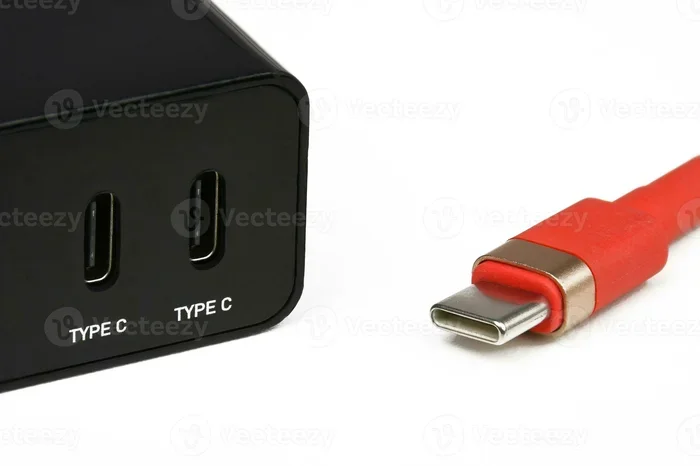
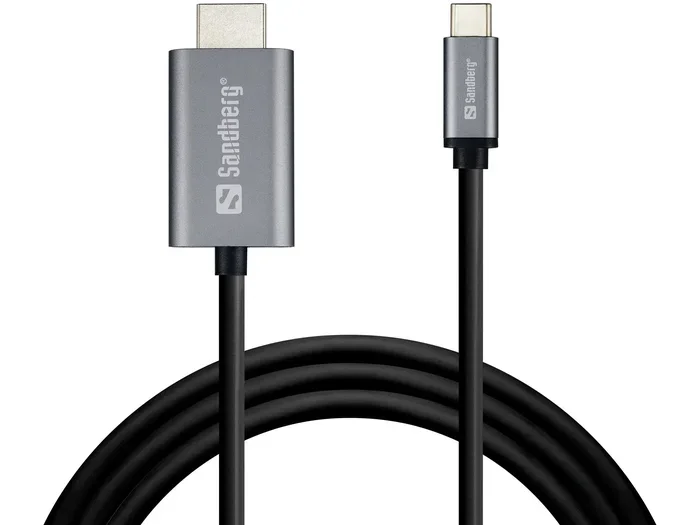
USB-C to HDMI adapters are the modern choice. They are smaller, faster, and support higher resolutions. Most newer laptops, tablets, and smartphones use USB-C, so this type of adapter is in high demand.
Many USB-C to HDMI adapters also support display port alt mode, which allows them to handle video signals efficiently. If your device has a USB-C port, this is usually the best option to go with.
USB-C Docking Stations with HDMI
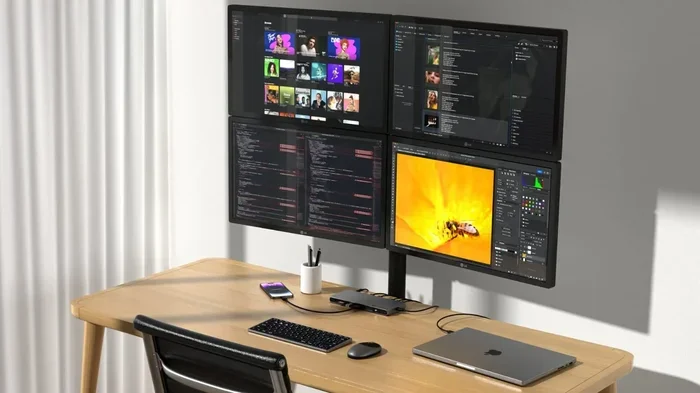
If you need more than just an HDMI connection, consider a USB-C docking station. These devices offer multiple ports, including HDMI, USB-A, USB-C, Ethernet, and SD card readers. They turn your laptop into a full desktop setup with one simple connection.
What To Look For When Buying A USB To HDMI Adapter
Buying the right adapter can feel overwhelming with so many options on the market. Here are the key factors to consider.
Resolution Support
Check what resolutions the adapter supports. Some budget adapters only handle 1080p, while better ones support 4K at 60Hz. If you want crisp, clear visuals on a big screen, make sure your adapter can handle the resolution you need.
Audio Support
Not all adapters carry audio along with video. Some USB to HDMI adapters only send a video signal. If you need sound through your HDMI connection, check the product specs before buying.
Operating System Compatibility
Make sure the adapter works with your operating system. Some adapters are designed specifically for Windows, while others work with Mac or Linux. If you use a proprietary operating system, compatibility can be hit or miss, so always double-check the manufacturer’s list of supported systems.
Build Quality and Brand
Cheap adapters from unknown brands may save you money upfront, but they often come with problems like signal drops, overheating, or poor color accuracy. Stick with reputable brands that have good reviews and solid warranty policies.
Power Requirements
Some adapters need external power, especially for 4K output. Check if your adapter requires a separate power cable or if it draws enough power from the USB port alone.
How To Set Up Your USB To HDMI Adapter
Setting up a USB to HDMI adapter is usually straightforward. Here is a simple step-by-step guide.
- Plug the adapter into your device’s USB port. Make sure it fits snugly.
- Connect an HDMI cable from the adapter to your TV or monitor.
- Switch your TV or monitor to the correct HDMI input. Use your remote to select the right port.
- Wait for your device to recognize the adapter. Most systems will auto-detect the new display within seconds.
- Adjust your display settings. Go to your display settings to choose between mirroring, extending, or showing only on the external screen.
If your adapter needs a driver, you will usually get a prompt to download it on your first connection. Follow the on-screen instructions to complete the setup.
Common Uses For A USB To HDMI Adapter
These adapters are incredibly versatile. Here are some of the most common ways people use them.
Work Presentations
Need to show your laptop screen on a conference room projector or TV? A USB to HDMI adapter makes this quick and easy. Just plug it in and start presenting. No need for complicated setups or cables running across the room.
Home Entertainment
Want to stream movies or play games on your big TV? Connect your laptop or desktop to the TV using an adapter and an HDMI cable. This works great for movie nights, gaming sessions, or watching sports with family.
Digital Signage and Business Displays
Businesses often use USB to HDMI adapters for digital signage and public displays. In electronic commerce communication environments, these adapters help connect content sources to large screens for advertising or information displays. The value added network infrastructure in many retail and commerce settings benefits from reliable connectivity solutions like these.
Desktop Workstation Expansion
If you work from home, an adapter lets you connect an external monitor to your laptop easily. This gives you more screen space for multitasking, which can boost productivity significantly.
Top Brands And Products To Consider
Here are some well-known brands that make reliable USB to HDMI adapters:
- Sabrent: Affordable and reliable. Great for basic 1080p setups.
- Cable Matters: Offers a wide range of adapters with solid build quality.
- StarTech: Premium adapters with excellent compatibility across devices.
- Anker: Known for durable designs and strong customer support.
- Uni: Budget-friendly options that still deliver good performance.
Before buying, check reviews and make sure the adapter is compatible with your specific device model. A quick search for your laptop or PC model plus “USB to HDMI adapter” usually brings up helpful results.
Troubleshooting Common Issues
Sometimes things do not work perfectly right away. Here are some common problems and how to fix them.
No Signal on the Screen
If your TV or monitor shows no signal, try unplugging the adapter and plugging it back in. Make sure the HDMI cable is connected firmly on both ends. Also, check that your TV is on the correct input source.
No Audio
If you get video but no sound, go to your audio settings and select the HDMI output as your default audio device. Some adapters need this manual step to route audio through the HDMI connection.
Flickering or Poor Quality
Flickering usually means your adapter or cable is low quality. Try a different HDMI cable or upgrade to a better adapter. Also, make sure your USB port is supplying enough power. If needed, use a USB hub with its own power supply.
Adapter Not Recognized
If your device does not recognize the adapter, try a different USB port. Avoid USB hubs if possible, as they can sometimes cause power issues. You may also need to update your device drivers or restart your computer.
Quick Tips For Getting The Best Performance
- Always use a high-quality HDMI cable to pair with your adapter.
- Plug the adapter directly into your device’s USB port, not through a hub, when possible.
- Keep your adapter drivers up to date for the best compatibility.
- Choose an adapter that supports the resolution your display can handle.
- Avoid cheap no-name brands if you need reliable, long-term performance.
Frequently Asked Questions
Do USB to HDMI adapters work with all laptops?
Most modern laptops will work with a USB to HDMI adapter, but compatibility depends on your port type and operating system. Check your laptop specs to confirm it has a USB-A or USB-C port and supports external display output. Some very old or low-end laptops may not provide enough power through the USB port alone.
Can I use a USB to HDMI adapter for gaming?
Yes, you can use a USB to HDMI adapter for gaming, but performance varies. USB-A adapters may introduce slight lag, making them less ideal for fast-paced games. USB-C adapters with better chipsets tend to perform much better for gaming on a TV or external monitor.
Do I need to install drivers for a USB to HDMI adapter?
Many adapters are plug and play and do not require drivers. However, some models, especially those with advanced features, may need a driver or software installation. Check the product manual or manufacturer website for details specific to your adapter model.
Can a USB to HDMI adapter support 4K resolution?
Yes, many USB to HDMI adapters support 4K resolution, but not all of them do. Look for adapters that specifically list 4K support, ideally at 60Hz for smooth visuals. Budget adapters often max out at 1080p or 4K at 30Hz, which may feel slightly less smooth.
Why does my adapter get hot during use?
Some heat is normal, especially with adapters that handle high-resolution output. However, if the adapter becomes too hot to touch, it may be a sign of poor build quality or insufficient power. Try using a different USB port or a powered USB hub to see if the temperature improves.
Are USB to HDMI adapters worth the money?
Absolutely. A good USB to HDMI adapter is a small investment that adds a lot of versatility to your setup. Whether you need to present at work, enjoy content on a bigger screen, or expand your workspace, the convenience and value they provide make them well worth the cost.
Final Thoughts
A USB to HDMI adapter is one of the most useful and affordable accessories you can add to your tech setup. Whether you need to connect your laptop to a TV for movie night, extend your workspace with an external monitor, or set up a display for a business presentation, the right adapter makes it simple.
Just remember to check your device compatibility, choose the right type of adapter for your USB port, and invest in a quality product from a trusted brand. With the right USB to HDMI adapter, you can turn any screen into a powerful display in minutes.
Now that you know what to look for, you are ready to shop with confidence. Pick the adapter that fits your needs, follow the setup steps, and enjoy your bigger, better screen setup today.
Frequently Asked Questions
What is Can You Get A Usb To Hdmi Adapter?
Can You Get A Usb To Hdmi Adapter is an important topic with many practical applications.