Can You Go From Displayport To Hdmi Without Any Issues
Yes, you can go from DisplayPort to HDMI easily using the right adapter or cable. This guide covers everything you need to know about converting your DisplayPort output to an HDMI input. You will learn about active and passive adapters, resolution support, and common pitfalls to avoid.
So you have a DisplayPort cable but your monitor or TV only has an HDMI input. What do you do? The good news is that can you go from DisplayPort to HDMI is one of the most common questions in the tech world today. The short answer is yes, you can absolutely make this connection work. You just need the right adapter or cable to bridge the gap between these two different video standards.
Whether you are setting up a new gaming monitor, connecting a laptop to a TV, or building a multi-display workstation, understanding how to convert DisplayPort to HDMI saves you time and money. This guide walks you through every step of the process. By the end, you will know exactly what adapter to buy, what to watch out for, and how to get the best performance from your setup.
Key Takeaways
- Simple Conversion: You can go from DisplayPort to HDMI with an adapter or cable.
- Active vs Passive Matters: Active adapters handle signal conversion, while passive ones just reroute it.
- Resolution Depends on Your Gear: Your adapter and ports determine whether you get 4K, 1080p, or higher.
- Audio Follows Video: Most adapters also carry audio, so you get sound along with your picture.
- Check Compatibility First: Not all adapters work with all devices. Always verify your setup before buying.
- Gaming and Monitors Benefit: Converting DisplayPort to HDMI is common in gaming setups and multi-monitor configurations.
- Avoid Cheap Knockoffs: Low-quality adapters can cause signal loss, flickering, or no signal at all.
📑 Table of Contents
- Understanding DisplayPort and HDMI
- How to Convert DisplayPort to HDMI
- Active vs Passive Adapters
- Resolution and Performance Considerations
- Common Problems and How to Fix Them
- Best Adapters and Cables for the Job
- Real-World Use Cases
- Can You Go From DisplayPort to HDMI With USB-C?
- Expert Insights and Pro Tips
Understanding DisplayPort and HDMI
Before you grab an adapter, it helps to understand what these two connection types are. Both DisplayPort and HDMI carry digital video and audio signals. They just use different connectors and slightly different protocols to do it.
DisplayPort is a digital display interface developed by VESA. It is most commonly found on computer monitors and graphics cards. HDMI, on the other hand, is widely used on TVs, projectors, and some monitors. Both standards have evolved over the years, with newer versions supporting higher resolutions and refresh rates.
What Makes Them Different?
The main difference between DisplayPort and HDMI lies in their design philosophy. DisplayPort was built with computer displays in mind. It supports features like daisy-chaining multiple monitors and higher bandwidth for demanding applications. HDMI was designed with consumer electronics in mind, focusing on simplicity and widespread compatibility across devices like Blu-ray players, game consoles, and streaming boxes.
Here are some key differences to keep in mind:
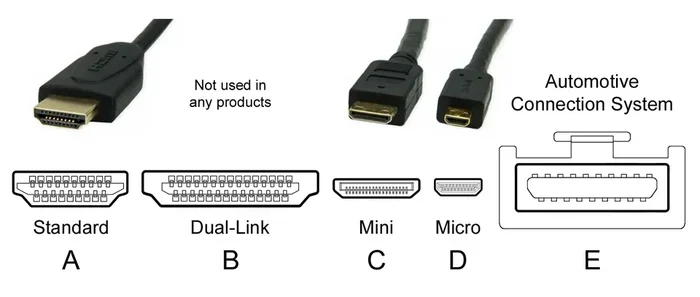
- Connector Shape: DisplayPort has a rectangular connector with a clip. HDMI has a smaller trapezoidal connector.
- Bandwidth: Newer DisplayPort versions offer higher bandwidth than some older HDMI versions.
- Audio Support: Both support audio, but HDMI is more universally used for audio-video setups in living rooms.
- Licensing: HDMI requires licensing fees, which is why some PC manufacturers prefer DisplayPort.
Despite these differences, converting between them is straightforward. The can you go from DisplayPort to HDMI question really comes down to signal conversion, and modern adapters handle this very well.
How to Convert DisplayPort to HDMI
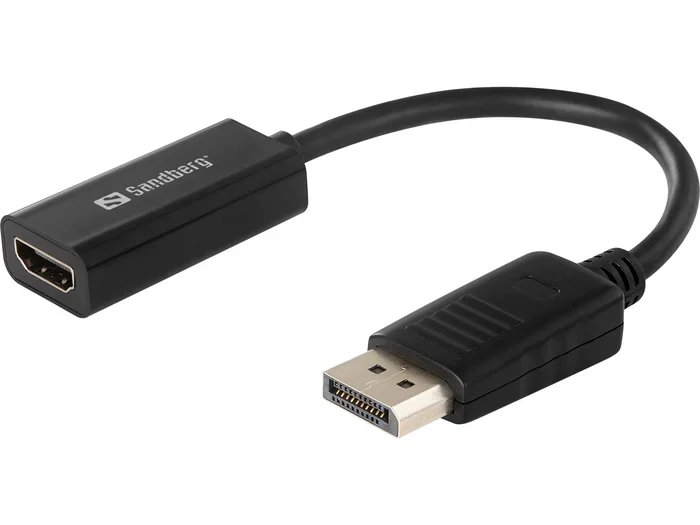
Converting DisplayPort to HDMI is simple. You need either a passive adapter, an active adapter, or a cable that has a DisplayPort connector on one end and an HDMI connector on the other. The choice depends on your specific devices and what you want to achieve.
Option 1: DisplayPort to HDMI Cable
A direct cable is the easiest solution. These cables have a DisplayPort plug on one end and an HDMI plug on the other. They work when your DisplayPort source supports HDMI output through the cable itself. This is common with many modern graphics cards and laptops.
Just plug one end into your PC and the other into your monitor or TV. You should get video and audio right away. No drivers or extra power needed.
Option 2: DisplayPort to HDMI Adapter
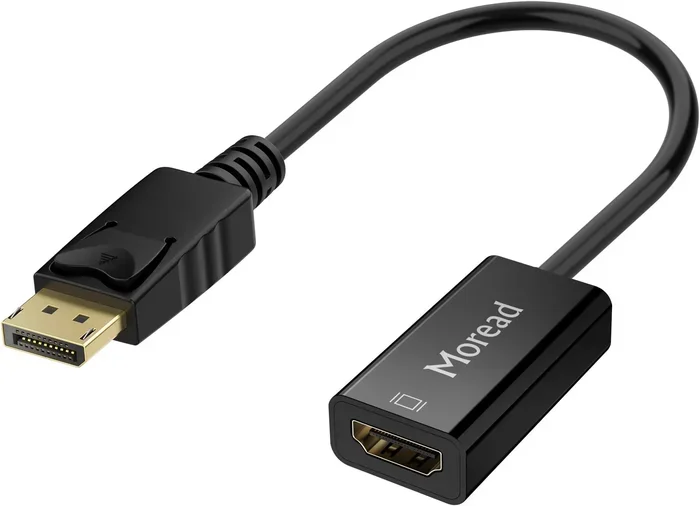
An adapter is a small device that converts the signal from DisplayPort to HDMI. You plug your DisplayPort cable into the adapter, and then connect an HDMI cable from the adapter to your display. Adapters come in many shapes and sizes, from tiny dongles to larger units with extra ports.
Some adapters also include USB-C ports or additional HDMI outputs. This is handy if you need to connect multiple displays or charge your laptop at the same time.
Option 3: DisplayPort to HDMI Converter Box
For more complex setups, a converter box gives you more flexibility. These boxes take a DisplayPort signal and output HDMI. They often include extra features like scaling, resolution conversion, and audio extraction. If you are working with older equipment or need to match specific resolutions, a converter box is a great choice.
Active vs Passive Adapters
When you search for a DisplayPort to HDMI adapter, you will quickly encounter two types: active and passive. Understanding the difference is crucial for getting a reliable connection.
What Is a Passive Adapter?
A passive adapter simply reroutes the signal from one connector to another. It does not change the signal in any way. Passive adapters work when your DisplayPort source can output an HDMI-compatible signal natively. Many modern GPUs and laptops can do this without any extra help.
Passive adapters are cheaper and do not need external power. They are a great first choice if your devices support the conversion natively.
What Is an Active Adapter?
An active adapter actively converts the DisplayPort signal into an HDMI signal. It uses internal circuitry to handle the conversion process. Active adapters are necessary when your source device cannot output an HDMI-compatible signal on its own.
They also require external power, usually through a USB port. Active adapters tend to be more expensive but offer broader compatibility. If you are dealing with older hardware or specific display models, an active adapter is often the safest bet.
Which One Should You Choose?
Here is a quick guide to help you decide:
- Choose Passive If: Your GPU or laptop supports DisplayPort over HDMI natively, and you want a simple, no-fuss setup.
- Choose Active If: You are having signal issues with a passive adapter, or your devices do not support native conversion.
- When in Doubt: Go with active. It costs a little more but works in more situations.
Resolution and Performance Considerations
One of the biggest concerns people have is whether converting DisplayPort to HDMI affects image quality. The answer depends on your hardware and the adapter you use.
Resolution Support
Most adapters support 1080p and 1440p without any problems. For 4K resolution, you need to check the adapter specifications carefully. Adapters that support HDMI 2.0 or higher can handle 4K at 60Hz. Older adapters might limit you to 4K at 30Hz or even 1080p.
If you are using DisplayPort 1.2 or DisplayPort 1.4, the adapter must match the bandwidth capabilities of your source. A DisplayPort 1.4 output connected to an HDMI 2.0 adapter will give you 4K at 60Hz. But the same DisplayPort 1.4 output connected to an HDMI 1.4 adapter will cap you at 4K at 30Hz.
Refresh Rate and Gaming
For gaming, refresh rate matters a lot. If you want 144Hz or higher, your entire chain must support it. This means your GPU, the adapter, the cable, and the monitor all need to be compatible.
Here are some tips for gaming setups:
- Use a DisplayPort to HDMI 2.1 adapter if you want 4K at 120Hz or 1080p at 240Hz.
- Check your monitor’s HDMI version. HDMI 2.1 monitors can take full advantage of high refresh rates.
- Avoid adapters that only support HDMI 1.4 for serious gaming. They will bottleneck your performance.
Does Conversion Affect Quality?
A good adapter will not degrade your image quality in any noticeable way. The conversion process is digital, so there is no signal loss like you might get with analog connections. The key is to buy a quality adapter from a reputable brand. Cheap knockoffs often use poor components that can cause flickering, artifacts, or no signal at all.
Common Problems and How to Fix Them
Even with the right adapter, you might run into issues. Here are the most common problems and their solutions.
No Signal at All
If your screen stays black after connecting, try these steps:
- Check that both ends of the cable and adapter are firmly plugged in.
- Make sure your display is set to the correct HDMI input channel.
- Try a different HDMI port on your monitor or TV.
- Restart your computer and reconnect the adapter.
No Audio
Sometimes video comes through but there is no sound. This usually happens when your computer is still sending audio through the DisplayPort output instead of the HDMI output. To fix this:
- Right-click the sound icon in your taskbar and select your playback device.
- Choose the HDMI output as your default audio device.
- Update your audio drivers if the issue persists.
Flickering or Intermittent Signal
Flickering usually points to a loose connection or a low-quality adapter. Try these fixes:
- Re-seat all connections firmly.
- Replace the adapter with a higher-quality model.
- Use a shorter HDMI cable to reduce signal degradation.
- Check if your GPU drivers are up to date.
Wrong Resolution or Black Bars
If your display shows a lower resolution than expected or has black bars around the image, go into your display settings and manually select the correct resolution. Most operating systems let you choose the native resolution of your monitor under display settings.
Best Adapters and Cables for the Job
Not all adapters are created equal. Here are some tips for choosing the right one for your needs.
What to Look For
When shopping for a DisplayPort to HDMI adapter, pay attention to these factors:
- Version Compatibility: Make sure the adapter supports HDMI 2.0 or higher for 4K at 60Hz.
- Build Quality: Look for adapters with metal housings and gold-plated connectors for better durability and signal transfer.
- Active vs Passive: Choose active if you need broader compatibility or are converting from a laptop with a USB-C DisplayPort Alt Mode output.
- Brand Reputation: Stick with well-known brands like Cable Matters, Uni, StarTech, and Sabrent.
- Price Range: A good active adapter costs between $15 and $40. Anything much cheaper may not work reliably.
Quick Tips for Buying
Here are some quick tips to keep in mind before you buy:
- Always check the adapter’s maximum supported resolution and refresh rate.
- If you need audio, confirm that the adapter supports audio pass-through.
- For gaming, prioritize adapters that support the highest HDMI version possible.
- Read customer reviews before purchasing. Real-world feedback is invaluable.
- Buy from reputable retailers to avoid counterfeit products.
Real-World Use Cases
Let us look at how people actually use DisplayPort to HDMI conversion in everyday life.
Connecting a Laptop to a TV
Many modern laptops only have DisplayPort or USB-C outputs. If you want to mirror your laptop screen on your living room TV, a DisplayPort to HDMI adapter is all you need. Plug the adapter into your laptop, connect an HDMI cable to the adapter and your TV, and you are good to go. Most adapters also carry audio, so your TV speakers will work too.
Gaming Monitor Setups
Many high-end gaming monitors use DisplayPort for their primary connection because of its higher bandwidth. But some gamers prefer to use HDMI for simplicity or because their GPU has limited DisplayPort outputs. Converting DisplayPort to HDMI in this scenario works well as long as your adapter supports the resolution and refresh rate you need.
Multi-Monitor Workstations
In professional environments, people often mix and match monitors with different input types. A DisplayPort to HDMI converter allows you to connect a DisplayPort-equipped graphics card to an HDMI-only monitor without any hassle. This is especially common in office setups where budget monitors with HDMI inputs are the norm.
Home Theater and Presentation Setups
If you are using a projector or AV receiver that only has HDMI inputs, converting from DisplayPort is essential. Active adapters work best here because projectors and AV receivers can be pickier about signal standards. Always test your setup before an important presentation or movie night.
Can You Go From DisplayPort to HDMI With USB-C?
Many modern laptops use USB-C ports that support DisplayPort Alt Mode. This means you can use a USB-C to HDMI adapter or cable to connect your laptop to an HDMI display. This is not exactly the same as a pure DisplayPort to HDMI conversion, but it achieves the same result in most cases.
The key difference is that USB-C to HDMI adapters rely on the USB-C port supporting video output. Not all USB-C ports do this, so check your laptop’s specifications before buying a USB-C to HDMI adapter. If your USB-C port supports DisplayPort Alt Mode, you will get a reliable video connection.
For the best results with USB-C setups, choose an adapter that is certified and supports the resolution and refresh rate you need. Some USB-C docks include HDMI outputs alongside other ports, which is a great all-in-one solution for users who need multiple connectivity options.
Expert Insights and Pro Tips
Here are some expert tips that can make your DisplayPort to HDMI setup even better:
- Update Your Drivers: Always keep your GPU drivers up to date. Outdated drivers can cause compatibility issues with adapters.
- Use Short Cables: Shorter HDMI cables reduce the chance of signal degradation. Keep your HDMI cable under 6 feet for best results.
- Test Before Committing: If possible, test the adapter with your specific setup before purchasing. Some retailers have generous return policies.
- Firmware Matters: Some monitors and GPUs have firmware updates that improve compatibility with adapters. Check the manufacturer’s website.
- Avoid Daisy-Chaining Adapters: Do not chain multiple adapters together. Each adapter adds a potential point of failure. Use a direct connection whenever possible.
The question can you go from DisplayPort to HDMI has a clear and confident answer: yes, you can. With the right adapter, cable, or converter, connecting a DisplayPort source to an HDMI display is simple and reliable. Whether you are using a passive adapter for a straightforward setup or an active converter for more complex needs, the technology works well across a wide range of devices and scenarios.
The key is to match your adapter to your hardware. Check your GPU’s output capabilities, your monitor’s input options, and the specifications of any adapter you consider buying. Pay attention to version support, resolution limits, and refresh rate capabilities. A little research upfront saves you from frustration later.
Remember that audio follows video through most adapters, so you get both sound and picture in one connection. And if you ever run into issues, the troubleshooting steps in this guide will help you get back on track quickly. With the right gear and a little know-how, your DisplayPort to HDMI setup will work seamlessly for years to come.
Frequently Asked Questions
Can you go from DisplayPort to HDMI without an adapter?
No, you cannot go from DisplayPort to HDMI without some form of adapter or converter. The connectors are physically different, so you need an adapter, a direct cable with different connectors on each end, or a converter box to bridge the gap between the two standards.
Does converting DisplayPort to HDMI lose quality?
A quality adapter does not lose any noticeable image quality because the conversion is digital. However, a cheap or incompatible adapter can cause issues like flickering, reduced resolution, or no signal at all. Always choose a reputable adapter that supports your desired resolution and refresh rate.
Can I get audio through a DisplayPort to HDMI adapter?
Yes, most DisplayPort to HDMI adapters support audio pass-through. The audio signal travels along with the video signal through the adapter. Make sure your computer’s audio output is set to the HDMI device in your sound settings to hear audio through your display.
What is the difference between active and passive DisplayPort to HDMI adapters?
A passive adapter simply reroutes the signal without changing it, while an active adapter actively converts the DisplayPort signal into an HDMI signal using internal circuitry. Passive adapters work when your source supports native HDMI output, but active adapters are needed for broader compatibility and more complex setups.
Can I use a DisplayPort to HDMI adapter for 4K gaming?
Yes, you can use a DisplayPort to HDMI adapter for 4K gaming, but you need an adapter that supports HDMI 2.0 or higher. For the best experience, look for adapters that support 4K at 60Hz or higher. Make sure your GPU, the adapter, and your monitor all support the resolution and refresh rate you want.
Why is my DisplayPort to HDMI adapter not working?
Common reasons include loose connections, outdated GPU drivers, incorrect display settings, or an incompatible adapter. Try reseating all cables, updating your drivers, checking your display input source, and testing with a different adapter if possible. If the issue persists, the adapter itself may be defective.
=== CONCLUSION ===
Can you go from DisplayPort to HDMI without any issues? Absolutely. The process is simple, affordable, and works reliably with the right equipment. Whether you need a basic passive adapter for a home setup or a full-blown active converter for a professional workstation, there is a solution for every situation.
Take the time to understand your hardware, choose a quality adapter, and follow the troubleshooting tips if anything goes wrong. With the right approach, your DisplayPort to HDMI connection will deliver crisp video and clear audio every time. Start with the tips in this guide, and you will have your displays connected and working in no time.