Can You Set Up Xfinity Wifi By Yourself Find Out Now
Yes, you absolutely can set up Xfinity wifi by yourself. The process is simple and does not require a technician if you have the right gear. This guide will walk you through the Xfinity wifi setup step-by-step, teaching you how to activate your internet connection and secure your wireless network.
Key Takeaways
- Self-Installation is Easy: You can finish the setup process without professional help.
- Xfinity App Makes it Simple: The xFi app guides you through every step of the activation process.
- Right Gear Matters: Having your Xfinity router and modem ready saves time.
- Security is Key: Always change your default WiFi password and network name.
- Troubleshooting is Built-In: You can fix common connection issues on your own.
- Save Money: Avoiding a technician visit keeps your bill low.
📑 Table of Contents
Can You Set Up Xfinity Wifi By Yourself
Yes, you absolutely can set up Xfinity wifi by yourself. Many people wonder if they need a professional to get their internet working. The truth is, the process is very simple and straightforward. You do not need to wait for a technician or pay extra fees for a service call. You can finish the modem setup in just a few minutes. This guide will show you exactly how to do it. We will walk you through every single step. You will learn how to connect your wireless router and get online fast. It is much easier than you might think when you have the right instructions.
Doing the self-installation yourself saves you a lot of time and money. You avoid the hassle of scheduling a service call and waiting for an appointment. Plus, you get to learn how your Xfinity router works. This knowledge helps you fix small issues later on your own. You will feel proud and confident once you are done. The whole activation process is designed to be easy for everyone. You just need a few basic items and some patience. So, let us dive right into how you can do this. Enjoy the freedom of a quick internet connection.
What You Need Before Starting Your Xfinity Wifi Setup
Before you begin, you must gather everything you need. Having the right gear makes the self-installation process smooth. You do not want to start and stop because something is missing from the box. Check off this list before you plug anything in. You will need your Xfinity xFi gateway. This is the main box that sends the internet signal throughout your home. It acts as both your modem and wireless router. You also need a power cord for the gateway. An ethernet cable is very important too. This cable connects your computer directly to the router for a wired connection. You should also have your Xfinity account details ready. This includes your username and password. Finally, grab a smartphone or computer. You will use it to run the setup wizard and connect devices to the network.
Checking Your Equipment
Take a close look at your Xfinity router and the self-install kit. Make sure all the pieces are inside the box before you start. You should see the main gateway unit, a power adapter, and the necessary cables. If anything is missing, call Xfinity support right away. Do not start the activation process without the right gear. A missing ethernet cable can stop your wireless network from working properly. Check the label on the self-install kit. It lists all the pieces you need to have. Taking five minutes to check saves you big headaches later. A complete self-install kit makes everything go smoothly and quickly.
Understanding the Self-Install Kit
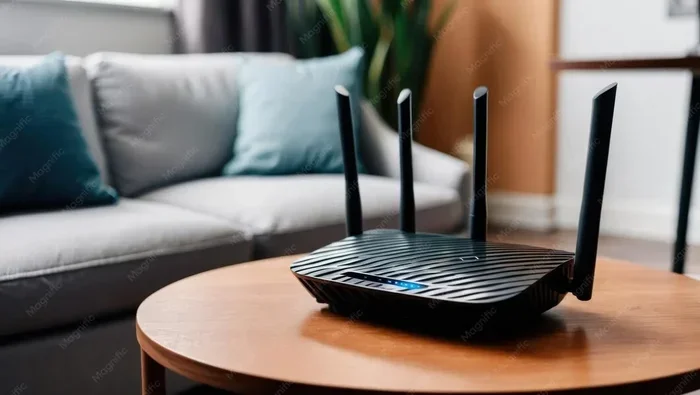
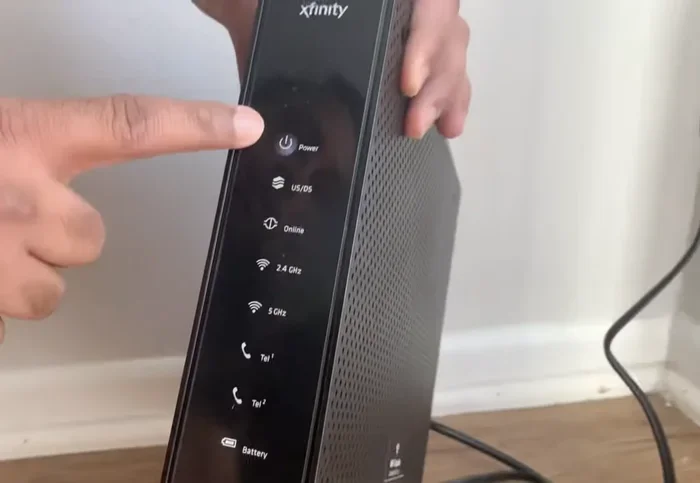
The self-install kit has everything you need for your modem setup. The Xfinity xFi gateway is the star of the show. It is the box that sends the internet signal to all your devices. It creates your wireless network in every room of your home. You plug it into the cable outlet on the wall. Then, you plug in the power cord and turn it on. The gateway has small lights on the front. These lights tell you the status of your internet connection. You will also get a quick start guide inside the kit. This guide gives simple instructions for your self-installation. Read it before you plug anything in. It helps you understand the activation process better and faster.
The Xfinity xFi gateway is a powerful piece of equipment. It does more than just send internet signals. It also helps you manage your home network easily. You can see which devices are connected at any time. You can even pause the internet for specific devices. This is great for parents who want to control screen time. The gateway also updates itself automatically. This keeps your wireless network safe and fast. Understanding your equipment makes the whole self-installation process much easier.
Step-by-Step Guide to Setting Up Xfinity Wifi
Now comes the fun part. You will set up your Xfinity router in no time. Follow these steps carefully to ensure success. You will have a working wireless network soon. Remember, the goal is a strong internet connection in every room of your home. Take your time and do not rush the steps.
Connecting the Hardware
First, find your cable outlet. This is where the internet signal enters your home from the internet service provider. Plug the coaxial cable from your self-install kit into the outlet. Connect the other end of the cable to the Xfinity xFi gateway. Next, plug the power cord into the gateway. Then, plug the other end into the wall outlet. Wait for the lights on the gateway to settle down. The online light should turn solid white. This means your modem setup is working correctly. If the light blinks, give it a few minutes. Do not panic if it takes a little time. The gateway needs to connect to the Xfinity network. Once the light is solid, you are ready for the next step.
Using the Xfinity App
Now, grab your smartphone. Download the Xfinity app from the app store on your phone. Open the app and sign in with your Xfinity account details. The app will detect your new Xfinity router automatically. It will guide you through the rest of the setup wizard. You will be asked to name your wireless network. This is also called your network name. Pick a name you like and that is easy to remember. You will also create a WiFi password. Make it strong and unique to keep your home network safe. The app makes this part very easy and fun. You can also connect devices right from the phone. The Xfinity app is a great tool for managing your home network.
Activating Your Internet Connection
After you name the network, you must finish the activation process. The Xfinity app will send the signal to the gateway. This links your home network to the Xfinity system. You might need to wait a few minutes for this to finish completely. The online light on the gateway will confirm the connection. Once it is solid white, your wireless router is live and ready. You can now connect devices to the internet. Use the ethernet cable to connect a computer directly if you need the fastest speeds. This gives you the best performance for gaming or streaming videos. Then, you can add phones, tablets, and smart TVs to the wireless network. Your internet connection is now ready to use for the whole family.
Once your devices are connected, test the internet speed. Open a browser and run a speed test. This checks if your internet connection is working as it should. If the speed is slow, try moving closer to the wireless router. Sometimes, walls and furniture can block the signal. A quick test ensures you are getting the speeds you pay for from your internet service provider.
How to Secure Your Home Network
Security is very important for your wireless network. You do not want strangers using your internet connection without permission. A safe home network keeps your personal data private and secure. Follow these tips to lock down your setup and stay safe online. Protecting your network is one of the most important parts of the self-installation process.
Changing Your WiFi Password
Your Xfinity router comes with default settings when you first get it. These include a default WiFi password that is very easy to guess. Do not keep this password because it is a big security risk. Anyone nearby could use your internet connection without your permission. Go into the Xfinity app and change the WiFi password right away. Pick a password that is hard to guess by other people. Use a mix of upper and lower case letters, numbers, and symbols. Write the new password down and keep it in a safe place. A strong WiFi password stops unauthorized users from joining your home network and using your bandwidth.
Adjusting Signal Strength
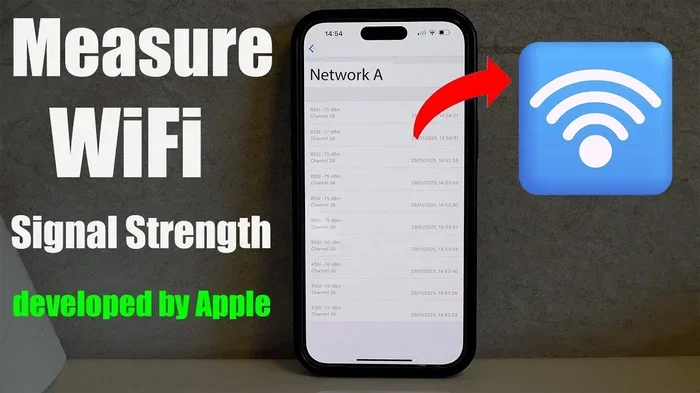
You can also check and adjust your signal strength for the best performance. A good signal means a fast internet connection everywhere in your house. Place your Xfinity router in a central spot in your home. Keep it away from thick walls and large metal objects. Do not put it near microwaves or baby monitors. These things can cause interference and weaken the signal strength. If your signal is weak, move the wireless router to a higher spot. A better location improves your home network a lot. You can also add a WiFi extender if your house is very big. This helps the signal reach every corner of your home without dead zones.
Common Mistakes During Xfinity Wifi Setup
Many people make small mistakes when they set up Xfinity wifi by themselves. Avoiding these errors helps you have a smooth activation process. A perfect setup is your goal, so watch out for these common pitfalls that trip up many users.
Skipping the Activation Process
Some people plug in the gateway and think the job is already done. But you must finish the activation process to actually get online. Without it, your internet connection will not work properly at all. The Xfinity app walks you through this step very carefully. Do not skip it or rush through the prompts on the screen. Follow the instructions exactly as they appear. This ensures your modem setup is fully registered with Xfinity. Skipping this step is the most common mistake people make when they try to do it alone.
Ignoring the Setup Wizard
The setup wizard is there to help you configure your wireless router perfectly. It asks simple questions about your home network and your personal preferences. Ignoring the wizard can lead to connection problems later on. Let the Xfinity app do its job and guide you through the steps. It optimizes your settings for the best possible performance. Trust the process and answer the questions honestly. The wizard helps you pick the best network name and WiFi password. It makes your internet connection faster and more reliable for all your devices.
Placing the Router in the Wrong Spot
Where you put your Xfinity router matters a lot for your wireless network. A bad spot can cause weak signal strength in many rooms of your home. Do not put the router in a closed closet or behind a heavy TV. These places block the wireless signal and reduce speed. The best spot is in an open, central area of your home. This lets the signal travel freely to all your connect devices. Good placement is one of the key factors for a strong home network and fast internet connection.
Not Restarting the Gateway
Sometimes the gateway needs a fresh start to work properly. If you notice internet connection issues, restart the device. Unplug the power cord from the wall outlet. Wait for about thirty seconds. Then, plug the cord back in and turn the power on. This simple step fixes many common connection problems. Restarting clears the memory of the Xfinity router. It helps the device reconnect to the network fresh. Many people forget this easy step when they set up Xfinity wifi by themselves.
When to Call Xfinity Support for Help
Most of the time, you can fix issues on your own without any help. But sometimes, you need Xfinity support to solve the problem. Knowing when to call saves you frustration and wasted time. Here are a few times you should pick up the phone and ask for help from the experts.
If the online light on your Xfinity router is red or completely off, call for help right away. A red light means there is no internet connection at all. You might have a line issue that needs a technician to fix. Also, call Xfinity support if your self-install kit is missing important parts. You cannot finish the modem setup without the right cables and adapters. Finally, contact support if the Xfinity app will not find your gateway during the activation process. They can walk you through the steps over the phone. They have special tools to fix deeper problems with your internet service provider connection.
Conclusion
You now know the answer to Can You Set Up Xfinity Wifi By Yourself. It is totally possible and very easy to do on your own. You just need your Xfinity router, the self-install kit, and the Xfinity app. You can handle the activation process without any professional help at all. You can secure your home network and enjoy a strong internet connection every single day. Remember to place your wireless router in a good central spot in your home. Always change the default WiFi password to keep your wireless network safe from strangers. Follow the steps in this guide, and you will be online in no time. Enjoy your fast internet and the freedom of a DIY setup!
Frequently Asked Questions
How long does it take to set up Xfinity wifi by yourself?
The whole process takes about fifteen to thirty minutes. You just need to connect the hardware and run the setup wizard in the app. Most people finish their self-installation quickly and easily.
Do I need a technician to set up my Xfinity router?
No, you do not need a technician for a basic setup. You can do the modem setup yourself with the self-install kit. Just follow the steps in the Xfinity app and you will be fine.
What if my Xfinity wifi setup does not work?
First, check all your cable connections. Make sure the coaxial cable is tight. Then, restart your Xfinity router. If the internet connection still fails, call Xfinity support for help.
Can I use my own wireless router with Xfinity?
Yes, you can use your own wireless router. You just need to put the Xfinity gateway in bridge mode. This lets your personal router handle the wireless network. Check Xfinity support for bridge mode instructions.
Where should I place my Xfinity router?
Place your wireless router in a central spot in your home. Keep it away from thick walls and metal objects. A central location gives you the best signal strength for your home network.
Is the Xfinity self-install kit free?
The self-install kit is usually free if you rent the Xfinity xFi gateway. You just pay for the equipment rental. Sometimes, buying your own gear can save you money over time.