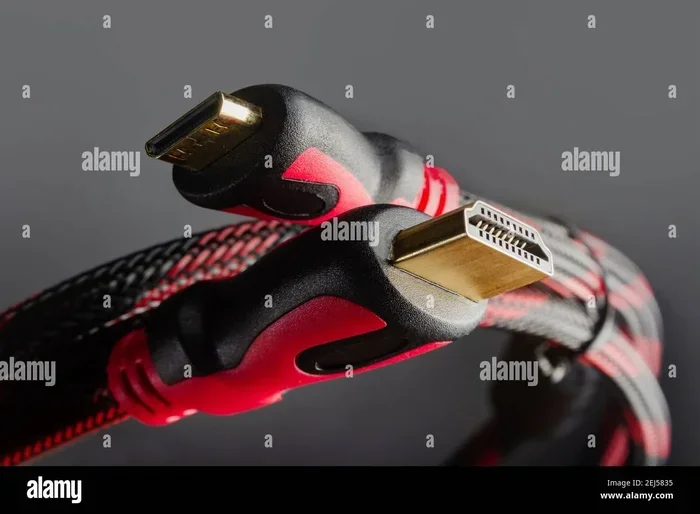
Can You Tell If A Hdmi Cable Is 4k Here Is How To Find Out
You can absolutely tell if an HDMI cable supports 4K by checking its label, version number, and speed rating. Not all HDMI cables are created equal, and using the wrong one means you could miss out on stunning Ultra HD picture quality. This guide walks you through the exact steps to identify a 4K HDMI cable, avoid common buying mistakes, and get the best picture from your TV, console, or streaming device.
Have you ever plugged in an HDMI cable and wondered whether it can actually handle 4K resolution? You are not alone. Millions of people buy cables every day without checking if they support the ultra-sharp picture quality their TV or monitor promises. The truth is, not all HDMI cables are built the same. Some handle 4K beautifully while others struggle or simply fail to pass the signal at all.
Finding out if your HDMI cable is 4K capable is easier than you might think. With a few simple checks, you can confirm what your cable supports and avoid frustrating picture quality issues. Whether you are setting up a home theater, connecting a gaming console, or hooking up a streaming device, knowing your cable specs makes all the difference.
In this guide, we walk you through every method to identify a 4K HDMI cable. We also cover common mistakes, expert tips, and practical advice you can use right away. By the end, you will never second-guess your HDMI cable again.
Key Takeaways
- Check the cable label: Look for “Premium High Speed HDMI” or “Ultra High Speed” markings on the cable itself.
- Know the HDMI version: HDMI 2.0 and HDMI 2.1 are the versions that support true 4K resolution at higher refresh rates.
- Test with your device: Your TV and source device settings can confirm whether 4K is being transmitted through the cable.
- Avoid cheap unmarked cables: They often fail to deliver the bandwidth needed for 4K content and may cause signal issues.
- Certification matters: Look for HDMI-Forum certification logos to ensure the cable meets official 4K standards.
- Cable length affects performance: Longer cables can suffer signal degradation, so choose the right length for your setup.
📑 Table of Contents
What Exactly Is a 4K HDMI Cable?
Let us start with the basics. A 4K HDMI cable is any cable that can transmit a 4K video signal from a source device to a display. 4K means the resolution is roughly 3840 by 2160 pixels. That is four times the detail of standard Full HD. The cable itself does not “create” the resolution. It simply needs to carry the data fast enough for your devices to display 4K content.
The term “4K HDMI cable” is not an official certification by itself. Instead, it refers to cables that meet certain speed and bandwidth standards. These standards are defined by the HDMI Forum and the HDMI specification version. Understanding these basics helps you make smarter buying decisions.
Most modern TVs, monitors, and projectors now support Ultra HD resolution. But your cable has to match that capability. If you use an older or slower cable, your device might downscale the image or refuse to output 4K altogether. This is why knowing how to verify your cable matters so much.
Why Cable Version Matters
The HDMI version on your cable determines what it can do. Older versions like HDMI 1.3 and 1.4 were designed for lower resolutions. While HDMI 1.4 can handle 4K at 30Hz, that is often not enough for smooth video. HDMI 2.0 brought true 4K support at 60Hz, which is the standard most people need today. And HDMI 2.1 pushes even further with 4K at 120Hz and beyond.
Your cable’s version is usually printed on the connector or the jacket. If you cannot find it, the cable’s marketing name gives you a strong clue. We will cover exactly how to read these labels in the next section.
How to Tell If Your HDMI Cable Is 4K
Now let us get into the practical part. There are several reliable ways to check whether your HDMI cable supports 4K. You do not need any special tools or technical expertise. Just follow these steps.
Step 1: Read the Cable Label
Flip over the cable or look closely at the jacket. Most manufacturers print key information right on the cable. Search for phrases like “Premium High Speed HDMI” or “Ultra High Speed HDMI.” These labels indicate the cable meets specific bandwidth requirements for 4K and beyond.
If you see “Standard HDMI” or “High Speed HDMI” without the word “Premium,” the cable likely does not support full 4K. “Standard” cables are fine for 1080p content but will struggle with 4K video. Always look for the word “Premium” or “Ultra High Speed” when you need 4K performance.
Step 2: Check the HDMI Version Number
The HDMI version is the most direct indicator of capability. Look for text like “HDMI 2.0” or “HDMI 2.1” on the packaging or the cable itself. HDMI 2.0 cables support 4K at 60Hz, which covers most streaming, gaming, and movie content. HDMI 2.1 cables support 4K at 120Hz and even 8K in some cases.
If the cable has no version number printed on it, be cautious. Unmarked cables from unknown brands may not meet the required specifications. Stick to reputable brands and look for official certification marks.
Step 3: Look for HDMI Certification Logos
The HDMI Forum offers official certification for cables that pass strict testing. Look for the “HDMI Premium High Speed” or “HDMI Ultra High Speed” certification logo on the packaging. These logos mean the cable has been tested and verified to handle 4K and higher resolutions reliably.
Certified cables also often include information about supported features like HDR (High Dynamic Range), eARC (Enhanced Audio Return Channel), and Ethernet over HDMI. These features can enhance your overall viewing experience, so it is worth checking for them.
Step 4: Test the Connection on Your TV
Sometimes the best way to know is simply to test it. Plug the cable into your source device and your TV. Then go into your TV settings and check the output resolution. If your TV displays 4K or Ultra HD, the cable is doing its job.
If the picture looks fuzzy, the TV shows a lower resolution, or the screen goes blank, the cable might not support 4K. Try a different cable and see if the quality improves. This simple test can save you a lot of guesswork.
Step 5: Consult the Device Manual or Manufacturer
Your TV, Blu-ray player, gaming console, or streaming stick usually lists the required HDMI version for 4K output. Check the user manual or the manufacturer’s website. This tells you exactly what cable you need. For example, the PlayStation 5 and Xbox Series X both require an HDMI 2.1 cable for full 4K at 120Hz gaming.
If you are unsure, contact the manufacturer’s customer support. They can quickly tell you which cable meets the requirements for your specific device.
HDMI Cable Versions Explained
The HDMI specification has evolved significantly over the years. Each version added new capabilities and higher bandwidth. Here is a quick breakdown of the versions that matter most for 4K content.
HDMI 1.4
HDMI 1.4 was a major step forward when it launched. It introduced support for 4K resolution, but only at 30Hz. This means the video refreshes 30 times per second. For movies and slideshows, this is acceptable. For fast-moving content like sports or video games, 30Hz can feel choppy and unresponsive.
HDMI 1.4 also brought features like HDMI Ethernet Channel and the Audio Return Channel (ARC). These are useful but do not make up for the limited frame rate at 4K.
HDMI 2.0
HDMI 2.0 is the workhorse of 4K content. It supports 4K at 60Hz, which delivers smooth, fluid video for most uses. Whether you are watching Netflix in Ultra HD, playing console games, or editing video, HDMI 2.0 handles it well.
HDMI 2.0 also introduced HDR10 support, which expands the color range and contrast for a more vivid picture. Most “4K HDMI cables” sold today are actually HDMI 2.0 cables. They are affordable and widely available.
HDMI 2.1
HDMI 2.1 is the latest and greatest standard. It supports 4K at 120Hz and even 8K at 60Hz. The bandwidth jumps dramatically to 48 Gbps, allowing for incredibly rich video and audio quality. This is the cable you want if you own a high-end gaming console or a 4K 120Hz TV.
HDMI 2.1 also adds features like Variable Refresh Rate (VRR), Auto Low Latency Mode (ALLM), and Quick Frame Transport (QFT). These are game-changers for serious gamers and videophiles.
| HDMI Version | Max Resolution | Max Refresh Rate | Bandwidth |
|---|---|---|---|
| HDMI 1.4 | 4K | 30Hz | 10.2 Gbps |
| HDMI 2.0 | 4K | 60Hz | 18 Gbps |
| HDMI 2.1 | 8K / 4K | 120Hz / 4K | 48 Gbps |
Common Mistakes When Buying 4K HDMI Cables
Buying the wrong HDMI cable is a frustrating and common mistake. Here are the pitfalls to avoid.
Buying Based on Length Alone
Some people pick a cable based only on how long they need it. Length matters, but it is not the only factor. A long cable without proper bandwidth can degrade the 4K signal. Always check the speed rating and version before buying.
Choosing the Cheapest Option
Ultra-cheap HDMI cables from unknown brands often cut corners on shielding and conductor quality. They may work for 1080p but fail at 4K. Spending a little more on a certified cable saves you from picture problems down the road.
Ignoring HDR and eARC Requirements
4K is not just about resolution. HDR dramatically improves color and contrast. eARC delivers high-quality audio back to your soundbar or receiver. If your cable does not support these features, you lose out on the full experience. Always check that your cable supports the features your devices offer.
Assuming “4K” on the Package Means It Is 4K Ready
Some manufacturers slap “4K” on the packaging without meeting the actual standards. This is misleading marketing. Always look for the official certification logos and version numbers instead of relying on marketing claims alone.
Do You Really Need a 4K HDMI Cable?
This is one of the most common questions people ask. The answer depends on what you are watching and which devices you use.
If you have a 4K TV and you watch streaming content, Blu-rays, or play modern video games, yes, you need a 4K HDMI cable. Without it, your TV cannot display the full resolution and detail you paid for. The picture will look noticeably softer and less vibrant.
On the other hand, if you only watch standard HD content on an older TV, a basic cable works fine. There is no need to spend extra money on a 4K cable if your setup does not require it.
Here is a simple rule of thumb. If your TV is 4K and your source device outputs 4K, use a 4K HDMI cable. It is that simple.
When You Definitely Need One
- Gaming on PS5 or Xbox Series X: These consoles output 4K at high frame rates. You need an HDMI 2.1 cable for the best experience.
- 4K Blu-ray players: These devices send a massive amount of data. A certified 4K cable ensures nothing gets lost.
- 4K streaming devices: Apple TV 4K, Roku Ultra, and Fire TV Stick 4K all benefit from a proper 4K HDMI cable.
- Professional video editing: If you work with 4K video files, a reliable cable is essential for accurate playback.
It is also worth noting that many devices negotiate the best possible signal automatically. When you plug in a compatible cable, the devices communicate and select the right resolution and format. This process is called HDCP handshake and it happens within seconds of connecting.
Expert Tips for Choosing the Right 4K HDMI Cable
Choosing the right cable does not have to be confusing. Follow these expert tips and you will get the perfect cable for your setup.
Look for the Ultra High Speed Label
The HDMI Forum introduced the “Ultra High Speed” label for HDMI 2.1 cables. If you see this label, you know the cable supports 4K at 120Hz, 8K, HDR, and all the latest features. It is the easiest way to confirm a cable is truly 4K ready.
Consider Your Setup and Cable Length
Longer cables can lose signal strength, especially at high resolutions. For runs under 10 feet, almost any certified 4K cable works well. For longer runs, consider a cable with better shielding or an active HDMI cable that boosts the signal.
Buy from Reputable Retailers
Stick to well-known brands like Belkin, Cable Matters, Monoprice, and AmazonBasics. These brands undergo testing and offer clear specifications. Avoid mystery brands from unknown sellers, especially on discount marketplaces.
Check for Backward Compatibility
HDMI 2.1 cables are backward compatible with older devices. This means you can use an Ultra High Speed cable with an HDMI 2.0 device and it will work perfectly. Buying HDMI 2.1 now future-proofs your setup without any downside.
When setting up your entertainment system, the quality of your connections matters just as much as the quality of your display. A good 4K HDMI cable ensures that every pixel reaches your screen exactly as intended. The same attention to detail applies when evaluating the broader ecosystem of your devices, including the operating systems and network infrastructure that support them. For instance, understanding how your devices communicate and share data can help you make better choices about cables and connectivity.
In professional and enterprise environments, the way devices communicate across networks can impact overall system performance. While a home setup is simpler, the principle remains the same. Reliable connections, whether physical cables or network pathways, form the backbone of a great experience. If you are curious about how different communication networks affect data transfer, exploring concepts like value-added networks can give you a deeper understanding of how information flows between systems. This broader knowledge helps you appreciate why a quality cable matters so much in your own setup.
Quick Tips for Everyday 4K HDMI Cable Use
- Always check the label before buying. Look for “Premium High Speed” or “Ultra High Speed.”
- Do not coil excess cable length. This can interfere with the signal. Let the cable lie flat or use gentle curves.
- Replace old cables if you upgrade your TV. A cable that worked for 1080p may not handle 4K.
- Keep firmware updated. Sometimes TV or device firmware updates improve HDMI compatibility.
- Use cable clips or ties. This keeps your setup tidy and prevents accidental disconnections.
- Test with a known-good cable first. If you have troubleshooting issues, swap in a certified cable to rule out cable problems.
Final Thoughts
So, can you tell if an HDMI cable is 4K? Absolutely. By checking the label, version number, certification logos, and testing the connection on your TV, you can confirm your cable’s capabilities with confidence. The process is straightforward and does not require any technical background.
Investing in the right 4K HDMI cable ensures you get the best picture quality from your devices. Whether you are binge-watching movies, playing the latest games, or streaming your favorite shows, the right cable makes a noticeable difference. Do not let a cheap or outdated cable hold back your viewing experience.
Take a few minutes to verify your cable today. Check the label, look up the version, and test the connection. Once you know what you have, you can make informed decisions about upgrades and replacements. Your eyes will thank you when you see that stunning 4K picture exactly as it was meant to be viewed.
Frequently Asked Questions
How can I tell if my HDMI cable supports 4K just by looking at it?
Look for text printed on the cable jacket or connector that says “Premium High Speed HDMI” or “Ultra High Speed HDMI.” These labels indicate the cable meets the bandwidth requirements for 4K. If the cable only says “Standard” or “High Speed” without the word “Premium,” it likely does not support full 4K.
Does the length of an HDMI cable affect 4K performance?
Yes, cable length can affect signal quality. For runs under 10 feet, most certified 4K cables work perfectly. For longer runs, signal degradation can occur, especially with thinner or unshielded cables. If you need a long cable, look for one with strong shielding or consider an active HDMI cable that amplifies the signal.
Can I use an HDMI 2.1 cable with an older HDMI 2.0 device?
Absolutely. HDMI 2.1 cables are fully backward compatible with older devices. When you plug an HDMI 2.1 cable into an HDMI 2.0 device, the connection will work at the highest capability the device supports. You get peace of mind and future-proofing in one purchase.
What is the difference between HDMI 2.0 and HDMI 2.1 for 4K content?
HDMI 2.0 supports 4K at 60Hz, which is great for most streaming and gaming. HDMI 2.1 supports 4K at 120Hz and beyond, making it ideal for next-gen gaming and high-refresh-rate content. HDMI 2.1 also offers higher bandwidth at 48 Gbps compared to HDMI 2.0’s 18 Gbps.
Do all 4K TVs come with a 4K HDMI cable in the box?
Not always. Many TV manufacturers include a basic HDMI cable that may only support 1080p or 4K at 30Hz. Check what comes in the box and upgrade if needed. A certified 4K HDMI cable ensures you get the full resolution and refresh rate your TV supports.
What should I do if my 4K TV shows a lower resolution than expected?
First, check your TV settings to confirm the output resolution is set to 4K. Then try a different HDMI cable, preferably one that is certified for 4K. If the problem persists, check your source device settings. Sometimes the output resolution is manually set to a lower value in the device menu.