Difference Between Upstream and Downstream on Cable Modem
Upstream and downstream on a cable modem refer to the two directions data travels across your internet connection. Downstream handles downloads, bringing content to your devices, while upstream manages uploads, sending data back out. Understanding both helps you troubleshoot slow internet and choose the right plan for your needs.
If you have ever wondered why your download speed feels blazing fast but your upload speed feels sluggish, the answer lies in two simple terms: upstream and downstream. These words describe the two directions that data travels on your cable modem every single day. Once you understand how they work, you can make smarter choices about your internet plan and fix problems faster.
A cable modem is the box that connects your home to your internet provider. It sends and receives data through a coaxial cable or a fiber line. But here is the thing — it does not send and receive at the same rate. The downstream path is usually much bigger than the upstream path. This difference shapes everything from how fast you can watch videos to how clear your video calls look.
In this article, we will break down exactly what upstream and downstream mean on a cable modem. We will look at how each direction works, why they differ, and what you can do to get the best performance from both. By the end, you will have a clear picture of how your data flows and how to get more out of your connection.
Key Takeaways
- Downstream is the data flowing to you: it covers streaming, browsing, and downloads.
- Upstream is the data flowing from you: it covers video calls, uploads, and gaming.
- Most cable modems prioritize downstream: so download speeds are usually faster than upload speeds.
- DOCSIS standards shape both directions: newer versions improve upstream and downstream performance.
- Channel bonding affects both lanes: more bonded channels mean better throughput in each direction.
- You can test both speeds: use an internet speed test to check your real upstream and downstream rates.
- Network settings matter: proper modem and router placement boosts both upstream and downstream performance.
📑 Table of Contents
- What Is a Cable Modem and How Does It Work?
- Understanding Downstream on a Cable Modem
- Understanding Upstream on a Cable Modem
- Key Differences Between Upstream and Downstream
- How DOCSIS Technology Affects Upstream and Downstream
- Tips to Improve Your Cable Modem’s Upstream and Downstream Performance
- Conclusion
What Is a Cable Modem and How Does It Work?
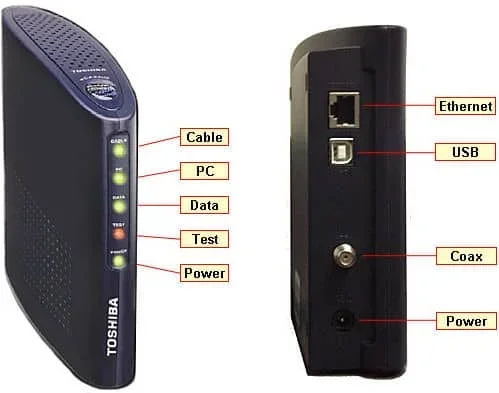
A cable modem is a device that turns the signal from your internet provider into data your devices can use. Think of it as a translator. Your internet company sends signals through wires, and the modem converts those signals into the websites, videos, and messages you see on your screen.
The modem connects to your router, which then spreads the internet signal around your home. Some devices combine the modem and router into one box. But no matter the setup, the modem handles the raw data flow. It receives data from the internet and sends data back out.
Inside the modem, a 5 components that are found on the motherboard work together to process signals. These include the tuner, demodulator, modulator, processor, and memory. Each part plays a role in handling both upstream and downstream data. Without them, your internet simply would not work.
Your internet provider uses a standard called DOCSIS to manage data over cable lines. DOCSIS stands for Data Over Cable Service Interface Specification. It sets the rules for how fast data moves and how much can flow at once. Older versions of DOCSIS favored downstream heavily. Newer versions, like DOCSIS 3.1 and 4.0, give much better balance between upstream and downstream.
Understanding Downstream on a Cable Modem
Downstream is the path that data takes from the internet to your devices. When you open a webpage, stream a movie, or download a file, you are using downstream. It is also called the download path. The data flows in one direction — from the provider to you.
How Downstream Data Travels
When you click a link or hit play on a video, your modem sends a request out to the internet. The server responds by sending data back to you. This data travels through coaxial cables or fiber lines to your modem. The modem then decodes the signal and passes it to your router.
Downstream uses a wide range of frequencies on the cable line. This wide range allows a lot of data to flow at once. Cable providers allocate more bandwidth to downstream because most users download far more than they upload. Watching Netflix, browsing social media, and downloading apps all rely on strong downstream performance.
Why Download Speeds Are Usually Faster
Most people spend their internet time consuming content, not creating it. Because of this, internet providers design their networks to push more speed downstream. A typical home plan might offer 300 Mbps downstream but only 10 Mbps upstream. This gap is normal and expected.
The advantages and disadvantages of a proprietary operating system on your modem can also affect downstream speed. Some modems run custom software that optimizes download performance. Others may limit it due to system overhead. Knowing your modem’s software can help you understand why speeds vary.
Channel bonding plays a big role too. Modern modems bond multiple channels together to increase downstream throughput. A modem with 32 downstream channels can pull in much more data than one with 8 channels. This is why newer modems feel so much faster when you are downloading large files or streaming in 4K.
Common Downstream Problems
Slow downstream speeds can ruin your online experience. Buffering videos, slow page loads, and laggy downloads all point to a weak downstream connection. The most common causes include:
- Network congestion: Too many users on the same node slow everyone down.
- Old modem hardware: Older DOCSIS versions cannot handle modern speeds.
- Poor cable quality: Damaged coaxial cables reduce signal strength.
- Interference: Electrical devices near the modem can disrupt the signal.
- Low channel bonding: Fewer bonded channels mean less downstream capacity.
If you notice slow downloads, run an internet speed test first. Check your downstream speed against what your plan promises. If the numbers are way off, it is time to troubleshoot.
Understanding Upstream on a Cable Modem
Upstream is the path that data takes from your devices back to the internet. When you upload a photo, join a Zoom call, or send an email with an attachment, you are using upstream. It is also called the upload path. Data flows in the opposite direction of downstream — from you to the world.
How Upstream Data Travels
When you send data, your modem takes the information from your device and converts it into a signal. That signal travels back through the cable line to your internet provider’s network. From there, it reaches its destination — whether that is a cloud server, another person’s device, or a website.
Upstream uses a narrower range of frequencies compared to downstream. This means it has less capacity to carry data at once. The reason is simple — most internet activities are downloads. Providers allocate more of the cable’s bandwidth to the downstream direction and leave less for upstream.
Why Upload Speeds Are Usually Slower
The upstream path is often much slower than downstream. A plan with 300 Mbps down and 10 Mbps up is very common. This imbalance exists because the average home user downloads far more than they upload.
However, upload speeds are becoming more important. Remote work, video conferencing, cloud storage, and live streaming all demand strong upstream performance. If your upload speed is too low, your video calls will pixelate, your files will take forever to send, and your gaming experience will suffer from lag.
Some people try to boost their upstream speed by tweaking modem settings. The advantage and disadvantage of MAC address filtering is one area that can affect upstream performance. MAC filtering adds a layer of security, but it can also slow down data flow if not configured correctly. It is a trade-off worth considering.
Common Upstream Problems
Slow upload speeds are frustrating, especially if you work from home or stream content. Here are the most common culprits:
- Low allocated upstream bandwidth: Your plan may simply not offer enough upload speed.
- Network congestion: Shared nodes slow down both upstream and downstream during peak hours.
- Outdated modem firmware: Old software can limit how much data your modem can push upstream.
- Signal interference: Noise on the line reduces the quality of upstream signals.
- Router bottlenecks: A slow router can choke your upstream even if the modem is fast.
To check your upstream speed, run a speed test at different times of the day. You will often find that speeds drop during evening hours when everyone is online. This pattern is a sign of network congestion.
Key Differences Between Upstream and Downstream
Now that we have covered both directions, let us compare them side by side. Understanding the differences helps you see why your internet behaves the way it does.
Speed Comparison
The most obvious difference is speed. Downstream is almost always faster than upstream. Here is a typical comparison for a standard cable internet plan:
- Downstream speed: 200 to 1000 Mbps
- Upstream speed: 5 to 50 Mbps
The gap can be huge. Some newer plans with DOCSIS 3.1 or 4.0 offer more balanced speeds, but the downstream still usually leads.
Data Flow Direction
Downstream flows from the internet to your home. Upstream flows from your home to the internet. This one-way flow in each direction is what makes them different. Think of it like a highway with more lanes going into town than leaving town.
Bandwidth Allocation
Internet providers allocate more bandwidth to downstream. This is a deliberate choice based on how people use the internet. Browsing, streaming, and downloading take up far more data than uploading. So the network is built to favor downloads.
However, this is slowly changing. With more people working remotely and creating content, the demand for upstream bandwidth is growing. Providers are responding with better modem technology and newer DOCSIS standards.
Use Cases
Here is a quick look at what each direction is best for:
- Downstream use cases: Streaming video, browsing websites, downloading files, online gaming (receiving data), and video calls (receiving video).
- Upstream use cases: Video calls (sending your video), uploading photos and files, live streaming, sending emails with attachments, and online gaming (sending player data).
Latency and Response Time
Latency affects both upstream and downstream, but it plays a bigger role in upstream. When you send a command — like clicking a mouse in a game or speaking on a call — that data must travel upstream and then the response comes back downstream. High latency makes everything feel slow and laggy.
A good broadband connection keeps latency low in both directions. Fiber optic connections tend to have the lowest latency, while older coaxial cable setups may have higher latency. If you notice delays, your upstream path might be the bottleneck.
How DOCSIS Technology Affects Upstream and Downstream
DOCSIS is the technology standard that governs how data moves through cable modem networks. It has evolved significantly over the years, and each version brings better performance for both upstream and downstream.
DOCSIS 3.0
DOCSIS 3.0 was a major leap forward. It introduced channel bonding, which allows the modem to combine multiple channels for faster speeds. However, it still favored downstream heavily. Upstream speeds on DOCSIS 3.0 were modest by today’s standards.
DOCSIS 3.1
DOCSIS 3.1 brought significant improvements to both directions. It uses a technology called OFDM (Orthogonal Frequency Division Multiplexing) to pack more data into each channel. This boosted both upstream and downstream speeds. DOCSIS 3.1 can deliver up to 10 Gbps downstream and 1 Gbps upstream in ideal conditions.
DOCSIS 4.0
DOCSIS 4.0 is the newest standard. It focuses heavily on closing the gap between upstream and downstream. With full-duplex capabilities, it allows data to flow in both directions at the same time without sharing resources. This means much faster upload speeds and a more balanced connection overall.
If you are shopping for a new modem, look for one that supports the latest DOCSIS standard. The 5 components that are found on the motherboard of a modern DOCSIS 3.1 or 4.0 modem are designed to handle higher throughput in both directions. This means better performance whether you are downloading or uploading.
Tips to Improve Your Cable Modem’s Upstream and Downstream Performance
Want to get the most out of both your upstream and downstream connections? Here are some practical tips that really work.
1. Upgrade Your Modem
Older modems cannot keep up with modern speeds. If your modem is more than a few years old, consider upgrading to one that supports DOCSIS 3.1 or 4.0. A newer modem handles both upstream and downstream data more efficiently.
2. Check Your Cables
Damaged or old coaxial cables can hurt your signal quality. Replace worn cables and make sure all connections are tight. A clean signal means better throughput in both directions.
3. Place Your Modem Properly
Your modem’s location matters. Keep it in a central, open area away from walls and electronics that cause interference. Good placement improves the signal-to-noise ratio, which boosts both upstream and downstream performance.
4. Update Your Modem Firmware
Modem manufacturers release firmware updates that fix bugs and improve performance. Check your modem’s admin panel regularly for updates. A well-maintained modem runs both directions smoother.
5. Use a Quality Router
Even the best modem will struggle if your router is weak. A good router distributes both upstream and downstream data evenly to all your devices. Look for routers that support the latest Wi-Fi standards like Wi-Fi 6 or Wi-Fi 7.
6. Run Regular Speed Tests
Testing your speed regularly helps you spot problems early. Compare your results to your plan’s advertised speeds. If your downstream or upstream is consistently lower, contact your internet provider.
7. Limit Background Usage
Apps and devices that run in the background can eat up bandwidth. Check for updates, cloud syncing, and streaming devices that may be using your connection without you knowing. Freeing up bandwidth helps both upstream and downstream perform better.
Quick Tips for Better Performance
- Restart your modem once a month to clear its memory.
- Use an ethernet cable for devices that need the fastest speeds.
- Avoid placing the modem near microwaves or cordless phones.
- Ask your provider about upstream bonding options for your plan.
- Consider a mesh network if your home has dead zones.
Conclusion
The difference between upstream and downstream on a cable modem is one of the most important things to understand about your internet connection. Downstream brings content to you — videos, web pages, downloads. Upstream sends your data out — video calls, uploads, and game commands. Both directions matter, and both need to work well for a great online experience.
Most cable modems prioritize downstream, which is why download speeds are usually much faster than upload speeds. But with newer DOCSIS standards and better modem hardware, the gap is slowly closing. If you work from home, stream content, or game online, paying attention to your upstream speed is just as important as watching your download numbers.
Take the time to test both your upstream and downstream speeds. Upgrade your equipment when needed. And keep your modem and router in good shape. A little attention goes a long way toward making your internet faster and more reliable. Your data flows in two directions — make sure both paths are working their best.
Frequently Asked Questions
What is the difference between upstream and downstream on a cable modem?
Downstream is the data that flows from the internet to your devices, while upstream is the data that flows from your devices back to the internet. Downstream handles downloads and streaming, and upstream handles uploads and video calls.
Why is downstream faster than upstream on a cable modem?
Cable providers allocate more bandwidth to downstream because most users download more than they upload. Activities like streaming videos and browsing websites use more downstream data, so the network is designed to favor that direction.
Can I increase my upstream speed on a cable modem?
You can improve upstream speed by upgrading to a DOCSIS 3.1 or 4.0 modem, using quality cables, and placing your modem in a central location. You can also ask your internet provider about plans with higher upstream bandwidth.
Does channel bonding affect both upstream and downstream?
Yes, channel bonding affects both directions. More bonded channels mean more data can flow in each direction. However, most providers bond more channels for downstream than upstream, which is why download speeds are usually higher.
What is a good upstream speed for working from home?
A good upstream speed for remote work is at least 10 to 20 Mbps. This is enough for video calls, file uploads, and cloud-based tasks. If you live with others who also use the internet, you may need more.
How can I test my upstream and downstream speeds?
Use an online internet speed test tool like Speedtest.net or Fast.com. These tools measure both your download (downstream) and upload (upstream) speeds and show you the results in seconds.
=== CONCLUSION ===
Understanding upstream and downstream on a cable modem gives you the power to take control of your internet experience. Both directions carry data, but they serve different purposes and operate at different speeds. Downstream brings the world to your screen, and upstream sends your world out to others.
By knowing how each path works, you can troubleshoot problems faster, choose the right internet plan, and get more value from your connection. Keep your equipment updated, test your speeds regularly, and pay attention to both lanes of data flow. A balanced and well-maintained connection makes everything online better.