Does Wi Fi Scanning Drain Your Phone Battery Quickly
Wi Fi scanning can quietly drain your phone battery, especially when your device constantly searches for networks in the background. Understanding how this process works and adjusting a few settings can significantly extend your battery life. This guide breaks down everything you need to know about Wi Fi scanning and its impact on your device.
Your phone is always working, even when you are not actively using it. One of the hidden culprits behind fast battery drain is something called Wi Fi scanning. You might not even realize it is happening, but your device is constantly searching for available networks, checking signal strength, and pinging nearby routers. This background activity uses power, and over time, it can noticeably shorten your battery life.
If you have ever wondered why your phone battery dies faster than it should, Wi Fi scanning might be the answer. Many people do not even know this feature exists on their device. The good news is that understanding how it works gives you the power to take control. You can make simple changes that help your phone last longer on a single charge.
In this article, we will explore exactly what Wi Fi scanning is, how much battery it actually uses, and what you can do about it. We will also look at related topics like signal strength, network settings, and battery optimization tips. By the end, you will have a clear picture of how to stop Wi Fi scanning from draining your battery unnecessarily.
Key Takeaways
- Wi Fi scanning runs in the background even when you are not actively using wireless connections.
- Constant network searching increases battery consumption and can shorten your phone’s usable screen time.
- Disabling Wi Fi scanning in settings is simple and can make a noticeable difference in battery life.
- Using 2.4GHz instead of 5GHz can reduce power usage during wireless scanning and connectivity.
- Turning off Wi Fi when not needed remains one of the most effective battery-saving habits.
📑 Table of Contents
- What Is Wi Fi Scanning and How Does It Work?
- How Much Battery Does Wi Fi Scanning Actually Use?
- Settings That Affect Wi Fi Scanning and Battery Life
- Tips to Stop Wi Fi Scanning From Draining Your Battery
- Wi Fi Scanning vs. Mobile Data: Which Drains More Battery?
- When Should You Turn Off Wi Fi Scanning?
- Common Mistakes That Make Wi Fi Scanning Drain More Battery
- Expert Insights on Wi Fi Scanning and Battery Health
- Final Thoughts
What Is Wi Fi Scanning and How Does It Work?
Wi Fi scanning is a process where your phone constantly looks for wireless networks nearby. Even when you are not connected to a network, your device keeps searching. It checks for known networks, measures signal strength, and gathers information about available connections. This happens mostly in the background, which means you rarely notice it is happening.
The purpose of Wi Fi scanning is to help your phone connect faster to known networks. When you walk into your home or office, your phone can instantly join your Wi Fi network because it has been scanning for it. This feature also powers location services, since Wi Fi networks can help estimate your position indoors where GPS signals are weak.
However, this constant searching comes at a cost. Every time your phone scans for networks, it wakes up its wireless radio. That radio uses energy. If your phone scans frequently, the energy usage adds up over hours and days. This is why many users experience unexpected battery drain without understanding the cause.
How Often Does Your Phone Scan?
Most modern phones scan for Wi Fi networks every few minutes. The exact frequency depends on your device model, operating system, and settings. Some phones scan more aggressively than others. For example, Android devices often scan more frequently than iPhones because they rely heavily on Wi Fi for location services.
Here are some factors that affect how often your phone scans:
- Location services settings can trigger more frequent scanning.
- Network preferences determine how actively your phone searches.
- Background app activity may force additional scans.
- Signal strength in your area affects how long each scan takes.
- Wi Fi assistant features on some phones scan automatically to find open networks.
All of these scans happen behind the scenes. You do not see them happening, but your battery feels the impact. This is especially true if you live in an area with many Wi Fi networks, because your phone has more networks to evaluate each time it scans.
How Much Battery Does Wi Fi Scanning Actually Use?
The amount of battery that Wi Fi scanning uses depends on several factors. It is not a huge drain on its own, but it adds up when combined with other background activities. Think of it like a small light left on in your house. One light does not use much electricity, but dozens of lights left on all day can increase your bill significantly.
Studies show that Wi Fi scanning can account for anywhere from 5% to 15% of your total battery usage. The exact percentage varies based on how often your phone scans, how many networks are nearby, and the strength of those signals. In areas with many networks, the drain is higher because each scan takes longer and uses more power.
Here is a simple breakdown of what affects Wi Fi scanning battery usage:
- Number of nearby networks more networks means longer scan times.
- Signal strength weak signals force your phone to work harder during each scan.
- Scan frequency more frequent scans mean more total energy used.
- Phone model older phones tend to use more power during scanning.
- Operating system version newer software often includes better power management.
If you notice your battery dropping quickly, Wi Fi scanning could be a contributing factor. It is not always the main cause, but it is often overlooked. Many users focus on screen brightness or app usage while ignoring the quiet drain of background network searching. Checking your battery usage stats can reveal whether Wi Fi scanning is a bigger issue than you think.
For those who want to dig deeper into battery optimization, understanding how other wireless features affect power is also helpful. For instance, if you are curious about using Wi Fi without a router, that process can have its own battery implications since your device may need to create its own network, which uses even more power than simple scanning.
Settings That Affect Wi Fi Scanning and Battery Life
Your phone has several settings that control how aggressively it scans for Wi Fi networks. These settings can have a big impact on your battery life. By adjusting them, you can reduce unnecessary power usage without losing important connectivity features.
Wi Fi Always On vs. Wi Fi Off
Many phones have a setting that keeps Wi Fi always enabled, even when you are not connected to a network. This allows your phone to scan continuously and connect automatically when a known network appears. While this is convenient, it also means your wireless radio stays active more often, which drains your battery faster.
Turning off Wi Fi when you do not need it is one of the simplest ways to save power. You can always turn it back on when you need to connect. Some phones also have an adaptive Wi Fi feature that turns Wi Fi on and off automatically based on your location and usage patterns. This can be a good middle ground.
Location Services and Wi Fi Scanning
Location services and Wi Fi scanning are closely connected. Your phone uses Wi Fi networks to help determine your location, especially indoors. When location services are enabled, your phone scans for networks more frequently to improve accuracy. This means disabling location services for apps that do not need them can reduce scanning and save battery.
Here are some tips for managing location and Wi Fi scanning together:
- Set location access to “While Using” for most apps instead of “Always.”
- Turn off location services for apps that do not need it.
- Disable Wi Fi scanning in your location settings if you do not need indoor positioning.
- Review app permissions regularly to catch apps that access location too often.
Network Frequency Settings
Your phone can connect to different Wi Fi frequency bands, such as 2.4GHz and 5GHz. The band you use affects both your connection quality and battery usage. Switching between bands can help you balance speed and power consumption.
For example, if you are wondering whether you can change your Wi Fi from 5GHz to 2.4GHz, the answer is yes, and doing so may actually help your battery last longer. The 2.4GHz band uses less power than 5GHz, though it offers slower speeds. For basic tasks like browsing and email, 2.4GHz is often more than enough and gentler on your battery.
Tips to Stop Wi Fi Scanning From Draining Your Battery
Now that you understand how Wi Fi scanning affects your battery, let us look at practical steps you can take to reduce the drain. These tips are simple, effective, and easy to implement on both Android and iPhone devices.
1. Turn Off Wi Fi Scanning in Settings
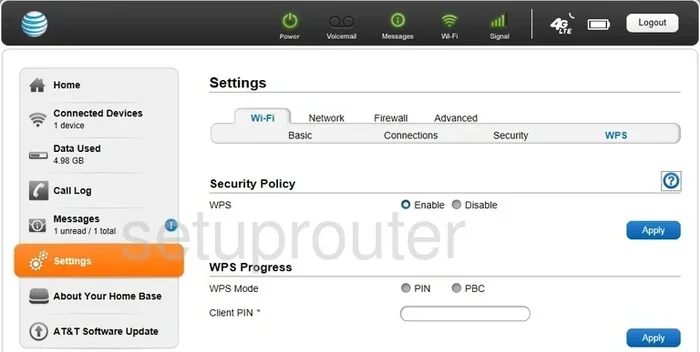
Both Android and iPhone offer settings to disable Wi Fi scanning. On Android, go to Settings, then Location, and look for Wi Fi scanning or Scan always available. Turn this off to stop your phone from searching for networks when Wi Fi is disabled. On iPhone, you can manage this in the Location Services settings under System Services.
This single change can make a noticeable difference in battery life. Your phone will no longer waste power scanning for networks when you are not using Wi Fi. You can still connect to known networks whenever you want, but the constant background searching will stop.
2. Use Battery Saver Mode
Most phones come with a battery saver or low power mode. When enabled, these modes reduce background activity, including Wi Fi scanning. They also limit other power-hungry features like screen brightness and app notifications. Using battery saver mode is one of the easiest ways to extend your battery life without changing many settings.
Battery saver mode is especially useful when you are away from a charger and need your phone to last as long as possible. You can set it to turn on automatically when your battery drops below a certain percentage, so you do not have to remember to enable it manually every time.
3. Forget Unused Networks
Your phone remembers networks you have connected to in the past. It scans for these networks every time it looks for available connections. If you have a long list of saved networks, your phone spends more time and energy scanning for them. Forgetting networks you no longer use can reduce scanning time and save battery.
Go through your saved Wi Fi networks and remove any you do not plan to use again. This is especially helpful if you have visited many different locations with different networks and your phone has saved all of them. A cleaner network list means faster, less power-hungry scans.
4. Keep Your Phone Updated
Software updates often include improvements to power management and Wi Fi scanning efficiency. Keeping your phone updated ensures you have the latest optimizations. Manufacturers regularly release updates that reduce background battery drain, including improvements to how the phone handles wireless scanning.
Make it a habit to check for updates regularly. Even small updates can include meaningful battery improvements. If you have been putting off an update, installing it might be the simple fix you need to stop battery drain.
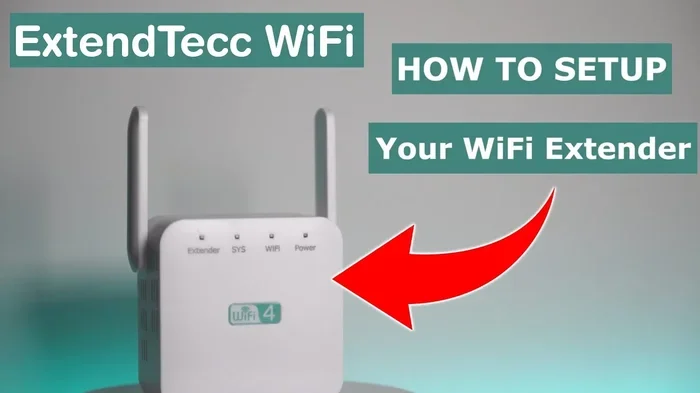
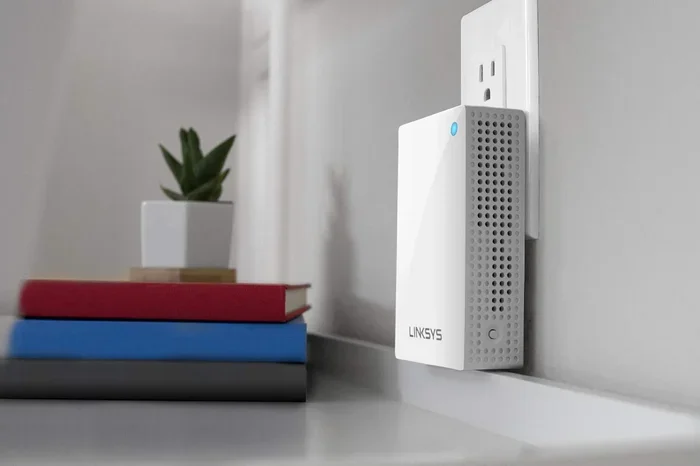
5. Consider a Wi Fi Booster for Better Signal
If you have weak Wi Fi signals in your home or office, your phone works harder to maintain a connection and scan for networks. A Wi Fi booster can improve signal strength in areas where your connection is weak. With a stronger signal, your phone does not need to work as hard, which means less battery usage during scanning and connectivity.
While a Wi Fi booster is not a direct battery-saving tool, it helps indirectly by reducing the effort your phone puts into maintaining connections. This is especially useful in larger homes or buildings where signal strength can vary from room to room.
Wi Fi Scanning vs. Mobile Data: Which Drains More Battery?
Many people wonder whether Wi Fi scanning or mobile data uses more battery. The answer depends on your usage patterns and environment. Both features use power, but they do so in different ways and at different times.
Wi Fi scanning uses relatively little power on its own. It is the constant background searching that adds up over time. Mobile data, on the other hand, uses more power when you are actively streaming, downloading, or using data-heavy apps. However, mobile data also uses power when your phone is searching for a cellular signal in areas with weak coverage.
Here is a simple comparison of the two:
- Wi Fi scanning uses low to moderate power depending on scan frequency and network count.
- Mobile data uses moderate to high power during active use and weak signal areas.
- Connected Wi Fi uses less power than mobile data for the same tasks.
- Background scanning with Wi Fi off uses minimal but still noticeable power.
- Weak cellular signal can drain battery faster than Wi Fi scanning in some cases.
In general, keeping Wi Fi on and connected to a known network uses less battery than relying on mobile data. The real battery drain comes from constant scanning without a connection, or from weak signals on either Wi Fi or cellular networks. Understanding this balance helps you make smarter choices about when to use each connection type.
When Should You Turn Off Wi Fi Scanning?
Knowing when to turn off Wi Fi scanning helps you get the most from your battery. There are specific situations where disabling this feature makes a lot of sense. Here are some common scenarios where turning off Wi Fi scanning is a smart move.
During Long Trips or Travel
When you are traveling and away from chargers, every bit of battery counts. Turning off Wi Fi scanning during long trips can help your phone last significantly longer. You may not need your phone to constantly search for networks when you are on the go, especially if you are using mobile data or do not need Wi Fi at all.
This is also a good time to consider whether you need Wi Fi in your car through your carrier. If you are using a mobile hotspot or carrier Wi Fi feature, you already have connectivity without relying on scanning for nearby networks. This approach can help preserve battery while keeping you connected.
When Battery Is Running Low
If your phone is at 20% or below, turning off Wi Fi scanning is one of the fastest ways to stretch your remaining battery. Combined with other battery-saving steps like lowering screen brightness and closing unused apps, disabling scanning can add precious minutes or even hours of usage time.
When You Do Not Need Location Accuracy
If you are not using apps that rely on precise location, there is no need for your phone to scan for Wi Fi networks for positioning purposes. Turning off Wi Fi scanning in these situations saves power without affecting your ability to use your phone normally.
Common Mistakes That Make Wi Fi Scanning Drain More Battery
Many people accidentally make mistakes that increase Wi Fi scanning battery drain. Being aware of these common errors can help you avoid them and get better battery performance.
One common mistake is leaving Wi Fi on all the time without managing scanning settings. Just because Wi Fi is enabled does not mean you need to allow constant background scanning. Another mistake is ignoring saved networks that you no longer use. A bloated network list forces your phone to do extra work every time it scans.
Some users also make the mistake of not checking their battery usage stats. Your phone provides detailed information about what is using your battery. If you do not check this regularly, you might miss the chance to identify and fix battery drain issues early. For more on keeping your devices charged efficiently, you might find it helpful to learn about common tablet charging mistakes that can also shorten your battery lifespan.
Finally, some people confuse Wi Fi scanning with having Wi Fi always on. These are different things. You can keep Wi Fi enabled but still control how often your phone scans. Understanding this distinction gives you more control over your battery usage.
Expert Insights on Wi Fi Scanning and Battery Health
Battery health experts agree that background processes like Wi Fi scanning are among the most overlooked causes of battery drain. While screen time and app usage get most of the attention, the quiet work of network searching adds up silently. Experts recommend reviewing your battery stats at least once a week to identify patterns and adjust settings accordingly.
According to mobile technology professionals, the best approach is a balanced one. You do not need to disable every wireless feature to save battery. Instead, focus on reducing unnecessary background activity while keeping the features you actually use. This approach gives you the best of both worlds, maintaining connectivity while maximizing battery life.
For users who are concerned about long-term battery health, it is also worth noting that constant scanning can contribute to battery wear over time. While the effect is small with each individual scan, the cumulative impact over months and years can be meaningful. Taking steps to reduce unnecessary scanning not only saves battery each day but also helps preserve your battery’s overall lifespan.
Looking ahead, phone manufacturers continue to improve how devices handle Wi Fi scanning. Newer chips and software are becoming more efficient at managing background network searches. However, user settings still play a big role in determining how much battery scanning uses. Taking control of your settings remains the most effective way to manage this feature.
Final Thoughts
Wi Fi scanning is a useful feature, but it can quietly drain your battery if you are not careful. The key is finding the right balance between connectivity and power savings. By understanding how scanning works and making a few simple adjustments to your settings, you can significantly reduce battery drain and get more usage time from your phone.
Start by checking your Wi Fi scanning settings today. Turn off unnecessary background scanning, manage your saved networks, and use battery saver mode when needed. These small changes add up over time and help you get the most out of every charge. With the right approach, you can keep your phone connected and powered without worrying about unexpected battery loss.
Remember, your phone is a tool, and you are in control of how it uses power. Taking a few minutes to understand features like Wi Fi scanning puts you ahead of most users. You will enjoy better battery life, fewer charging interruptions, and more confidence that your phone will be there when you need it most.
Frequently Asked Questions
Does turning off Wi Fi scanning save battery?
Yes, turning off Wi Fi scanning can save a noticeable amount of battery, especially if you live in an area with many networks. Your phone will stop constantly searching for networks in the background, which reduces power usage. This is one of the simplest and most effective battery-saving steps you can take.
How do I stop my phone from scanning for Wi Fi?
On Android, go to Settings, then Location, and disable Wi Fi scanning or Scan always available. On iPhone, go to Settings, then Privacy, then Location Services, and find Wi Fi networking under System Services. Turn it off to stop background scanning.
Is Wi Fi scanning the same as having Wi Fi turned on?
No, they are different. Having Wi Fi turned on means your phone is ready to connect to networks. Wi Fi scanning is the process of actively searching for available networks, which uses additional power. You can have Wi Fi on without constant scanning if you adjust your settings.
Does Wi Fi scanning drain battery when the phone is in standby?
Yes, Wi Fi scanning continues even when your phone is in standby mode. This is why you might notice your battery dropping overnight or during long periods of inactivity. Disabling scanning in standby mode can help preserve battery when you are not actively using your phone.
Can a Wi Fi booster help reduce battery drain from scanning?
A Wi Fi booster improves signal strength, which means your phone does not have to work as hard to find and maintain connections. While it does not stop scanning, it reduces the effort required during each scan, which can indirectly save battery over time.
Should I turn off Wi Fi scanning if I use my phone for work?
If you rely on Wi Fi for work, you may not want to disable scanning entirely. Instead, consider managing your scanning settings more carefully. Forget unused networks, keep your phone updated, and use battery saver mode during long work sessions to balance connectivity and battery life.
=== CONCLUSION ===
Wi Fi scanning can drain your phone battery, but the good news is that you have the power to control it. By understanding how scanning works and making a few smart adjustments, you can significantly extend your battery life. The tips in this article give you practical, actionable steps that work on both Android and iPhone devices.
Start small by turning off Wi Fi scanning in your location settings. Then build on that by managing your saved networks, using battery saver mode, and keeping your phone updated. Each change adds up and helps your phone last longer on a single charge. You do not need to be a tech expert to make these improvements, and the results are well worth the effort.
Take control of your battery today. Your phone will thank you with longer usage time and fewer charging interruptions. With the right settings and habits, you can enjoy all the benefits of Wi Fi connectivity without the worry of constant battery drain.