How Can I Transfer Files From My Android To My Mac Easily
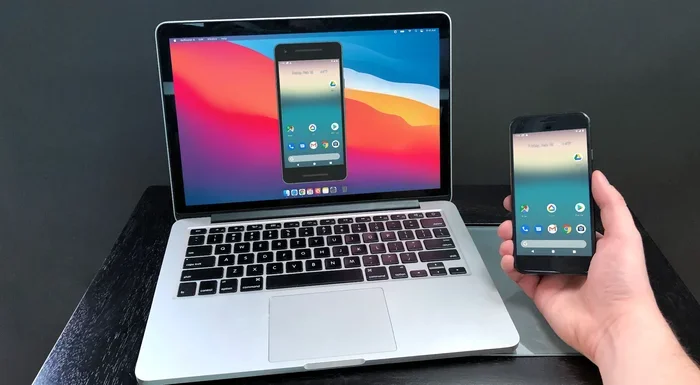
Transferring files from your Android to your Mac does not have to be complicated. You can use a USB cable, wireless tools like AirDroid, or cloud services such as Google Drive to move photos, documents, and videos quickly. This guide covers every reliable method so you can pick what works best for you.
Have you ever found yourself trying to move a file from your Android phone to your Mac and feeling completely stuck? You are not alone. How Can I Transfer Files From My Android To My Mac is one of the most searched questions out there, and for good reason. Apple and Google do not always make it obvious how their devices talk to each other.
The good news is that you have more options than you might think. Whether you want to move a single photo or an entire folder of documents, there is a method that fits your needs. Some options are fast and wired, while others let you go completely wireless. This guide will walk you through every practical way to get your files where they need to be.
We will cover USB connections, wireless transfer tools, cloud services, and even Bluetooth. Each method has its own strengths, and by the end of this article, you will know exactly which one to pick. Let us make how can I transfer files from my Android to my Mac simple and stress-free.
Key Takeaways
- USB Cable Transfer: The fastest and most reliable way to move large files directly between your Android and Mac.
- Wireless Apps Like AirDroid: Let you transfer files without any cables using your Wi-Fi connection.
- Cloud Storage Options: Google Drive and Dropbox make file synchronization easy across both platforms.
- Bluetooth Works Too: Great for small files, though it is slower than other methods.
- Android File Transfer App: A dedicated Mac app that simplifies dragging and dropping files from your phone.
- Choose Based on File Size: Small files suit Bluetooth or cloud, while large files need USB or wireless tools.
📑 Table of Contents
- Why Transferring Files Between Android and Mac Can Feel Confusing
- The Best Ways to Transfer Files From Android to Mac
- Using a USB Cable for Fast and Reliable Transfers
- Wireless Transfer Options for Everyday Use
- Cloud-Based Solutions for Seamless File Syncing
- Expert Tips to Make Android to Mac Transfers Easier
- Which Method Should You Choose?
- Common Mistakes People Make When Transferring Files
- Final Thoughts
Why Transferring Files Between Android and Mac Can Feel Confusing
When you first try to connect an Android phone to a Mac, things can feel a bit odd. Unlike iPhones, which plug right into iTunes, Android devices do not have a built-in Mac equivalent. This gap leaves many people wondering where to even start.
Here is the real reason it feels confusing. Apple designs its ecosystem to work best with other Apple devices. Google does the same with Android. So when you try cross-platform file sharing, you need a third-party tool or a workaround. But that does not mean it is hard. It just means you need the right information.
Most people run into one of three problems. First, they do not know which cable or app to use. Second, they try Bluetooth and get frustrated by slow speeds. Third, they assume they need expensive software. None of these assumptions are true. With the right approach, file synchronization between Android and Mac is quick and painless.
Understanding Your File Types
Before you pick a method, think about what kind of files you are moving. Photos and videos take up a lot of space and transfer slowly over Bluetooth. Documents and PDFs are small and move quickly through almost any method. Music files fall somewhere in between.
If you need to transfer large files, you should avoid Bluetooth entirely. Wired connections or wireless tools like AirDroid will save you a ton of time. For everyday small files, cloud storage or Bluetooth works perfectly fine.
The Best Ways to Transfer Files From Android to Mac
Now that you understand the basics, let us look at the actual methods. Each one has pros and cons, so you can choose based on your situation. Whether you prefer cables or go wireless, there is an option that fits.
Method 1: USB Cable Connection
A USB cable is the most direct way to move files. You plug one end into your Android phone and the other into your Mac. This creates a physical link between the two devices.
To make this work, you need the Android File Transfer app on your Mac. Apple no longer includes this tool by default, so you must download it for free from the official website. Once installed, your Mac will recognize your Android phone as a storage device.
Here is how it works in practice:
- Connect your Android phone to your Mac using a USB cable.
- Unlock your phone and tap the USB notification.
- Select “File Transfer” or “MTP” mode.
- Open Android File Transfer on your Mac.
- Browse your phone’s folders and drag files to your Mac.
This method is fast and reliable. It works well even for transfer large files like video recordings or backup folders. The only downside is that you need the cable handy.
Method 2: Wireless Transfer with AirDroid
If you hate cables, AirDroid is a game-changer. This free Android file transfer app lets you move files wirelessly over your Wi-Fi network. You do not need to plug anything in.
After installing AirDroid on your phone, you open a web browser on your Mac and go to the AirDroid web address. You sign in with the same account, and your phone shows up on screen. From there, you can drag and drop files back and forth.
AirDroid also lets you manage text messages, notifications, and even your phone’s camera roll from your Mac. It is one of the most complete wireless transfer tools available today. For people who move files between devices every day, it is a must-have.
Method 3: Google Drive and Cloud Storage
Cloud storage is one of the easiest cross-platform file sharing solutions. Google Drive comes built into most Android phones, so you already have access to it.
The process is simple. You upload your file from your Android phone to Google Drive. Then you open Google Drive on your Mac and download the file. Both devices need an internet connection, but the process is smooth and automatic.
Google Drive gives you 15 GB of free storage. That is enough for thousands of photos and documents. If you need more space, you can upgrade to a paid plan. Other options like Dropbox and OneDrive work the same way. File synchronization through the cloud is perfect for people who want everything to stay updated across devices.
Method 4: Bluetooth File Sharing
Bluetooth is built into every Android phone and every Mac. It is the most basic wireless option for moving files. However, it is also the slowest.
To use Bluetooth, turn it on on both devices. Pair them by selecting your Mac from the list of available devices on your phone. Once paired, you can right-click a file on your phone, choose Share, and select Bluetooth. Then pick your Mac as the destination.
Bluetooth works fine for a single photo or a small PDF. But if you are trying to transfer large files like a 2 GB video, Bluetooth will test your patience. It can take a very long time. Use Bluetooth only for small, quick transfers.
Method 5: SHAREit and Other Third-Party Apps
SHAREit is another popular option for wireless file transfer. It uses a direct Wi-Fi connection between your phone and Mac, which is faster than Bluetooth. You install SHAREit on both devices, and the app creates a local connection.
Other similar apps include Xender and Send Anywhere. These tools are great when you do not want to use a cable and you do not want to rely on cloud storage. They work well for moving batches of photos or music files quickly.
Just be careful with third-party apps. Only download them from official sources like the Google Play Store. Some free apps show ads or ask for unnecessary permissions. Stick with trusted names like AirDroid and SHAREit for the best experience.
Using a USB Cable for Fast and Reliable Transfers
If speed and reliability matter most, a USB cable is still the king. Nothing beats the consistency of a wired connection. You do not have to worry about Wi-Fi signal strength or cloud upload times.
Most Android phones use USB-C cables now. Older models might use micro-USB. Either way, you can plug directly into your Mac. If your Mac only has USB-C ports, you may need a simple adapter for older phone cables.
Setting Up Android File Transfer on Your Mac
Before you plug in your phone, make sure you have the Android File Transfer app installed. Here is a quick setup guide:
- Go to the official Android File Transfer website on your Mac.
- Download the app and drag it into your Applications folder.
- Open the app and connect your phone with a USB cable.
- Unlock your phone and choose File Transfer mode.
- Browse your phone’s storage and copy files to your Mac.
Once set up, the process becomes second nature. You can drag photos, videos, and documents just like you would with any USB drive. This is the best method for data migration when you are moving a lot of files at once.
Troubleshooting USB Connection Issues
Sometimes the connection does not work right away. If your Mac does not recognize your phone, try these quick fixes:
- Unplug the cable and plug it back in firmly.
- Try a different USB port on your Mac.
- Use a high-quality cable that supports data transfer.
- Restart both your phone and your Mac.
- Check that USB debugging is not interfering (go to Developer Options on your phone).
Most connection problems are solved by simply trying a different cable or port. Cheap cables often charge your phone but do not transfer data. Always use the cable that came with your phone or a certified replacement.
Wireless Transfer Options for Everyday Use
Wireless methods are perfect for everyday file sharing. You do not need to find a cable or sit at your desk. As long as both devices are on the same Wi-Fi network, you can send files from anywhere in your home.
AirDrop Alternatives for Android and Mac
Apple users have AirDrop, which makes sharing between iPhones and Macs effortless. Android does not have an exact equivalent built in. But apps like AirDroid and SHAREit fill that gap perfectly.
These wireless transfer tools create a direct connection between your phone and Mac. The transfer happens over your local network, so it is fast and does not use your mobile data. For people who share files daily, setting up one of these apps is well worth the few minutes it takes.
Email and Messaging Apps as Quick Fixes
Do not underestimate the simplest option. You can email files to yourself, send them through WhatsApp, or use Telegram to move files between devices. These methods work for small files under 25 MB.
For larger files, email will not work. But messaging apps like Telegram let you send files up to 2 GB for free. This is a surprisingly handy trick for quick file management when you do not want to install extra software.
Cloud-Based Solutions for Seamless File Syncing
Cloud storage is the most hands-off approach. You set it up once, and your files stay synced automatically across all your devices. This is ideal for people who work on documents across both Android and Mac.
Google Drive: The Native Choice
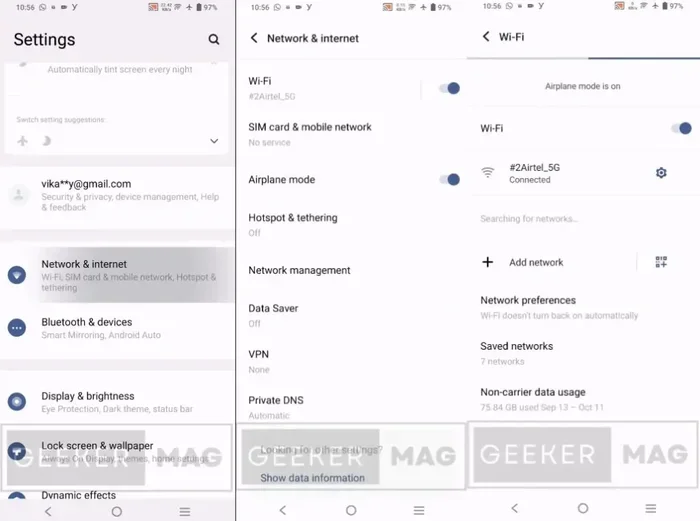
Since Google Drive is built into Android, it is the most natural choice. Your photos, documents, and files are already backed up if you have backup turned on. On your Mac, you can access Google Drive through the browser or by installing the Google Drive desktop app.
The desktop app creates a folder on your Mac that syncs with your Google Drive storage. Any file you put in that folder appears on your phone, and vice versa. This kind of automatic file synchronization saves a lot of time and effort.
Dropbox and OneDrive as Alternatives
Dropbox and Microsoft OneDrive are excellent alternatives. Both apps work on Android and Mac. They offer similar features to Google Drive, with slight differences in storage limits and pricing.
Dropbox gives you 2 GB of free storage, while OneDrive offers 5 GB with a Microsoft account. If you already use Microsoft Office, OneDrive is a natural fit. If you prefer Google’s ecosystem, Google Drive is the way to go. All three options make cross-platform file sharing seamless.
Expert Tips to Make Android to Mac Transfers Easier
Even with the right method, a few smart habits can make your life much easier. These tips come from years of helping people manage files across different devices.
Keep Your Apps and Software Updated
Always keep your Android File Transfer app and your phone’s operating system up to date. Updates fix bugs and improve compatibility. An outdated app is one of the most common reasons transfers fail.
Organize Your Files Before Transferring
Before you start moving files, take a few minutes to organize them into folders. Create separate folders for photos, documents, and videos. This makes it much easier to find files on your Mac later. Good file management habits save hours of searching down the road.
Use Wi-Fi for Large Batches
If you are moving a big batch of files, make sure both devices are on the same Wi-Fi network. Wired connections are faster, but a strong Wi-Fi connection is almost as good and much more convenient.
Back Up Before You Transfer
Always back up your important files before moving them. If something goes wrong during the transfer, you do not want to lose anything. Google Drive, Dropbox, or a simple backup folder on your Mac can serve as a safety net.
Consider a Dedicated File Manager
Apps like Solid Explorer or MiXplorer on your Android phone make it easier to find and select files quickly. A good file manager app turns a tedious process into a smooth one. Pair it with AirDroid or Android File Transfer for the best experience.
Which Method Should You Choose?
Choosing the right method depends on your situation. Here is a quick comparison to help you decide.
| Method | Speed | Best For | Needs Cable? |
|---|---|---|---|
| USB Cable | Very Fast | Large files, bulk transfers | Yes |
| AirDroid | Fast | Wireless everyday use | No |
| Google Drive | Medium | Small to medium files | No |
| Bluetooth | Slow | Single small files | No |
| SHAREit | Fast | Wireless batch transfers | No |
If you move files often and in large amounts, invest time in setting up Android File Transfer with a USB cable. If you prefer convenience, AirDroid or Google Drive will serve you well. There is no single perfect answer. The best method is the one that fits your workflow.
Common Mistakes People Make When Transferring Files
Avoid these common pitfalls to save time and frustration:
- Using a charging-only cable: Many cables only charge your phone. You need a data cable for file transfers.
- Forgetting to unlock your phone: Your Mac cannot access files if your phone is locked. Unlock it when you plug in.
- Using Bluetooth for large files: Bluetooth is painfully slow for anything over a few megabytes.
- Not checking storage space: Make sure your Mac has enough free space before moving large folders.
- Skipping backups: Always back up before moving important files to avoid accidental loss.
Final Thoughts
Learning how can I transfer files from my Android to my Mac opens up a world of convenience. You are no longer stuck choosing one device over the other. Your files can live wherever you need them to be.
Start with the method that matches your habits. If you like cables, set up Android File Transfer. If you prefer wireless, install AirDroid or Google Drive. The key is to pick one method and stick with it until it becomes routine.
Once you get comfortable, you will wonder how you ever managed without it. Cross-platform file sharing is easier than most people think. You just need the right tool and a little patience. Try a few methods from this guide, and you will find your perfect workflow in no time.
Frequently Asked Questions
What is the fastest way to transfer files from Android to Mac?
The fastest way is using a USB cable with the Android File Transfer app. A wired connection gives you the best speeds, especially for large files like videos and backup folders. You can move gigabytes of data in just a few minutes this way.
Do I need to download any software to connect my Android to my Mac?
Yes, for USB transfers you need to download Android File Transfer on your Mac. For wireless transfers, apps like AirDroid or SHAREit work directly through your web browser or their own desktop app. Cloud services like Google Drive also work without extra software.
Can I use Bluetooth to transfer files between Android and Mac?
Yes, Bluetooth works for transferring files between Android and Mac. However, it is very slow compared to USB or wireless apps. Bluetooth is best for small files like a single photo or a short document. For anything larger, choose a faster method.
Is AirDroid safe to use for file transfers?
AirDroid is a well-known and trusted app used by millions of people. It uses secure connections for file transfers over your local Wi-Fi network. Always download it from the official website or Google Play Store to ensure you get the genuine version.
How do I transfer photos from my Android to my Mac wirelessly?
The easiest wireless method for photos is Google Drive. Upload your photos from your Android phone to Google Drive, then access them on your Mac through the browser or the Google Drive desktop app. AirDroid also lets you browse and download photos directly from your phone to your Mac over Wi-Fi.
Can I transfer files without an internet connection?
Yes, you can transfer files without internet using a USB cable or a direct Wi-Fi connection through apps like SHAREit. These methods use a local connection between your devices and do not require internet access. Bluetooth also works offline for small file transfers.
=== CONCLUSION ===
How Can I Transfer Files From My Android To My Mac has a simple answer: you have many great options. Whether you choose a USB cable, a wireless app like AirDroid, or a cloud service like Google Drive, the right method is out there for you.
Start with the method that feels most comfortable. Experiment with a couple of options to see what fits your daily routine. Once you find your preferred workflow, file transfers between Android and Mac will feel quick and effortless. The key is to just start. Pick one method today and put it to use. You will be glad you did.