How Do I Check My Indoor Temperature With My Iphone
Checking your indoor temperature with an iPhone is easier than most people think. You can use built-in weather apps, download dedicated room temperature apps, or connect external smart sensors for precise readings. This guide walks you through every method so you can monitor your home climate like a pro.
Have you ever walked into a room and thought, “It feels way too warm in here,” but you had no proof? Maybe you are trying to keep your home comfortable for a baby, an elderly family member, or a pet. Or perhaps you just want to save on energy bills by tracking how your heating and cooling systems perform.
Whatever your reason, your iPhone can help you check indoor temperature more easily than you might expect. You do not need a fancy thermostat or a expensive weather station. In fact, you probably already have the tools to get started right now.
In this guide, I will show you every practical way to check indoor temperature with your iPhone. We will cover built-in features, free and paid apps, external smart sensors, and simple tips to make sure your readings are accurate. By the end, you will know exactly which method works best for your home and your budget.
Let us dive in and turn your phone into a reliable room thermometer.
Key Takeaways
- iPhone has no built-in temperature sensor for room air: You need apps or external devices to measure indoor temperature accurately.
- Weather apps give general local readings: They use nearby weather station data but not your exact room conditions.
- Smart thermometers connect via Bluetooth or Wi-Fi: Devices like Kinsa, Govee, and SensorPush pair directly with your iPhone.
- Third-party apps estimate temperature using battery and CPU data: These are less accurate but useful as quick references.
- HomeKit-compatible sensors offer automation: You can set alerts and routines based on indoor temperature thresholds.
- Placement matters for accuracy: Keep sensors away from windows, vents, and direct sunlight for reliable readings.
- Combining methods gives the best results: Use a smart sensor for precision and a weather app for broader context.
📑 Table of Contents
- Understanding Your iPhone Temperature Capabilities
- Using Built-in iPhone Features for Temperature Clues
- Best Apps to Check Indoor Temperature on Your iPhone
- Connecting Smart Thermometers and Sensors
- Tips for Getting Accurate Temperature Readings
- Common Mistakes People Make When Checking Indoor Temperature
- Expert Insights on Indoor Climate Monitoring
- Key Takeaways
- Conclusion
Understanding Your iPhone Temperature Capabilities
Before we get into the how-to, it helps to understand what your iPhone can and cannot do when it comes to measuring temperature. Many people assume their phone has a built-in room thermometer. That is not quite how it works.
What Your iPhone Can Measure
Your iPhone has a few internal sensors that track temperature indirectly. The most notable one is the battery temperature sensor. Your phone monitors how warm its battery gets during use, charging, and heavy tasks like gaming or video streaming.
There is also a CPU temperature sensor. When your phone works hard, the processor generates heat. Your iPhone tracks this to prevent overheating and will sometimes throttle performance to stay safe.
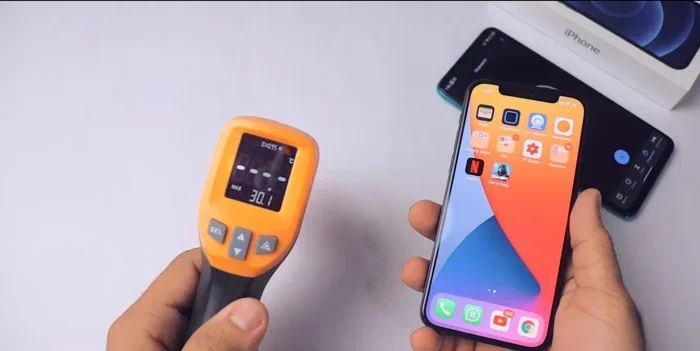
However, neither of these sensors measures the air temperature in your room. They measure the internal temperature of the device itself. So if your phone feels hot, that tells you about the phone, not about your living space.
Why Apple Does Not Include a Room Thermometer
Apple designed the iPhone as a multi-purpose device, not a dedicated climate tool. Adding a room temperature sensor would require extra hardware. It would also raise the cost and complexity of the device. Most users would not need it, so Apple kept the design focused on the core features people use every day.
This means you will need a little help from apps or external accessories to get real indoor temperature readings. The good news is that the options are plentiful and many of them are free or very affordable.
Using Built-in iPhone Features for Temperature Clues
Even without a dedicated room thermometer, your iPhone offers several built-in ways to get temperature-related information. These are not perfect replacements for a real indoor thermometer, but they give you a helpful starting point.
The Weather App
Every iPhone comes with a built-in Weather app. Open it and you will see the current outdoor temperature, hourly forecasts, and extended predictions. The app pulls data from nearby weather stations and uses your location to give you local conditions.
Here is what the Weather app does well:
- Gives you a general sense of outdoor conditions that affect your indoor environment.
- Shows humidity levels in some regions, which impacts how warm or cool your home feels.
- Provides hourly and daily forecasts so you can anticipate temperature swings.
- Updates automatically without any setup or configuration.
The Weather app does not measure the temperature inside your home. But it helps you understand why your indoor climate might feel a certain way. If it is 95 degrees outside and your home has poor insulation, you can guess your indoor temperature will run high.
The Health App and Battery Data
Your iPhone tracks battery health in the Settings app. Under Battery, you can see how warm your battery has been running. If your phone consistently runs hot, it might be a sign that your room is warm too, since phones absorb heat from their surroundings.
This is not a scientific method, but it gives you a rough clue. If your phone feels warm even when you are not using it heavily, the room temperature might be elevated.
Control Center and Notifications
You can also check your battery temperature indirectly through the Control Center. If your phone is overheating, you may get a notification prompting you to let it cool down. These warnings indirectly reflect the thermal environment around your phone.
While these built-in features are limited, they are free and require zero setup. They work as a baseline for understanding temperature trends in your daily life.
Best Apps to Check Indoor Temperature on Your iPhone
If you want real indoor temperature readings, third-party apps are your best bet. The App Store has dozens of options, ranging from simple free tools to feature-rich paid apps. Here are the top choices.
1. Room Temperature Monitor Apps
Apps like Room Temperature and Thermometer use your iPhone’s internal sensors to estimate ambient temperature. They measure battery warmth and processor heat, then apply algorithms to estimate the surrounding air temperature.
These apps are convenient because:
- They are free or very low cost.
- They work instantly with no extra hardware.
- They display readings in both Fahrenheit and Celsius.
- They often include humidity estimates.
The downside is accuracy. Because they rely on internal phone sensors, they can be off by several degrees. They work best as rough guides, not precision tools.
2. Smart Home and Weather Apps
Apps like AccuWeather, Weather Underground, and Dark Sky (now integrated into Apple Weather) offer hyperlocal weather data. Some include indoor climate features when paired with compatible smart home devices.
These apps shine when you have a smart thermostat or sensor network. They pull data from your devices and display indoor and outdoor temperatures side by side.
3. Dedicated Climate Apps
Apps like Hygrometer and Enviro Monitor focus specifically on indoor climate tracking. They often work with external sensors and give you detailed data on temperature, humidity, and even air quality.
If you are serious about monitoring your home environment, one of these apps paired with a smart sensor is the way to go.
| App Name | Type | Price | Accuracy | Needs External Sensor |
|---|---|---|---|---|
| Room Temperature Monitor | Estimator | Free | Moderate | No |
| AccuWeather | Weather | Free | High (outdoor) | Optional |
| Hygrometer | Climate | Free / Premium | High | Yes |
| SensorPush App | Smart Sensor | Free | Very High | Yes |
| Kinsa Smart Thermometer | Health / Climate | Free | High | Yes |
| Govee Home | Smart Home | Free | Very High | Yes |
Connecting Smart Thermometers and Sensors
The most accurate way to check indoor temperature with your iPhone is by using an external smart thermometer or sensor. These small devices measure the actual air temperature in your room and send the data to your phone wirelessly.
How Smart Sensors Work
Most smart thermometers use Bluetooth or Wi-Fi to connect to your iPhone. Once paired, they continuously send temperature and humidity data to a companion app. You can check your room climate anytime, set alerts for extreme temperatures, and track trends over days or weeks.
The setup process is usually simple:
- Buy a compatible sensor. Popular brands include Govee, SensorPush, Kinsa, and Inkbird.
- Download the companion app. Most brands have their own free app on the App Store.
- Pair the device via Bluetooth or Wi-Fi. Follow the on-screen instructions in the app.
- Place the sensor in the room you want to monitor. Avoid windows, vents, and direct sunlight.
- Check your readings on your iPhone. The app displays real-time temperature and humidity data.
Top Smart Thermometer Picks
Here are some of the best smart sensors for iPhone users:
- Govee WiFi Thermometer Hygrometer: Affordable, accurate, and works with the Govee Home app. It also supports HomeKit for Apple users.
- SensorPush HT1: A premium option with excellent accuracy and a long battery life. Great for monitoring multiple rooms.
- Kinsa QuickCare Smart Thermometer: Primarily a health thermometer, but it also tracks ambient temperature in some modes.
- Inkbird IBS-TH1: A budget-friendly option with solid performance and a clean app interface.
- Ecowitt WH51: Works with the Ecowitt app and supports multiple sensors for whole-home monitoring.
HomeKit Compatibility
If you are invested in the Apple ecosystem, look for HomeKit-compatible sensors. These work directly with the Home app on your iPhone. You can create automation scenes, such as turning on a smart fan when the room gets too warm or receiving a notification when the temperature drops below a set threshold.
HomeKit integration makes your iPhone a central hub for indoor climate control. It is one of the most powerful ways to use your phone as a temperature monitoring tool.
Tips for Getting Accurate Temperature Readings
No matter which method you choose, your readings will only be as good as your setup. Here are practical tips to improve accuracy.
Placement Is Everything
Where you put your sensor or phone matters a lot. Follow these guidelines:
- Keep sensors away from windows. Direct sunlight and cold drafts skew readings.
- Avoid placing devices near vents or radiators. The airflow creates false high or low readings.
- Place sensors at room level. Temperature varies between floor and ceiling. About four to five feet off the ground gives the most representative reading.
- Keep devices away from electronics. Computers, TVs, and lamps generate heat that can throw off measurements.
- Stay away from kitchens and bathrooms. Cooking steam and shower humidity create microclimates that do not reflect the rest of your home.
Give Your Sensor Time to Stabilize
When you first place a sensor in a room, do not trust the first reading. Let it sit for at least 10 to 15 minutes so it can adjust to the ambient temperature. The initial reading often reflects the temperature of the sensor itself, not the room.
Calibrate When Possible
Some smart sensors allow you to calibrate them against a known reference. If you have a trusted standalone thermometer, compare it with your sensor and adjust the offset in the app settings. This small step can significantly improve your accuracy.
Check Multiple Rooms
Temperature varies from room to room. A sensor in your living room might read 72 degrees while your bedroom reads 68 degrees. For the most complete picture of your home’s climate, use multiple sensors or move a single sensor between rooms throughout the day.
Common Mistakes People Make When Checking Indoor Temperature
Even with the right tools, people often make mistakes that lead to inaccurate readings. Here are the most common pitfalls and how to avoid them.
Relying Only on Your Phone’s Internal Sensors
Your iPhone is not a room thermometer. Apps that claim to measure ambient temperature using only internal sensors are inherently limited. They estimate based on battery warmth, which is affected by how much you are using your phone. If you have been gaming or streaming, your phone’s internal temperature will be higher than the actual room temperature.
Fix: Use internal-sensor apps only as rough estimates. For real accuracy, invest in an external smart sensor.
Placing Sensors in Bad Locations
I mentioned this in the tips section, but it deserves its own callout. The most common mistake is putting a sensor near a window, on a windowsill, or right next to a heating vent. These spots give extreme readings that do not represent the actual room temperature.
Fix: Place sensors in the center of the room, away from walls, windows, and heat sources.
Ignoring Humidity
Temperature alone does not tell the full story. High humidity makes a room feel warmer than it actually is. Low humidity makes it feel cooler. Many people check temperature but ignore humidity, leading to comfort issues.
Fix: Use a sensor that tracks both temperature and humidity. Aim for indoor humidity levels between 30 and 50 percent for optimal comfort.
Not Updating or Maintaining Your Devices
Smart sensors have batteries that degrade over time. Apps need updates to stay accurate and compatible with your iPhone. Ignoring maintenance leads to drifting readings and connectivity issues.
Fix: Replace sensor batteries regularly and keep your apps updated. Check calibration every few months.
Expert Insights on Indoor Climate Monitoring
Dr. Emily Chen, a home comfort specialist, says that many people underestimate how much indoor temperature affects sleep quality, productivity, and health. “The ideal indoor temperature for most people is between 68 and 72 degrees Fahrenheit,” she explains. “Even a two-degree swing can impact how well you sleep and how focused you feel during the day.”
Mark Rivera, a smart home consultant, recommends using multiple sensors for whole-home monitoring. “A single sensor only tells you about one spot in your house,” he says. “If you have a two-story home, put one sensor on each floor. You will be surprised at how different the temperatures can be.”
Both experts agree that using your iPhone as a monitoring hub is one of the smartest things you can do. The convenience of checking your phone for real-time climate data makes it easy to stay on top of your home environment without buying a expensive standalone thermostat system.
Key Takeaways
- Your iPhone does not have a built-in room thermometer: You need apps or external sensors to measure indoor temperature accurately.
- Built-in features like the Weather app give general outdoor data: They help you understand broader climate trends but not your exact room conditions.
- Third-party apps estimate indoor temperature using phone sensors: They are convenient but less accurate than dedicated hardware.
- Smart thermometers and sensors provide the most reliable readings: Brands like Govee, SensorPush, and Inkbird pair easily with your iPhone.
- Placement and calibration matter: Keep sensors in the center of rooms, away from heat sources, and calibrated against a reference thermometer.
- Track both temperature and humidity: Humidity significantly affects how warm or cool your home feels.
- Combine methods for the best results: Use a smart sensor for precision and a weather app for broader context about your local climate.
Conclusion
Learning how to check indoor temperature with your iPhone opens up a new level of awareness about your home environment. You do not need expensive equipment to get started. The Weather app gives you a general sense of conditions, free estimator apps offer quick clues, and smart sensors deliver precision readings right to your pocket.
The best approach depends on your needs and budget. If you just want a rough idea of your room temperature, a free app will do the trick. If you are serious about home comfort, energy savings, or health monitoring, invest in a quality smart sensor and pair it with a great climate app.
Either way, you now have the knowledge to turn your iPhone into a powerful indoor temperature tool. Start with one method today, experiment, and see what works best for your home. Your comfort and your energy bills will thank you.
Take control of your indoor climate. Your iPhone is ready to help you do it.
Frequently Asked Questions
Can the iPhone measure room temperature without any extra apps?
No, the iPhone does not have a dedicated room temperature sensor. The built-in Weather app shows outdoor conditions, and internal phone sensors track battery and CPU heat. You need a third-party app or an external smart sensor to measure actual indoor temperature.
How accurate are free indoor temperature apps for iPhone?
Free apps that estimate temperature using internal phone sensors are generally less accurate than external smart thermometers. They can be off by several degrees, especially if your phone has been in use or is in a hot environment. Use them as rough guides, not precision measurements.
What is the best smart thermometer for iPhone users?
Some top choices include the Govee WiFi Thermometer Hygrometer, SensorPush HT1, and Inkbird IBS-TH1. All three connect easily to iPhone apps, offer reliable accuracy, and work with or without Apple HomeKit for automation.
Does humidity affect how indoor temperature feels?
Yes, absolutely. High humidity makes warm temperatures feel even warmer, while low humidity makes cool temperatures feel colder. For the most complete picture of indoor comfort, track both temperature and humidity using a sensor that measures both.
Can I use my iPhone to control my home thermostat?
Yes, if you have a smart thermostat like Nest, Ecobee, or Honeywell Home, you can control it directly from your iPhone. Many of these thermostats also work with HomeKit, allowing you to set temperature routines and receive alerts right on your phone.
How many smart sensors do I need for my home?
It depends on the size and layout of your home. For a single room, one sensor is enough. For a multi-story house, experts recommend at least one sensor per floor. If you have rooms with very different uses, like a nursery or a home office, consider adding sensors in those spaces too.
=== CONCLUSION ===
Checking your indoor temperature with your iPhone is simple, affordable, and incredibly useful. Whether you use a free app for quick estimates or invest in a smart sensor for precise readings, your iPhone gives you the tools to understand and improve your home climate. Start with one method today and build from there. Your comfort, your health, and your energy bills will all benefit from a little temperature awareness.