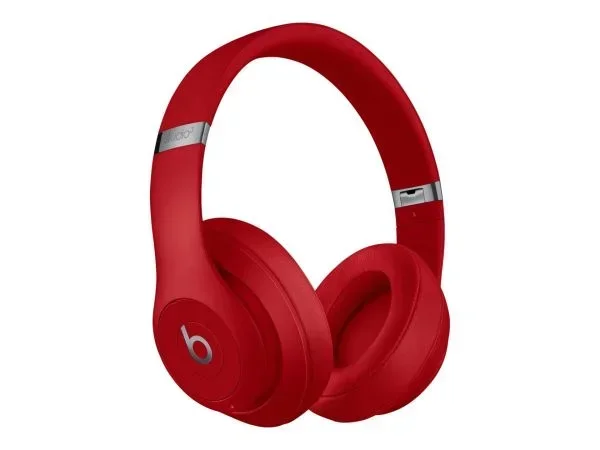
How Do I Connect My Beats Headphones To Bluetooth Easily
Connecting your Beats headphones to Bluetooth is quick and easy once you know the steps. Whether you have Beats Studio, Beats Solo, or Powerbeats, the pairing process follows a similar pattern. This guide walks you through everything from initial setup to solving common connection problems.
Key Takeaways
- Understanding How Do I Connect My Beats Headphones To Bluetooth: Provides essential knowledge
📑 Table of Contents
Understanding Bluetooth Basics With Your Beats
What Is Bluetooth and Why Does It Matter?
Bluetooth is a short-range wireless technology that lets devices talk to each other without cables. When you pair your Beats headphones via Bluetooth, they create a private connection to your phone, tablet, or computer. This means no tangled cords and no limits on how far you can move.
Most modern Beats headphones use Bluetooth 5.0 or newer. This gives you a stronger signal and better battery life. Wireless headphones like Beats rely on Bluetooth codecs to deliver audio. These codecs handle how sound travels from your device to your ears.
Which Beats Models Support Bluetooth?
Nearly all Beats headphones made in the last decade support Bluetooth. Here are the most popular models:
- Beats Studio 3 – Premium noise-canceling headphones
- Beats Solo Pro – Lightweight and foldable
- Beats Solo 3 – Classic on-ear design
- Powerbeats Pro – Earhooks for workouts
- Beats Fit Pro – Secure fit with ANC
- Beats Studio Buds – True wireless earbuds
All of these models use the same basic Bluetooth pairing process. The difference is usually in how you activate pairing mode.
How to Put Your Beats Headphones in Pairing Mode
The General Steps for Most Beats Models
Putting your Beats in pairing mode is the first step to going wireless. The exact button combination varies slightly by model, but the idea is the same. You need to tell your headphones you want to connect to a new device.
Here is the general process:
- Turn on your Beats headphones.
- Locate the power button or the Bluetooth button.
- Press and hold the button for about five seconds.
- Watch for the LED light to flash. It usually blinks red and white.
- The headphones are now in pairing mode and ready to connect.
Model-Specific Pairing Instructions
Different Beats models have slight variations. Here are some specifics to keep in mind.
For Beats Studio 3 and Solo 3, hold down the power button on the left ear cup. The LED will flash white, indicating they are ready to pair. For Powerbeats Pro, you need to hold the button on the back of the charging case. The LED on the case will blink white.
Beats Fit Pro users should press and hold the system button on the right earbud. The LED indicator will flash, signaling that Bluetooth settings are open for a new connection. Studio Buds require you to open the case near your phone and follow the on-screen prompt.
Quick Tip: If your Beats were previously connected to another device, they may auto-connect to it instead of entering pairing mode. Turn off Bluetooth on other devices first to avoid confusion.
Connecting Beats Headphones to Different Devices
Connecting to an iPhone or iPad
Apple devices make Bluetooth pairing incredibly simple. With Beats headphones, you get the added benefit of the Apple W1 or H1 chip. This chip handles much of the heavy lifting for you.
Here is how to connect:
- Put your Beats in pairing mode (see the steps above).
- Open the Settings app on your iPhone or iPad.
- Tap on Bluetooth.
- Wait for your Beats to appear in the list of devices.
- Tap on your Beats name to connect.
That is it. Your Beats should connect within seconds. If you see a “Connect” button instead of the Beats name, tap it and wait. The connection is fast and stable thanks to Apple’s Bluetooth connectivity optimization.
Connecting to an Android Phone
Android phones work just as well with Beats headphones. The process is slightly different because Android does not use the Apple W1 chip. But the experience is still smooth and straightforward.
Follow these steps:
- Enable Bluetooth on your Android phone by swiping down from the top of the screen.
- Tap the Bluetooth icon to turn it on.
- Put your Beats in pairing mode.
- Your phone will scan for available devices.
- Tap on your Beats name when it appears.
Some Android phones may ask you to confirm a pairing code. If so, simply accept it. Once connected, your wireless headphones will remember this device and reconnect automatically next time.
Connecting to a Windows Laptop or Mac
Using Beats headphones with a computer is great for video calls, streaming, and gaming. The process on both Windows and Mac is similar.
For Windows:
- Go to Settings > Devices > Bluetooth & other devices.
- Turn on Bluetooth.
- Click “Add Bluetooth or other device.”
- Select Bluetooth and wait for your Beats to appear.
- Click on your Beats to pair.
For Mac:
- Click the Bluetooth icon in the menu bar.
- Select “Bluetooth Preferences.”
- Put your Beats in pairing mode.
- Click on your Beats name to connect.
Mac users with Beats that have the H1 chip get an extra bonus. The Mac may recognize the headphones automatically and prompt you to connect. This makes Bluetooth pairing on macOS almost effortless.
Connecting to a Smart TV
Want to listen to your TV through your Beats? Many smart TVs support Bluetooth audio output. This works great for late-night watching or when you do not want to disturb others.
You can also use a Bluetooth adapter if your TV does not have built-in Bluetooth. Simply plug the adapter into the TV’s audio output and pair your Beats to the adapter. This is a popular solution for connecting wireless headphones to older TVs.
Note that some TVs have a slight audio delay over Bluetooth. If you notice lip-sync issues, check your TV settings for audio delay adjustments. A Bluetooth transmitter can also help reduce latency for a better experience.
Troubleshooting Common Bluetooth Connection Problems
Beats Won’t Show Up in the Device List
This is the most common issue people face. If your Beats do not appear when you search for devices, try these fixes:
- Make sure your Beats are in pairing mode. The LED should be flashing.
- Turn Bluetooth off and back on your device.
- Restart your Beats headphones completely.
- Check if another device is already connected to your Beats.
- Move closer to the device you are trying to pair with.
Bluetooth range is typically about 30 feet (10 meters). Walls and other obstacles can reduce this distance. Try moving closer to your device if the connection keeps dropping.
Audio Keeps Cutting Out or Lagging
Intermittent audio is frustrating but usually easy to fix. Here are the most common causes:
- Interference from Wi-Fi routers or other Bluetooth devices nearby.
- Low battery on your Beats headphones.
- Your device is too far from the headphones.
- Outdated firmware on your Beats.
To update your Beats firmware, download the Beats app on your phone. The app checks for updates and installs them automatically. Keeping your firmware current improves Bluetooth connectivity and audio quality.
Beats Connected But No Sound
If your Beats show as connected but you hear nothing, try these steps:
- Check the volume on both your device and your Beats.
- Make sure your Beats are selected as the audio output device.
- Turn Bluetooth off and back on.
- Disconnect and reconnect the headphones.
On some devices, you need to manually select your Beats as the audio source. Look for the audio output icon in your media player or system settings. This is a quick fix that many people overlook.
Maximizing Your Beats Bluetooth Experience
Battery Tips for Longer Listening Sessions
Bluetooth playback uses more battery than wired listening. To get the most out of your Beats battery life, follow these simple tips:
- Turn off Bluetooth when you are not using your headphones.
- Lower the volume when possible. High volume drains battery faster.
- Keep your Beats charged. Most models last 20 to 40 hours on a full charge.
- Use the charging case for Powerbeats Pro and Studio Buds.
Proper charging habits extend the overall lifespan of your headphones battery. Avoid leaving your Beats drained for long periods.
Managing Multiple Device Connections
Many Beats models support multipoint Bluetooth. This means you can connect to two devices at the same time. For example, your Beats can stay connected to your phone while also being paired to your laptop.
When a call comes in on your phone, the audio automatically switches. This feature is incredibly handy for people who work from home. You can listen to music on your laptop and answer phone calls on your phone without re-pairing.
To set up multipoint, check the Beats app or the manufacturer’s website for your specific model. Not all Beats support this feature, but the newer models generally do.
Using Beats with Other Audio Devices
Beats headphones are versatile. You can use them with gaming consoles, smart speakers, and even car audio systems. If your car radio supports Bluetooth, you can pair your Beats for hands-free calling and music streaming on the road.
For devices without built-in Bluetooth, a Bluetooth transmitter is your best friend. These small devices plug into audio outputs and send Bluetooth signals to your headphones. They work with TVs, stereos, and even older gaming consoles.
Common Mistakes to Avoid When Pairing Beats
Skipping the Firmware Update
One of the biggest mistakes is not updating your Beats firmware. Firmware updates fix bugs, improve Bluetooth connectivity, and add new features. Always check for updates after getting new Beats headphones.
Forgetting to Turn Off Bluetooth on Other Devices
If your Beats are still connected to your tablet or another phone, they may not show up for pairing on a new device. Always disconnect or turn off Bluetooth on previously paired devices before attempting a new connection.
Not Resetting Your Beats When Problems Persist
A factory reset can solve many stubborn Bluetooth issues. Each Beats model has a different reset procedure. Generally, you hold down specific buttons for a set number of seconds. Check the Beats support website for your exact model’s reset instructions.
Key Takeaways
- Pairing Mode is Key: Always make sure your Beats are in pairing mode before searching for devices. The flashing LED light is your guide.
- Bluetooth Pairing Works the Same Way Across Devices: Whether you are using an iPhone, Android, Windows, or Mac, the basic steps are nearly identical.
- Keep Firmware Updated: Regular updates improve Bluetooth connectivity and fix common audio issues.
- Use a Bluetooth Adapter for Non-Bluetooth Devices: A simple adapter can add wireless capability to TVs, stereos, and older equipment.
- Troubleshooting Starts Simple: Turn Bluetooth off and back on, restart your Beats, and check for interference before diving into complex fixes.
- Multipoint Connection Saves Time: Newer Beats models let you stay connected to two devices simultaneously for seamless switching.
- Battery Management Matters: Proper charging habits keep your wireless headphones performing at their best for years.
Frequently Asked Questions
How long does it take to connect Beats headphones to Bluetooth?
The entire process takes less than a minute once your Beats are in pairing mode. Most devices detect the headphones within seconds, and connecting is just a tap away. If it takes longer, make sure your headphones are fully charged and in pairing mode.
Can I connect my Beats headphones to a TV using Bluetooth?
Yes, if your TV has built-in Bluetooth, you can pair your Beats directly. For TVs without Bluetooth, you can use a Bluetooth transmitter plugged into the TV’s audio output. This works great with streaming apps and cable boxes.
Why won’t my Beats headphones connect to Bluetooth even though they are in pairing mode?
This usually happens when another device is still connected to your Beats. Try turning off Bluetooth on all nearby devices and resetting your headphones. If the problem continues, check for firmware updates using the Beats app.
Do I need any special app to connect my Beats to Bluetooth?
No, you do not need a special app for basic Bluetooth pairing. Your phone, tablet, or computer has built-in Bluetooth settings that handle the connection. However, the Beats app is helpful for firmware updates, battery checks, and customizing controls.
Can I use my Beats headphones with multiple devices via Bluetooth?
Yes, many newer Beats models support multipoint Bluetooth, allowing you to connect to two devices at once. Your headphones will automatically switch between devices when audio comes in. Check your specific model to confirm this feature is supported.
What should I do if the audio sounds distorted when connected via Bluetooth?
Distorted audio is often caused by interference or a low battery. Move closer to your device, turn off nearby Wi-Fi routers, and make sure your headphones are charged. Updating your Beats firmware can also resolve audio quality issues.
=== CONCLUSION ===
Connecting your Beats headphones to Bluetooth is a simple process that opens up a world of wireless freedom. From the initial pairing to everyday use and troubleshooting, you now have everything you need to get the most out of your headphones. The key is to start with a clean pairing mode, connect through your device’s Bluetooth settings, and keep your firmware updated for the best experience.
Whether you are listening to music on your phone, watching a movie on your laptop, or taking calls on your tablet, your Beats headphones deliver great sound without any wires. Follow the tips in this guide and you will be enjoying wireless audio in no time. Happy listening.