How Do I Turn My Tablet Into A Mobile Hotspot Easily
Turning your tablet into a mobile hotspot is incredibly easy and keeps you connected on the go. Whether you have an Android or an iPad, you can share your cellular data with laptops and phones in just a few taps. This guide will walk you through the exact steps to set up tablet mobile hotspot features and avoid common pitfalls like battery drain. You will learn how to secure your connection and manage your data usage effectively.
Key Takeaways
- Easy Setup: You can activate your portable hotspot on both Android and iPad in under a minute.
- Secure Your Connection: Always set a strong password to prevent unauthorized Wi-Fi sharing and protect your cellular data.
- Battery Management: Tethering drains power fast, so keep your tablet plugged in while sharing internet.
- Data Awareness: Monitor your data usage to avoid extra charges from your carrier plan.
- Signal Strength Matters: Your shared connection is only as good as the internet connection your tablet receives.
📑 Table of Contents
- Why You Should Turn Your Tablet Into A Mobile Hotspot
- Understanding Your Tablet Hotspot Settings
- Step-by-Step Guide To Setting Up Your Hotspot
- Comparison Table: Android vs iPad Hotspot Setup
- Quick Tips To Improve Your Hotspot Performance
- Common Mistakes To Avoid When Using Tablet Hotspots
- Expert Insights On Tablet Tethering
- Troubleshooting Common Hotspot Issues
- Conclusion
Why You Should Turn Your Tablet Into A Mobile Hotspot
Have you ever been in a spot with no Wi-Fi and wished your laptop could get online? You are not alone. Many people find themselves needing an internet connection while traveling or working remotely. Your tablet might just be the perfect solution. By learning how to turn your tablet into a mobile hotspot, you gain a powerful tool for staying connected. This process is called Wi-Fi sharing or tethering. It allows your tablet to act like a router. Instead of relying on a separate device, your tablet uses its cellular data to create a portable hotspot. Let us explore why this is so useful.
First, it saves you from buying extra hardware. You do not need to carry a bulky mobile router. Second, it is incredibly convenient. Your tablet is likely already in your bag. Third, it gives you control over your internet connection. You can decide who gets access and how much bandwidth they use. Whether you are at a coffee shop, a park, or a hotel room, you can share internet with your friends and family. It is a game changer for digital nomads and frequent travelers. Imagine being able to work from a beach or a remote cabin. With Wi-Fi tethering, the world becomes your office. You are no longer tied to a fixed internet connection.
Another great reason is safety. When you are traveling, public Wi-Fi can be risky. Hackers often target open networks. By using your own mobile hotspot, you create a private, secure network. Your password security keeps your data safe from prying eyes. This is especially important if you are doing banking or handling sensitive work files. You can relax knowing your connected devices are protected. Turning tablet into hotspot mode is not just about convenience; it is about security too.
Beyond convenience, there are financial benefits too. Instead of paying for a separate mobile hotspot device, you use what you already own. This saves you money on monthly fees and hardware costs. You also avoid the hassle of carrying another gadget. Many people already pay for a data plan on their tablet. Using that plan to share internet just makes sense. You are getting the full value out of your cellular data allowance. Furthermore, it is great for emergencies. If your home internet goes down, your tablet can save the day. You can keep working or stay in touch with loved ones. A mobile hotspot is a reliable backup plan.
Understanding Your Tablet Hotspot Settings
Before you dive into the setup, it helps to understand what is happening under the hood. When you turn your tablet into a mobile hotspot, you are essentially transforming it into a Wi-Fi router. Your device broadcasts a signal that other gadgets can connect to. This signal carries your mobile data out to the world. Understanding this helps you troubleshoot if anything goes wrong.
How Portable Hotspots Work
The concept of Wi-Fi tethering is simple. Your tablet connects to the cellular network. It then takes that connection and shares it over Wi-Fi. Think of your tablet as a bridge. On one side, there is the cellular network. On the other side, there are your connected devices, like a laptop or a second phone. The bridge between them is the portable hotspot feature. You set a network name and a password security code. Other devices find your network and enter the password to get online. This process happens in seconds. You barely notice the switch from mobile data to a shared connection.
The Role of Your Carrier Plan
It is important to understand that your carrier plan dictates how you can use your mobile data. Some plans include tethering by default, while others charge extra for it. Before you turn your tablet into a mobile hotspot, check your plan details. Look for terms like hotspot settings or data usage limits. If your plan does not include tethering, you might need to upgrade. This is a small cost for a big convenience. Always stay informed about your carrier plan to avoid unexpected fees. Knowledge is power when it comes to Wi-Fi sharing.
How Signal Strength Affects Your Hotspot
The quality of your internet connection depends entirely on signal strength. If you are in an area with weak reception, your portable hotspot will be slow. You might experience lag or disconnections. Try moving to a window or a higher floor. Walls and distance weaken the cellular data signal. The stronger the signal on your tablet, the better the bandwidth for your connected devices. You want to find that sweet spot where the signal is clear. This ensures a smooth Wi-Fi tethering experience for everyone.
Step-by-Step Guide To Setting Up Your Hotspot
Now for the fun part. Let us get your tablet mobile hotspot up and running. Follow these simple steps for your specific device. Make sure your mobile data is turned on before you start. You also want to check your signal strength for the best experience. A weak signal means slow speeds for everyone.
How To Do It On An Android Tablet
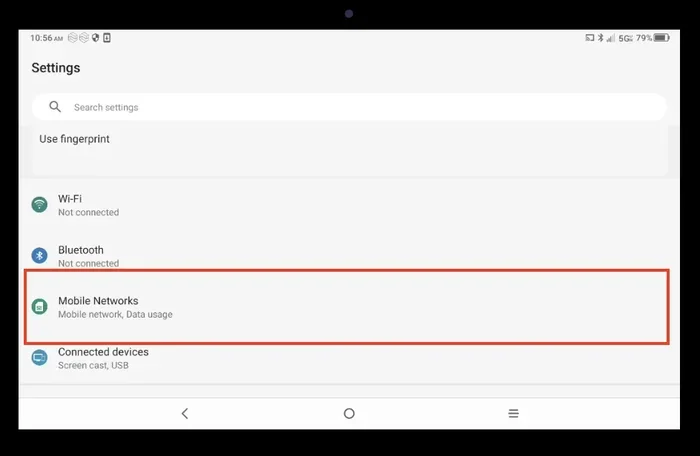
Setting up a hotspot settings menu on an Android device is very intuitive. Here is exactly what to do to turn your tablet into a mobile hotspot:
- Open the Settings app on your Android tablet.
- Tap on Network and Internet or Connections, depending on your brand.
- Look for Hotspot and Tethering or Mobile Hotspot.
- Toggle the Wi-Fi Hotspot switch to On.
- Tap on the hotspot name to set a custom network name.
- Select the security type and create a strong password.
- Save your settings. Your portable hotspot is now active!
Once you finish these steps, your connected devices will see your new network. Just search for Wi-Fi networks on your laptop or phone and select your tablet’s name. Enter the password, and you are good to go. You can also turn on the mobile hotspot quickly from the quick settings panel. Just swipe down from the top of your screen and tap the hotspot icon. This is the fastest way to share internet when you are in a hurry. After you save the settings, look for the hotspot icon in your status bar. It usually looks like two arrows or a Wi-Fi symbol. This icon confirms that your tablet mobile hotspot is active. You can now start connecting your other devices. The whole process takes less than two minutes. It is one of the most useful features on your Android tablet.
How To Do It On An iPad
If you have an iPad, the process is just as easy. Apple makes it simple to share internet from your tablet. Follow these steps to activate your iPad mobile hotspot:
- Open the Settings app on your iPad.
- Tap on Personal Hotspot.
- Toggle Allow Others to Join to On.
- If you do not see this option, tap on Cellular and enable Cellular Data first.
- Check the Wi-Fi password displayed on the screen.
- On your other device, find the iPad in the Wi-Fi list.
- Enter the password and connect.
That is all there is to it. Your iPad is now broadcasting a mobile hotspot. You can turn tablet into hotspot mode anytime you need to get work done or stream a movie. Remember to keep your iPad plugged in if you plan to use it for hours. Tethering can drain the battery surprisingly fast. Once your iPad is broadcasting, you will see the Personal Hotspot option highlighted in blue. This visual cue confirms that Wi-Fi sharing is working. You can now let your friends connect to your portable hotspot. Just make sure you trust the people you are sharing with. Your cellular data is a limited resource, so be mindful of who joins your network.
Comparison Table: Android vs iPad Hotspot Setup
To make things even clearer, here is a quick side-by-side look at how the two platforms handle Wi-Fi sharing. Both get the job done, but they present the options a bit differently.
- Device: Android Tablet vs iPad
- Settings Path: Network and Internet / Hotspot and Tethering vs Settings / Personal Hotspot
- Customization: High (can change band, security) vs Moderate (basic password and name)
- Data Indicator: Shows in status bar vs Shows in status bar
- Ease of Use: Very Easy vs Very Easy
As you can see, both platforms make it easy to turn your tablet into a mobile hotspot. Choose the one that matches your device, and you will be online in no time. The slight differences in setup are minor. What matters most is that you have a working internet connection when you need it.
Quick Tips To Improve Your Hotspot Performance
Just turning on the feature is not enough. You want your internet connection to be fast and stable. Here are some quick tips to boost your tablet hotspot performance and get the most out of your cellular data.
- Keep It Plugged In: Tethering uses a lot of power. Plug your tablet into a charger while sharing internet. This prevents battery drain and keeps the signal strong.
- Stay Close: The further your connected devices are from the tablet, the weaker the signal strength. Keep your laptop nearby for the best bandwidth. Walls and furniture can block the signal.
- Turn Off Unused Apps: Close apps on your tablet that are eating up data usage. This leaves more cellular data for your connected devices. Background apps can slow everything down.
- Use 5GHz If Available: Some Android tablet models let you choose between 2.4GHz and 5GHz bands. Use 5GHz for faster speeds over short distances. 2.4GHz goes further but is slower.
- Update Your Software: Always keep your device updated. Software updates often fix bugs that can interfere with Wi-Fi sharing. An up-to-date tablet runs smoother.
- Restart Your Tablet: Sometimes a simple reboot fixes connection issues. It clears the cache and refreshes the network name broadcast. Do this if your portable hotspot acts weird.
- Change the Default Password: Always change the default password security provided by the system. Default passwords are easy to guess and compromise your network name and data usage. A strong password keeps your mobile hotspot safe.
Following these simple steps ensures that your portable hotspot works smoothly. You will not have to deal with slow speeds or dropped connections. A little preparation makes a big difference. Your internet connection will be much more reliable.
Common Mistakes To Avoid When Using Tablet Hotspots
Even though setting up a mobile hotspot is easy, there are some pitfalls you should avoid. These common mistakes can ruin your experience and cost you extra money. Learning what not to do is just as important as learning how to do it.
Ignoring Your Carrier Plan
Sharing your internet connection eats up data usage quickly. If you have a limited carrier plan, you might face overage charges. Check your plan before you turn tablet into hotspot mode. Consider upgrading to a plan with more data if you plan to tether often. Wi-Fi tethering should not break the bank. Keep an eye on your data usage to stay safe.
Forgetting to Secure Your Network
Leaving your hotspot settings open is a huge mistake. Anyone within range can connect to your portable hotspot. This slows down your internet connection and uses your data. Always set a strong password security code. Make it hard for strangers to join your Wi-Fi sharing network. Protecting your network name is just as important as protecting your home Wi-Fi. Use a mix of letters, numbers, and symbols.
Overheating Your Device
When you use your tablet as a router, it works very hard. This generates a lot of heat. If your device gets too hot, it might slow down or shut off the mobile hotspot. Do not leave your tablet in direct sunlight while tethering. Keep it in a cool, shaded spot. A cool tablet means a stable signal strength and better bandwidth for your connected devices. Heat is the enemy of electronics.
Expert Insights On Tablet Tethering
We asked tech experts about the best ways to use tablet mobile hotspot features. They shared some valuable insights that can help you get the most out of your device and avoid common traps.
First, they emphasize the importance of password security. A weak password is an open invitation for neighbors or strangers to leech your cellular data. Second, they recommend monitoring your data usage in real-time. Most tablets have a built-in data tracker. Check this regularly to see how much data usage your connected devices are consuming. Third, they suggest using your tablet as a backup, not a primary router. While Wi-Fi tethering is great, a dedicated router is better for long-term use at home. Your internet connection will be more stable with proper equipment.
Another expert tip is to limit the number of connected devices. If too many gadgets try to use your portable hotspot, the bandwidth gets split. This slows everyone down. Set a limit if your tablet allows it. Finally, experts suggest turning off the portable hotspot when you are not using it. This saves battery drain and keeps your cellular data safe from accidental access. Make it a habit to disable the feature after use. This simple step protects your internet connection and your device.
Troubleshooting Common Hotspot Issues
Sometimes things do not work as planned. If your tablet mobile hotspot is not showing up or is slow, do not panic. Here are a few fixes to get you back online.
The Hotspot Is Not Visible
If other devices cannot see your network name, try turning the hotspot off and on again. You can also restart your tablet. This refreshes the Wi-Fi sharing module. Make sure your mobile data is actually working. If your tablet has no signal, it cannot share it. Check your signal strength in the status bar.
Connected But No Internet
This is a common issue with Wi-Fi tethering. Your device connects to the portable hotspot, but the internet does not work. Try forgetting the network on your laptop or phone and reconnecting. You might also need to check your carrier plan. Some carriers block tethering unless you have a specific plan. Contact your provider to confirm your hotspot settings are allowed.
Extremely Slow Speeds
Slow speeds usually mean your signal strength is weak. Move closer to your tablet and away from walls. You should also check how many connected devices are using the internet connection. Too many users will eat up the bandwidth. Finally, make sure no one else is using your mobile hotspot without your permission. Check your password security and change it if needed.
The Hotspot Disconnects Frequently
If your mobile hotspot keeps dropping, the bandwidth might be overloaded. Too many connected devices can cause instability. Try disconnecting devices that are not actively using the internet connection. You can also change the network name and restart the hotspot. Sometimes, simply switching your tablet off and on fixes the problem. Another trick is to change the hotspot settings band from 5GHz to 2.4GHz. The 2.4GHz band is more stable over longer distances. This reduces battery drain too, which is a nice bonus.
Conclusion
Knowing how to turn your tablet into a mobile hotspot is a fantastic skill. It gives you freedom and connectivity wherever you go. Whether you are using an Android tablet or an iPad, the setup is quick and easy. You can share internet with your laptop, phone, or any other connected device. Just remember to secure your network, monitor your data usage, and keep your tablet charged. With these steps, your portable hotspot will serve you well. Now you are ready to stay online, no matter where life takes you. Go ahead and turn tablet into hotspot mode today! Enjoy the freedom of a mobile hotspot right in your pocket.