Can You Connect Your Ps2 To A Pc And Play On Your Computer
Yes, you can connect your PS2 to a PC and play your favorite PlayStation 2 games on a computer. Whether you want to use the console as a media device, set up an emulator, or play backed-up games, there are several methods that work well. This guide walks you through every step, from the hardware you need to the software setup that makes it all possible.
Key Takeaways
- Multiple connection options exist: You can use USB adapters, network cables, or emulator software to get your PS2 working with a PC.
- PCSX2 is the top emulator: This free and open-source emulator lets you play PS2 games on your computer with impressive accuracy.
- A DualShock 2 controller works on PC: With the right USB adapter or driver, you can use your original PS2 controller comfortably.
- BIOS files are required: You need a legitimate PS2 BIOS dump to run games through PCSX2 properly.
- Common issues are fixable: Problems like input lag, graphical glitches, and controller recognition can be solved with simple steps.
- Retro gaming on PC is growing: More players are discovering the benefits of playing classic console games on modern computers.
📑 Table of Contents
- Can You Connect Your Ps2 To A Pc And Play On Your Computer
- Why People Want To Connect Their PS2 To A PC
- Methods To Connect Your PS2 To A PC
- What You Need To Get Started
- Setting Up PCSX2 On Your PC
- Using A PS2 Controller On Your PC
- Common Problems And How To Fix Them
- Expert Tips For The Best PS2 On PC Experience
- Comparing Connection Methods At A Glance
- Final Thoughts
Can You Connect Your Ps2 To A Pc And Play On Your Computer
So, you have a PlayStation 2 sitting in a closet, and you are wondering if you can connect your PS2 to a PC and start playing again. The short answer is yes. You absolutely can. But the “how” is where things get interesting. There are different ways to make this work, and each method has its own benefits. Some people want to use their PS2 as a second monitor. Others want to run PS2 games through a PC emulator. And some just want to play their old game discs on a bigger computer screen.
No matter which reason fits you, this guide covers everything. We will look at the hardware you need, the software options, and the step-by-step process to get your PS2 connected to your computer. By the end, you will know exactly what to do. You will also understand the pros and cons of each method. Let us dive in.
Why People Want To Connect Their PS2 To A PC
There are many reasons someone wants to hook up a PlayStation 2 to a computer. The most common one is screen size. Playing PS2 games on a small TV can feel limiting. A PC monitor or a big display makes everything look sharper and more immersive. Another reason is convenience. Many people no longer own a working TV with AV inputs. But they do have a computer setup that can handle the task.
Some gamers want to preserve their game collection. Copying PS2 discs and playing them through software on a PC keeps the original discs safe. Others are into retro gaming and want to experience classic titles in the best possible quality. Whatever your reason, connecting your PS2 to a PC opens up a lot of possibilities. The key is knowing which method works best for your situation.
Benefits Of Playing PS2 Games On A PC
- Larger screen: Play on a 24-inch monitor or even a 4K display for a much better visual experience.
- Better audio: PC speakers or headphones often sound far better than built-in TV speakers from that era.
- Save disk wear: Playing digital copies means your original discs stay safe from scratches.
- Controller flexibility: You can use a DualShock 2 or switch to a modern gamepad with better precision.
- Easy recording: Capture gameplay clips directly from your PC for streaming or sharing.
Methods To Connect Your PS2 To A PC
There are three main ways to connect your PS2 to a PC. Each method serves a different purpose. Let us break them down so you can pick the right one for your setup.
Method 1: Using A USB Adapter For Direct Input
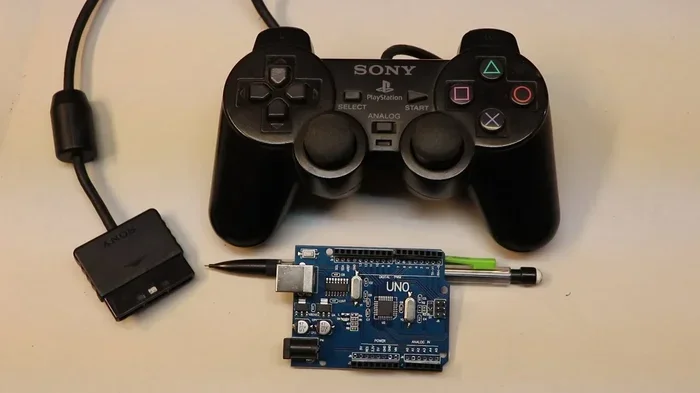
This method lets you use your PS2 controller on a PC. You do not need the actual console for this. A USB adapter plugs into your DualShock 2 controller and connects to your computer through a standard USB port. These adapters are cheap and widely available online.
The advantage here is simplicity. You plug in the adapter, install the driver, and your controller is ready. This works great for people who already use a PS2 emulator on their PC. You get the feel of the original controller without needing the full console setup.
When choosing a USB adapter, look for ones that support the DualShock 2 specifically. Some generic gamepad adapters do not recognize the analog stick pressure sensitivity. That feature matters for certain PS2 games. Brands like Retro-Bit and Mayflash make reliable options that work well with most setups.
Method 2: Using PCSX2 Emulator (No Console Needed)
PCSX2 is the most popular PS2 emulator for Windows and Linux. It is free, open-source, and incredibly powerful. With PCSX2, you do not need a physical PS2 console at all. You just need the game files, a BIOS dump, and a decent computer.
This emulator can run PS2 games at higher resolutions than the original console ever allowed. You can play your favorite titles at 1080p or even 4K. The graphics look dramatically better than on the original hardware. PCSX2 also supports custom plugins for audio, input, and graphics rendering.
However, PCSX2 does require a relatively modern computer. Older PCs may struggle with demanding PS2 titles. A computer with at least 4GB of RAM and a decent processor will handle most games well. If your PC is from the last five years, you should be in good shape.
Method 3: Using A Capture Card Or AV Converter
If you want to use the actual PS2 console but display it on your PC monitor, you need an AV converter. This device takes the composite or component video output from your PS2 and converts it to a signal your PC can read through HDMI or a capture card.
Products like the RetroTINK 2X or the Open Source Scan Converter (OSSC) are popular choices. They take the old analog signal and upscale it to a clean digital output. This gives you the real console experience on a modern display. The downside is cost. These devices can be expensive, especially the high-end models.
A cheaper alternative is a basic USB capture card. These work but often add input lag. Input lag is the delay between pressing a button and seeing the action on screen. For fast-paced PS2 fighting games, this lag can be frustrating. If you only play slower adventure games, a capture card should work fine.
What You Need To Get Started
Before you start connecting anything, make sure you have the right equipment. Here is a simple checklist of what you need depending on the method you choose.
Hardware Requirements
- A PlayStation 2 console: Any model works. The slim version is more compact and uses less power.
- A USB adapter or capture card: Depending on which method you prefer, pick the right device.
- A DualShock 2 controller: The standard PS2 controller works best for emulation and direct input.
- A PC with decent specs: At least 4GB RAM, a multi-core processor, and a dedicated graphics card for emulation.
- USB cables: Most adapters come with the cable you need, but always check before purchasing.
- PS2 memory card: Optional but useful if you want to transfer save files between the console and PC.
Software Requirements
- PCSX2 emulator: Download the latest version from the official PCSX2 website.
- A PS2 BIOS file: You need a dump of your own PS2 BIOS. This is required for legal emulation purposes.
- Game ISO files: Digital copies of your PS2 games in ISO or bin/cue format.
- Controller drivers: Drivers for your USB adapter or DualShock 2 controller.
- Graphics plugin: PCSX2 supports multiple plugins. The GSdx plugin handles all graphics rendering.
Setting Up PCSX2 On Your PC
PCSX2 is the heart of playing PS2 games on a computer. Setting it up takes a bit of work, but the results are worth it. Here is a clear walkthrough of the setup process.
Step 1: Download And Install PCSX2
Go to the official PCSX2 website and download the latest stable release. The installer is straightforward. Run it, follow the prompts, and let it install on your PC. Make sure you choose a location you can easily find later. The default installation path works fine for most users.
After installation, launch PCSX2 for the first time. You will see a setup wizard that helps you configure the basic settings. This wizard walks you through selecting your language, setting up the graphics renderer, and configuring audio. It is a great starting point for beginners.
Step 2: Configure The BIOS
PCSX2 needs a PS2 BIOS file to boot games. This is a small file extracted from your own PS2 console. It is important to note that you must own a physical PS2 to legally use this file. Dumping your own BIOS is a well-documented process online.
Once you have the BIOS file, go to the PCSX2 configuration menu. Navigate to the BIOS settings and point the emulator to the location of your BIOS dump. Without this file, PCSX2 will not run any games. It is a non-negotiable requirement.
Step 3: Set Up Your Game Library
Place your PS2 game ISO files in a folder on your PC. PCSX2 can scan this folder and create a library of your games automatically. You can also add games manually by pointing the emulator to individual ISO files.
One great feature of PCSX2 is the game database. It includes settings profiles for thousands of PS2 titles. When you boot a game, PCSX2 can automatically apply the recommended configuration. This saves a lot of troubleshooting and tweaking.
Step 4: Configure Graphics And Audio
Go to the graphics settings and select the GSdx plugin. Choose your preferred renderer. Direct3D 11 works well for most systems. If you have a powerful GPU, you can try Vulkan for better performance.
Set the internal resolution to at least 2x native (480p). For a big monitor, try 4x native (960p) or higher. Higher resolutions make PS2 games look much sharper. Just keep in mind that very high resolutions can strain older games and cause compatibility issues.
For audio, the SPU2-X plugin handles sound output. Leave it on the default settings unless you experience crackling or audio dropouts. Those issues usually have simple fixes in the plugin configuration.
Using A PS2 Controller On Your PC
One of the best parts of connecting your PS2 to a PC is using the original DualShock 2 controller. The feel and response of this controller are hard to beat. Here is how to get it working on your computer.
With A USB Adapter
Plug your DualShock 2 into the USB adapter. Connect the adapter to a free USB port on your PC. Windows should recognize the device automatically in most cases. If it does not, you may need to install the driver that came with the adapter.
Open PCSX2 and go to the controller configuration menu. Map each button to match your controller layout. The DualShock 2 has pressure-sensitive buttons, and PCSX2 supports this feature. Make sure your adapter passes through the analog stick pressure data as well.
With A Third-Party Driver
If you do not have a USB adapter, you can use a third-party driver like SCP Toolkit or DsHidMini. These drivers let your PC recognize a DualShock 2 connected through a PS2-to-USB adapter cable. They are free and widely used in the retro gaming community.
Install the driver, plug in your controller, and calibrate the inputs. These tools also support vibration feedback, which adds a nice touch to compatible games. The setup takes about five minutes and works reliably for most users.
Using A Modern Controller Instead
You do not have to use a DualShock 2. Xbox 360 and Xbox One controllers work natively with PCSX2. PlayStation 4 and PlayStation 5 controllers also connect through Bluetooth or USB. If you prefer a modern controller, the setup is even simpler since Windows has built-in support for these devices.
Common Problems And How To Fix Them
No setup is perfect on the first try. Here are the most common issues people face when connecting their PS2 to a PC, along with practical fixes.
Input Lag During Gameplay
Input lag is the delay between pressing a button and seeing the result on screen. This is the most common complaint when using a capture card method. To reduce lag, use a USB adapter instead of a capture card. USB adapters have near-zero latency because they send input directly to the PC.
If you must use a capture card, try lowering the display resolution. Higher resolutions require more processing time, which adds lag. Also, make sure your capture card software is up to date. Manufacturers often release updates that improve latency performance.
Games Crashing Or Freezing
Some PS2 games do not run perfectly on PCSX2, especially older titles. If a game crashes, try changing the graphics renderer. Switching from Direct3D 11 to OpenGL or Vulkan can fix many compatibility issues.
You can also check the PCSX2 compatibility list online. This database tells you which games work well and which need specific settings tweaks. It is a valuable resource that saves hours of trial and error.
Controller Not Recognized
If your PS2 controller does not show up on the PC, first check the USB connection. Try a different USB port. Some front-panel USB ports on desktop cases do not provide enough power. Using a rear port on the motherboard usually fixes this.
If you are using a third-party driver, make sure it is compatible with your version of Windows. Windows 10 and 11 have different driver requirements than older versions. Check the driver developer’s website for the latest compatible version.
Poor Audio Quality
Sometimes the audio sounds distorted or crackly in PCSX2. This usually happens when the audio plugin is not configured correctly. Go to the SPU2-X settings and switch the output mode. Try both “Linear Interpolation” and “Round Mode” to see which sounds better.
Also check your PC’s audio settings. Make sure the correct output device is selected. If you are using headphones, test with speakers to rule out a hardware issue.
Expert Tips For The Best PS2 On PC Experience
Once you have everything set up, there are a few expert tips that take your experience to the next level.
- Use a wired connection: Wireless adapters can add input lag. A wired USB connection gives you the most responsive experience.
- Keep your BIOS and emulator updated: PCSX2 developers release updates regularly. New versions improve game compatibility and fix bugs.
- Back up your save files: Use PCSX2’s memory card emulation to save your progress. This also lets you use save state features to skip difficult sections.
- Experiment with graphics plugins: Different plugins suit different games. Try several to find the best balance of performance and visual quality.
- Join the community: The PCSX2 forums and Reddit communities are full of helpful tips. If you get stuck, someone has likely already solved your problem.
- Use a CRT monitor for authenticity: If you want the true retro feel, connect your PC to a CRT monitor. This gives you the scanline look that many retro gamers love.
Comparing Connection Methods At A Glance
Here is a quick comparison of the three main methods to connect your PS2 to a PC.
| Feature | USB Adapter | PCSX2 Emulator | Capture Card |
|---|---|---|---|
| Needs PS2 Console | No | No | Yes |
| Cost | Low ($10-$25) | Free | Medium to High ($50-$200) |
| Input Lag | Very Low | None | Moderate to High |
| Visual Quality | N/A | Up to 4K | Depends on Up scaler |
| Setup Difficulty | Easy | Medium | Medium |
| Best For | Controller Use | Playing Games | Real Console Experience |
As you can see, each method has its place. If you just want to play games, PCSX2 is the clear winner. If you want the authentic console feel, a capture card or AV converter works well. And if you just need your PS2 controller to work on the PC, a USB adapter is all you need.
Final Thoughts
Connecting your PS2 to a PC is easier than most people think. Whether you choose to use an emulator like PCSX2, a USB adapter for your controller, or a capture card for the real console experience, the process is straightforward. The retro gaming community has made incredible strides in making classic consoles work on modern hardware.
The best part is that you do not need expensive equipment to get started. A free emulator, a cheap USB adapter, and a computer you already own are all you need. You can revisit your favorite PS2 classics on a bigger screen with better graphics and more convenience.
So go ahead and give it a try. Connect your PS2 to a PC and rediscover why those games meant so much to you. Whether you are a longtime fan or just getting into retro gaming, the experience is rewarding. You will be amazed at how well these classic titles hold up on a modern setup.
Frequently Asked Questions
Can I connect my PS2 to a PC without an emulator?
Yes, you can use a USB adapter or a capture card to connect the physical PS2 console to your PC. A USB adapter lets you use your PS2 controller on the computer, while a capture card lets you display the PS2 output on your PC monitor. Neither method requires emulation software.
Is PCSX2 legal to use?
PCSX2 itself is legal because it is open-source software. However, you need a PS2 BIOS file to run games, and you must own a physical PS2 console to legally dump that BIOS. Downloading a BIOS file without owning the console is not legal.
What kind of PC do I need to run PS2 games?
A PC with at least 4GB of RAM and a multi-core processor from the last decade should handle most PS2 games well. For the best experience, a dedicated graphics card and 8GB of RAM are recommended. Modern PCs from the last five years will run PCSX2 with no issues at all.
Can I use a PlayStation 4 or 5 controller with PCSX2?
Yes, you can. DualShock 4 and DualSense controllers connect to PCSX2 through USB or Bluetooth. Windows recognizes them as standard gamepads, and PCSX2 lets you map their buttons to match the DualShock 2 layout. This is a great option if you prefer a modern controller feel.
Do all PS2 games work on PCSX2?
Most PS2 games work very well on PCSX2, but a small number have compatibility issues. The PCSX2 website maintains a detailed compatibility list that shows which games work perfectly, which have minor issues, and which are not compatible. Checking this list before you download a game saves time and frustration.
Can I play multiplayer PS2 games on my PC?
Yes, PCSX2 supports multiplayer for games that allow it. You can connect multiple controllers through USB adapters or use network play for games that support online multiplayer. The setup is a bit more involved than single-player, but it is absolutely possible and works well for most compatible titles.
=== CONCLUSION ===
Can you connect your PS2 to a PC and play on your computer? Absolutely. You have multiple paths to choose from, and each one works well for different needs. Whether you go the emulator route with PCSX2, use a USB adapter for your controller, or set up a capture card for the real console experience, the results are satisfying. Retro gaming on PC has never been more accessible. Gather your equipment, follow the steps in this guide, and start playing your favorite PS2 titles on a bigger, better screen today.