Can I Get A Extension On My Wi Fi And Everything You Need
Can I get a extension on my Wi Fi? The short answer is yes, and there are several simple ways to do it. A Wi-Fi range extender, mesh network, or powerline adapter can all help you expand your wireless signal and boost internet coverage throughout your home. This guide covers every option, from setup steps to expert tips that eliminate dead zones for good.
So you are sitting in your bedroom or backyard and the Wi-Fi signal drops to nothing. Can I get a extension on my Wi Fi? This is one of the most common questions people ask when their wireless signal fails to reach every corner of their home. The good news is that yes, you can absolutely extend your Wi-Fi network and get strong connectivity in every room. In this guide, we will walk you through everything you need to know about Wi-Fi extensions, from the different types of extenders to setup tips and common mistakes. By the end, you will have a clear plan to boost your signal and enjoy seamless internet coverage throughout your home.
Living with a weak Wi-Fi signal can be incredibly frustrating. You might be streaming your favorite show and suddenly the buffer wheel appears. Or you are on an important video call and your connection drops without warning. These connectivity issues happen more often than you might think, especially in larger homes or buildings with thick walls. The good thing is that a Wi-Fi extension can solve most of these problems quickly and affordably. Let us dive into how it all works.
Key Takeaways
- Multiple Options Exist: You can use a Wi-Fi extender, mesh system, Wi-Fi repeater, or powerline adapter to extend your network.
- Placement Matters: Where you put your extender or router has a huge impact on your wireless range and network speed.
- Mesh Networks Are the Gold Standard: They provide seamless internet coverage without the speed drops that basic extenders sometimes cause.
- Avoid Common Mistakes: Placing extenders too far from the router or ignoring bandwidth needs can ruin your experience.
- Test Before and After: Always run an internet speed test to measure real improvement in your home network.
- Budget-Friendly Options Work: You do not need to spend a fortune to fix connectivity issues and boost your wireless signal strength.
📑 Table of Contents
What Is a Wi-Fi Extension and Why Do You Need One
A Wi-Fi extension is any device or method that helps push your wireless signal further than your router alone can reach. Think of your router as a flashlight. It lights up a certain area, but the corners stay dark. An extender acts like a second flashlight that picks up where the first one leaves off. This expanded wireless range means every room in your home can get a strong connection.
Most homes today have multiple devices connected at once. Smart TVs, phones, tablets, laptops, smart speakers, and even refrigerators all compete for bandwidth. When too many devices crowd a single router, the network speed drops and dead zones appear. A Wi-Fi booster or extender helps distribute the load more evenly across your home network, giving every device a fair shot at a fast connection.
You might need an extension if you notice any of these signs. Your signal bars drop to one or zero in certain rooms. Videos take forever to load. Video calls freeze or pixelate. Your internet works fine in the living room but not in the bedroom. These are all classic symptoms of poor network coverage that a simple extension can fix.
How Wi-Fi Signals Travel Through Your Home
Wi-Fi signals travel through the air using radio waves. These waves weaken as they pass through walls, floors, and furniture. Metal, concrete, and even water pipes can block or absorb the signal. That is why your kitchen might have great reception while the bathroom does not. Understanding how signals move helps you place your extender in the best spot. The goal is to position the extension where it still gets a strong signal from the router, then rebroadcasts it to the weaker areas.
Types of Wi-Fi Extension Options Available
Not all Wi-Fi extensions work the same way. There are several options, and each has its own strengths. Let us look at the most popular choices so you can find the one that fits your home and budget.
Wi-Fi Range Extenders
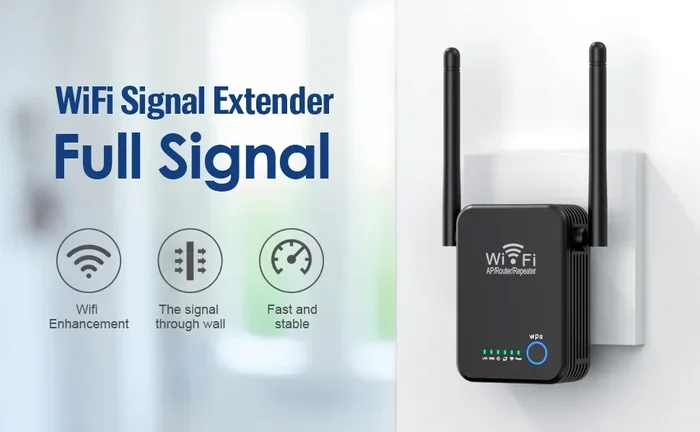
A Wi-Fi range extender is the most common and affordable option. It plugs into a wall outlet and picks up your existing Wi-Fi signal, then rebroadcasts it to areas with weak coverage. These devices are small, easy to set up, and work with most routers. They are a great choice for homes with one or two problem rooms. However, extenders can sometimes cut your speed in half because they use the same radio to receive and send data.
Mesh Wi-Fi Systems
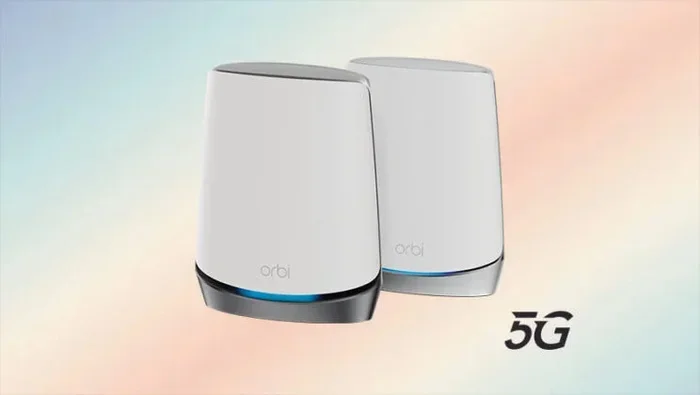
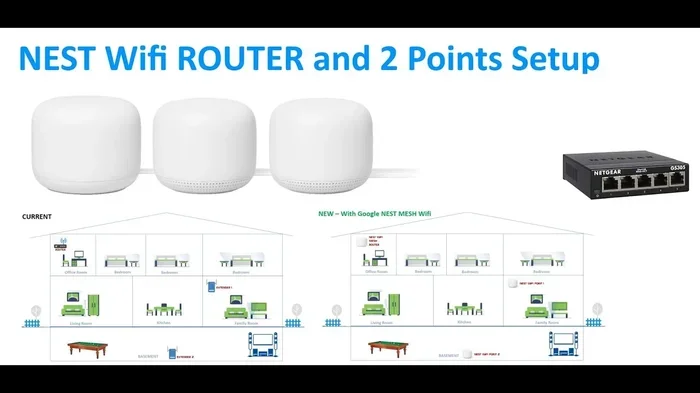
A mesh network is the most advanced and reliable option. It uses multiple units placed around your home that all work together as one seamless network. Unlike a basic extender, a mesh system does not create a separate network name. Your phone or laptop stays connected to the strongest unit automatically. This means no annoying switching between networks as you walk from room to room. Mesh systems are ideal for larger homes or households with many devices. They provide excellent network coverage and consistent wireless signal strength everywhere.
Wi-Fi Repeaters
A Wi-Fi repeater is similar to a range extender but works a little differently. It receives your existing signal and retransmits it at full strength. The key difference is that repeaters often create a separate network name, which can confuse some devices. They are simple to use and cost-effective, making them a popular choice for basic connectivity issues. Just be aware that repeaters can introduce a slight delay, or latency, which may affect online gaming or video calls.
Powerline Adapters
A powerline adapter uses your home’s electrical wiring to carry the internet signal. You plug one adapter near your router and connect it with an Ethernet cable. Then you plug the second adapter in the room where you need better coverage. This method bypasses walls and obstacles entirely. Powerline adapters are a fantastic option for homes with thick walls or multiple floors where wireless signals struggle to penetrate. They provide a stable, wired-like connection through your existing electrical outlets.
Access Points
An access point is a dedicated device that connects to your router via a cable and creates a new Wi-Fi hotspot. This is the most reliable method for extending coverage because it uses a wired backhaul, meaning the connection between the router and the access point does not lose speed. Access points are commonly used in offices and large homes where performance is critical. They require running an Ethernet cable, which can be a bit more work during setup, but the results are worth it.
| Extension Type | Pros | Cons | Best For |
|---|---|---|---|
| Wi-Fi Range Extender | Affordable, easy setup | Can reduce speed by half | Small homes, budget users |
| Mesh Wi-Fi System | Seamless coverage, no speed loss | More expensive | Large homes, many devices |
| Wi-Fi Repeater | Simple, cost-effective | Separate network name, slight latency | Basic coverage needs |
| Powerline Adapter | Stable, bypasses walls | Requires electrical wiring | Thick walls, multi-floor homes |
| Access Point | Maximum reliability and speed | Requires Ethernet cable | Large homes, power users |
How to Choose the Right Wi-Fi Extension for Your Home
Choosing the right extension depends on several factors. Not every solution works for every home, so it helps to think through your specific situation before buying anything.
Assess Your Current Setup
Start by checking your current Wi-Fi signal strength. Walk around your home with your phone and note where the signal drops. Make a quick map of your dead zones. This will tell you exactly how far you need to extend the signal. You can also run a free internet speed test at different spots to measure the actual network speed you are getting. Write down the results so you have a baseline to compare after setup.
Consider Your Home Size and Layout
A small apartment might only need one basic extender. A two-story house with thick walls might benefit from a mesh network or powerline adapters. The layout of your home matters a lot. Open floor plans let signals travel further, while homes with many walls and obstacles need more aggressive solutions. Think about where you use Wi-Fi the most. Do you need strong coverage in the living room, the bedroom, or the backyard? This helps you decide on the type and number of devices you need.
Check Your Router’s Capabilities
Not all routers support every type of extension. If you have a dual-band router, you have more flexibility because it broadcasts on both 2.4 GHz and 5 GHz frequencies. The 2.4 GHz band travels further but is slower. The 5 GHz band is faster but has a shorter range. Make sure your extender or mesh unit supports the same bands as your router. Using mismatched equipment can lead to poor performance and frustration.
Set a Budget
Wi-Fi extensions range from about $20 for a basic extender to $300 or more for a full mesh system. You do not have to spend a fortune to get good results. For most homes, a mid-range Wi-Fi booster or a two-pack mesh system offers the best value. Think about what you are willing to invest and what you expect in return. A reliable extension pays for itself by saving you from dropped calls and buffering videos.
Setting Up Your Wi-Fi Extension: Step-by-Step Guide
Setting up a Wi-Fi extension is easier than most people think. You do not need to be a tech expert to get it working. Here is a simple walkthrough that works for most devices.
Step 1: Find the Sweet Spot for Your Extender
This is the most important step. Place your extender halfway between your router and the area with weak signal. If you put it too close to the router, it will not help the dead zone. If you put it too far away, it will not get a strong enough signal to rebroadcast. The sweet spot is where the extender still receives a solid connection from the router. A good rule of thumb is to stay within one wall or floor of the router.
Step 2: Plug It In and Power It On
Plug your extender or access point into a wall outlet. Wait for the power light to turn on. Most devices have a setup button on the side or back. Press it and wait for the indicator light to flash, which means it is ready to pair with your router.
Step 3: Connect via App or Web Browser
Most modern extenders and mesh units come with a free app. Download the app on your phone, follow the on-screen instructions, and select your Wi-Fi network. Enter your password when prompted. If your device does not have an app, you can log into the extender through a web browser using the IP address printed on the device. The setup process usually takes about five to ten minutes.
Step 4: Test Your Connection
Once setup is complete, walk to the area that previously had weak signal. Open a webpage or run a video. Check your Wi-Fi signal strength on your device. If the signal is strong and the speed is good, you are all set. If not, try moving the extender slightly closer to the router or adjusting its position. Small changes in placement can make a big difference.
Quick Tips for the Best Setup
- Place your extender in an open area, not inside a cabinet or behind furniture.
- Keep the extender away from microwaves and cordless phones, which can cause interference.
- Use the same network name and password as your main router for a seamless experience.
- Update the extender firmware regularly for the best performance and security.
- Restart your extender once a month to keep things running smoothly.
Common Wi-Fi Extension Mistakes to Avoid
Even with the right equipment, people often make mistakes that reduce the effectiveness of their extension. Here are the most common errors and how to avoid them.
Placing the Extender Too Far From the Router
This is the number one mistake. If your extender is too far from the router, it receives a weak signal and can only rebroadcast a weak signal. The result is slow speeds in the extended area. Always check the signal strength at the extender location before finalizing placement. A strong input signal equals a strong output signal.
Ignoring Bandwidth Needs
Not all extenders handle heavy usage well. If you have many devices streaming, gaming, and working from home, a basic extender may struggle. Look for an extender or mesh system that supports the latest Wi-Fi standards, such as Wi-Fi 6. These devices handle more bandwidth and deliver better network speed under heavy load.
Using Outdated Equipment
Older extenders may not support modern speeds or multiple devices efficiently. If your extender is more than five years old, it might be time for an upgrade. Newer Wi-Fi adapters and mesh systems offer dramatically better performance and range. Check the specifications before purchasing to make sure the device supports your internet plan speed.
Forgetting to Secure Your Network
When you set up an extension, make sure it uses the same security settings as your main router. Use WPA3 or WPA2 encryption and a strong password. An open or weakly secured extension can leave your home network vulnerable to unauthorized access. Taking a few extra minutes to secure your setup protects your data and your privacy.
Expert Tips to Maximize Your Wi-Fi Range
Beyond choosing the right extension, there are several expert-backed strategies that can dramatically improve your wireless coverage. These tips come from network professionals and real-world testing.
Optimize Your Router Placement
Your router matters just as much as your extender. Place it in a central location in your home, ideally on a shelf or table at mid-height. Avoid putting it on the floor, inside a closet, or behind a TV. The more open and central your router is, the better the signal spreads. Even a small change in router placement can eliminate several dead zones without adding any extra equipment.
Reduce Interference From Other Devices
Many household devices emit signals on the same frequency as Wi-Fi. Baby monitors, Bluetooth devices, microwaves, and even neighbor networks can all cause interference. Switch your router to the least congested channel using your router settings or app. For 2.4 GHz networks, channels 1, 6, and 11 are usually the best choices. For 5 GHz networks, interference is less of a problem because fewer devices use that band.
Upgrade Your Router If Needed
Sometimes the problem is not the extension but the router itself. Older routers may not support the speeds your internet plan offers. A modern dual-band router or tri-band router can make a huge difference in overall wireless range and performance. If your router is more than four or five years old, consider upgrading it alongside your extension setup.
Run Regular Speed Tests
After setting up your extension, run an internet speed test at different times of day. This helps you understand if your extension is performing consistently. Speeds can vary based on network congestion, time of day, and the number of connected devices. Tracking your results over time helps you spot problems early and adjust your setup as needed.
Consider a Wired Backhaul for Best Performance
If you want the absolute best performance, use a wired connection between your router and the extension. An Ethernet cable or a powerline adapter provides a direct link that does not lose speed. This is especially important for home offices, gaming setups, or any situation where a stable, fast connection is critical. While wireless backhaul is convenient, wired backhaul is always faster and more reliable.
Conclusion
Can I get a extension on my Wi Fi? Absolutely, and now you have all the tools and knowledge to do it right. Whether you choose a simple Wi-Fi range extender, a cutting-edge mesh network, or a reliable powerline adapter, the key is finding the right solution for your home and needs. Remember to assess your dead zones, choose the right extension type, place your equipment wisely, and avoid the common mistakes we covered. A strong, reliable Wi-Fi connection should be standard in every home, not a luxury. Take action today, follow the steps in this guide, and enjoy seamless internet coverage from every room in your house.
Do not let weak signals hold you back anymore. With the right Wi-Fi extension setup, you can stream, work, game, and browse without interruption. Your home network deserves to perform at its best, and now you know exactly how to make that happen.
Frequently Asked Questions
Can I get a extension on my Wi Fi without buying new equipment?
Yes, in some cases you can optimize your existing router settings to improve coverage. Changing the channel, updating firmware, or adjusting the antenna position can help. However, for significant improvements in network coverage, a dedicated extender or mesh device is usually the best solution. Free methods can reduce minor issues but may not eliminate deep dead zones.
Will a Wi-Fi extension slow down my internet speed?
A basic wireless extender can reduce your speed by up to 50 percent because it uses the same radio to receive and send data. Mesh systems and wired backhaul options minimize this speed loss. If maintaining high network speed is important, choose a dual-band or tri-band extender, or use a wired connection for the best results.
What is the difference between a Wi-Fi extender and a Wi-Fi repeater?
The terms are often used interchangeably, but there is a subtle difference. An extender connects to your router wirelessly and rebroadcasts the signal. A repeater does the same but often creates a separate network name. In practice, both serve the same purpose of expanding your wireless range and improving internet coverage in areas with weak signal.
How many Wi-Fi extenders do I need for my home?
This depends on your home size and layout. A small apartment usually needs one extender. A two-story house may need two or three units, especially for a mesh network system. The best approach is to identify your dead zones first and then add enough devices to cover each weak area. Start with one and test before adding more.
Can I use a Wi-Fi extension outdoors?
Standard indoor extenders are not designed for outdoor use and may be damaged by weather. However, some manufacturers offer weather-resistant access points designed for outdoor coverage. For backyard or patio connectivity, look for outdoor-rated equipment or consider mounting an indoor extender in a sheltered, enclosed area near a window facing the outdoor space.
Is a mesh Wi-Fi system worth the extra cost?
For most homes, yes. Mesh systems provide seamless coverage without speed drops, automatic device switching, and easy management through a phone app. They are especially worth it for larger homes, multi-floor buildings, or households with many connected devices. While the upfront cost is higher than a basic extender, the long-term performance and reliability make mesh networks a smart investment for your home network.