How Can I Play Music From My Phone Through Uconnect
You can absolutely play music from your phone through Uconnect using Bluetooth, a USB cable, Apple CarPlay, or Android Auto. This guide walks you through every connection method so you can stream your favorite songs, podcasts, and playlists hands-free. Whether you own a Jeep, Dodge, Chrysler, or Ram, Uconnect makes it simple to turn your vehicle into a personal concert venue on wheels.
Key Takeaways
- Bluetooth is the easiest way to wirelessly play music from your phone through Uconnect without any cables.
- USB connection offers stable playback and can charge your phone at the same time while you listen.
- Apple CarPlay and Android Auto give you access to apps like Spotify, Pandora, and Apple Music directly on your Uconnect screen.
- Bluetooth pairing is quick but you may need to troubleshoot if the connection drops or audio skips.
- Voice commands let you control music safely while driving without touching your phone.
- Audio quality depends on your method — Bluetooth compresses audio slightly, while USB delivers a cleaner signal.
- Keeping your phone and Uconnect software updated prevents most connectivity issues.
📑 Table of Contents
- What Is Uconnect and How Does It Work for Music?
- How to Connect Your Phone to Uconnect via Bluetooth
- Playing Music Using a USB Cable with Uconnect
- Using Apple CarPlay and Android Auto with Uconnect
- Troubleshooting Common Music Playback Issues
- Tips for the Best Audio Experience Through Uconnect
- Expert Insights on Uconnect Music Playback
- Key Takeaways
- Conclusion
What Is Uconnect and How Does It Work for Music?
Uconnect is a vehicle infotainment system found in Chrysler, Dodge, Jeep, and Ram vehicles. It serves as the central hub for navigation, phone calls, and of course, music playback. The system connects to your smartphone in several ways, making it one of the most versatile vehicle entertainment platforms on the road today.
When you play music from your phone through Uconnect, you are using your car’s built-in speakers and audio system. This means you get better sound quality than holding your phone in your hand. The system supports wireless connections and wired options, giving you flexibility based on your vehicle model and personal preference.
The beauty of Uconnect lies in its simplicity. You do not need to be a tech expert to get it working. Whether you are commuting to work or heading out on a road trip, Uconnect smartphone integration keeps your music streaming without hassle.
Why Uconnect Stands Out for Music Lovers
Not all factory infotainment systems are created equal. Uconnect offers a user-friendly touchscreen interface that makes browsing your music library a breeze. The system supports hands-free calling alongside music playback, so you can switch between calls and songs seamlessly.
Another advantage is the wide range of supported apps. You can access music streaming apps like Spotify, Pandora, Amazon Music, and Apple Music directly through the system. This means your entire music collection is just a tap away, even while you are driving.
How to Connect Your Phone to Uconnect via Bluetooth
Bluetooth is the most popular way to stream music wirelessly through Uconnect. It eliminates the need for cables and lets you keep your phone in your pocket or purse. The setup process takes less than a minute in most cases.
Step-by-Step Bluetooth Pairing Guide
Follow these simple steps to pair your phone with Uconnect:
- Turn on your vehicle and press the Uconnect Phone button on the steering wheel or touchscreen.
- Select “Phone Settings” from the main menu on the Uconnect display.
- Choose “Bluetooth Settings” and then tap “Add New Device.”
- On your phone, go to Settings and turn on Bluetooth.
- Search for available devices and select “Uconnect” when it appears.
- Enter the PIN shown on your Uconnect screen if prompted.
- Once paired, select “Audio” to enable music streaming.
After pairing, your phone will automatically connect to Uconnect whenever you start your vehicle. This seamless Bluetooth connectivity means you never have to repeat the setup process.
Managing Multiple Devices
Uconnect can remember several paired devices at once. This is great if you share your car with a partner or family member. The system will prompt you to select which device you want to connect when you start the car.
Quick Tip: If your phone connects but music does not play, check that the audio profile is enabled. Go to your phone’s Bluetooth settings and make sure “Media Audio” is turned on for the Uconnect connection.
Playing Music Using a USB Cable with Uconnect
Not everyone wants to rely on Bluetooth. A USB cable connection offers a more stable link between your phone and Uconnect. It also charges your phone while you listen, which is a huge plus on long drives.
Which USB Cable and Port Should You Use?
Most Uconnect systems have a USB port located in the center console or armrest. Use a high-quality USB cable — preferably the one that came with your phone. Cheap cables can cause connection issues or poor audio quality.
Once plugged in, your phone should appear as a media source on the Uconnect screen. Navigate to the “Media” or “USB” option and browse your music library. You can also access playlists, albums, and artists just like you would on your phone.
USB vs. Bluetooth: Which Is Better?
Both options have their strengths. Here is a quick comparison to help you decide:
| Feature | Bluetooth | USB Cable |
|---|---|---|
| Wireless Convenience | Yes | No |
| Audio Quality | Good | Better |
| Phone Charging | No | Yes |
| Setup Time | Fast | Very Fast |
| Cable Needed | No | Yes |
| Signal Stability | Good | Excellent |
If you prioritize sound quality and reliability, USB connection is the better choice. If you want convenience and freedom from cables, Bluetooth wins hands down.
Using Apple CarPlay and Android Auto with Uconnect
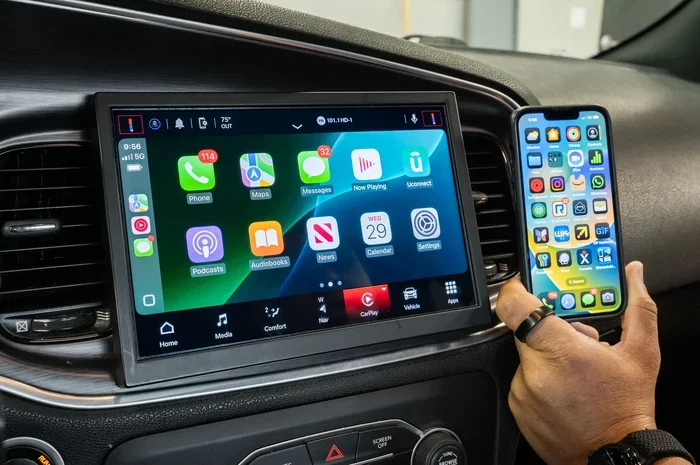
Apple CarPlay and Android Auto are game-changers for Uconnect smartphone integration. These systems mirror your phone’s interface on your car’s screen, giving you access to apps, maps, and music in a safer, driver-friendly way.
Setting Up Apple CarPlay on Uconnect
If you have an iPhone, CarPlay makes it incredibly easy to access your music apps. Connect your iPhone using a Lightning cable or wirelessly if your Uconnect model supports it. The CarPlay interface will appear on screen, and you can open Apple Music, Spotify, or any compatible music streaming app.
CarPlay also supports Siri voice commands. You can say “Hey Siri, play my workout playlist” and the music starts instantly. This keeps your eyes on the road and your hands on the wheel.
Setting Up Android Auto on Uconnect
Android users get a similar experience with Android Auto. Plug in your phone via USB or connect wirelessly. The Auto interface loads on your Uconnect screen, giving you access to Google Maps, Spotify, YouTube Music, and more.
You can use Google Assistant to control your music with your voice. Say “Hey Google, play jazz on Pandora” and the system responds immediately. Voice control is one of the biggest safety benefits of using these platforms.
Which Music Apps Work with CarPlay and Android Auto?
Most popular music streaming apps are compatible with both CarPlay and Android Auto. Here are some of the top options:
- Spotify — Access your playlists, podcasts, and curated playlists
- Apple Music — Stream millions of songs with Siri integration
- Pandora — Enjoy personalized radio stations
- Amazon Music — Stream your library or Prime Music
- YouTube Music — Access official tracks and remixes
- Podcast apps — Listen to your favorite shows on the road
The key advantage is that these apps run on your car’s screen, not just your phone. This means you get a larger display and easier controls while driving.
Troubleshooting Common Music Playback Issues
Even with a great system like Uconnect, you may run into occasional hiccups. Bluetooth music playback problems are the most common complaint among users. Here is how to fix them.
Music Keeps Pausing or Skipping
If your music cuts out or skips, the first thing to check is your Bluetooth signal strength. Move your phone closer to the Uconnect system. Walls, other electronic devices, and even your own body can interfere with the wireless signal.
Try turning Bluetooth off and back on both on your phone and in the Uconnect settings. This simple reset often resolves audio streaming issues immediately.
Phone Connects but No Sound
This is a common issue and usually easy to fix. Check that the media audio option is enabled in your phone’s Bluetooth settings. Also, make sure the Uconnect volume is turned up and not muted.
Sometimes the audio source needs to be manually selected. On the Uconnect screen, navigate to “Media” and choose “Bluetooth Audio” as the input source.
USB Connection Not Recognized
If your phone does not show up when plugged in via USB, try a different cable or a different USB port. Some cables are charge-only and do not support data transfer. Also, check that your phone is unlocked — some devices require you to tap “Allow” on the phone screen before the Uconnect system can access your media files.
Common Mistake: Using a damaged or low-quality USB cable is the number one cause of connection failures. Always use the cable that came with your phone or a certified replacement.
Uconnect Screen Freezes During Music Playback
A frozen screen can be frustrating. Try restarting the Uconnect system by holding the power button for about 10 seconds. If that does not work, a full system reboot may be needed. Consult your vehicle’s owner manual for specific reset instructions.
Tips for the Best Audio Experience Through Uconnect
Getting your phone connected is only half the battle. To truly enjoy your music, you need to optimize your setup. Here are some proven tips for the best audio quality through Uconnect.
Adjust EQ Settings in Uconnect
Uconnect comes with built-in equalizer settings. Go to the audio settings and experiment with presets like “Rock,” “Jazz,” or “Pop.” You can also create a custom EQ profile that matches your favorite genre. This small adjustment can make a big difference in sound clarity and depth.
Keep Your Phone Close to the Vehicle
For Bluetooth connections, keeping your phone within a few feet of the Uconnect system ensures a strong, stable signal. Avoid placing your phone in the back seat or trunk if you are using wireless streaming.
Update Your Software Regularly
Both your phone and your Uconnect system receive software updates. These updates often include Bluetooth connectivity improvements and bug fixes. Check for updates regularly to keep everything running smoothly.
Use High-Quality Audio Files
If you store music on your phone, use high-quality files whenever possible. MP3 files at 320 kbps or lossless formats like FLAC will sound much better than compressed low-bitrate tracks. The better the source file, the better the output through your car’s speakers.
Clean Your USB Port
Dust and debris can accumulate in your USB port over time. Use a soft brush or compressed air to keep it clean. A dirty port can cause intermittent connection problems that look like bigger issues.
Expert Insights on Uconnect Music Playback
According to automotive audio experts, the best way to get premium sound through Uconnect is by combining a wired USB connection with high-quality audio files. Bluetooth is convenient, but it compresses audio data slightly, which can reduce fidelity.
Here is what specialists recommend:
- Use USB for critical listening sessions where sound quality matters most
- Use Bluetooth for everyday convenience and quick connections
- Take advantage of CarPlay and Android Auto for access to the latest app features
- Invest in a Bluetooth adapter if your older Uconnect model does not support wireless streaming natively
- Consider an FM transmitter as a backup option if your Uconnect system lacks Bluetooth
Expert Insight: Many drivers do not realize that Uconnect systems from 2015 and newer support wireless CarPlay and Android Auto. If you own an older vehicle, an aftermarket adapter can add these features and transform your listening experience.
Key Takeaways
- Bluetooth is the easiest way to wirelessly play music from your phone through Uconnect without any cables.
- USB connection offers stable playback and can charge your phone at the same time while you listen.
- Apple CarPlay and Android Auto give you access to apps like Spotify, Pandora, and Apple Music directly on your Uconnect screen.
- Bluetooth pairing is quick but you may need to troubleshoot if the connection drops or audio skips.
- Voice commands let you control music safely while driving without touching your phone.
- Audio quality depends on your method — Bluetooth compresses audio slightly, while USB delivers a cleaner signal.
- Keeping your phone and Uconnect software updated prevents most connectivity issues.
Conclusion
Playing music from your phone through Uconnect is simple, convenient, and incredibly rewarding. Whether you choose Bluetooth, USB, CarPlay, or Android Auto, you have multiple reliable options at your fingertips. The system was designed to make your driving experience more enjoyable, and it delivers on that promise every time.
Start with the method that fits your lifestyle. If you want wireless freedom, go with Bluetooth. If you want the best sound quality, plug in via USB. If you want access to all your favorite apps, use CarPlay or Android Auto. No matter which path you choose, Uconnect makes it easy to enjoy your music on the road.
Take a few minutes today to set up your connection. Once it is working, you will wonder how you ever drove without it. Your phone is a powerful music machine — Uconnect is the perfect bridge between your playlist and your speakers.
Frequently Asked Questions
Can I play music from multiple phones through Uconnect?
Yes, Uconnect can remember multiple paired devices. When you start your vehicle, the system will prompt you to select which phone you want to connect. You can switch between devices easily through the Bluetooth settings menu on the Uconnect screen.
Does playing music through Uconnect drain my phone battery?
Bluetooth streaming uses more battery than normal playback because it keeps a constant wireless connection active. Using a USB cable actually helps because it charges your phone while you listen. To conserve battery, consider lowering your screen brightness or using voice commands instead of touching the screen.
Can I control volume when my phone is connected to Uconnect?
Absolutely. You can control the volume using the steering wheel buttons, the Uconnect touchscreen, or voice commands. When your phone is connected, the volume controls on the Uconnect system manage the audio output to your car’s speakers.
What should I do if Uconnect does not recognize my phone?
First, make sure Bluetooth is turned on and your phone is visible to other devices. Delete the existing Uconnect pairing from your phone and from the car system, then try pairing again. If the issue persists, restart both your phone and the Uconnect system. A simple reset solves most recognition problems.
Can I use Spotify and other apps through Uconnect?
Yes, if you use Apple CarPlay or Android Auto, you can access Spotify, Pandora, Amazon Music, and many other apps directly through the Uconnect screen. These apps run on the car’s display and can be controlled using the touchscreen or voice commands, keeping your eyes on the road.
Is there a difference in audio quality between Bluetooth and USB on Uconnect?
Yes, there is a noticeable difference. USB delivers a direct digital signal that preserves more of the original audio quality. Bluetooth compresses the audio slightly to transmit it wirelessly. For critical listening, USB is the better option. For everyday use, Bluetooth quality is more than adequate for most listeners.