Can I Project An Image From My Iphone Onto A Screen
Yes, you can project an image from your iPhone onto a screen using several simple methods. Whether you prefer a wired connection with an HDMI adapter or a wireless setup using AirPlay, the process is easier than most people think. This guide walks you through every option so you can choose the best method for your needs.
This is a comprehensive guide about Can I Project An Image From My Iphone.
Key Takeaways
- Multiple projection methods exist: You can use wired adapters, AirPlay, or third-party apps to project your iPhone screen.
- Wired connections offer reliability: A Lightning to HDMI adapter provides a stable, lag-free projection every time.
- Wireless projection is convenient: AirPlay and apps like Replica or AirScreen let you cast without cables.
- Not all projectors work with iPhones: You need a projector or display that supports HDMI input or AirPlay compatibility.
- Apps enhance your options: Dedicated projection apps unlock extra features like screen recording and custom layouts.
- Troubleshooting is straightforward: Most issues with iPhone projection can be fixed with simple steps like restarting devices or updating software.
[FEATURED_IMAGE_PLACEHOLDER]
Have you ever wanted to share photos, videos, or presentations from your iPhone on a bigger screen? Maybe you are at a family gathering and want to show off vacation pictures. Or perhaps you need to give a work presentation and your laptop is nowhere to be found. Whatever the reason, the question can I project an image from my iPhone comes up more often than you might think.
The good news is that projecting your iPhone screen is not only possible but also surprisingly simple. You have several options ranging from a quick wired setup to wireless casting that feels like magic. In this guide, we will walk you through every method, tool, and tip you need to know. By the end, you will feel confident projecting your iPhone content onto any screen in the room.
Let us dive right in and explore how to make your iPhone images big and bold on any display.
Can I Project An Image From My Iphone Onto A Screen
The short answer is yes. You can project an image from your iPhone onto a screen with very little effort. The method you choose depends on your equipment, your budget, and how much convenience you want.
There are two main paths to projection: wired and wireless. Each has its own strengths. Wired connections tend to be more stable and reliable. Wireless connections offer freedom of movement and fewer cables. Let us look at both so you can decide what works best for your situation.
Why Would You Want to Project Your iPhone Screen
Before we get into the how, let us talk about the why. There are many practical reasons to project your iPhone onto a larger screen:
- Presentations at work or school: Share slides, documents, or notes with a room full of people without needing a laptop.
- Movie nights: Stream Netflix, YouTube, or your personal video library on a big projector screen for a cinematic experience.
- Photo sharing: Show your best shots from a trip or event to friends and family on a large display.
- Gaming: Play mobile games on a bigger screen for a more immersive experience.
- Teaching and training: Demonstrate apps, walk through tutorials, or display instructional content to a group.
- Business meetings: Present data, charts, or reports directly from your iPhone during client calls.
No matter your reason, knowing how to project your iPhone gives you flexibility. You are no longer tied to a specific device or setup.
Wired Methods to Project Your iPhone Screen
Wired projection is the most straightforward way to display your iPhone on a screen. It requires minimal setup and delivers a reliable connection every time. If you have ever wondered how to get your iPhone image onto a projector or monitor, the wired route is often the fastest solution.
Using a Lightning to HDMI Adapter
The most popular wired method is the Lightning to HDMI adapter. This small dongle plugs directly into your iPhone’s charging port and connects to an HDMI cable on the other end. You then plug the HDMI cable into any projector or monitor with an HDMI input.
Here is how it works in simple steps:
- Plug the Lightning end of the adapter into your iPhone.
- Connect an HDMI cable to the adapter.
- Plug the other end of the HDMI cable into your projector or TV.
- Switch your projector or TV to the correct HDMI input.
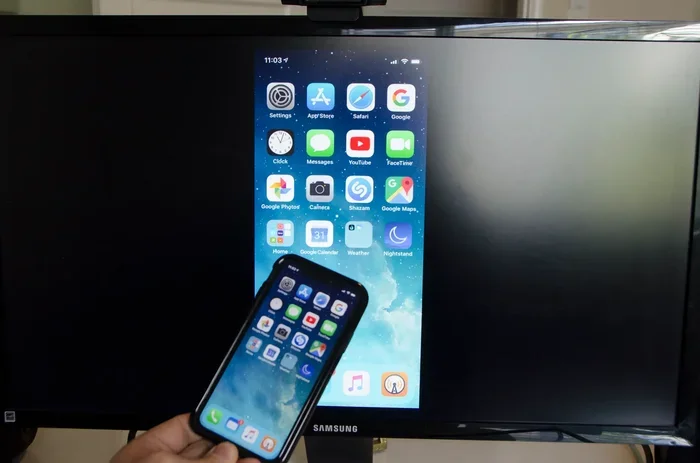
- Your iPhone screen should now appear on the larger display.
Apple sells its own version called the Lightning to Digital AV Adapter. It works reliably with most projectors and TVs. Third-party options are also available and tend to be more affordable. Just make sure you buy one that supports video output.
Quick Tip: Always charge your iPhone before a long projection session. Screen mirroring uses battery power quickly, and you do not want your phone dying mid-presentation.
USB-C to HDMI for Newer iPhones
If you have an iPhone 15 or 16 model, you are in luck. These phones use USB-C instead of Lightning. A USB-C to HDMI adapter works the same way as the Lightning version but connects to your newer iPhone’s port. The setup process is identical and equally simple.
USB-C adapters tend to offer faster data transfer and better video quality. They also charge your phone while you project, which is a huge bonus during long sessions.
Pros and Cons of Wired Projection
| Pros | Cons |
|---|---|
| Stable, lag-free connection | Limited by cable length |
| Works with almost any projector or TV | Requires carrying extra adapters |
| No Wi-Fi needed | Cannot move freely around the room |
| Simple plug-and-play setup | Adapters can be easy to lose |
Wired projection is ideal for situations where reliability matters most. If you are giving a professional presentation or teaching a class, a cable connection gives you peace of mind. You do not have to worry about Wi-Fi drops or lag spikes interrupting your flow.
Wireless Methods to Project iPhone Images
Wireless projection is where things get really exciting. You can cast your iPhone screen without any cables at all. This method is perfect for casual use, movie nights, and situations where you want to move around freely.
Using AirPlay for Wireless Projection
AirPlay is Apple’s built-in wireless streaming technology. It lets you mirror your iPhone screen to compatible devices like Apple TV, AirPlay-enabled projectors, and smart TVs. If you have an iPhone and an AirPlay-compatible display, you are already set up.
Here is how to use AirPlay to project your iPhone image:
- Make sure your iPhone and the receiving device are on the same Wi-Fi network.
- Open the Control Center by swiping down from the top-right corner of your screen.
- Tap the Screen Mirroring button (it looks like two overlapping rectangles).
- Select your projector or TV from the list of available devices.
- Your iPhone screen will now appear on the larger display.
AirPlay is incredibly easy to use. The connection is seamless, and the quality is excellent when you have a strong Wi-Fi signal. Most modern smart TVs and projectors support AirPlay natively.
Using an AirPlay Receiver
If your projector or TV does not have built-in AirPlay support, you can add it with an AirPlay receiver device. Products like the Apple TV box connect to any display with an HDMI port and add wireless streaming capabilities. You plug the Apple TV into your projector, connect it to Wi-Fi, and your iPhone can mirror to it instantly.
Other AirPlay receivers from brands like Roku, Amazon Fire TV Stick, and various streaming dongles also work well. They are affordable and turn any projector into a wireless-friendly display.
Third-Party Wireless Projection Apps
Not all projectors support AirPlay. In those cases, third-party apps come to the rescue. Apps like Replica, AirScreen, and LetsView allow you to mirror your iPhone screen to almost any device on the same network.
These apps work by creating a local connection between your iPhone and the receiving device. They are especially useful in office settings where IT departments control the network and may restrict AirPlay access.
Most of these apps are free or offer free tiers with basic functionality. The paid versions often include extra features like higher resolution streaming and screen recording.
Using Chromecast with iPhone
You can also use a Google Chromecast device to project your iPhone screen. While Chromecast is primarily designed for Android, it works with iPhones through compatible apps. Apps like Google Home and Replica support casting to Chromecast devices. The setup is straightforward and works well for most everyday uses.
Best Apps for Projecting iPhone Images
The right app can make your iPhone projection experience much better. Some apps focus on simple mirroring, while others offer advanced features like annotations, recording, and custom layouts. Here are some of the best options available right now.
Replica Screen Mirroring
Replica is one of the most popular screen mirroring apps for iPhone. It lets you cast your screen to any device on the same Wi-Fi network. The app is easy to use and delivers smooth, real-time mirroring. It works great for sharing photos, videos, and presentations.
AirScreen
AirScreen turns any display into an AirPlay receiver. It supports both screen mirroring and media streaming. The app is lightweight and works well on Windows PCs, Android devices, and smart TVs. It is a great option if you do not own an Apple TV.
Epson iProjection
If you use an Epson projector, the Epson iProjection app is a must-have. It lets you project images, documents, and web pages directly from your iPhone to compatible Epson projectors. The app also supports wireless printing and file transfer.
BenQ Projector Apps
BenQ projectors come with their own dedicated apps that allow wireless projection from iPhones. These apps provide controls for zoom, focus, and input switching right from your phone. They make the projection setup process much smoother.
Mirroring360
Mirroring360 is a powerful screen mirroring solution that works across devices and platforms. It supports iPhone projection to projectors, TVs, and computers. The app uses a small hardware dongle or software receiver to enable wireless casting. It is a solid choice for professional environments.
Choosing the Right Projector for iPhone Projection
Not all projectors are created equal when it comes to working with iPhones. Some projectors have built-in wireless support, while others only accept wired connections. Choosing the right one can save you a lot of frustration.
What to Look for in a Projector
When shopping for a projector to use with your iPhone, keep these factors in mind:
- HDMI input: Every projector should have at least one HDMI port for wired connections.
- AirPlay support: Look for projectors that support AirPlay natively for wireless convenience.
- Wi-Fi connectivity: Built-in Wi-Fi lets you connect to your home network without extra devices.
- Brightness: Measured in lumens, higher numbers mean a brighter image. For indoor use, 2,000 lumens is a good starting point.
- Resolution: At least 1080p (Full HD) ensures a sharp, clear image when projecting from your iPhone.
- Portability: If you travel often, look for compact, lightweight projectors that are easy to carry.
Top Projector Picks for iPhone Users
Here are some projectors that work exceptionally well with iPhones:
- Epson EpiqVision Mini EF12: A portable projector with built-in Android TV and AirPlay support. Great for home use.
- BenQ TH585: A popular choice for home theater with strong brightness and reliable HDMI input.
- Anker Nebula Capsule 3: A ultra-portable projector with built-in battery, Wi-Fi, and AirPlay support.
- XGIMI Halo+: A premium portable projector with excellent image quality and wireless casting.
- Apple TV 4K paired with any HDMI projector: Turns any projector into an AirPlay-ready display.
Common Mistakes When Projecting iPhone Images
Even with the right equipment, things can go wrong. Here are some common mistakes people make when trying to project an image from their iPhone, and how to avoid them.
Using the Wrong Adapter
Not all adapters work with all iPhones. Make sure you buy the correct adapter for your model. Lightning adapters will not work with USB-C iPhones, and vice versa. Check your iPhone model before purchasing any adapter.
Ignoring Wi-Fi Quality
Wireless projection depends heavily on your Wi-Fi connection. A weak or congested network causes lag, stuttering, and dropped connections. If you are experiencing issues, try moving closer to your router or switching to a less crowded frequency band.
Forgetting to Update Software
Outdated iOS software can cause compatibility issues with projection methods. Always keep your iPhone updated to the latest version of iOS. Similarly, update your projector’s firmware and any apps you use for casting.
Not Testing Before the Big Moment
Never set up your projection equipment for the first time right before a presentation or event. Test everything days in advance. This gives you time to troubleshoot any issues and find the right settings.
Overlooking Audio Output
Sometimes the video projects fine but the sound does not. Check your audio settings on both the iPhone and the projector. You may need to select the correct audio output in your iPhone’s Control Center or sound settings.
Expert Tips for the Best iPhone Projection Experience
Want to take your iPhone projection to the next level? Here are some expert tips that make a real difference.
Use a Dedicated Projection App for Presentations
Apps like Keynote and PowerPoint have built-in projection modes that optimize your slides for big screens. They let you control the presentation from your iPhone while the audience sees the full display. This is much better than mirroring your entire screen.
Turn on Do Not Disturb
Nothing ruins a projection session like incoming notifications popping up on the big screen. Turn on Do Not Disturb mode before you start projecting. You can find this in your Control Center or in Settings.
Adjust Brightness and Contrast
Projectors have their own brightness settings. Match them to your room’s lighting for the best image quality. In a dark room, lower the projector brightness slightly. In a bright room, crank it up for visibility.
Keep Your iPhone Charged or Plugged In
Screen mirroring drains battery fast. For sessions longer than 30 minutes, keep your iPhone plugged into a power source. This prevents unexpected shutdowns and keeps your projection running smoothly.
Use Landscape Mode for Videos and Presentations
Rotate your iPhone to landscape mode before projecting. Most projectors and TVs are widescreen, and landscape orientation fills the display properly. Portrait mode leaves awkward black bars on the sides.
Troubleshooting iPhone Projection Problems
Even the best setups can encounter issues. Here is how to fix the most common problems when projecting your iPhone screen.
No Image Appears on the Screen
Check that all cables are securely connected. If using a wired adapter, try a different HDMI cable or port. For wireless projection, confirm both devices are on the same Wi-Fi network. Restart both your iPhone and the receiving device if needed.
Image Looks Fuzzy or Pixelated
Lower resolution settings on your iPhone can cause a blurry projected image. Go to Settings, then Display & Brightness, and check your screen resolution. Also make sure your projector is set to its native resolution for the sharpest picture.
Lag or Delay During Projection
Wireless lag is usually caused by a weak Wi-Fi signal. Move your router closer to the projection setup or reduce the number of devices using the network. For wired connections, try a different adapter or cable.
Audio Is Not Working
Check the audio output settings on your iPhone. Go to Control Center and make sure the correct device is selected for audio output. On the projector side, verify that the volume is turned up and not muted.
Conclusion
So, can I project an image from my iPhone onto a screen? Absolutely. You have more options than ever before, from simple wired adapters to seamless wireless casting with AirPlay. Whether you need to share photos at a party, present at work, or enjoy a movie night, projecting your iPhone screen is easier than you think.
The key is choosing the right method for your setup. If you value reliability and simplicity, a wired HDMI adapter is hard to beat. If you want freedom and convenience, AirPlay or a wireless projection app is the way to go.
Start with the method that fits your needs best. Test it out, play with the settings, and soon you will be projecting your iPhone images like a pro. The big screen is waiting for you.
Frequently Asked Questions
Do I need a special projector to project images from my iPhone?
Not necessarily. Any projector or TV with an HDMI input will work with a wired adapter. For wireless projection, you need an AirPlay-compatible device or an AirPlay receiver. Many modern smart TVs and projectors support AirPlay natively.
Can I project my iPhone screen to a projector without Wi-Fi?
Yes. Wired methods like the Lightning to HDMI adapter or USB-C to HDMI adapter do not require Wi-Fi at all. You simply connect the cables and your iPhone screen appears on the projector immediately.
Is it free to project my iPhone onto a screen?
Yes and no. Wired adapters cost between $10 and $40. AirPlay is free if you already own an Apple TV or AirPlay-compatible TV. Third-party apps may have free versions with optional paid upgrades. The basic projection experience can be very affordable.
Can I project just one app instead of my entire iPhone screen?
Yes. Some apps like Netflix and YouTube have a built-in cast button that lets you stream content to a projector without mirroring your entire screen. This saves battery and keeps your notifications private while the video plays on the big screen.
Why is my projected iPhone image rotated or stretched?
This usually happens when your iPhone is in portrait mode or the aspect ratio does not match the projector. Rotate your iPhone to landscape mode for the best fit. You can also adjust the projector’s aspect ratio settings to match your iPhone’s display.
Can I use a projector with my iPhone for gaming?
Yes, you can. Wired projection offers the lowest latency, making it ideal for gaming. Wireless methods may have slight delays that affect fast-paced games. For the best gaming experience, use an HDMI adapter for lag-free projection.
Frequently Asked Questions
What is Can I Project An Image From My Iphone?
Can I Project An Image From My Iphone is an important topic with many practical applications.