Can I Project My Phone To A Projector Without Wires
Yes, you can project your phone to a projector without any wires. Wireless screen mirroring lets you cast your phone screen to any projector using WiFi, dedicated apps, or a wireless HDMI dongle. Whether you have an iPhone or Android device, this guide covers every method, app, and tip you need for cable-free projection that actually works.
Have you ever wanted to show something on your phone to a big screen? Maybe you are at a meeting, hosting a movie night, or giving a presentation. The thought of fumbling with cables can be frustrating. The good news is that can I project my phone to a projector has a simple answer: yes, and you do not need any wires at all.
Wireless phone projection has become incredibly easy. Whether you have an iPhone or an Android device, you can cast your screen to a projector in just a few steps. In this guide, we will walk you through every method, every app, and every tip you need. By the end, you will know exactly how to get your phone screen on a big display without wires. No special skills are needed. No expensive equipment is required. Just a few simple tools and a little patience.
People use wireless smartphone projection for all kinds of reasons. Teachers show lessons on a big screen. Business professionals share slides during meetings. Families watch movies on a wall during movie night. The possibilities are endless. And the technology behind it has gotten so good that the experience feels almost seamless. Let us dive into how it all works.
Key Takeaways
- Multiple wireless methods exist: You can use WiFi Direct, Miracast, AirPlay, Chromecast, or dedicated apps to cast phone to projector without cables.
- No special projector needed: Most modern projectors support wireless connectivity, and older models work with simple adapters and dongles.
- Apps make it easy: Free and paid apps like Screen Mirroring, AirScreen, and Epson iProjection simplify the wireless phone projection process.
- Latency matters: Wireless projection may have slight delays, which is fine for movies but can affect gaming or live digital presentation settings.
- Setup takes minutes: Most wireless connections can be established in under five minutes with no technical skills required.
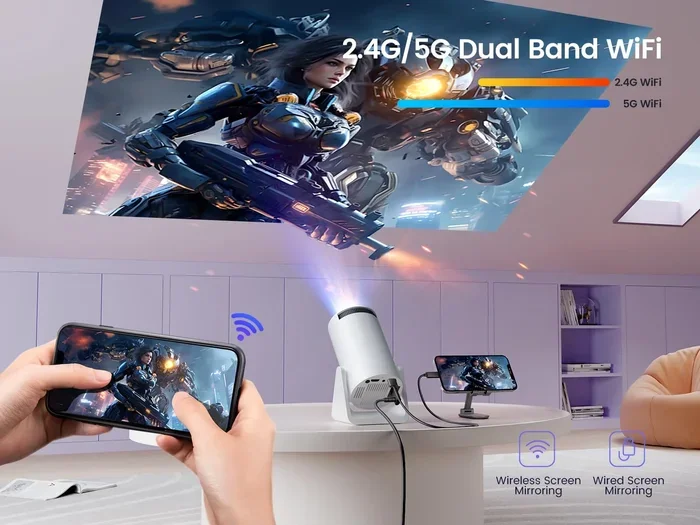
- 5GHz WiFi is best: For the smoothest mobile casting experience, always use a 5GHz network over 2.4GHz when possible.
📑 Table of Contents
- How Wireless Phone-to-Projector Connection Works
- Best Methods to Project Your Phone to a Projector Without Wires
- Top Apps and Devices for Wireless Projection
- Step-by-Step Setup Guide for Wireless Projection
- Common Mistakes and How to Avoid Them
- Expert Tips for the Best Wireless Projection Experience
- Conclusion
How Wireless Phone-to-Projector Connection Works
Before you start projecting, it helps to understand the basics. When you project my phone to a projector wirelessly, you are sending your screen content through the air. This happens using radio signals, WiFi, or Bluetooth technology. Your phone acts as the sender, and the projector (or a connected device) acts as the receiver. The process is simpler than most people think.
WiFi Direct and Screen Mirroring
Most wireless projection uses WiFi Direct. This creates a direct connection between your phone and the projector. No router is needed. Your phone finds the projector, and they talk to each other. This is how screen mirroring works on most devices. The image appears on the projector in real time, or very close to it. WiFi Direct is the backbone of most wireless display solutions today.
Miracast and AirPlay Protocols
Two main protocols power wireless projection. Miracast is used by most Android phones and Windows devices. AirPlay is Apple’s proprietary protocol for iPhones and iPads. Both allow you to cast phone to projector seamlessly. If your projector supports either of these, you are already halfway there. These protocols handle the video and audio transfer automatically. You just tap a button and the magic happens.
Dedicated Wireless Modules
Some projectors come with built-in WiFi modules. Others need a small external device, like a dongle or adapter. These modules handle the wireless connection so your phone can send content without any cables. This is one of the simplest ways to achieve cable-free projection in any room. Even older projectors can gain wireless projector connectivity with the right add-on device.
Best Methods to Project Your Phone to a Projector Without Wires
There are several ways to project my phone to a projector wirelessly. Each method has its strengths. Let us look at the most popular options for wireless phone projection.
Method 1: WiFi Direct (Built-In Wireless)
Many modern projectors have WiFi Direct built right in. You just go to your phone’s screen mirroring or cast settings. The projector appears as an available device. Tap it, and your screen appears on the big display. This method works great for movies, slideshows, and casual viewing. It is the easiest option if your projector supports it.
Quick Tip: Make sure your phone and projector are on the same WiFi network if WiFi Direct is not available. Sometimes they need to be paired first through the projector’s settings menu. Restarting both devices before connecting can also solve many issues.
Method 2: Using a Wireless HDMI Dongle
A wireless HDMI dongle is a small device you plug into the projector’s HDMI port. It creates a wireless bridge between your phone and the projector. Popular options include Google Chromecast, Amazon Fire TV Stick, and Microsoft Wireless Display Adapter. These devices are affordable and very reliable. They turn any projector into a WiFi projector capable of receiving content from your phone.
Quick Tip: For the best experience, use a 5GHz WiFi band. It reduces lag and gives you a smoother picture. A 2.4GHz band can work but may have more delay. If your router supports dual-band, switch to 5GHz for the smoothest screen casting experience.
Method 3: Using a Smart Projector
Smart projectors come with built-in apps and WiFi. They run on Android TV or similar operating systems. You can mirror your phone directly using built-in casting features. Brands like Anker, Nebula, and XGIMI make excellent smart projectors that support wireless display out of the box. These devices are perfect for people who want an all-in-one solution.
Common Mistake: Do not assume all projectors labeled “smart” support screen mirroring. Always check the specs before buying. Some smart projectors only support app streaming, not direct phone mirroring. Read the product description carefully to confirm mobile casting support.
Method 4: Using Projector-Specific Apps
Many projector brands offer their own apps. For example, Epson has Epson iProjection, and BenQ has the BenQ projector app. These apps let you send content from your phone to the projector over WiFi. They often include extra features like remote control and file sharing. These branded apps are optimized for their specific projectors, which means fewer connection problems.
Expert Insight: According to AV industry professionals, branded apps often provide the most stable connection. They are optimized for the specific projector model, which reduces lag and improves image quality compared to generic mirroring solutions. If your projector has a dedicated app, start there.
Top Apps and Devices for Wireless Projection
Choosing the right app or device can make all the difference. Here are some of the best options for wireless phone projection and projector screen mirroring.
Best Apps for Android Users
- Screen Mirroring App: A free app that works with most projectors. It supports Miracast and WiFi Direct for easy smartphone projection.
- AirScreen: Turns your projector into an AirPlay and Miracast receiver. Very versatile and works with many devices.
- Epson iProjection: Official Epson app. Great for Epson projector owners who want reliable projector connectivity.
- ApowerMirror: A powerful app that supports both Android and iOS. Offers high-quality mirroring with minimal lag.
- LetsView: Free and easy to use. Works well for presentations and casual mobile casting.
Best Apps for iPhone Users
- AirPlay (Built-In): iPhones can mirror to any AirPlay-compatible projector or adapter. No extra app needed for basic screen mirroring.
- AirServer: Turns your projector or PC into an AirPlay receiver. Very reliable for classrooms and offices.
- ApowerMirror: Also works great for iPhones. Supports both wireless and USB connections for flexible phone projection.
- Reflector: A popular choice for boardrooms and classrooms. Supports multiple device connections at once for group digital presentation scenarios.
Best Wireless Devices for Projectors
Not all projectors have built-in wireless features. In those cases, a wireless display adapter can help. Here is a quick comparison of the most popular options.
| Device | Price Range | Best For | Compatibility |
|---|---|---|---|
| Google Chromecast | $30 – $50 | Android users, casual viewing | Android, iOS, Chrome browser |
| Amazon Fire TV Stick | $25 – $55 | Amazon ecosystem users | Android, iOS, Fire devices |
| Microsoft Wireless Display Adapter | $60 – $100 | Windows users, business settings | Android, Windows |
| Belkin ScreenCast | $80 – $120 | High-quality wireless projection | Android, iOS, Mac, Windows |
Key Takeaway: The right device depends on your phone type and projector model. Always check compatibility before purchasing. A mismatched adapter can cause frustration and wasted time. Stick with well-known brands for the most reliable wireless projector experience.
Step-by-Step Setup Guide for Wireless Projection
Setting up wireless projection is easier than you think. Follow these steps for a smooth and hassle-free experience. Most people get it working in under ten minutes.
Step 1: Check Your Projector’s Connectivity
First, check if your projector supports WiFi or has an HDMI port for a wireless dongle. Look at the back or side of the projector. If you see an HDMI port, you can use a wireless adapter. If your projector has WiFi built in, you are ready to go. This is the foundation of any successful projector connectivity setup.
Step 2: Connect the Projector to WiFi
If your projector has wireless features, connect it to your home or office WiFi network. Go to the projector’s settings menu and select your network. Enter the password. Most projectors connect in under two minutes. A strong WiFi signal is essential for smooth wireless display performance.
Step 3: Enable Screen Mirroring on Your Phone
On Android, go to Settings > Connected Devices > Cast. On iPhone, swipe down from the top right and tap Screen Mirroring. Your phone will search for available devices. Select your projector from the list. The connection should happen within seconds. This is the moment when can I project my phone to a projector becomes a reality on your screen.
Step 4: Start Projecting
Once connected, your phone screen will appear on the projector. You can open any app, video, or photo. Everything you do on your phone shows on the big screen. To stop, simply disconnect the mirroring from your phone’s settings. Keep in mind that some apps may restrict screen casting due to copyright protections, especially for streaming services like Netflix.
Expert Insight: For presentations, use a presenter remote or your phone’s lock screen controls. This lets you move around the room while still controlling what appears on the projector. It makes you look professional and keeps the flow smooth during any digital presentation.
Quick Tips for a Smooth Setup
- Restart both devices before connecting. This clears any temporary glitches and refreshes network connections.
- Keep your phone close to the projector for the strongest signal, especially during initial pairing.
- Use a 5GHz WiFi network when possible for faster data transfer and a more stable mobile casting experience.
- Close unnecessary apps on your phone before mirroring. This frees up resources and improves performance.
- Update your projector’s firmware regularly. Manufacturers often fix connectivity bugs in software updates.
Common Mistakes and How to Avoid Them
Even with the best setup, problems can happen. Here are the most common mistakes people make when trying to project my phone to a projector wirelessly. Knowing these pitfalls saves time and frustration.
Using the Wrong WiFi Band
Many people connect to a 2.4GHz network because it has a longer range. But 2.4GHz is slower and more crowded. For screen mirroring, a 5GHz network is much better. It provides faster data transfer and less lag. If your router supports dual-band, switch to 5GHz for the best wireless projection experience. This single change fixes most lag and buffering issues.
Ignoring Latency Issues
Wireless projection always has some latency, or delay. For watching movies, this is barely noticeable. But for gaming or live presentations, it can be a problem. If you need real-time interaction, consider using a wired connection instead. Or choose a device with low-latency support, like the Microsoft Wireless Display Adapter. Understanding your use case helps you set the right expectations for cable-free projection.
Not Checking Compatibility
Not every phone works with every projector. Some older projectors do not support modern mirroring protocols. Some phones do not support certain wireless standards. Always check that your phone and projector are compatible before you try to connect them. A quick check of specs online can save you an hour of troubleshooting.
Overlooking Audio Settings
Sometimes the video shows on the projector, but the audio plays on your phone. This is a common frustration. Make sure your phone’s audio output is set to the projector or wireless display. On Android, go to Settings > Sound > Audio Output. On iPhone, check Control Center for audio routing options. Getting the audio right makes your wireless phone projection feel complete and professional.
Common Mistake: Forgetting to turn off screen mirroring when you are done. This can drain your phone battery and leave your screen visible to others. Always disconnect when you finish projecting. It also frees up your WiFi bandwidth for other devices in your home or office.
Expert Tips for the Best Wireless Projection Experience
Want to get the most out of your wireless setup? These expert tips will help you achieve a smooth, high-quality projection every time. Even experienced users can learn something new.
Optimize Your Network for Streaming
If you are streaming video from your phone to the projector, your WiFi network matters a lot. A slow or congested network causes buffering and lag. Use a dedicated WiFi network for projection if possible. This keeps your connection clean and fast. Many offices and schools set up a separate network for presentations. You can do the same at home. This simple step dramatically improves projector screen mirroring quality.
Use a High-Quality HDMI Cable for Dongles
If you are using a wireless HDMI dongle, the HDMI cable between the dongle and projector matters. A cheap or damaged cable can cause signal loss. Invest in a high-speed HDMI cable rated for 4K if your projector supports it. This small upgrade can make a big difference in picture quality and reliability. It is one of the most overlooked tips in wireless display setups.
Keep Your Devices Updated
Software updates often include fixes for connectivity issues. Keep your phone, projector, and any wireless adapters updated. Manufacturers release patches regularly to improve performance and fix bugs. A simple update can solve many wireless projection problems. Check for updates at least once a month to keep everything running smoothly.
Consider a Dedicated Wireless Presentation System
For frequent presenters, a dedicated wireless presentation system is worth the investment. Devices like Barco ClickShare and Crestron Mercury offer professional-grade wireless projection. They are designed for boardrooms and classrooms. They provide instant connection, high-quality video, and reliable performance. These systems take smartphone projection to the next level for serious users.
Expert Insight: Professional AV installers recommend testing your wireless setup before any important meeting or event. Run through the connection process at least once the day before. This helps you identify and fix any issues without the pressure of a live audience. Preparation is the secret to flawless wireless projection every single time.
Manage Battery Life During Long Sessions
Wireless projection uses your phone’s battery. Screen mirroring is demanding because it constantly processes and sends video data. If you are projecting for a long time, keep your phone plugged in. Better yet, put your phone in airplane mode during projection. This prevents calls and notifications from interrupting your session. Your audience will thank you for the uninterrupted screen casting experience.
Conclusion
Can I project my phone to a projector without wires? Absolutely. You have many options, from built-in WiFi Direct to wireless HDMI dongles and smart projector apps. The best method depends on your projector model, your phone type, and what you plan to show. With the right setup, you can enjoy a cable-free experience that looks great and works reliably every time.
Wireless phone projection has never been easier. Whether you are at home, in the office, or on the go, you can share your phone screen on a big display in minutes. Start with the methods in this guide. Try a few apps and devices. You will find the setup that works best for you. Embrace the freedom of wireless projection and say goodbye to tangled cables forever. Your next movie night or presentation will feel seamless and professional.
Remember, the key to a great experience is preparation. Check your devices, use the right apps, and follow the setup steps carefully. Once you get it working, you will wonder how you ever managed with cables. Happy projecting, and enjoy the big screen!
Frequently Asked Questions
Can I project my phone to a projector without any extra equipment?
Yes, if your projector has built-in WiFi or WiFi Direct, you do not need any extra equipment. Simply go to your phone’s screen mirroring settings and select the projector. However, if your projector does not have wireless features, you will need a wireless HDMI dongle or adapter to connect them. Always check your projector’s specs first to see what is already supported.
Is wireless projection as good as a wired connection?
Wireless projection has improved a lot in recent years. For most uses like movies, presentations, and casual viewing, the quality is excellent. However, wired connections still offer the lowest latency and most stable performance. If you need zero delay for gaming or precise presentations, a wired HDMI connection may be better. For everyday use, wireless screen mirroring is more than sufficient.
What is the best app for projecting my phone to a projector?
The best app depends on your phone and projector. For Android users, Screen Mirroring and LetsView are great free options. For iPhone users, AirPlay works natively and requires no extra app. If you need cross-platform support, ApowerMirror and AirScreen are excellent choices that work with both Android and iOS. Each app has its strengths, so try a few to find your favorite for mobile casting.
Can I project to multiple projectors wirelessly at the same time?
Yes, some advanced systems support multi-display projection. Devices like Barco ClickShare and Crestron Mercury allow you to send your screen to multiple displays simultaneously. For simpler setups, some apps like Reflector let you connect multiple devices, but each will show the same content. Multi-screen wireless display setups are popular in large conference rooms and classrooms.
Why is my wireless projection lagging or delayed?
Lag usually happens because of a slow or crowded WiFi network. Switch to a 5GHz band for better performance. Also, make sure your phone and projector are close to each other. Interference from other devices can also cause delays. Restarting both devices often fixes temporary lag issues. If the problem persists, try reducing the distance between your devices for stronger projector connectivity.
Do I need a smart projector to mirror my phone wirelessly?
No, you do not need a smart projector. Any projector with an HDMI port can work wirelessly using a wireless HDMI dongle or adapter. Smart projectors just make the process easier because they have built-in WiFi and casting features. A regular projector with a wireless adapter works just as well for phone projection. The adapter does the heavy lifting for you.