Reupload A Video On Youtube To Replace An Old Video
Yes, you can reupload a video on Youtube to replace an old one. The process involves deleting the existing video and uploading a new file with the same or updated content. This guide covers every step, from preparing your new video file to preserving your video SEO and watch time.
Have you ever uploaded a video to YouTube and then immediately wished you could just swap it out? Maybe the quality was bad, the audio was off, or you caught a mistake you did not notice until after hitting publish. Whatever the reason, the question is simple: can I reupload a video to YouTube that replaces one that already exists?
The short answer is yes. You can delete your old video and upload a new one in its place. But the full answer is a bit more nuanced. There are things you need to know about losing views, breaking links, and affecting your video SEO. This guide walks you through the entire process step by step.
Whether you are a beginner just starting a YouTube channel or a seasoned creator managing hundreds of videos, this article will help you understand exactly what happens when you replace an old upload. You will learn the right way to do it, the risks involved, and how to protect your channel growth.
Key Takeaways
- You can delete and re-upload: YouTube allows you to remove an old video and upload a new one in its place.
- You lose some data: Views, comments, and watch history may not carry over to the new upload.
- Use a private unlisted link first: This helps you avoid losing your video URL or breaking existing links.
- Re-uploading affects SEO: Your video ranking and thumbnail clicks may reset after a replacement.
- Check monetization status: Replacing a monetized video can impact your ad revenue and channel standing.
- YouTube Studio makes it easy: The process is simple and can be done in just a few clicks.
📑 Table of Contents
- What Does It Mean to Reupload a Video on YouTube?
- Step-by-Step Guide to Reuploading a Video on YouTube
- What You Lose When You Delete and Reupload
- How to Minimize the Damage When Reuploading
- Does Reuploading Affect Monetization?
- Can You Replace a Video Without Deleting It?
- Expert Tips for a Smooth Reupload Process
- Common Mistakes to Avoid When Reuploading
- How Does Reuploading Affect YouTube’s Algorithm?
- Comparison: Deleting vs. Updating In-Place
- Key Takeaways
- Frequently Asked Questions
- Final Thoughts
What Does It Mean to Reupload a Video on YouTube?
When you reupload a video on Youtube to replace an old video, you are essentially removing the original upload and creating a brand new one. YouTube treats each upload as a separate video. So even if the new file looks identical, the platform sees it as fresh content.
This matters because every YouTube video has its own unique ID. That ID is tied to the URL, the comments, the watch history, and the analytics. When you delete the old one, all of that data gets disconnected from the new upload.
Why Do People Reupload Videos?
There are several common reasons creators choose to replace an existing video:
- Fixing a mistake: A typo in the title, a bad cut, or an audio sync issue that was hard to miss.
- Improving video quality: Uploading a higher resolution version or a better-edited cut.
- Updating content: Adding new information that makes the video more useful or accurate.
- Changing the thumbnail or title: Sometimes a complete reupload is the easiest way to fix these elements.
- Removing sensitive info: Accidentally showing personal details or private data in the original upload.
Step-by-Step Guide to Reuploading a Video on YouTube
Replacing an old video is not hard. But you need to follow the right order to avoid losing your URL, your SEO, and your viewer trust. Here is exactly how to do it.
Step 1: Prepare Your New Video File
Before you touch anything on YouTube, make sure your new video file is ready. Use the same file format (MP4 is best), keep the same resolution, and make sure the audio and video are perfectly synced. Double-check everything. You do not want to repeat this process twice.
Also, keep your new file name clean and descriptive. This does not directly affect YouTube, but it helps you stay organized when managing multiple uploads.
Step 2: Set Your New Video to Private
Go to YouTube Studio and upload the new video. But here is the key trick: set the visibility to Private or Unlisted before you publish it. This way, nobody can see the new video while you work on replacing the old one.
Fill in the title, description, tags, and thumbnail for the new upload. Make them match or improve on the original. This step is crucial for maintaining your video SEO.
Step 3: Copy the Old Video URL
This is something many creators forget. Before you delete anything, copy the URL of the old video. Save it somewhere safe. If you have external links pointing to that video (on social media, blogs, or websites), you will need this URL for reference.
Step 4: Delete the Old Video
Now go back to your old video in YouTube Studio. Click on the three-dot menu and select Delete. Confirm the deletion. The old video will be removed from public view immediately.
Important note: YouTube gives you a 30-day window to recover a deleted video. Use this safety net if you make a mistake during the process.
Step 5: Publish the New Video
Now go to your new private or unlisted upload. Change the visibility to Public. Your new video is now live.
If you had the old URL saved, you can try to claim it or update any external links you shared. However, the old URL may lead to a “video not found” page. This is a natural consequence of deletion.
Step 6: Monitor Your Analytics
After the new video goes live, watch your YouTube Analytics closely. Check the view count, engagement, and traffic sources. It may take a few days for the new video to regain its previous ranking and visibility.
What You Lose When You Delete and Reupload
Understanding the tradeoffs is essential before you decide to reupload a video on Youtube to replace an old video. Here is what you stand to lose:
Views and Watch Time
When you delete the old video, those views are gone. The new upload starts from zero. This can be a big hit, especially if your old video had thousands of views. Watch time also resets, which affects your channel metrics.
Comments and Community Engagement
All the comments on the old video disappear. If you had a strong community conversation in the comments section, that is lost. New viewers will start fresh, and you lose the history of engagement.
Video SEO and Search Ranking
YouTube ranks videos based on many signals, including watch history and engagement over time. A new upload has no history. It will take time for the algorithm to trust and promote the new video. Your old ranking does not carry over.
External Backlinks
If other websites, blogs, or social media posts link to your old video, those links will break. This affects your website SEO and can frustrate users who click on those links.
How to Minimize the Damage When Reuploading
The good news is there are ways to reduce the impact of replacing an old video. Here are some smart strategies every creator should use.
Use the Unlisted Trick
The best way to protect your URL is to upload the new video as unlisted first. Then, share the new unlisted link with anyone who had the old one. Once they confirm they have access, delete the old video and make the new one public. This keeps your link intact.
Keep the Same Title and Description
Try to match the old video’s title and description as closely as possible. This helps YouTube understand the content is related. It also signals to viewers that the new video is a replacement, not entirely different content.
Use the Same Thumbnail
Reuse the old thumbnail or create a very similar one. Visual consistency helps viewers recognize the video, especially if they had seen it before.
Pin a Comment Explaining the Change
Once the new video is live, pin a comment at the top explaining what changed. Something like: “This is an updated version of my previous video with better quality and corrected info.” This keeps your community informed and builds trust.
Share the New Link Everywhere
Update all your social media profiles, website links, and email newsletters with the new video URL. The sooner you do this, the less traffic you lose.
Does Reuploading Affect Monetization?
If your old video was monetized, replacing it can have consequences. YouTube reviews channels for monetization eligibility. Deleting and reuploading videos frequently can raise flags.
Here is what you need to know:
- Ad revenue resets: The new video starts earning from zero. You lose the ad revenue the old video generated.
- Watch hour requirements: If you are working toward the 4,000 watch hours needed for monetization, resetting a popular video can slow your progress.
- Reused content policies: YouTube is strict about reused content. Make sure your new video adds real value and is not just a minor tweak of the old one.
- Copyright claims: If the old video had copyright claims, the new upload may also trigger them if the content is similar.
The safest approach is to only reupload when absolutely necessary. Minor edits can often be handled with YouTube’s built-in editor instead of a full reupload.
Can You Replace a Video Without Deleting It?
YouTube does not have a native “replace video” button. You cannot simply swap out the file while keeping the same video ID. The only way to fully replace content is to delete and reupload.
However, there are a few workarounds:
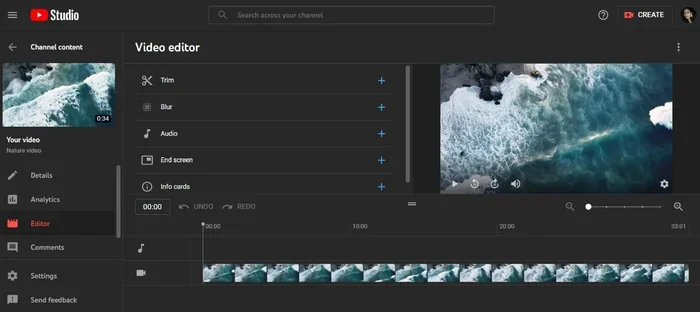
- YouTube Video Editor: You can trim, add blurs, or make minor edits directly in YouTube Studio without deleting the video.
- End Screens and Cards: Use these features to point viewers to an updated version if you have made a new upload alongside the old one.
- Community Posts: Announce the new video in a community post and let viewers know the old one is outdated.
These methods do not fully replace the video, but they can help you manage content updates without losing all your data.
Expert Tips for a Smooth Reupload Process
Here are some insider tips from experienced creators who have done this many times:
- Always save the old video URL before deleting. You never know when you will need it for reference or to update links.
- Upload the new video at least one day before deleting the old one. This gives you a buffer in case something goes wrong.
- Check your YouTube Analytics for the old video before deleting. Note the view count, average view duration, and traffic sources. This helps you measure how well the new video performs in comparison.
- Notify your subscribers. Use the community tab or a pinned comment to let your audience know about the updated video.
- Update your playlist. If the old video was in any playlists, make sure the new video is added to them.
- Be patient with the new video’s performance. It takes time for YouTube to index and rank a new upload. Give it at least a week before judging its success.
Common Mistakes to Avoid When Reuploading
Many creators make avoidable mistakes when replacing a video. Here are the ones to watch out for:
- Deleting the old video before the new one is ready: This leaves a gap where your video does not exist at all. Viewers who land on the old link see an error.
- Changing the title and description completely: This confuses YouTube’s algorithm and makes it harder for the new video to rank for the same terms.
- Ignoring external links: If you have shared the old video link on Twitter, Reddit, or your blog, those links will break. Update them promptly.
- Reuploading too frequently: If you delete and reupload videos often, YouTube may flag your channel for suspicious activity.
- Forgetting to update the thumbnail: Using a completely different thumbnail can confuse returning viewers who remember the old one.
How Does Reuploading Affect YouTube’s Algorithm?
YouTube’s algorithm looks at many signals to decide which videos to recommend. When you reupload a video on Youtube to replace an old video, the algorithm essentially sees a brand new video. It does not know the old one existed.
This means the new video starts with no watch history, no engagement data, and no search ranking history. It has to build all of that from scratch. The first 48 hours after publishing are critical. During this window, the algorithm tests the video with a small audience and gauges their response.
If the new video performs well in those first hours, it gets pushed to more viewers. If it underperforms, it may struggle to gain traction. This is why matching the old video’s title, description, and thumbnail is so important. You are giving the algorithm the best chance to understand what the video is about.
Comparison: Deleting vs. Updating In-Place
Here is a quick look at the two main approaches when you need to fix an existing video:
- Deleting and reuploading: Full replacement with a new video ID. You lose all views, comments, and SEO history. Use this when the changes are major or the video quality is significantly improved.
- Editing in YouTube Studio: Minor changes like trimming, adding blurs, or updating the description. You keep the same video ID, views, and comments. Use this for small fixes that do not require a full new upload.
For most creators, editing in place is the better choice unless the changes are substantial. Reserve full reuploads for situations where the video needs a complete overhaul.
Key Takeaways
- You can delete and re-upload: YouTube allows you to remove an old video and upload a new one in its place.
- You lose some data: Views, comments, and watch history may not carry over to the new upload.
- Use a private unlisted link first: This helps you avoid losing your video URL or breaking existing links.
- Re-uploading affects SEO: Your video ranking and thumbnail clicks may reset after a replacement.
- Check monetization status: Replacing a monetized video can impact your ad revenue and channel standing.
- YouTube Studio makes it easy: The process is simple and can be done in just a few clicks.
Frequently Asked Questions
Will I lose my YouTube views if I delete and reupload a video?
Yes, deleting the old video removes all its views. The new upload starts fresh with zero views. This is the biggest tradeoff when you choose to replace a video. Always consider whether the changes are worth losing your view count.
Can I keep the same URL when I reupload a video on YouTube?
Not exactly. Each YouTube video has a unique URL tied to its video ID. When you delete the old one, that URL becomes invalid. The new upload gets a different URL. However, you can use the unlisted trick to minimize broken links and keep your audience on track.
Does reuploading a video hurt my YouTube channel?
It can, if done too often. Frequent deletions and reuploads may confuse your audience and signal unusual activity to YouTube. For most creators, occasional reuploads for major improvements are perfectly fine. Just be strategic about it.
How long does it take for a reuploaded video to regain its old ranking?
It varies. Some videos recover their ranking within a few days. Others take weeks. The speed depends on your channel authority, the quality of the new video, and how well you optimize the title, description, and tags. Be patient and give it time.
Can I reupload a video that has a copyright strike?
You can delete and reupload a video with a copyright strike, but the new upload may still trigger the same claim if the content is identical. Make sure you have the rights to the content before reuploading. Consider editing out the copyrighted material first.
Is there a way to update a video without deleting it?
YouTube allows you to edit the title, description, tags, and thumbnail at any time. You can also use the built-in video editor to trim or add blurs. For major changes like replacing the actual video file, deletion and reuploading is the only option.
Final Thoughts
So, can you reupload a video on Youtube to replace an old video? Absolutely. The process is straightforward, and YouTube makes it easy to delete and upload again. But it is not a decision to take lightly.
Every time you replace a video, you reset the clock on views, comments, watch time, and search ranking. You also risk breaking external links and confusing your audience. That is why you should only reupload when the benefits clearly outweigh the costs.
Follow the steps in this guide. Prepare your new file, set it to private first, copy the old URL, delete carefully, and publish with confidence. Use the tips and strategies shared here to minimize the impact and protect your channel growth.
At the end of the day, your goal is to give your audience the best possible content. Sometimes that means hitting delete and starting fresh. When you do it the right way, your viewers and your channel will thank you for it.