Can I Connect Mini Projector To Phone Netflix Easily
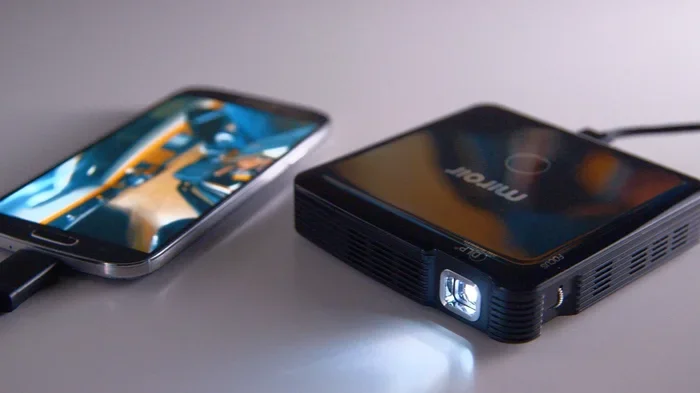
Yes, you can connect a mini projector to your phone and watch Netflix — it is easier than most people think. Whether you use an Android or iPhone, wireless screen mirroring, HDMI adapters, or smart projectors make it simple. This guide walks you through every method so you can start streaming big on any screen tonight.
Key Takeaways
- Multiple Connection Methods: You can go wireless with screen mirroring or use cables like HDMI adapters for a stable Netflix stream on your mini projector.
- Works with All Phones: Both Android and iPhone users have solid options, from built-in casting features to third-party apps.
- Smart Projectors Simplify Everything: Built-in apps and Wi-Fi mean no phone connection needed in many cases.
- Watch Out for Latency: Wireless connections may have slight delays, so wired options give smoother playback.
- Audio Matters Too: Consider how you will handle sound — built-in speakers, Bluetooth audio, or external speakers all work.
- Check Compatibility First: Not every mini projector supports every connection type, so verify before buying.
📑 Table of Contents
- Can I Connect Mini Projector To Phone Netflix? Yes — Here Is How
- Wireless Methods to Connect Mini Projector to Phone
- Wired Methods for a Stable Netflix Connection
- Smart Projectors: Skip the Phone Connection Entirely
- Comparison: Wireless vs. Wired vs. Smart Projector
- Troubleshooting Common Connection Issues
- Tips for the Best Netflix Projector Experience
- Final Thoughts on Connecting Mini Projector to Phone for Netflix
Can I Connect Mini Projector To Phone Netflix? Yes — Here Is How
You are sitting on your couch. You have a mini projector sitting on the table. You have your phone in your hand with Netflix queued up. The only question is — how do you connect them?
The good news is that connecting a mini projector to your phone for Netflix is totally doable. You do not need to be a tech expert either. Whether you want a big movie night with friends or a quiet evening alone, projecting Netflix from your phone to a mini projector works surprisingly well.
In this guide, we will walk you through every method. We will cover wireless options, wired connections, and even smart projectors that skip the phone entirely. By the end, you will know exactly which method fits your setup best.
Let us get into it. No fluff, no confusion — just clear steps you can follow right now.
Why People Love Streaming Netflix on a Mini Projector
Before we dive into the how, let us talk about the why. Why are so many people choosing to stream Netflix on a mini projector instead of a regular TV?
First, portability is a huge deal. A mini projector weighs less than a pound in many cases. You can carry it to a backyard party, a camping trip, or even a dorm room. A TV simply does not go with you everywhere.
Second, the experience feels cinematic. A projected screen — even a modest one — creates a sense of immersion that a small phone screen just cannot match. You get a big picture, room-filling sound potential, and a cozy movie theater vibe at home.
Third, mini projectors are affordable now. You can pick up a solid portable projector for under two hundred dollars. Compare that to a new TV, and the value becomes obvious.
Finally, Netflix is already on your phone. You do not need to buy extra streaming devices. Your phone becomes the remote and the source in one. That simplicity is a big reason why phone-to-projector Netflix streaming has grown so popular.
Wireless Methods to Connect Mini Projector to Phone
Wireless connections are the most popular way to mirror your phone screen to a projector. They are convenient, cable-free, and quick to set up. Let us look at the top wireless options.
Using Built-in Screen Mirroring (Android)
If you have an Android phone, screen mirroring is likely already built in. Most Android devices support Miracast technology, which lets you cast your display to compatible projectors.
Here is how to do it:
- Make sure your mini projector and phone are on the same Wi-Fi network.
- Open the Settings app on your phone.
- Look for “Cast,” “Screen Mirroring,” or “Smart View” (the name varies by brand).
- Select your projector from the list of available devices.
- Once connected, open Netflix on your phone and start playing.
The screen will appear on the projector in real time. You control everything from your phone. This method works well for most portable projectors with Wi-Fi capability.
Quick Tip: If the connection is slow or laggy, move closer to the projector. Distance and walls can weaken the wireless signal. Also, make sure no other devices are hogging bandwidth on your network.
Using AirPlay (iPhone)
iPhone users have a built-in advantage with AirPlay. Apple’s AirPlay screen mirroring works seamlessly with compatible devices.
Follow these steps:
- Connect both your iPhone and the projector to the same Wi-Fi network.
- Open the Control Center by swiping down from the top-right corner of your screen.
- Tap the “Screen Mirroring” button (two overlapping rectangles).
- Choose your projector from the list.
- Open Netflix and start watching.
AirPlay delivers a smooth, reliable connection. If your projector does not support AirPlay natively, you can use an AirPlay receiver device that plugs into the projector’s HDMI port. These small adapters cost around thirty to fifty dollars and work great.
Using Third-Party Casting Apps
Not all projectors support native mirroring. In those cases, casting apps come to the rescue. Apps like AirScreen, LetsView, and EZCast turn any projector into a screen-mirroring target.
Here is the general process:
- Download the casting app on both your phone and projector (if the projector runs Android).
- Make sure both devices are on the same Wi-Fi network.
- Open the app on your phone and select the projector.
- Start mirroring and open Netflix.
These apps are free in most cases and add a lot of flexibility. They are especially helpful if you own an older or budget-friendly mini projector without smart features.
Wired Methods for a Stable Netflix Connection
Wireless is convenient, but wired connections offer something wireless cannot — consistency. If you want zero lag and perfect audio-sync, a wired setup is the way to go.
HDMI Adapter Method
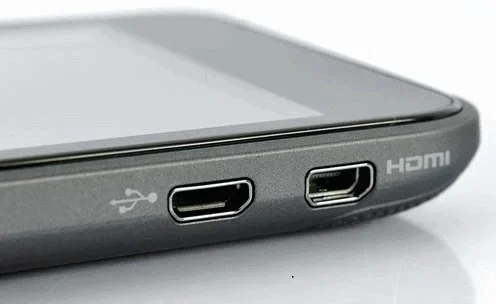
The most reliable wired option is using an HDMI adapter that connects to your phone’s charging port. Both Lightning (iPhone) and USB-C (Android) adapters are widely available.
Here is how it works:
- Plug the HDMI adapter into your phone.
- Connect an HDMI cable from the adapter to the projector.
- Switch the projector to the correct HDMI input.
- Your phone screen will now display on the projector.
- Open Netflix and press play.
This method gives you a crystal-clear picture with no latency. There is no compression or signal loss. The video quality matches what your phone sends out. It is the gold standard for connecting phone to projector with cable.
Quick Tip: Buy a high-quality HDMI adapter from a reputable brand. Cheap adapters can cause flickering, no signal, or poor audio. Spending ten extra dollars on a reliable adapter saves a lot of frustration.
USB-C Direct Connection
If your projector has a USB-C input, you are in luck. Many modern portable projectors now include USB-C ports. This means you can plug your phone directly into the projector with a single cable.
Not all USB-C connections support video output, though. Check your projector’s specs to confirm it supports display input over USB-C. If it does, the setup is as simple as plugging in and selecting the right source.
MHL (Mobile High-Definition Link)
MHL is an older but still useful technology. It allows you to output video from your phone through a micro-USB or USB-C connection. You need an MHL-compatible projector or an MHL-to-HDMI adapter.
MHL is less common today, but if you have an older phone or projector, it is worth checking. Some people still get great results with MHL setups for Netflix streaming on a big screen.
Smart Projectors: Skip the Phone Connection Entirely
Here is a game-changer. Smart projectors come with built-in apps, including Netflix. You do not need to connect your phone at all. The projector handles everything on its own.
How Smart Projectors Work
A smart projector runs its own operating system — usually Android TV or a custom OS. It connects directly to your Wi-Fi network. You open the Netflix app right on the projector, log in, and start watching.
Some popular options include:
- XGIMI Halo — runs Android TV with Netflix built in.
- Anker Nebula Capsule — portable with smart OS and streaming apps.
- Wanbo T6 Max — budget-friendly with Android TV support.
- Samsung The Freestyle — premium smart projector with app support.
These projectors are perfect for people who want a set-and-forget streaming experience. You do not need to worry about phone compatibility, cable management, or signal drops.
Do You Still Need Your Phone with a Smart Projector?
Not really. The projector has its own remote control or app. But your phone still comes in handy for two things:
- Initial setup — you use your phone to connect the projector to Wi-Fi.
- As a remote — the projector’s companion app on your phone acts as a convenient remote.
So even with a smart projector, your phone plays a supporting role. But the heavy lifting — the actual Netflix streaming — happens right on the projector.
Comparison: Wireless vs. Wired vs. Smart Projector
Not sure which method is right for you? Here is a side-by-side look at the three main approaches.
| Feature | Wireless Mirroring | Wired (HDMI) | Smart Projector |
|---|---|---|---|
| Setup Ease | Very easy | Easy | Easiest |
| Connection Stability | Good | Excellent | Excellent |
| Video Lag | Slight delay possible | None | None |
| Cables Needed | None | HDMI cable + adapter | None |
| Phone Required | Yes | Yes | No |
| Cost | Free (built-in) | Adapter cost ($10-$30) | Higher upfront cost |
| Best For | Casual, quick setup | Quality-focused users | Frequent streamers |
As you can see, each method has its strengths. If you want the simplest setup, wireless mirroring wins. If you care about picture quality and zero lag, go with HDMI wired connection. And if you want to ditch your phone from the equation, a smart projector is the best long-term investment.
Troubleshooting Common Connection Issues
Even with the best setup, you might run into hiccups. Here are the most common problems people face when trying to connect mini projector to phone Netflix, and how to fix them.
No Signal on the Projector
This is the most common issue. If your projector shows no signal, try these steps:
- Check that both devices are on the same Wi-Fi network (for wireless).
- Make sure the projector is set to the correct input source (HDMI, USB, or screen mirroring mode).
- Restart both your phone and the projector.
- Try a different cable or adapter if using a wired connection.
Audio Is Not Playing Through the Projector
Sometimes the video shows up but there is no sound. This usually happens because your phone is still routing audio to its own speakers. On Android, go to Settings > Sound and select the projector as the audio output. On iPhone, check Control Center and make sure the audio is routed to the projector.
You can also connect Bluetooth speakers to the projector for better sound. Many projectors have a 3.5mm audio jack or Bluetooth audio support for this purpose.
Lag or Delay During Playback
Wireless connections can sometimes introduce a slight delay. This is normal but annoying during fast-moving scenes. To reduce lag:
- Move closer to the projector.
- Reduce the number of devices on your Wi-Fi network.
- Use a 5GHz Wi-Fi band instead of 2.4GHz.
- Switch to a wired HDMI connection for the smoothest experience.
Netflix Blocks the Connection
Netflix has digital rights management (DRM) that can sometimes block screen mirroring. If Netflix shows a black screen or refuses to play, try these fixes:
- Use the HDMI wired method instead of wireless mirroring.
- Update Netflix to the latest version on your phone.
- Check if your projector supports HDCP (High-bandwidth Digital Content Protection).
- Try casting through a different app like AirScreen if using wireless.
Tips for the Best Netflix Projector Experience
You have your mini projector connected to your phone. Netflix is playing. Now let us make sure you get the best possible experience.
Control the Room Lighting
Mini projectors are not as bright as big TVs or home theater projectors. To get the best picture, dim the room lights or watch in the evening. Ambient light rejection screens can also help improve contrast and color.
Use the Right Screen
You do not need an expensive projection screen. A white wall works fine for casual viewing. But if you want better quality, a portable projector screen makes a big difference. These foldable screens are affordable and easy to set up anywhere.
Manage Your Projector’s Battery
Most mini projectors run on rechargeable batteries. Netflix streaming drains battery faster than showing static images. If you are watching a long movie, keep your projector plugged in or have a portable power bank nearby.
Optimize Netflix Settings
Open the Netflix app on your phone, go to App Settings, and make sure data usage is set to High or Auto. This ensures you get the best video quality possible. Also, download movies over Wi-Fi before watching if you are somewhere with weak internet.
Position the Projector Correctly
Place your mini projector on a stable surface at the right distance. Most mini projectors work best at a distance of four to eight feet from the wall. Check your projector’s manual for the optimal throw distance to get the clearest, sharpest image.
Final Thoughts on Connecting Mini Projector to Phone for Netflix
So, can you connect a mini projector to your phone and stream Netflix? Absolutely. You have multiple paths to get there, and each one works well in different situations.
If you want simplicity, wireless screen mirroring is your best friend. If you want reliability and quality, grab an HDMI adapter and cable. And if you want to skip the phone altogether, invest in a smart projector with built-in Netflix support.
The beauty of today’s technology is that you are not locked into one option. You can try wireless first, switch to wired if needed, or upgrade to a smart projector down the road. Every path leads to the same place — Netflix on a big screen, wherever you are.
Now that you know how to make it work, go set it up tonight. Grab some popcorn, dim the lights, and enjoy your favorite show on a whole new scale. Your mini projector and phone are a powerful combo — it is time to put them to good use.
Frequently Asked Questions
Can I connect any mini projector to my phone for Netflix?
Most mini projectors can connect to a phone, but the method depends on the projector’s features. Check if your projector supports Wi-Fi, Bluetooth, HDMI input, or screen mirroring. If it does, you can likely stream Netflix from your phone to the projector using one of the methods described in this guide.
Do I need an internet connection to stream Netflix on a mini projector?
Yes, you need a stable Wi-Fi connection for streaming Netflix. Both your phone and the projector (if using wireless mirroring) must be on the same network. If your projector is a smart model with built-in Wi-Fi, it connects directly to the internet. For wired setups, your phone still needs internet to stream Netflix.
Why does Netflix show a black screen when I mirror to my projector?
This is usually caused by Netflix’s DRM protection blocking screen mirroring. Try switching to a wired HDMI connection, which bypasses most mirroring restrictions. Also, make sure your Netflix app is updated and that your projector supports HDCP for content protection.
Can I use Bluetooth to connect my phone to a mini projector for Netflix?
Bluetooth can connect your phone to a projector for audio only, but it will not transmit video. To get both video and audio, use Wi-Fi screen mirroring, an HDMI adapter, or a smart projector with built-in streaming. Bluetooth is best used to connect external speakers to your projector for improved sound quality.
What is the best mini projector for streaming Netflix from a phone?
The best mini projector depends on your budget and needs. For smart features, the XGIMI Halo and Anker Nebula Capsule are excellent choices. For budget-friendly options with good picture quality, the Wanbo T6 Max and ViewSonic M2 are popular picks. Look for projectors with Wi-Fi, HDMI input, and HDCP support for the best Netflix experience.
Will streaming Netflix drain my phone battery quickly when mirroring to a projector?
Yes, screen mirroring uses significant battery because your phone is processing and sending video in real time. To conserve battery, keep your phone plugged in during streaming, lower the screen brightness, or use a wired HDMI connection which is more battery-efficient than wireless mirroring.
=== CONCLUSION ===
Connecting your mini projector to your phone for Netflix is one of the easiest ways to upgrade your entertainment setup. Whether you choose wireless mirroring, a simple HDMI adapter, or a smart projector with built-in apps, the process is straightforward and rewarding.
You now have all the tools and knowledge to make it happen. Pick the method that suits your gear and your lifestyle, follow the steps in this guide, and you will be watching Netflix on a big screen in minutes. The experience is worth the effort — so go ahead, set it up, and enjoy your next movie night the way it was meant to be seen.