Can I See My Wi Fi Password On My Android Phone Today
Yes, you can see your Wi-Fi password on your Android phone using built-in settings, QR code sharing, or third-party tools. This guide walks you through every method step by step so you can find your WiFi password on Android in minutes. Whether you use a Samsung, Google Pixel, or any other device, the process is simple and does not require technical skills.
Key Takeaways
- Built-in Android feature: Android 10 and newer let you view saved WiFi passwords directly in settings.
- QR code sharing: You can generate a QR code to share your WiFi password with others easily.
- Third-party apps: Password managers and WiFi analyzer apps offer extra ways to access saved networks.
- Router method: Checking the router itself or its admin panel works for any device, not just Android.
- Common mistakes: Avoid confusing the WiFi password with the device lock screen password.
- Security tip: Always change default router passwords to keep your network safe.
📑 Table of Contents
- Can I See My Wi-Fi Password On My Android Phone Today?
- Why You Might Need to See Your WiFi Password on Android
- How to See Your WiFi Password on Android Using Built-In Settings
- How to Share Your WiFi Password Using a QR Code
- Using Third-Party Apps to View Your WiFi Password
- How to Find Your WiFi Password Through Your Router
- Common Mistakes People Make When Looking for WiFi Passwords
- Quick Tips for Managing Your WiFi Passwords
- Expert Insights on WiFi Password Security
- How WiFi Password Sharing Works on Different Android Brands
- What to Do If You Still Cannot See Your WiFi Password
- Conclusion
Can I See My Wi-Fi Password On My Android Phone Today?
Have you ever been in a situation where you need to connect a new device to your WiFi but forgot the password? It happens to all of us. The good news is that you can see your WiFi password on your Android phone today. It is easier than you think, and you do not need to be a tech expert.
Android phones have built-in features that let you view saved WiFi passwords. These features have improved a lot over the years. If you are running Android 10 or newer, you have access to a simple and direct way to find your WiFi password right from your phone. Older versions might need a few extra steps, but they still work.
In this article, we will walk you through every method available. We will cover the built-in Android settings, the QR code sharing trick, third-party apps, and even how to check your password through the router itself. By the end, you will know exactly how to see your WiFi password on Android phone whenever you need it.
Let us get started. No more guessing, no more resetting your router just to find a password you already saved.
Why You Might Need to See Your WiFi Password on Android
There are many reasons why you might need to find your saved WiFi password. Understanding these reasons can help you see why this is such a useful skill to have.
Connecting a New Device
The most common reason is connecting a new device. Maybe you bought a smart TV, a gaming console, or a tablet. These devices often do not have a built-in QR code scanner. So you need to type in the password manually. If you do not remember it, you can pull it up right from your Android phone.
Helping Friends and Family
Have you ever had a friend over who needs to connect to your WiFi? Instead of reading off a long string of letters and numbers, you can use your phone to share the password. Android makes this easy with the built-in share feature.
Troubleshooting Connection Issues
Sometimes your phone loses connection to a WiFi network for no clear reason. Checking your saved password can help you rule out typos or changes. You might discover that the password was updated recently and your phone has the old one saved.
Setting Up a WiFi Extender or Repeater
If you use a WiFi extender to boost your signal, you need the password to pair it with your router. Having the password handy on your Android phone saves you a trip to the router or a call to your internet provider.
How to See Your WiFi Password on Android Using Built-In Settings
The easiest way to find your WiFi password on Android phone is by using the built-in settings. This method works on most Android phones running version 10 or later. Let us walk through it step by step.
Method 1: Through the WiFi Settings Menu
Follow these steps to view your saved WiFi password directly from your phone settings:
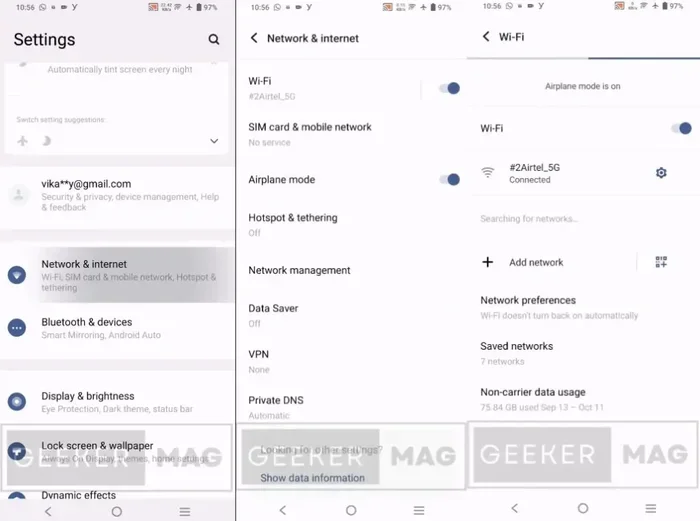
- Open the Settings app on your Android phone.
- Tap on Network & Internet or Connections, depending on your phone brand.
- Tap on WiFi to see the list of saved networks.
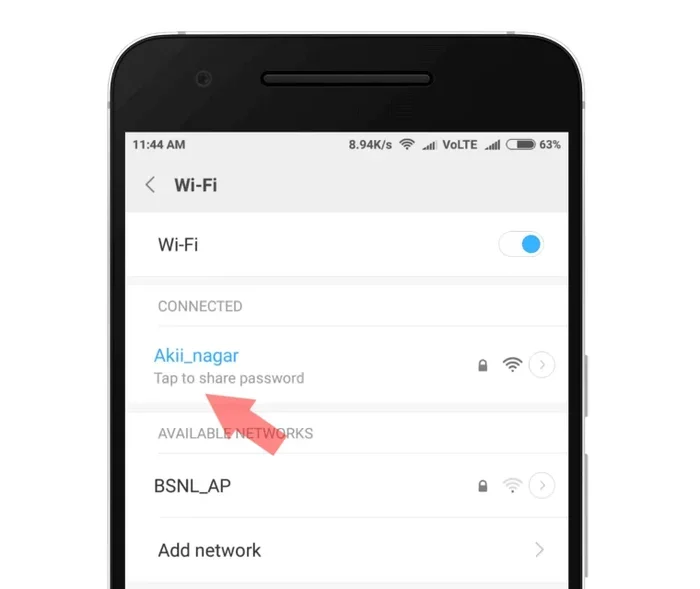
- Find the network you want to check and tap on it.
- Look for a gear icon or a cog next to the network name. Tap it.
- You should see an option that says Share or View Password.
- Your phone may ask for your fingerprint or PIN to confirm. This is a security feature, so do not worry.
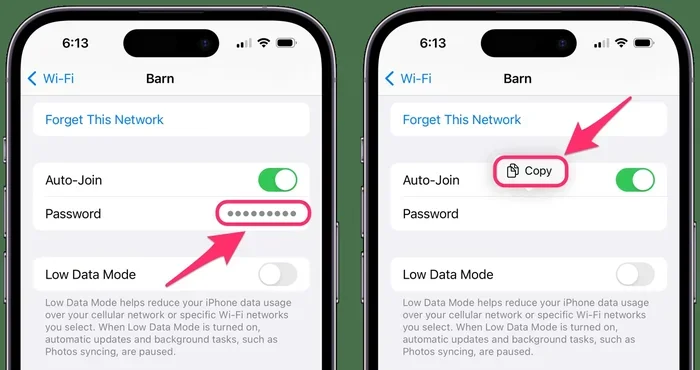
- After confirming, the password will appear on screen. You can also see a QR code that others can scan to connect.
This method is the fastest and most straightforward way to see your WiFi password on Android phone. It does not require any downloads or extra apps.
Method 2: Through the Android Settings Search
If you have trouble finding the right menu, you can use the search bar inside Settings. Here is how:
- Open Settings on your phone.
- At the top, you will see a search bar. Type in “WiFi password.”
- Tap on the result that says something like WiFi password or Shared WiFi password.
- You will be taken directly to the right screen where you can view or share your password.
This shortcut works on most Android phones and saves you from digging through menus. It is a great trick if you have never done this before.
How to Share Your WiFi Password Using a QR Code
Android has a really cool feature that lets you share your WiFi network with others using a QR code. This is especially helpful when you have guests who need to connect. Instead of reading out the password letter by letter, you just show them the QR code on your screen.
Steps to Generate a WiFi QR Code
- Go to Settings and tap on WiFi.
- Tap on the network you want to share.
- Select the Share button.
- Your phone will generate a QR code on the screen.
- The other person just needs to open their camera or a QR scanner and point it at the code.
- They will be prompted to connect automatically. No typing required!
Keep in mind that the QR code shows the password, so only share it with people you trust. This is a quick and secure way to give someone access to your WiFi network.
Which Devices Can Scan the QR Code?
Most modern smartphones can scan WiFi QR codes. This includes iPhones, Samsung phones, Google Pixel devices, and even some tablets. You can also use your phone’s camera or a dedicated QR scanner app. If the person has an older phone, they might need to download a free QR code reader from the app store.
Using Third-Party Apps to View Your WiFi Password
If your Android phone does not show the password option in settings, or if you want more features, you can try a third-party app. These apps can help you view all your saved WiFi passwords in one place. Let us look at some popular options.
WiFi Password Manager Apps
There are several apps designed specifically to manage and view WiFi passwords. Some popular ones include:
- WiFi Key Share – A simple app that shows all your saved networks and passwords.
- WiFi Password Show – Lets you view passwords for networks you have connected to before.
- Router Password Manager – A broader tool that also helps you manage router login details.
When you download any of these apps, make sure you get them from the Google Play Store and check the reviews. Only download apps from trusted developers. You do not want to give your network details to a shady app.
WiFi Analyzer Apps
WiFi analyzer apps do more than just show passwords. They can help you see which channels your network is using, find the best spot for your router, and even detect weak signals. Some popular WiFi analyzer apps include NetSpot, WiFi Analyzer, and Fing. These apps are great tools for anyone who wants to improve their home WiFi setup.
How to Find Your WiFi Password Through Your Router
Sometimes the easiest way to see your WiFi password is to check it right at the source. Every WiFi router has a default password printed on a sticker on the back or bottom of the device. This is called the network security key or pre-shared key.
Checking the Router Sticker
Look at the back of your router. You should see a sticker with two important pieces of information:
- The WiFi network name (also called SSID)
- The WiFi password (also called the network key or security key)
If you have never changed this password, this is the one you need. However, if you or someone else changed it at some point, this sticker will show the old default password.
Logging Into Your Router Admin Panel
If you changed your WiFi password and forgot it, you can log into your router’s admin panel. Here is how:
- Open a web browser on any device connected to the network.
- Type your router’s IP address into the address bar. Common addresses are 192.168.0.1 or 192.168.1.1.
- Log in with the admin username and password. These are often printed on the router sticker too.
- Navigate to the Wireless Settings or WiFi Settings section.
- You will see the current WiFi password listed there.
This method works for any device, not just Android phones. It is especially useful if you need to change or reset your WiFi password.
Common Mistakes People Make When Looking for WiFi Passwords
There are a few common mistakes that people make when trying to find their WiFi password. Avoiding these can save you a lot of frustration.
Confusing the WiFi Password with the Phone Lock Screen Password
This is the most common mistake. Your phone’s lock screen password is not the same as your WiFi password. Make sure you are looking in the right place. The WiFi password is stored in your network settings, not in your phone’s security settings.
Not Updating the Password After Changing It
If you changed your WiFi password recently, your Android phone might still have the old one saved. Go into your WiFi settings, forget the network, and reconnect with the new password. This ensures your phone always has the correct password saved.
Using Unreliable Apps
Some apps claim to show WiFi passwords for any network, even ones you have not connected to. These apps are often scams or contain malware. Stick to trusted apps from the Google Play Store, and only use apps that show passwords for networks you have actually connected to.
Forgetting to Check Android Version Compatibility
The built-in WiFi password feature is available on Android 10 and newer. If your phone is running an older version, you might not see the share or password option. Check your Android version in Settings and update if possible.
Quick Tips for Managing Your WiFi Passwords
Here are some quick tips to help you stay on top of your WiFi passwords and keep your network secure:
- Write down your password and keep it in a safe place, like a password manager app.
- Use a strong password that includes letters, numbers, and special characters.
- Change your router admin password from the default. This prevents unauthorized access to your router settings.
- Update your WiFi password regularly to keep your network secure.
- Use the QR code share feature on Android to make connecting new devices quick and easy.
- Enable WPA3 encryption on your router if it supports it. This is the most secure WiFi encryption standard available today.
- Restart your router if you are having connection issues. Sometimes a simple reboot fixes everything.
Expert Insights on WiFi Password Security
Cybersecurity experts recommend treating your WiFi password with the same care as any other important password. Here are some expert tips to keep your network safe:
Never share your WiFi password publicly. Even if you trust the person, a shared password can end up in the wrong hands. Use the QR code feature for controlled sharing, and change your password if you need to revoke access.
Use a password manager. Apps like Google Password Manager, LastPass, or 1Password can securely store your WiFi passwords so you never have to remember them. These apps also help you generate strong, unique passwords for each network you use.
Keep your router firmware updated. Router manufacturers regularly release updates that fix security vulnerabilities. Check your router admin panel periodically to make sure you are running the latest firmware version.
Set up a guest network. If you often have visitors who need WiFi, create a separate guest network. This keeps your main network and its password private while still giving guests access to the internet.
How WiFi Password Sharing Works on Different Android Brands
While the general process is the same across most Android phones, there can be slight differences depending on the brand. Here is a quick comparison:
| Phone Brand | Settings Path | Password Visible? |
|---|---|---|
| Samsung | Settings > Connections > WiFi > Tap network > Share | Yes, after biometric scan |
| Google Pixel | Settings > Network & Internet > WiFi > Tap network > Share | Yes, after PIN/fingerprint |
| OnePlus | Settings > Wi-Fi & Network > WiFi > Tap network > Share | Yes, after biometric scan |
| Xiaomi | Settings > WiFi > Connected network > Share | Yes, after PIN or fingerprint |
| Huawei | Settings > WLAN > Connected network > Share | Yes, after password confirmation |
As you can see, the path varies slightly from brand to brand, but the core process is the same. You tap on your connected network, select share, and authenticate with your fingerprint or PIN. The password then appears on screen along with a QR code.
What to Do If You Still Cannot See Your WiFi Password
If you have tried all the methods above and still cannot see your WiFi password, do not panic. Here are a few things you can try:
- Restart your phone and try again. Sometimes a simple reboot fixes glitches in the settings menu.
- Check for system updates. Go to Settings > Software Update and make sure your phone is running the latest version of Android.
- Forget the network and reconnect. Go to WiFi settings, forget the network, and connect again. This sometimes refreshes the saved password.
- Use a computer. If you have a Windows computer connected to the same WiFi, you can find the password by going to Network Settings > WiFi Properties > Security tab. The password is shown when you check the “Show characters” box.
- Reset your router. As a last resort, you can factory reset your router. This will restore the default password printed on the router sticker. Note that this will also erase all custom settings, so use this only if absolutely necessary.
Conclusion
So, can I see my WiFi password on my Android phone today? The answer is a clear and definite yes. Whether you use the built-in Android settings, the QR code sharing feature, a third-party app, or you check your router directly, there are multiple ways to find your saved WiFi password. The process is simple, fast, and does not require any special technical knowledge.
Remember to keep your WiFi password safe and secure. Use strong passwords, update them regularly, and only share them with people you trust. With the tips and methods in this guide, you will never be stuck without your WiFi password again. Share this article with friends and family who might need help finding their saved networks too.
Now that you know how easy it is to see your WiFi password on Android phone, you can connect any device, help anyone in need, and troubleshoot connection issues like a pro. Keep this guide bookmarked for future reference, and you will always have the answers at your fingertips.
Frequently Asked Questions
Can I see my WiFi password on Android without root access?
Yes, you can see your WiFi password on Android without root access. Android 10 and newer versions include a built-in feature that lets you view saved WiFi passwords directly in the settings menu. You just need to tap on the connected network, select share, and authenticate with your fingerprint or PIN. No rooting or special permissions are required.
Why can’t I see the password option on my Android phone?
If you cannot see the password option, it might be because your phone is running an older version of Android. The built-in share and password feature requires Android 10 or newer. You can check your Android version in Settings > About Phone. If your phone is older, you can use a third-party app or check the password through your router instead.
Is it safe to use third-party apps to view WiFi passwords?
It can be safe if you choose trusted apps from the Google Play Store. Always check the app reviews, developer information, and permissions before downloading. Avoid apps that ask for unnecessary permissions or claim to show passwords for networks you have never connected to. Stick to well-known apps like WiFi Password Show or Router Password Manager for the best safety.
Can I see the WiFi password for a network I am not currently connected to?
On most Android phones, you can only see the password for networks you are currently connected to or have recently connected to. Some third-party apps may show saved passwords for networks you are not currently connected to, but this depends on the app and your phone’s security settings. The built-in Android feature only shows passwords for active or recently used networks.
How do I change my WiFi password if I forgot it?
If you forgot your WiFi password, you can log into your router’s admin panel using a web browser. Type your router’s IP address into the address bar, log in with the admin credentials, and navigate to the WiFi settings section. From there, you can change your password to something new. You can also reset your router to factory settings, which restores the default password on the router sticker.
Can I share my WiFi password with an iPhone using the QR code method?
Yes, you can share your WiFi password with an iPhone using the QR code method. When you generate the QR code on your Android phone, the iPhone user just needs to open their camera, point it at the QR code, and tap the notification to connect. This works on all modern iPhones running iOS 11 or newer. It is a quick and easy way to share WiFi without typing the password manually.