Can I See Wi Fi Password On Iphone And View It Here
Yes, you can see WiFi password on iPhone using the built-in Settings app or iCloud Keychain. This guide shows you exactly how to view, share, and manage your WiFi password on iPhone without needing third-party apps. You will also learn quick tips to keep your network safe and secure.
Have you ever been in a situation where someone asks for your WiFi password, and you have no idea what it is? Maybe you connected to the network months ago and just never bothered to remember it. Or perhaps you got a new phone and need to set up WiFi on another device. Whatever the reason, can I see WiFi password on iPhone is a question many people ask every single day.
The good news is that Apple made it pretty easy to find your saved WiFi password right from your iPhone. You do not need any fancy apps or computer skills. Whether you are using iOS 16, iOS 17, or an older version, there is a way to pull up that password. In this guide, we will walk you through every method step by step.
By the time you finish reading, you will know exactly how to view WiFi password on iPhone, share it with friends and family, and keep your network safe. Let us get started.
Key Takeaways
- You can view WiFi passwords directly on iPhone through the Settings app with just a few taps.
- iOS 16 and later let you see saved WiFi passwords without a computer.
- Sharing WiFi password from iPhone to other Apple devices is quick and secure.
- iCloud Keychain can store and sync your WiFi password across all your Apple devices.
- QR code sharing makes connecting new devices to your WiFi network effortless.
- Third-party apps are not needed to find or view your WiFi password on iPhone.
- Regularly updating your router password helps keep your home network safe.
📑 Table of Contents
- Why You Might Need to See Your WiFi Password on iPhone
- How to View WiFi Password on iPhone
- Share WiFi Password from iPhone to Other Devices
- What to Do If You Cannot Find Your WiFi Password
- Tips to Keep Your WiFi Password Secure
- Common Mistakes People Make with WiFi Passwords
- Expert Insights on iPhone WiFi Password Management
- Conclusion
Why You Might Need to See Your WiFi Password on iPhone
There are plenty of reasons why you would want to find your WiFi password on iPhone. Some of them are everyday situations, and others are a bit more specific. Let us look at the most common ones.
Setting Up a New Device
You just bought a new iPad, laptop, or smart TV. Now you need to connect it to your WiFi network. But you do not remember the password. Instead of resetting your router, you can simply check your iPhone WiFi network password and type it in on the new device.
Helping a Guest Connect
A friend or family member comes over and wants to use your WiFi. You want to help, but you do not know the password off the top of your head. Having easy access to your saved WiFi password on your iPhone makes this a breeze.
Troubleshooting Connection Issues
Sometimes your phone connects to WiFi but the internet does not work. You might need to check your router WiFi password or re-enter it to fix a connection problem. Knowing where to find it saves you time and frustration.
Updating Router Security
You decided to change your WiFi password for better security. Before you do that, you need to log into your router settings. Your iPhone WiFi settings might still have the old password saved, which you can use to access the router admin page.
How to View WiFi Password on iPhone
Apple has made it surprisingly simple to see WiFi password on iPhone if you know where to look. The method depends on which version of iOS you are running. Let us break it down.
Method 1: Using the Settings App (iOS 16 and Later)
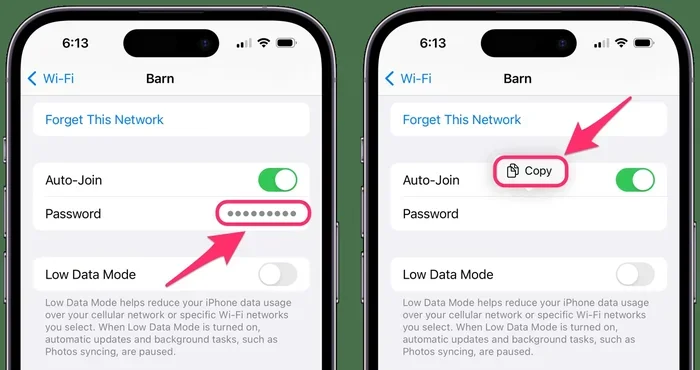
If your iPhone runs iOS 16 or a newer version, you can view your WiFi password directly in the Settings app. No computer or third-party tool needed. Here is how:
- Open the Settings app on your iPhone.
- Tap on WiFi.
- Find the network you are currently connected to or have connected to before.
- Tap the info icon (i) next to the network name.
- Tap on Password.
- Use Face ID or Touch ID to authenticate.
- The WiFi password will now be visible on your screen.
That is it. You can now copy WiFi password on iPhone by tapping and holding the password field, then selecting Copy. This is by far the easiest method and works on most modern iPhones.
Method 2: Using iCloud Keychain
If you use iCloud Keychain, your WiFi passwords are synced across all your Apple devices. This means you can view your WiFi password on iPhone from your Mac, iPad, or even another iPhone. To check on a Mac, go to System Settings, then Network, then WiFi, and click Details. The password will be visible there.
Quick Tip: Make sure iCloud Keychain is turned on in your iPhone settings. Go to Settings, tap your name, then iCloud, and toggle on Keychain. This ensures your passwords are always backed up and accessible.
Method 3: Checking Your Router
Every WiFi network has a default password printed on a sticker on your router. If you never changed it, you can find the router WiFi password right there. Look for a label that says “Password,” “Key,” or “Wireless Key.”
However, if you changed the password at some point and forgot it, you can log into your router’s admin page. Type your router’s IP address (usually 192.168.1.1) into a browser, and log in with your admin credentials.
Share WiFi Password from iPhone to Other Devices
One of the coolest features Apple built into iOS is the ability to share WiFi password from iPhone to other devices. This works between iPhones, iPads, and Macs. You do not even need to type the password out letter by letter.
Sharing with Another iPhone or iPad
When someone tries to connect to your WiFi network on their Apple device, you will get a prompt on your iPhone asking if you want to share the password. Simply tap Share, and the other device will connect automatically. This is one of the best reasons to see WiFi password on iPhone — you can share it without ever having to reveal the actual text.
Using a QR Code
You can also generate a WiFi password QR code on your iPhone. This is great for guests or when setting up smart home devices. There are free websites where you enter your network name and password, and it generates a scannable QR code. Anyone can just scan the code with their phone camera and connect instantly.
Quick Tip: If you have an iPhone running iOS 17, the password sharing process is even smoother. Apple improved the WiFi password sharing iOS 17 experience with faster prompts and clearer instructions on screen.
Sharing with Android or Windows Devices
Unfortunately, the native Apple sharing method only works with Apple devices. If you need to share your iPhone WiFi password with an Android phone or a Windows laptop, you will need to either type it out manually or use a QR code generator. This is a small limitation, but it does not happen often.
What to Do If You Cannot Find Your WiFi Password
Sometimes the password just does not show up. Maybe you are on an older iOS version, or something went wrong. Here are a few things you can try when you cannot see WiFi password on iPhone.
Check Your iOS Version
The direct password viewing feature requires iOS 16 or later. If your iPhone is running an older version, you will need to update. Go to Settings, then General, then Software Update. Install any available updates and try again.
Reset Network Settings
If your WiFi settings are acting up, resetting network settings can help. Go to Settings, then General, then Transfer or Reset iPhone, then Reset, and choose Reset Network Settings. Keep in mind that this will erase all saved WiFi networks and Bluetooth pairings. You will need to reconnect to your networks afterward.
Use a Computer
If you have access to a Mac or a Windows PC, you can sometimes retrieve your WiFi password recovery iPhone through a computer. On a Mac, open Keychain Access, search for your WiFi network name, and check the box to show the password. On Windows, you can view saved WiFi passwords through the Network and Sharing Center.
Contact Your Internet Provider
If nothing else works, your internet service provider can help. They can look up your account and provide the default WiFi password or help you reset it. This is especially helpful if you never changed the WiFi password on iPhone after the initial setup.
Tips to Keep Your WiFi Password Secure
Now that you know how to view WiFi password on iPhone, it is important to keep that password safe. A weak or exposed WiFi password can lead to slow internet, unauthorized users, or even security risks.
Change Your Password Regularly
Set a reminder to change your WiFi password every few months. A strong password should be at least 12 characters long and include a mix of letters, numbers, and symbols. Avoid using easy-to-guess words like your name or address.
Use WPA3 Encryption
Check your router settings to make sure you are using WPA3 WiFi security or at least WPA2. These encryption standards keep your network much safer than older options like WEP. If your router supports WPA3, turn it on right away.
Hide Your Network Name
You can hide your SSID (network name) in your router settings. This makes your network invisible to people walking by. You will need to manually enter the network name when connecting, but it adds an extra layer of iPhone WiFi security.
Limit the Number of Connected Devices
Most routers let you see a list of connected devices. If you see something you do not recognize, change your password immediately. This helps prevent strangers from using your home WiFi password and slowing down your internet.
Guest Network
Set up a separate guest network for visitors. This way, you can share WiFi password for guests without giving them access to your main network and all the devices connected to it. Most modern routers support this feature.
Common Mistakes People Make with WiFi Passwords
There are a few mistakes that people make when dealing with WiFi passwords on their iPhone. Avoiding these can save you a lot of headaches.
- Not updating iOS: Older iOS versions may not support the built-in password viewing feature. Keep your iPhone updated.
- Using weak passwords: Simple passwords are easy to guess. Always use strong, unique passwords for your WiFi network.
- Sharing passwords carelessly: Be careful about who you share your iPhone WiFi password with. Not everyone needs access to your home network.
- Ignoring router firmware updates: Router manufacturers release updates that fix security holes. Check for updates regularly.
- Writing passwords on sticky notes: It might be convenient, but it is not secure. Use a password manager instead.
Expert Insights on iPhone WiFi Password Management
Cybersecurity experts recommend treating your WiFi password with the same care as your bank password. According to security professionals, iPhone WiFi troubleshooting often comes down to simple things like expired passwords or outdated router firmware. Keeping your iOS WiFi settings up to date and your passwords strong goes a long way in keeping your home network safe.
Quick Tip: Consider using a dedicated password manager app alongside iCloud Keychain. This gives you an extra layer of backup and makes it even easier to find your WiFi password on any device, not just Apple products.
Conclusion
So, can I see WiFi password on iPhone? Absolutely. Apple has made it easy to find, view, and share your WiFi password right from your device. Whether you use the Settings app, iCloud Keychain, or your router’s sticker, there are multiple ways to get the job done. The key is knowing which method works best for your situation.
Remember to keep your password secure, update it regularly, and take advantage of features like guest networks and QR code sharing. With the tips in this guide, you will never struggle to find or share your WiFi password on iPhone again. Take a few minutes today to check your settings and make sure everything is in order. Your future self will thank you.
Frequently Asked Questions
Can I see WiFi password on iPhone without a computer?
Yes, you can. If your iPhone runs iOS 16 or later, you can view your saved WiFi password directly in the Settings app. Just go to Settings, tap WiFi, tap the info icon next to your network, and tap Password. You will need Face ID or Touch ID to see it.
How do I share my WiFi password from iPhone to an Android phone?
The native sharing feature only works between Apple devices. For Android phones, you can either type the password manually or generate a QR code from a website and let the other person scan it with their phone camera.
Why can I not see the password option in my iPhone WiFi settings?
This usually means your iOS version is too old. Update your iPhone to iOS 16 or later by going to Settings, then General, then Software Update. If you are already on a newer version, try resetting your network settings.
Is it safe to store WiFi passwords in iCloud Keychain?
Yes, it is safe. Apple uses end-to-end encryption for iCloud Keychain, which means only you can access your stored passwords. Make sure you have a strong Apple ID password and two-factor authentication turned on for the best security.
Can I find the WiFi password for a network I am not currently connected to?
For networks you are currently connected to, yes. For networks you were connected to in the past but have since forgotten, they may still appear in your WiFi list under the info icon. However, some older or removed networks may not show the password option.
What should I do if I forgot my WiFi password and my iPhone does not show it?
Try checking the sticker on your router for the default password. If that does not work, log into your router’s admin page or contact your internet provider. You can also try viewing the password from another Apple device that is connected to the same network.