Can You Scan A Qr Code Without An App On Your Phone
Yes, you can scan a QR code without an app on most modern phones. Both Android and iPhone devices now include built-in QR scanning right in their default camera apps. You simply point your camera at the code, and your phone reads it instantly — no download required. This guide covers every method, device, and safety tip you need to know about scanning QR codes without an app.
Have you ever been standing in a store or sitting at a restaurant, staring at a square-shaped QR code on a sign or table, and thought, “How do I scan this?” Maybe you have heard that you need to download a special app just to read one. But here is the good news. You probably do not need an app at all anymore. Scanning a QR code without an app is not only possible — it is now the default way most people do it. In this guide, we will walk through every method, every device, and every tip you need to scan QR codes quickly and safely right from your phone.
QR codes have exploded in popularity over the past few years. You see them on restaurant menus, product packaging, business cards, concert tickets, and even billboards. They are a fast bridge between the physical world and the digital one. The fact that you no longer need a separate QR code reader app makes the whole process much smoother. Whether you are using an Android phone or an iPhone, your device likely has you covered. Let us dive into exactly how this works and what you need to know.
Key Takeaways
- Built-in camera scanning works on most modern phones: Both Android and iPhone now scan QR codes natively without any extra software.
- You do not need to download a separate QR reader: The days of needing a dedicated app are mostly over for newer devices.
- Web browsers can also scan QR codes: Chrome, Safari, and other browsers have integrated scanning features that work as a backup.
- Safety matters when scanning: Always check the URL destination before tapping any link that comes from a scanned QR code.
- Older phones may still need a free app: Devices running older operating systems might not support native QR scanning.
- QR codes are everywhere now: From restaurant menus to product packaging, knowing how to scan them is a useful everyday skill.
- Multiple methods exist beyond the camera app: Widgets, control centers, and browser tools all offer alternative scanning paths.
📑 Table of Contents
- How Does Scanning QR Codes Without an App Actually Work?
- Which Phones Can Scan QR Codes Built-In?
- Alternative Ways to Scan QR Codes Without Downloading an App
- Common Uses for QR Codes in Everyday Life
- Is It Safe to Scan QR Codes Without an App?
- Tips for Scanning QR Codes Successfully
- Common Mistakes People Make When Scanning QR Codes
- Expert Insights on the Future of QR Code Scanning
- Key Takeaways
- Conclusion
How Does Scanning QR Codes Without an App Actually Work?
Understanding the basics of QR code scanning helps you feel more confident when you try it. A QR code is basically a digital barcode. It stores information like a web link, a phone number, or plain text. When your phone scans it, the camera reads the pattern of black and white squares and decodes the hidden data.
The Role of Your Smartphone Camera
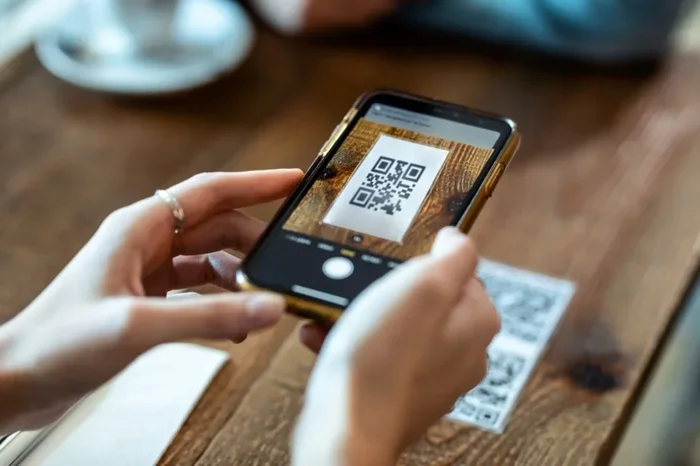
Modern smartphones come equipped with powerful cameras and built-in software that can recognize QR patterns. The camera app on your phone is now smart enough to detect these patterns automatically. You do not need to tell it to look for a QR code. It just happens in the background. When the camera recognizes the pattern, it triggers a notification or a pop-up on your screen.
This built-in capability is what makes scanning QR codes without an app so convenient. The operating system itself handles the decoding process. Your phone reads the pattern and turns it into a clickable link or an action you can take. This is a huge improvement from just a few years ago, when you always needed a third-party app.
What Happens After the Scan?
After your phone reads the QR code, several things can happen depending on what the code contains. If it is a web link, you will see a notification prompting you to open the URL. If it contains contact information, your phone may offer to save it to your address book. Some codes trigger actions like connecting to a Wi-Fi network or composing a text message. The entire process usually takes just one or two seconds.
Which Phones Can Scan QR Codes Built-In?
Not every phone has native QR scanning, but most devices released in the last five years do. Here is a breakdown of what works without downloading anything.
iPhone and iOS Devices
If you own an iPhone running iOS 11 or later, your camera can scan QR codes natively. Apple built this feature into the default Camera app years ago. You simply open the camera, point it at the code, and a notification appears at the top of your screen. Tap the notification to open the link. This works on every iPhone from the iPhone X onward, and most models running iOS 11 and newer.
You can also use the Control Center on newer iPhones to access a QR scanner. Swipe down from the top right corner of your screen and look for the QR code icon. This opens a dedicated scanner that works even when your camera app is not open. It is a handy shortcut that many people overlook.
Android Devices
Most Android phones released since 2017 support native QR scanning. Google built the feature into the default Camera app on many devices. You open the camera, point it at the code, and a notification pops up. Some Android phones use Google Lens integration, which adds even more scanning power. You can also find a built-in scanner in the Google App on many Android devices.
Samsung phones are a great example. Most Samsung Galaxy models have QR scanning built directly into the camera app. You can also pull down the notification panel and tap the QR code scanner icon for quick access. Other brands like OnePlus, Xiaomi, and Google Pixel also support native scanning through their default camera apps.
What If Your Phone Does Not Support It?
If you are using an older phone that does not have built-in scanning, do not worry. You still have options. You can use your phone’s web browser to scan QR codes. We will cover those alternative methods in detail later in this article. The point is that almost everyone can scan a QR code without downloading a third-party app today.
Alternative Ways to Scan QR Codes Without Downloading an App
Even if your camera app does not support native scanning, you have several other built-in options. These methods use tools already on your phone, so you never need to install anything extra.
Using Your Web Browser
Both Chrome on Android and Safari on iPhone have built-in QR scanning features. In Chrome, tap the three-dot menu in the top right corner and look for “Scan QR code.” On Safari, you can tap the QR code icon in the address bar. These browser-based scanners work just as well as camera-based scanning. They read the code and open the link directly in your browser.
This is one of the most reliable QR code scanner alternatives for older devices. If your camera app does not recognize QR codes, your browser almost certainly will. It is a quick fix that requires zero extra downloads.
Using Google Lens or Google Assistant
Android users have access to Google Lens, a powerful visual recognition tool. You can open Google Lens from your camera app or find it in your Google App. Point it at a QR code, and it will identify the content and offer you actions based on what it finds. Google Assistant can also scan QR codes when you ask it to. Just say, “Hey Google, scan this QR code,” and it will handle the rest.
Using Your Phone’s Widget or Home Screen
Many phones let you add a QR scanner widget directly to your home screen. On Android, long-press your home screen, tap “Widgets,” and look for a QR scanner widget. On iPhone, you can add a Shortcut widget that opens the camera scanner. These widgets give you one-tap access to scanning without even opening the camera app first.
Common Uses for QR Codes in Everyday Life
QR codes are no longer a novelty. They have become a standard part of daily life. Understanding how to scan them without an app makes these everyday moments much easier.
Restaurant and Café Menus
Many restaurants now use digital menus accessed through QR codes. Instead of grabbing a paper menu, you simply scan the code on your table with your phone camera. The menu opens in your browser, and you can browse dishes, read descriptions, and place your order. This contactless dining experience became very popular during the pandemic and has stayed around because it is so convenient.
Product Packaging and Shopping
Brands put QR codes on product packaging for many reasons. You can scan a code to read product details, watch a tutorial video, or access a warranty registration page. Some brands even use QR codes for authenticity verification. Scanning without an app makes this process instant and seamless.
Event Tickets and Boarding Passes
Concerts, movies, and flights all use QR codes for entry. Your phone screen shows the code, and a staff member scans it with their device. You do not need to print anything or download a separate app. Just open the code on your phone and present it. This is one of the most common QR code use cases in the world today.
Payments and Contactless Transactions
Mobile payment systems like Apple Pay and Google Pay use QR codes at checkout. You scan a merchant’s code or they scan yours to complete the transaction. The entire process is fast and secure. Knowing that your phone handles this natively without a separate payment app adds to the convenience.
Wi-Fi Network Sharing
Have you ever been to a friend’s house and needed their Wi-Fi password? Many people now display their network details as a QR code. You scan it with your phone camera, and your device connects to the network automatically. No need to type in a long, complicated password. This is one of the most practical everyday QR code applications.
Is It Safe to Scan QR Codes Without an App?
This is one of the most important questions people ask. The short answer is yes, but with some caution. Scanning a QR code with your built-in camera is just as safe as using a dedicated app — maybe even safer, since your phone’s native tools are regularly updated by the manufacturer.
Understanding the Risks
The real risk with QR codes is not the scanning itself. The risk comes from where the code sends you. A malicious QR code could direct you to a phishing website or trigger an unwanted download. The scanning tool does not create the danger — the destination does. This is why you should always preview the URL before tapping it.
How to Stay Safe
Here are some simple safety tips for scanning QR codes:
- Always preview the link before opening it. Your phone will show you the URL after scanning. Check that it looks legitimate.
- Do not scan codes in suspicious places. If a QR code is placed over another code or in an unusual location, be cautious.
- Make sure your phone is updated. Operating system updates include security patches that protect against malicious QR content.
- Use your built-in scanner when possible. Native tools are vetted by Apple and Google, while random third-party apps may not be.
- Never enter personal information on a website you reached through a QR code unless you trust the source completely.
Why Built-In Scanners Are Safer
When you use your phone’s native camera or browser to scan, you are using tools that go through strict security reviews. Apple and Google build protections directly into these features. Third-party QR code reader apps vary widely in quality. Some are perfectly fine, but others may collect your data or show intrusive ads. Using your built-in tools eliminates that risk entirely.
Tips for Scanning QR Codes Successfully
Even though scanning is easy, a few simple tips can make the experience even better. Here is what works best in real-world situations.
- Hold your phone steady. Keep the QR code within the frame of your camera. Most phones will recognize it automatically when it is in focus.
- Make sure the code is well-lit. Bright, even lighting helps your camera read the pattern more accurately. Avoid shadows on the code.
- Clean your camera lens. A smudgy lens can make it harder for your phone to detect the code. A quick wipe with a soft cloth solves this.
- Hold the right distance. Most phones scan best when you are about 8 to 12 inches away from the code. Too close or too far can cause issues.
- Try a different angle. If your phone does not recognize the code right away, tilt it slightly up or down. Sometimes the angle matters more than you think.
- Restart your camera app if needed. If scanning is not working, close the camera app and reopen it. This resets the scanning function.
Quick Tips for Faster Scanning
- Turn off your phone’s auto-brightness so the screen does not dim while scanning.
- If scanning a screen-based code, reduce screen glare by turning off overhead lights.
- On iPhone, enable “Scan QR Codes” in the Camera settings under “Allow Access.”
- On Android, check that “Google Lens” is enabled in your camera settings.
- Keep your browser open as a backup scanner for any device that supports it.
Common Mistakes People Make When Scanning QR Codes
Even though scanning is simple, people sometimes run into avoidable problems. Here are the most common mistakes and how to fix them.
Using a Third-Party App When You Do Not Need One
The biggest mistake is downloading a QR code reader app when your phone already has one built in. These apps can slow down your phone, drain your battery, and sometimes display unwanted ads. Before you download anything, check if your camera or browser can do the job first.
Not Checking the URL Before Tapping
Many people scan a code and immediately tap the link without looking at where it goes. This is a bad habit. Always take a moment to preview the URL. If it looks sketchy or unfamiliar, do not open it. Your safety matters more than the convenience of a quick tap.
Scanning Damaged or Faded Codes
QR codes that are torn, faded, or covered in dirt can be hard or impossible to read. If a code does not work, try finding a fresher version. Many businesses print replacement codes on their receipts or display them on their website.
Forgetting to Enable Camera Permissions
Sometimes your phone will not scan QR codes because the camera app does not have permission to access your camera. Check your phone settings and make sure the Camera permission is turned on for your default camera app. This is a quick fix that solves many scanning problems.
Expert Insights on the Future of QR Code Scanning
The way we scan QR codes is changing fast. Experts predict that in the next few years, scanning will become even more seamless. Phones will use AI-powered visual recognition to identify QR codes instantly, even from a distance. Some newer devices are starting to integrate NFC technology alongside QR codes for faster, more secure interactions.
Apple and Google are also working on enhanced privacy features for QR scanning. Future updates may include real-time URL safety checks that warn you about suspicious links before you tap them. This means scanning QR codes without an app will become even safer and more intuitive over time.
The rise of dynamic QR codes is another trend worth watching. Unlike static codes that always point to the same destination, dynamic QR codes can be updated after they are printed. This means businesses can change where a code leads without reprinting anything. For consumers, this means a more reliable and flexible scanning experience.
Key Takeaways
- Built-in camera scanning works on most modern phones: Both Android and iPhone now scan QR codes natively without any extra software.
- You do not need to download a separate QR reader: The days of needing a dedicated app are mostly over for newer devices.
- Web browsers can also scan QR codes: Chrome, Safari, and other browsers have integrated scanning features that work as a backup.
- Safety matters when scanning: Always check the URL destination before tapping any link that comes from a scanned QR code.
- Older phones may still need a free app: Devices running older operating systems might not support native QR scanning.
- QR codes are everywhere now: From restaurant menus to product packaging, knowing how to scan them is a useful everyday skill.
- Multiple methods exist beyond the camera app: Widgets, control centers, and browser tools all offer alternative scanning paths.
Conclusion
The answer to the question “Can you scan a QR code without an app?” is a clear yes. Almost every modern smartphone now includes built-in QR scanning right in the default camera app. Whether you are on an iPhone or an Android device, you can point your camera at a code and get instant results. No downloads, no extra apps, no hassle.
We covered how scanning works, which phones support it, and the many alternative methods available. We also talked about safety, everyday use cases, and practical tips to make scanning easier. The bottom line is that scanning QR codes without an app is simple, safe, and already built into your phone. The next time you see a QR code on a menu, a product, or a sign, you will know exactly what to do. Just open your camera, point, and scan.
Take a moment to try it right now. Find a QR code nearby, point your phone at it, and see how fast and easy it is. Once you experience how seamless native scanning is, you will never go back to downloading a separate app again.
Frequently Asked Questions
Do I need an app to scan a QR code on my iPhone?
No, you do not need an app. iPhones running iOS 11 or later can scan QR codes directly through the built-in Camera app. You simply open the camera, point it at the code, and a notification appears. You can also use the Control Center scanner for quick access without opening the camera app at all.
Can I scan a QR code with my phone’s browser instead of the camera?
Yes, you absolutely can. Both Chrome on Android and Safari on iPhone have built-in QR scanning features. In Chrome, tap the three-dot menu and select “Scan QR code.” In Safari, tap the QR icon in the address bar. These browser-based scanners work great as an alternative to the camera app.
Is it safe to scan QR codes with my phone’s built-in tools?
Yes, it is generally very safe. Apple and Google regularly update their native scanning tools with security improvements. The key is to always preview the URL before tapping it. As long as you check where the code leads, using your built-in scanner is safe and secure.
What should I do if my phone will not scan a QR code?
First, make sure your camera has permission to access your phone’s features. Clean your camera lens and make sure the code is well-lit. Try a different angle or distance. If nothing works, use your web browser’s built-in scanner as a backup. On older phones, you may need to enable QR scanning in your camera settings.
Can I scan QR codes on my phone screen without an app?
Yes, you can scan QR codes displayed on another screen, like a computer monitor or another phone. Your built-in camera handles screen-based codes just as well as printed ones. Make sure the screen is bright and the code is clear. Reduce glare if the code is hard to read.
Are QR codes without apps still popular in 2024 and beyond?
QR codes are more popular than ever. They are used in restaurants, stores, events, transportation, and marketing. The trend toward contactless, digital interactions has made QR codes a permanent part of daily life. Being able to scan them without an app makes the experience faster and more accessible for everyone.