Can I Connect Coaxial Cable Directly To My Smart TV
Yes, you can connect coaxial cable directly to most modern smart TVs if your TV has a built-in digital tuner and an RF coaxial input. This simple TV connection method lets you watch over-the-air channels and cable TV without extra equipment, though a signal converter may be needed for older setups.
So you have a coaxial cable hanging from your wall and a sleek smart TV sitting on your stand. The question is simple: can you just plug it in and start watching? The short answer is yes, in most cases you can. But there are a few things you need to know before you grab that cable and start connecting stuff.
Connecting a coaxial cable directly to your smart TV is something a lot of people want to do. Maybe you are cutting the cord and want to use an antenna for free channels. Or maybe you have a cable TV plan and want to skip the extra box. Either way, understanding how this TV connection works saves you time, money, and frustration.
In this guide, we will walk through everything you need to know. We will cover whether your smart TV supports a direct coaxial connection, the steps to set it up, when you need extra equipment, and how to fix common problems. By the end, you will feel confident making this TV connection yourself.
Key Takeaways
- Direct Connection Is Possible: Most smart TVs made after 2012 have a built-in digital tuner that accepts coaxial signals.
- You May Need a Converter: Older cable systems or analog signals require a coax to HDMI converter or cable box.
- Setup Is Simple: Plug the coaxial cable into the RF input on your TV, run a channel scan, and you are good to go.
- HDMI Still Offers Better Quality: For the best picture, a cable box or signal converter connected via HDMI is ideal.
- Troubleshooting Is Easy: Most issues with TV connection problems come from loose cables, wrong TV input settings, or signal weakness.
- Antenna Users Benefit Too: A coaxial cable from a rooftop or indoor antenna works the same way for over-the-air broadcasts.
- Check Your TV Model: Not all smart TVs have coaxial inputs, so verify your TV settings and back panel ports before buying any equipment.
📑 Table of Contents
- What Is a Coaxial Cable and Why Does It Matter?
- Can You Connect Coaxial Cable Directly To A Smart TV?
- Step-by-Step Guide To Connecting Coaxial Cable To Your TV
- When You Need a Converter Box or Cable Box
- Common Problems And How To Fix Them
- Coaxial Cable vs Other Connection Methods
- Frequently Asked Questions
- Conclusion
What Is a Coaxial Cable and Why Does It Matter?
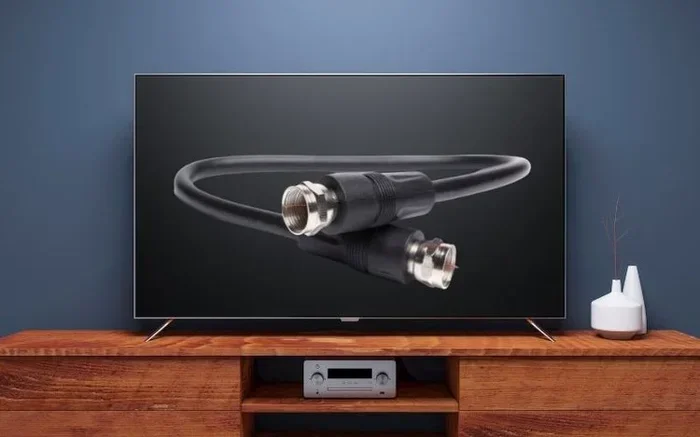
Before we dive into the setup, let us talk about what a coaxial cable actually is. A coaxial cable, often called just coax, is a type of audio video cable with a copper center pin surrounded by shielding and insulation. It has been used for decades to carry cable TV signals, internet data, and antenna signals into homes.
Understanding Coaxial Cable Basics
The coaxial cable has a specific connector on each end, usually called an F-connector or RCA-style coax plug. You will recognize it by the round metal pin in the center. This design helps protect the signal from interference, which is why cable TV companies have relied on it for so long.
Here are some key facts about coaxial cables:
- They carry RF signals — Radio frequency signals that transport video and audio data.
- They are widely available — You can find coax cables in almost any electronics store or even at a dollar store.
- They support both analog and digital signals — However, older analog signals need conversion for modern TVs.
- They are durable — Coax cables are built to last and resist signal loss over longer runs.
The reason this matters is that your smart TV needs to understand the signal coming through the coax. Not all TVs handle this the same way, which is why we need to look at the next section carefully.
Can You Connect Coaxial Cable Directly To A Smart TV?
The answer depends on your TV. Most smart TVs sold today come with a built-in digital tuner and an RF input port on the back or side panel. This means you can plug a coaxial cable straight into the TV and receive channels without any extra boxes.
How Modern Smart TVs Handle Coaxial Signals
Here is the good news. If you bought your smart TV in the last eight to ten years, it almost certainly has a digital tuner. This tuner decodes the RF signal from the coaxial cable into picture and sound your TV can display.
To check if your TV supports direct coaxial input, look for a port labeled “RF IN,” “ANT IN,” or “COAX IN” on the back or side of your TV. Some TVs label it with a little antenna icon. If you see that port, you are good to go.
Not all smart TVs have this port though. Some newer flat-screen models, especially ultra-thin ones, have dropped the coaxial input to keep the design slim. In that case, you will need a signal converter or an external cable box to make the connection work.
Also keep in mind that the quality of the TV connection depends on your setup. A direct coax connection works great for over-the-air channels and basic cable TV packages. But for premium channels or the highest picture quality, an HDMI connection through a cable box is still the better choice.
Step-by-Step Guide To Connecting Coaxial Cable To Your TV
Now let us get into the practical part. Setting up a direct coaxial cable connection to your smart TV is straightforward. Here is exactly what to do.
What You Need Before You Start
Before you begin, make sure you have everything ready:
- A coaxial cable — preferably one that is already connected to your wall cable outlet or antenna.
- A smart TV with an RF IN or ANT IN port.
- A remote control for your TV.
- Your TV manual (helpful but not required).
Step 1: Plug the Coaxial Cable Into the Wall Outlet
Take the coaxial cable and screw one end into the wall cable outlet or attach it to your antenna. Turn the connector clockwise until it is snug. Do not overtighten, or you could damage the port.
Step 2: Connect the Other End to Your TV
Plug the other end of the coaxial cable into the RF IN or ANT IN port on your smart TV. Again, screw it in by hand until it feels secure. This is your main TV connection point.
Step 3: Turn on Your TV and Go to Settings
Power on your TV. Use the remote to navigate to the TV settings or input settings menu. On most TVs, you can access this by pressing the “Home” or “Menu” button.
Step 4: Select the Right Input Source
Look for an input option labeled “Antenna,” “Cable,” or “RF.” Some TVs call it “TV” as the input source. Select this option. This tells your TV to listen for signals coming through the coaxial port instead of looking for an HDMI signal.
Step 5: Run a Channel Scan
This is the most important step. Go to your TV’s channel setup or channel scan menu and start an automatic scan. Your TV will search for all available channels through the coaxial cable outlet. This process usually takes a few minutes.
Once the scan is complete, your TV will display a list of available channels. You can now browse through them and start watching.
Quick Tips for a Smooth Setup
- Use a short coaxial cable — Shorter cables mean less signal loss and a stronger picture.
- Check your TV manual — If you cannot find the channel scan option, your manual will have specific instructions.
- Rescan after moving your antenna — If you change antenna position, run the scan again for best results.
- Keep cables away from power cords — This reduces interference and improves audio video quality.
When You Need a Converter Box or Cable Box
Here is where things get a little tricky. Not every coaxial cable setup works with a direct connection. Let us look at when you need extra equipment.
Coax to HDMI Converters Explained
If your TV does not have an RF input port, you need a way to convert the coaxial signal into something your TV can read. This is where a coax to HDMI converter comes in.
A signal converter takes the coaxial signal from the wall and converts it into an HDMI signal that your smart TV can display. You connect the coaxial cable to the converter, then run an HDMI cable from the converter to your TV. It is a simple solution that opens up options for TVs without coaxial ports.
Some popular converter brands include Channel Master, Hauppauge, and Digital Stream. Prices range from about $20 to $60, depending on the features. Most of these converters also act as a cable box of sorts, decoding digital signals for older TVs.
When a Cable Box Is Necessary
If you subscribe to a cable TV service, your provider may require you to use their official cable box or set-top box. This is especially true for premium channels, on-demand content, and high-definition channels. In these cases, a direct coax connection to the TV alone will not work.
However, some cable providers now offer apps that let you stream cable TV channels directly on your smart TV without a box. Check with your provider to see if this option is available. It can save you from renting an extra device.
Comparing Direct Coax vs Converter vs Cable Box
| Method | Best For | Cost | Picture Quality |
|---|---|---|---|
| Direct Coaxial | Over-the-air channels, basic cable | Free (just a cable) | Good for HD |
| Coax to HDMI Converter | TVs without RF input | $20-$60 | Good to Excellent |
| Cable Box | Premium cable packages | $10-$15/month rental | Excellent (4K capable) |
As you can see, each method has its place. The right choice depends on your TV model, your cable TV plan, and what you want to watch.
Common Problems And How To Fix Them
Even with a straightforward setup, things can go wrong. Here are the most common issues people face with coaxial cable TV connection and how to solve them.
Troubleshooting No Signal Issues
If your TV shows “No Signal” or “Check Cable Connection” after running a channel scan, do not panic. This is very common and usually easy to fix.
Start by checking the physical connections. Make sure the coaxial cable is firmly screwed into both the wall outlet and the TV port. A loose connection is the number one cause of signal problems. Unplug the cable, inspect the pin in the center for damage, and reconnect it tightly.
Next, check your TV input setting. Your TV might be set to the wrong input source. Go to TV settings and make sure it is set to Antenna or Cable mode, not HDMI or streaming mode.
If the connections are tight and the input is correct, try moving your antenna or coaxial cable away from other electronics. Wireless routers, microwaves, and power strips can all cause signal interference that weakens your cable outlet signal.
Fixing Poor Picture or Audio Quality
A grainy picture or fuzzy audio usually points to a weak signal. Here are some fixes:
- Use a shorter coaxial cable — Long cables lose signal strength.
- Add a signal amplifier — These boost the RF signal and improve picture quality.
- Check for damaged cables — Bent pins or frayed shielding cause signal loss.
- Rescan for channels — A fresh channel scan after fixing the setup can restore missing channels.
Sometimes the problem is not your setup at all. It could be an outage in your area. Call your cable provider or check their website for service alerts.
Expert Insights on Coaxial Connections
According to home entertainment experts, the direct coaxial connection remains one of the most reliable TV connection methods available. Unlike HDMI cables that can degrade over time, coax cables are built to maintain signal integrity over long distances.
“Many people overlook the simplicity of a coaxial connection,” says a home theater specialist. “For basic channel watching and antenna setups, it is hard to beat the reliability of a direct coax TV connection.”
The expert also recommends using high-quality coaxial cables with gold-plated connectors. These reduce corrosion and ensure a clean signal for years. Avoid the cheapest cables you can find, as poor shielding leads to interference and degraded picture quality.
Coaxial Cable vs Other Connection Methods
So how does a direct coaxial connection stack up against other ways to get content on your smart TV? Let us compare the most common options.
Comparing Coaxial, HDMI, and Streaming Options
Coaxial Cable — Great for over-the-air channels and basic cable. Uses the built-in digital tuner in your TV. No extra equipment needed in most cases. The downside is that it does not support the highest resolution formats and lacks smart features like on-demand content.
HDMI Connection — This is the gold standard for audio video quality. HDMI supports 4K resolution, HDR, and high-quality surround sound. You need a cable box, streaming device, or gaming console connected via HDMI. It is the best choice for premium content and the sharpest picture.
Streaming Apps — Smart TVs come with built-in apps like Netflix, Hulu, and YouTube. These work over your home Wi-Fi network and require no cables at all. Streaming is convenient but depends on your internet speed and subscription costs.
Many households today use a combination of these methods. A coaxial cable for free over-the-air channels, an HDMI cable for premium cable content, and streaming apps for on-demand entertainment. Each method has its strengths, and knowing when to use each one makes your entertainment setup more flexible.
Quick Tips for the Best Picture Quality
- Use HDMI for premium content — It gives you the best resolution and sound quality.
- Use coaxial for free channels — An antenna with a coax cable is a cost-effective way to get local channels.
- Keep firmware updated — Update your smart TV firmware regularly for the best TV connection performance.
- Use a signal splitter if needed — If you need to connect multiple TVs to one coaxial line, a splitter helps distribute the signal evenly.
Frequently Asked Questions
Do all smart TVs have a coaxial input port?
No, not all smart TVs have a coaxial input. Most TVs made before 2015 include an RF or ANT IN port, but some newer ultra-thin models have dropped it. Check the back or side panel of your TV for a port labeled RF IN, ANT IN, or COAX IN. If it is not there, you will need a coax to HDMI converter or external cable box.
Can I watch cable TV channels without a cable box?
It depends on your cable provider and package. Basic cable channels may work with a direct coaxial connection if your TV has a digital tuner. However, premium channels, on-demand content, and encrypted channels usually require a cable box or set-top device from your provider.
What is the difference between coaxial and HDMI connections?
A coaxial cable carries RF signals and is great for antenna and basic cable setups. It uses your TV’s built-in tuner to decode channels. An HDMI cable carries uncompressed digital audio and video for the best picture and sound quality. HDMI is the preferred connection for cable boxes, streaming devices, and gaming consoles.
Do I need a special antenna to use a coaxial cable with my smart TV?
No, you do not need a special antenna. Any standard HDTV antenna works with a coaxial cable. You can use a rooftop antenna, a set-top indoor antenna, or even a simple rabbit-ear antenna. Just connect the antenna to the coaxial cable and plug the cable into your TV’s ANT IN port.
Why does my TV show no signal after connecting the coaxial cable?
This usually happens because of a loose connection, wrong input source, or the need for a new channel scan. Check that the coaxial cable is tight at both ends, set your TV to the correct input (Antenna or Cable), and run a fresh channel scan. If the problem persists, try a different coaxial cable or contact your cable provider.
Can I use a coaxial cable for internet on my smart TV?
Some smart TVs support Ethernet connections through a coaxial cable using MoCA technology, but this is not common. Most smart TVs connect to the internet via Wi-Fi or Ethernet. A coaxial cable is primarily used for receiving TV channels and signals, not for internet connectivity on the TV itself.
Conclusion
So, can I connect coaxial cable directly to my smart TV? Absolutely. In most cases, a direct coaxial cable connection to your smart TV is simple, reliable, and free of extra equipment. As long as your TV has a built-in digital tuner and an RF input port, you can plug in, run a channel scan, and start watching.
Remember that this TV connection method works best for over-the-air channels and basic cable TV plans. For premium content and the highest picture quality, consider using a signal converter or connecting through HDMI with a cable box.
Do not let a lack of knowledge stop you from setting up your own entertainment system. With the right cable, the right settings, and a little patience, you will be watching your favorite shows in no time. The steps in this guide give you everything you need to make a successful coaxial cable connection to your smart TV today.