Can You Share Wi Fi From Iphone To Another Device Now
Yes, you can share Wi-Fi from iPhone to another device using several built-in Apple features and simple workarounds. Whether you need to pass your network credentials to a friend, connect a tablet, or get a laptop online, your iPhone makes it surprisingly easy. This guide covers every reliable method, from Personal Hotspot to QR code sharing and AirDrop password transfer. You will learn step-by-step instructions, troubleshoot common issues, and discover best practices for secure sharing.
Have you ever been in a situation where someone asks for your Wi-Fi password, and you cannot remember it yourself? Or maybe you want to connect a friend’s laptop to your home network, but typing the password on a tiny keyboard feels impossible. Can you share Wi-Fi from iPhone to another device? The short answer is absolutely yes. Your iPhone has several built-in tools that make sharing your wireless network quick and painless.
In this guide, we will walk through every method you can use right now. Whether you are trying to share WiFi password from iPhone to an iPad, a Mac, an Android phone, or a friend’s device, you will find the right approach here. We will cover Personal Hotspot, QR code sharing, AirDrop, iCloud Keychain, and even some third-party options. By the end, you will know exactly which method works best for your situation.
Let us dive in and make connecting devices easier than ever. No more fumbling with long passwords or writing them on sticky notes.
Key Takeaways
- Personal Hotspot is the most reliable way: It turns your iPhone into a Wi-Fi router and shares your cellular data with other devices instantly.
- QR code sharing works on iOS 11 and later: You can generate a scannable code that lets another device join your Wi-Fi network without typing a password.
- AirDrop can transfer Wi-Fi passwords between Apple devices: When both devices run compatible iOS versions, the password sharing prompt appears automatically.
- iCloud Keychain syncs passwords across devices: Once saved on one Apple device, your Wi-Fi password appears on all signed-in devices seamlessly.
- Common issues include carrier restrictions and outdated software: A quick restart or settings update usually fixes most sharing problems.
- Security matters when sharing: Always use trusted methods and avoid exposing your password publicly through unsecured channels.
📑 Table of Contents
- How Wi-Fi Sharing Works on iPhone
- Methods to Share Wi-Fi From iPhone to Another Device
- Step-by-Step Guide: Sharing Wi-Fi Using Personal Hotspot
- Common Problems When Sharing Wi-Fi From iPhone
- Tips for Secure Wi-Fi Sharing Between Devices
- Expert Insights on iPhone Wi-Fi Sharing
- Key Takeaways
- Conclusion
How Wi-Fi Sharing Works on iPhone
Apple has built several features into iOS that handle Wi-Fi network sharing behind the scenes. Understanding how these work helps you pick the right method. Each method uses a different technology, and some work only between Apple devices.
The Role of iOS in Password Sharing
Starting with iOS 11, Apple introduced a native Wi-Fi password sharing feature. When two Apple devices are close to each other, they can exchange network credentials wirelessly. The system uses a combination of Bluetooth and Wi-Fi Direct to establish a secure, short-range connection. This means your password never gets typed out or sent over the internet.
The process works like this: one device generates a QR code or sends a direct signal. The other device scans or accepts the signal and connects automatically. Both devices must have Wi-Fi and Bluetooth turned on. They also need to be signed into the same Apple ID with iCloud Keychain enabled.
Why Apple Makes This Easy
Apple designs its ecosystem to work smoothly together. The goal is to reduce friction when connecting devices. When you join a Wi-Fi network on your iPhone, the password gets saved securely in your iCloud Keychain. From that point on, any Apple device signed into the same Apple ID can use that saved password to connect to the same network.
This is why sharing Wi-Fi from iPhone to another device feels almost magical on Apple devices. The system handles the hard work for you. You just need to be in the right place at the right time with the right settings enabled.
Methods to Share Wi-Fi From iPhone to Another Device
There are several ways to pass your Wi-Fi connection from iPhone to another device. Some methods work best for quick, one-time sharing. Others are better for ongoing connections. Let us explore each method in detail.
Method 1: Personal Hotspot
The Personal Hotspot feature turns your iPhone into a portable router. Other devices can connect to your iPhone’s cellular data through a Wi-Fi network, Bluetooth, or USB cable. This is the most versatile method because it works with any device, including Android phones and Windows laptops.
Here is how to set it up:
- Open the Settings app on your iPhone.
- Tap on Personal Hotspot.
- Toggle Allow Others to Join on.
- Set a Wi-Fi password if one is not already set.
- On the other device, find the Wi-Fi network named after your iPhone and enter the password.
Sharing Wi-Fi from iPhone to another device via Personal Hotspot is ideal when you need to give someone internet access quickly. It does not require them to know your home network password. Instead, they connect to your phone’s data plan directly.
Keep in mind that using Personal Hotspot consumes cellular data. If you have a limited data plan, monitor your usage carefully. Streaming videos or large downloads can use up your data allowance fast.
Method 2: QR Code Sharing
If you want to share your home Wi-Fi credentials without typing, QR code sharing is a fantastic option. Your iPhone can generate a scannable QR code that contains your network name and password. Another device simply scans the code and connects automatically.
To share Wi-Fi via QR code on your iPhone:
- Go to Settings and tap on Wi-Fi.
- Find your connected network and tap the info icon next to it.
- Tap Share Password or Share.
- A QR code will appear on your screen.
- Have the other device scan the code using its camera or a QR scanner app.
This method works well for guests at your home or office. You can display the QR code on your phone screen, and anyone can scan it to join the network. No password entry required.
Note: QR code sharing works best between Apple devices running iOS 11 or later. Some Android phones can also scan these codes and connect. However, not all third-party QR scanners support Wi-Fi credential transfer.
Method 3: AirDrop Password Sharing
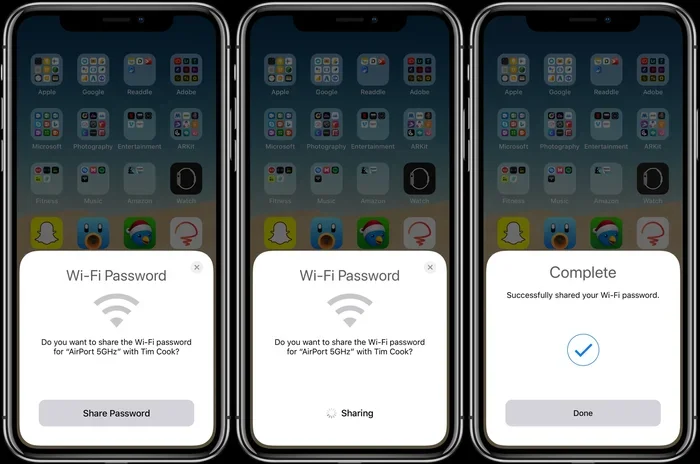
AirDrop is famous for sharing photos and files. But it can also share Wi-Fi passwords between Apple devices. When you try to join a Wi-Fi network on a friend’s iPhone or iPad, and they are nearby, AirDrop can send the password automatically.
Here is what happens behind the scenes:
- Both devices need Wi-Fi and Bluetooth turned on.
- AirDrop should be set to Contacts Only or Everyone.
- When the second device attempts to join the network, a prompt appears on the first device.
- The first device owner taps Share Password.
- The second device connects instantly.
This is one of the most seamless ways to share Wi-Fi from iPhone to another device in the Apple ecosystem. It requires no cables, no QR codes, and no manual typing. Just proximity and the right settings.
Method 4: iCloud Keychain Sync
If you use multiple Apple devices, iCloud Keychain does a lot of the heavy lifting for you. When you connect to a Wi-Fi network on your iPhone, the password syncs to your iCloud account. Your Mac, iPad, and other Apple devices can then use that saved password to join the same network.
To make sure iCloud Keychain is working properly:
- On your iPhone, go to Settings and tap your name at the top.
- Tap iCloud and then Keychain.
- Make sure iCloud Keychain is toggled on.
- On your other Apple device, go to Settings and try joining the Wi-Fi network.
- The password should auto-fill from Keychain.
This method is perfect for your own devices. It is not designed for sharing with friends or guests. But for personal multi-device setups, iCloud Keychain makes Wi-Fi password sharing between your own devices completely invisible and effortless.
Method 5: Third-Party Apps and Tools
Not all sharing situations fit neatly into Apple’s built-in tools. Sometimes you need to share a Wi-Fi password with an Android device or a device that does not support QR code scanning. In these cases, third-party apps can help.
Popular options include:
- Wi-Fi Password Share apps: These apps generate shareable links or QR codes that work across platforms.
- Router admin panel: You can log into your router and find the password directly, then share it manually.
- Network sharing tools: Some apps let you create a guest network with a simple password for visitors.
When using third-party tools, always download from trusted sources like the App Store. Check reviews and permissions before installing anything on your device.
Step-by-Step Guide: Sharing Wi-Fi Using Personal Hotspot
Personal Hotspot deserves a closer look because it is the most universal sharing method available. Let us walk through the process step by step with clear instructions.
Setting Up Your Hotspot
First, make sure your iPhone has cellular data and a strong signal. Open the Settings app and follow these steps:
- Tap Personal Hotspot.
- Toggle Allow Others to Join to ON.
- If the Wi-Fi password field is empty, tap Wi-Fi Password and enter a strong password.
- Leave the settings screen open.
Your iPhone is now broadcasting a Wi-Fi network. Other devices can see it in their Wi-Fi settings list.
Connecting Another Device
On the device you want to connect:
- Open Settings and go to Wi-Fi.
- Look for the network name matching your iPhone.
- Tap the network and enter the hotspot password you set.
- Wait a few seconds for the connection to establish.
You should see a hotspot icon in the status bar of your iPhone. This confirms that another device is connected and using your cellular data.
Managing Connected Devices
You can see which devices are currently connected to your hotspot. Go to Settings, tap Personal Hotspot, and scroll down to see the list of connected devices. You can also turn off Allow Others to Join at any time to stop sharing.
Quick Tip: If you have many people asking to connect, consider setting a simple but secure hotspot password. Avoid using your home Wi-Fi password as your hotspot password for security reasons.
Common Problems When Sharing Wi-Fi From iPhone
Even with Apple’s well-designed features, you might run into issues now and then. Here are the most common problems and how to fix them quickly.
Personal Hotspot Not Showing Up
If other devices cannot find your hotspot network, try these fixes:
- Toggle Personal Hotspot off and back on.
- Restart your iPhone with a simple reboot.
- Make sure your cellular data is working and you have a signal.
- Check with your carrier. Some mobile plans block hotspot usage or require a special add-on.
- Update your iPhone to the latest iOS version.
QR Code Not Working
If the QR code does not scan or connect properly:
- Make sure the other device’s camera lens is clean and unobstructed.
- Hold the scanning device about 6 to 8 inches from the QR code.
- Try generating a new QR code if the first one fails.
- Ensure the Wi-Fi network is still active and your iPhone is connected.
AirDrop Password Sharing Not Appearing
If the password sharing prompt does not show up when using AirDrop:
- Check that both devices have Wi-Fi and Bluetooth enabled.
- Make sure both devices are signed into the same Apple ID.
- Verify that iCloud Keychain is turned on for both devices.
- Check AirDrop settings and set it to Contacts Only or Everyone.
- Restart both devices and try again.
Slow Speeds When Using Hotspot
Hotspot speeds depend on your cellular signal strength and data plan. If connections are slow:
- Move to an area with better cellular coverage.
- Limit the number of connected devices.
- Avoid streaming high-bandwidth content while sharing.
- Check if your carrier throttles hotspot data speeds.
Tips for Secure Wi-Fi Sharing Between Devices
Sharing your Wi-Fi connection or password comes with security considerations. Follow these tips to keep your network safe while still being helpful.
Use Strong, Unique Passwords
Never share a weak or reused password. When setting up a Personal Hotspot, create a password that is at least 12 characters long with a mix of letters, numbers, and symbols. This prevents unauthorized users from accessing your cellular data.
Limit Hotspot Access
Turn off Allow Others to Join when you are not actively sharing. This prevents strangers from connecting to your hotspot and using your data without permission. Make it a habit to disable hotspot sharing after your guest leaves.
Avoid Public QR Code Sharing
While QR code sharing is convenient, be careful about where you display the code. Sharing your home Wi-Fi QR code publicly on social media or in open spaces gives anyone the ability to connect to your network. Only share codes privately with trusted individuals.
Keep Your Software Updated
Apple regularly releases iOS updates that fix security vulnerabilities and improve sharing features. Keeping your iPhone updated ensures that your Wi-Fi sharing methods work reliably and securely. Turn on automatic updates in Settings to stay current.
Expert Insights on iPhone Wi-Fi Sharing
Technology experts agree that Apple’s ecosystem offers the smoothest Wi-Fi sharing experience among major platforms. The combination of iCloud Keychain, AirDrop, and Personal Hotspot creates a seamless workflow that most users never have to think about.
However, experts also note that sharing Wi-Fi from iPhone to another device has limitations. Android and Windows devices do not always support Apple’s native sharing methods. In mixed-device environments, Personal Hotspot and QR code sharing remain the most reliable options.
Another expert recommendation is to set up a guest network on your home router. This gives visitors a separate Wi-Fi network without exposing your main network credentials. You can share the guest password freely without worrying about security.
Quick Tip: If you frequently host guests, consider a smart router that supports WPA3 encryption and easy guest network management. This adds a layer of convenience and security to your home setup.
Key Takeaways
- Personal Hotspot is the most reliable way: It turns your iPhone into a Wi-Fi router and shares your cellular data with other devices instantly.
- QR code sharing works on iOS 11 and later: You can generate a scannable code that lets another device join your Wi-Fi network without typing a password.
- AirDrop can transfer Wi-Fi passwords between Apple devices: When both devices run compatible iOS versions, the password sharing prompt appears automatically.
- iCloud Keychain syncs passwords across devices: Once saved on one Apple device, your Wi-Fi password appears on all signed-in devices seamlessly.
- Common issues include carrier restrictions and outdated software: A quick restart or settings update usually fixes most sharing problems.
- Security matters when sharing: Always use trusted methods and avoid exposing your password publicly through unsecured channels.
Conclusion
Can you share Wi-Fi from iPhone to another device? Absolutely. You now have multiple reliable methods at your fingertips. Personal Hotspot works for almost any device and gives you full control over who connects. QR code sharing makes it effortless for guests to join your home network. AirDrop and iCloud Keychain make sharing between Apple devices feel like magic.
The key is choosing the right method for your situation. For quick, one-time sharing, use Personal Hotspot or QR codes. For your own Apple devices, let iCloud Keychain handle it automatically. For friends with Android phones, a QR code or hotspot connection works best.
Remember to keep security in mind. Use strong passwords, limit access when you are done sharing, and keep your iPhone updated. With these practices in place, you can share your Wi-Fi connection confidently and safely every time.
Now that you know how easy it is to share Wi-Fi from iPhone to another device, try it out the next time someone needs internet access. You will be the person everyone thanks for making connecting so simple.
Frequently Asked Questions
Can I share my iPhone Wi-Fi password with an Android phone?
Yes, you can. The best methods are using your iPhone’s Personal Hotspot or generating a QR code. Android phones can scan QR codes to connect to Wi-Fi networks. Some Android phones also support QR code-based Wi-Fi sharing natively in their settings.
Why can’t I find the Share Password option on my iPhone?
The Share Password option appears when you are connected to a Wi-Fi network and have iCloud Keychain enabled. Make sure both Wi-Fi and Bluetooth are turned on. Also check that you are running iOS 11 or later. If the option still does not appear, try restarting your iPhone and accessing the Wi-Fi settings again.
Does sharing Wi-Fi through Personal Hotspot cost money?
Personal Hotspot uses your cellular data plan, so it counts against your data allowance. Your carrier may also charge an additional fee for hotspot functionality on some plans. Check with your mobile provider to understand any extra costs before using your iPhone as a hotspot regularly.
Can I share Wi-Fi from my iPhone to a Mac computer?
Yes, you can share Wi-Fi from your iPhone to a Mac using Personal Hotspot, AirDrop password sharing, or iCloud Keychain sync. The Mac will appear in your iPhone’s hotspot list, and you can connect by selecting the network and entering the hotspot password. iCloud Keychain can also auto-fill the password if both devices are signed into the same Apple ID.
Is QR code Wi-Fi sharing safe and secure?
Yes, QR code sharing is generally safe because the password is encrypted within the code. However, be cautious about where you display the code. Avoid posting it publicly online or in open physical spaces. Only share the code privately with people you trust to prevent unauthorized access to your network.
What should I do if my hotspot connection keeps dropping?
Hotspot connections can drop due to weak cellular signals or too many connected devices. Try moving to an area with better coverage, reduce the number of connected devices, and toggle your Personal Hotspot off and back on. Updating your iPhone to the latest iOS version can also resolve connectivity issues.