Can You Use A Headset With A Cell Phone Complete Guide
Yes, you can use a headset with a cell phone. This complete guide shows you how to connect Bluetooth, wired, and USB headsets to any smartphone. You will learn pairing steps, troubleshooting fixes, and how to pick the right headset for calls, music, and gaming. Using a headset with a cell phone is easy once you know the options.
Can You Use A Headset With A Cell Phone? The short answer is a loud yes. Whether you want to take calls, listen to music, or game on the go, a headset makes everything better. Your cell phone works with many types of headsets, from wireless Bluetooth earbuds to classic wired models. This guide walks you through every option, setup method, and fix for common problems.
Many people wonder about compatibility. The good news is that modern cell phones are designed to work with headsets. You just need to know which type fits your phone and your habits. This complete guide covers Bluetooth, wired, and USB connections in simple steps. You will also learn how to choose the best headset for your needs.
Let us start with the basics. A headset is any device you wear on or in your ears that lets you hear audio and often speak too. Cell phones use wireless signals, audio jacks, or USB ports to send sound to your headset. The right choice depends on your phone model, your lifestyle, and what you want to do. Keep reading to find out exactly how it all works.
Key Takeaways
- All cell phones support headsets: You can use Bluetooth, wired, or USB-C headsets with almost any smartphone.
- Bluetooth is the most popular: Wireless headsets offer freedom and easy pairing with your cell phone.
- Wired headsets still work: Use the audio jack or a USB-C adapter to connect older or newer phones.
- Setup takes minutes: Follow simple steps to pair, adjust mic settings, and manage battery life.
- Troubleshooting is simple: Most connection issues can be fixed with a reset, update, or adapter.
- Choose based on your needs: Pick a headset for calls, music, gaming, or fitness with the right features.
📑 Table of Contents
Can You Use A Headset With A Cell Phone? Yes, Here’s How
Connecting a headset to your cell phone is straightforward. The method depends on the type of headset you have. Most people use Bluetooth because it is wireless and simple. Others prefer a wired connection for reliability or zero battery worries. USB-C headsets are also growing in popularity, especially with newer phones that lack a headphone jack.
Before you begin, check your cell phone’s ports and Bluetooth capabilities. Nearly all smartphones made in the last ten years support Bluetooth. If your phone has a 3.5mm audio jack, you can use a wired headset directly. If it only has USB-C, you will need a USB-C headset or an adapter. The steps below cover each method clearly.
Pairing a Bluetooth Headset
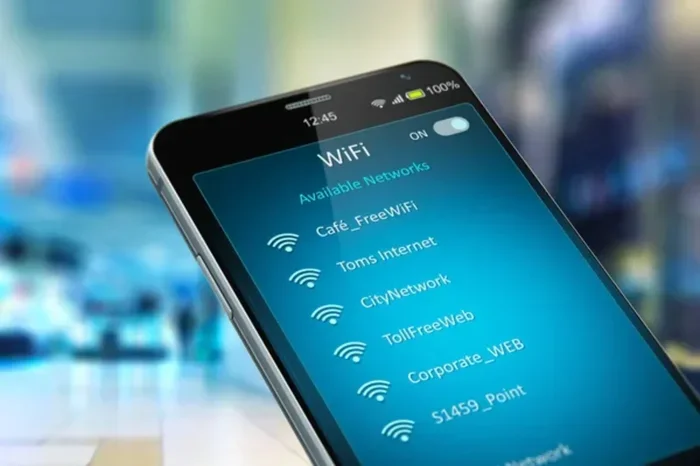
Bluetooth pairing is the most common way to link a headset with a cell phone. Here is how to do it in just a few steps.
- Turn on your Bluetooth headset and put it in pairing mode. Most headsets have a button or slider for this. Check the manual if you are unsure.
- Open the Settings app on your cell phone.
- Tap Bluetooth and make sure it is turned on.
- Your phone will scan for nearby devices. Look for your headset name in the list.
- Tap the headset name to pair. You may need to confirm a PIN or code.
- Once connected, you will see a status message or icon in the notification bar.
After pairing, your headset will automatically connect when you turn it on and it is within range. Bluetooth range is usually about 30 feet. If you move too far away, the connection may drop. This is normal and not a problem.
Using a Wired Headset
Wired headsets connect through the audio jack or USB port. They do not need charging and offer a stable connection. If your cell phone has a 3.5mm headphone jack, simply plug in your wired headset. You will hear audio right away.
If your phone lacks a headphone jack, you have two options. You can use a USB-C headset directly. Or, you can buy a USB-C to 3.5mm adapter. This small dongle plugs into your phone’s USB-C port and gives you a standard audio jack. Many people keep one in their bag for emergencies.
Wired headsets are great for people who want zero latency. There is no delay between the sound and what you hear. This makes them ideal for watching videos or playing games where timing matters.
USB-C and Lightning Headsets
USB-C headsets plug directly into the charging port of your cell phone. They do not need an adapter if your phone uses USB-C. Lightning headsets work the same way but for iPhones that use the Lightning port. Both types send digital audio and often include a built-in microphone.
These headsets are convenient because they charge your phone while you listen. Some models even let you charge your phone through a passthrough port. This is a handy feature if you are low on battery and want to keep listening.
Types of Headsets You Can Use with a Cell Phone
Not all headsets are the same. Different styles offer different benefits. Here are the most common types you can use with your cell phone.
| Headset Type | Connection | Best For | Pros | Cons |
|---|---|---|---|---|
| Bluetooth Wireless | Bluetooth | Calls, music, everyday use | Freedom of movement, easy pairing | Needs charging, slight latency |
| Wired (3.5mm Jack) | Audio Jack | Zero latency, reliability | No battery needed, stable sound | Jack may be missing on new phones |
| USB-C Wired | USB-C Port | Newer phones, digital sound | Direct digital audio, no adapter | Cannot charge while listening (usually) |
| Lightning Wired | Lightning Port | iPhones | Works perfectly with Apple devices | Only for iPhones, limited to Apple ecosystem |
| Wireless Earbuds | Bluetooth | Fitness, portability | Compact, pocketable, often noise cancelling | Smaller battery, easy to lose |
| Gaming Headsets | USB or Bluetooth | Mobile gaming | Surround sound, mic quality | Bulky, not always phone-friendly |
Bluetooth Wireless Headsets
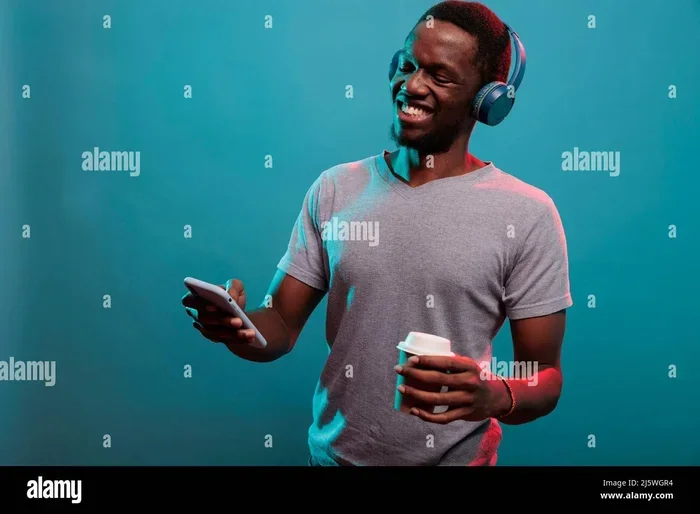
Bluetooth headsets are the most popular choice for cell phone users. They connect without cables and let you move freely. You can wear them while cooking, walking, or working. Most Bluetooth headsets have a built-in microphone for hands-free calling.
When choosing a Bluetooth headset, look for battery life and comfort. A good headset lasts at least 5 hours on a single charge. Many also come with a charging case that gives you extra charges on the go. Bluetooth versions 5.0 and newer offer better range and lower energy use.
Wired Headsets with Audio Jack
Wired headsets are simple and reliable. You plug them in and they work. There is no pairing process, no battery to charge, and no signal dropouts. The sound quality is often excellent, especially with higher-end models.
The main downside is the missing audio jack on many new phones. If your cell phone still has a 3.5mm jack, a wired headset is a great option. They are also usually cheaper than wireless alternatives. For people who value simplicity, a wired headset is hard to beat.
USB-C and Lightning Headsets
USB-C headsets are becoming more common. They plug directly into the charging port and offer digital sound quality. Lightning headsets are the same idea but for iPhones. Both types include a microphone and work well for calls and media.
One thing to watch is that using a USB-C headset means you cannot charge your phone at the same time, unless the headset has a passthrough port. Some models solve this by having a USB-C pass-through on the headset itself. This lets you plug a charger into the headset and keep your phone powered up.
Gaming and Sports Headsets
If you play mobile games or work out, you need a headset built for that purpose. Gaming headsets often have surround sound and a high-quality microphone. Sports headsets are sweat-resistant and fit snugly. Both types can connect to your cell phone via Bluetooth or a wired connection.
Quick Tip: For sports, look for headsets with an IPX4 rating or higher. This means they are sweat and splash resistant. For gaming, choose a headset with low latency mode to keep audio in sync with what you see on screen.
Setting Up Your Headset for the Best Experience
Once you connect your headset, a few small adjustments can make a big difference. You want clear sound, a working microphone, and long battery life. Here is how to set up your headset the right way.
Adjusting Microphone and Audio Settings
Your cell phone has settings that control how audio flows to your headset. Go to Settings and look for Bluetooth or Connected Devices. Tap on your paired headset to see options. Some headsets let you adjust the microphone volume or enable noise cancellation right from your phone.
For calls, make sure your microphone is not blocked. If you use an in-ear headset, the mic is usually near the mouthpiece. If sound seems quiet, check that the media volume and call volume are turned up separately. Many people only adjust one and wonder why the other is too soft.
Enabling Noise Cancellation
Noise cancellation is a great feature on many headsets. It blocks out background sounds so you can focus on your call or music. Some cell phones also have built-in noise cancellation for calls. You can turn this on in your phone’s sound settings.
Keep in mind that noise cancellation uses more battery. If you are low on charge, you may want to turn it off. The trade-off is worth it in noisy places like cafes or busy streets.
Managing Battery and Charging
Bluetooth headsets need regular charging. Make it a habit to place them in the charging case when you are not using them. Most headsets fully charge in 1 to 2 hours. A full charge gives you anywhere from 4 to 10 hours of playtime, depending on the model.
If your headset battery dies quickly, check for firmware updates. Manufacturers often release updates that improve battery efficiency. You can usually update through the headset’s companion app or your phone’s Bluetooth settings.
Quick Tips:
- Turn off your headset when you are not using it to save battery.
- Keep your headset firmware updated for the best performance.
- Store your headset in its case when not in use to protect it.
- Clean the microphone mesh gently with a dry brush to keep it clear.
Common Problems and How to Fix Them
Even with the best headset, you may run into issues now and then. Most problems are easy to solve. Here are the common ones and their fixes.
Headset Not Connecting
If your headset will not pair, try these steps. First, turn off Bluetooth on your phone and then turn it back on. Next, make sure your headset is in pairing mode. If it still does not connect, remove the headset from your phone’s Bluetooth list and pair it again. This resets the connection and often fixes the problem.
Common Mistakes: People often skip putting the headset in pairing mode. The headset must be actively searching for a device. Also, make sure your headset is not already connected to another phone. Most headsets can only be paired to one device at a time unless they support multipoint.
Audio Lag or Latency
Audio lag happens when the sound does not match the video. This is common with Bluetooth connections. To reduce lag, move closer to your phone. Walls and obstacles can weaken the Bluetooth signal. Also, check if your headset has a low-latency or gaming mode. Turning this on can greatly reduce the delay.
Expert Insight: Bluetooth 5.0 and newer codecs like aptX Low Latency are designed to minimize lag. If your phone and headset both support these, you will notice a much smoother experience.
Microphone Not Working
If people cannot hear you during calls, the microphone may be the issue. Check that the microphone is not covered by your hand or clothing. Also, make sure the headset is set as the audio input device. On most phones, you can go to Settings, then Sound, and select the headset as the input.
Another fix is to clean the microphone hole. Dust and lint can build up over time. A soft brush or compressed air can clear it out. If the mic still does not work, try restarting your phone. This often resets the audio routing.
Poor Sound Quality
If the sound is muffled or unclear, check the volume levels first. Sometimes the media volume is turned down even if the call volume is fine. Also, ensure your headset is not in a low-power mode that reduces audio quality.
Quick Tip: Try a different audio app. If one app sounds bad but another sounds fine, the problem is with the app, not your headset. This helps you narrow down the cause quickly.
Choosing the Right Headset for Your Needs
With so many options, picking the right headset can feel overwhelming. Think about what you will use it for most. Here are some quick guidelines to help you decide.
For Calls and Business
If you spend most of your time on calls, look for a headset with a clear microphone and noise cancellation. Over-ear Bluetooth headsets are popular for business because they are comfortable for long wear. The microphone should pick up your voice clearly even in noisy environments.
Key features to look for: multipoint connection (so you can switch between your phone and laptop), long battery life, and a comfortable fit. A wired headset with a good mic is also a solid choice if you want zero battery worry.
For Music and Media
For listening to music or watching videos, sound quality is the top priority. Look for headsets with good bass, clear mids, and crisp highs. Noise isolation or active noise cancellation helps you focus on the audio without raising the volume too loud.
Wireless earbuds are a great choice for music lovers. They are small, portable, and often sound excellent. If you prefer over-ear designs, look for models with padded ear cups that block out outside noise.
For Gaming and Fitness
Mobile gamers need low latency and a good microphone for team chat. A gaming headset that connects via Bluetooth or USB-C works well. Look for a headset with a low-latency mode and a flexible boom mic.
For fitness, choose a headset that is sweatproof and stays in place. In-ear wireless earbuds with ear hooks or fins are ideal. They will not fall out during runs or workouts. Make sure they have an IP rating for water and dust resistance.
Common Mistakes to Avoid:
- Buying a headset based only on price without checking compatibility.
- Forgetting to charge your wireless headset before an important call.
- Using a 3.5mm headset on a phone without a headphone jack without an adapter.
- Ignoring firmware updates that can fix bugs and improve performance.
- Choosing a headset with poor microphone quality for business calls.
Key Takeaways
- All modern cell phones work with headsets: Whether Bluetooth, wired, or USB-C, you have options.
- Bluetooth is the easiest and most popular: It gives you wireless freedom and simple pairing.
- Wired headsets are reliable and zero-latency: Great for gaming and videos where timing matters.
- USB-C and Lightning headsets are convenient: They plug directly into newer phones without adapters.
- Setup is quick and troubleshooting is simple: Most issues resolve with a reset, update, or adapter.
- Choose based on your use case: Calls, music, gaming, and fitness all have ideal headset styles.
Final Thoughts
Can You Use A Headset With A Cell Phone? Absolutely. Your cell phone is designed to work with a wide range of headsets. Whether you prefer the freedom of Bluetooth, the simplicity of a wired connection, or the direct digital sound of USB-C, there is a perfect option for you. The setup process is quick, and once paired, your headset becomes an essential part of your daily routine.
Take a few minutes to explore the settings on your phone. Try different headset types to see what feels right. A good headset improves call clarity, makes music more enjoyable, and keeps you connected wherever you go. With the right connection and a little care, your headset and cell phone will work together seamlessly for years to come.
Start today. Pick up your headset, follow the steps in this guide, and enjoy a better audio experience on your cell phone. The answer to Can You Use A Headset With A Cell Phone is yes, and now you know exactly how to make it work.
Frequently Asked Questions
Can I use any headset with my cell phone?
Most headsets work with cell phones. Bluetooth headsets pair wirelessly, while wired headsets need an audio jack or USB-C port. Check your phone’s ports and Bluetooth support to find the right match.
How do I pair a Bluetooth headset with my cell phone?
Turn on your headset and put it in pairing mode. Go to Settings, tap Bluetooth, and select your headset from the list. Confirm the pairing if prompted, and you are connected.
Why is my headset not connecting to my cell phone?
This is often caused by the headset not being in pairing mode or already connected to another device. Turn off Bluetooth, restart both devices, and try pairing again. Updating your phone’s software can also help.
Can I use a wired headset with a phone that has no headphone jack?
Yes. You can use a USB-C headset directly or buy a USB-C to 3.5mm adapter. This small dongle lets you plug in any standard wired headset to a phone without a headphone jack.
Do USB-C headsets sound better than Bluetooth headsets?
USB-C headsets send digital audio directly, which can reduce interference and improve clarity. However, many modern Bluetooth headsets with aptX or LDAC codecs also deliver excellent sound quality. The difference is small for most users.
How long do Bluetooth headsets last on a single charge?
Battery life varies by model. Most Bluetooth headsets last between 4 and 10 hours on a full charge. Many come with a charging case that provides several extra charges, giving you a total of 20 to 30 hours of use.