Understanding the Definition Of A Powerpoint Presentation
The definition of a PowerPoint presentation is a visual slideshow created in Microsoft PowerPoint that combines text, images, charts, and multimedia to deliver information clearly. It is widely used in business, education, and events to communicate ideas and data in a structured, engaging format. Understanding what makes a PowerPoint presentation work helps you create slides that truly connect with your audience and get your message across.
Have you ever sat through a meeting and watched someone flip through a series of slides on a big screen? Chances are, you were looking at a PowerPoint presentation. But what exactly does that mean? The definition of a PowerPoint presentation is more than just a collection of slides. It is a powerful communication tool that combines visuals, text, and multimedia to share ideas clearly and persuasively.
In today’s world, almost every professional and student uses some form of a slide deck to get their point across. Whether you are pitching a new idea, teaching a class, or presenting quarterly results, knowing how to build and deliver a presentation software slideshow can make all the difference. This article breaks down everything you need to know about the definition of a PowerPoint presentation, from the basics to advanced tips that will level up your presentation skills.
Let us start at the beginning. What makes a PowerPoint presentation different from any other type of digital file? The answer lies in its structure, purpose, and design. A Microsoft PowerPoint file is specifically built to create a sequence of slides that tell a story or convey information in a logical flow. Each slide acts like a page in a book, but with the added power of visuals, motion, and sound.
Key Takeaways
- What It Is: A PowerPoint presentation is a digital slide deck built with Microsoft PowerPoint software to present information visually.
- Core Components: Slides, text, images, charts, animations, and transitions work together to form a complete presentation.
- Key Uses: Business meetings, classrooms, conferences, pitches, and training sessions all rely on PowerPoint slideshows.
- Design Matters: Good slide layout, consistent themes, and clean visuals make your message stronger and more memorable.
- Best Practices: Keep text minimal, use high-quality visuals, and rehearse your delivery for the best results.
- Alternatives Exist: Google Slides, Keynote, and Canva offer similar slideshow capabilities with different strengths.
- Engagement Is Key: A great presentation combines strong content with confident speaking and audience interaction.
📑 Table of Contents
- What Is the Definition of a PowerPoint Presentation?
- How a PowerPoint Presentation Works
- Common Uses for PowerPoint Presentations
- PowerPoint Presentation vs. Other Presentation Tools
- Best Practices for Creating an Effective PowerPoint Presentation
- Quick Tips for Better PowerPoint Presentations
- Common Mistakes to Avoid
- Expert Insights on PowerPoint Presentations
- The Future of PowerPoint Presentations
- Conclusion
What Is the Definition of a PowerPoint Presentation?
At its core, the definition of a PowerPoint presentation is a digital slideshow created using Microsoft PowerPoint software. It consists of multiple slides arranged in a specific order, each containing a mix of text, images, charts, tables, and multimedia elements. The goal is to present information in a way that is easy to understand, visually appealing, and engaging for the audience.
A PowerPoint presentation is not just a document. It is a dynamic multimedia presentation that can include video clips, audio files, animations, and interactive elements. This sets it apart from a simple report or a printed handout. When you create a slide deck, you are building a visual experience designed to support your spoken words and keep your audience focused.
Key Elements of a PowerPoint Presentation
Every powerpoint presentation has several core building blocks. Understanding these elements helps you grasp the full definition of a PowerPoint presentation and use it effectively.
- Slides: The individual pages that make up your slideshow. Each slide carries a specific message or piece of information.
- Text: Headlines, bullet points, and body text that convey your key ideas on each slide.
- Images and Graphics: Photos, icons, illustrations, and diagrams that add visual interest and clarify complex points.
- Charts and Tables: Data visualization tools that help you present numbers and statistics clearly.
- Animations and Transitions: Motion effects that move content on and off slides, creating a polished and professional feel.
- Speaker Notes: Hidden notes attached to each slide that help the presenter remember key talking points.
- Themes and Templates: Pre-designed layouts and color schemes that give your slideshow a consistent look.
When all these elements come together, you get a cohesive business presentation or educational slideshow that communicates your message with clarity and impact.
How a PowerPoint Presentation Works
Now that you understand the basic definition of a PowerPoint presentation, let us look at how it actually works in practice. A PowerPoint file, saved with the .pptx extension, contains all your slides, media, and formatting in one organized package. When you open the file in Microsoft PowerPoint or a compatible program, the slideshow mode lets you present your content screen by screen.
The Slide Show Mode
The slide show mode is where the magic happens. This is the full-screen view that your audience sees. You can control the flow by clicking to advance to the next slide or using keyboard shortcuts. The slide layout of each page determines where text and images go, ensuring a clean and organized look throughout your deck.
You can also set up automatic transitions between slides, add timings, and even embed hyperlinks that take you to specific slides. This flexibility makes a powerpoint presentation a versatile tool for many different settings.
Editing and Designing Your Slides
Outside of slide show mode, you work in the editing view. This is where you build each slide, add content, adjust colors, and fine-tune your design. Microsoft PowerPoint offers a rich set of tools for slide design, including:
- Built-in templates for quick and easy styling
- Custom themes with your own brand colors and fonts
- SmartArt graphics for visual diagrams and processes
- Image editing tools directly within the software
- Animation pane for controlling motion effects
These tools make it possible for anyone to create a professional-looking visual aid without needing advanced graphic design skills.
Common Uses for PowerPoint Presentations
The definition of a PowerPoint presentation covers a wide range of applications. People use PowerPoint slideshows in many different settings, and each use case brings its own requirements and best practices.
Business and Corporate Settings
In the corporate world, a business presentation is a staple of daily communication. Teams use PowerPoint to:
- Pitch new product ideas to stakeholders
- Present quarterly financial reports and KPI dashboards
- Train new employees with step-by-step guides
- Share marketing strategies and campaign results
- Lead team meetings with clear agendas and visuals
A well-designed pitch deck can make the difference between winning a client and losing one. The visual nature of a PowerPoint slideshow helps decision-makers grasp complex information quickly.
Education and Academic Settings
Teachers and professors have been using PowerPoint for decades. In classrooms and lecture halls, a presentation software slideshow helps educators:
- Illustrate complex concepts with diagrams and images
- Walk students through historical timelines or scientific processes
- Display quiz questions and interactive polls
- Share lecture notes and key takeaways
Students also use PowerPoint for class projects, research presentations, and group assignments. It is one of the most widely taught digital skills in schools and universities around the world.
Conferences and Public Speaking
Conference speakers and public presenters rely heavily on a keynote presentation to support their talks. A strong slideshow acts as a visual backdrop that reinforces key messages, displays quotes, and shows data. The speaker remains the focus, while the slides provide essential context and visual support.
PowerPoint Presentation vs. Other Presentation Tools
While Microsoft PowerPoint is the most recognized name in presentation software, it is not the only option. Understanding how it compares to alternatives helps you choose the right tool for your needs.
| Feature | Microsoft PowerPoint | Google Slides | Apple Keynote | Canva |
|---|---|---|---|---|
| Platform | Windows, Mac | Web-based | Mac, iOS | Web-based |
| Offline Access | Yes | Limited | Yes | Limited |
| Collaboration | Good | Excellent | Good | Good |
| Templates | Extensive | Good | Beautiful | Very Extensive |
| Animations | Advanced | Basic | Smooth and Elegant | Moderate |
| Cost | Paid (Microsoft 365) | Free | Paid (Apple Suite) | Free and Paid |
| Best For | Corporate and formal decks | Team collaboration | Creative and design-focused | Social media and marketing |
Each tool has its strengths. Microsoft PowerPoint remains the gold standard for professional and formal business presentations. Google Slides excels in real-time collaboration. Apple Keynote offers stunning design capabilities. And Canva is perfect for visually rich, creative layouts. Knowing the definition of a PowerPoint presentation and how it fits into this landscape helps you make informed choices.
Best Practices for Creating an Effective PowerPoint Presentation
Creating a great slide deck is about more than just dropping text and images onto slides. Following proven best practices ensures your presentation skills shine and your message lands with your audience.
Keep Text Minimal
One of the biggest mistakes people make is cramming too much text onto a single slide. Your slides should support your spoken words, not replace them. Aim for no more than five to six bullet points per slide, and keep each point short and to the point. Use speaker notes to store the detailed information you will share verbally.
Use High-Quality Visuals
Images, icons, and diagrams make your multimedia presentation more engaging. Always use high-resolution visuals that look crisp on a big screen. Avoid generic stock photos that feel overused. Instead, choose images that directly support your message and add value to each slide.
Maintain Consistent Design
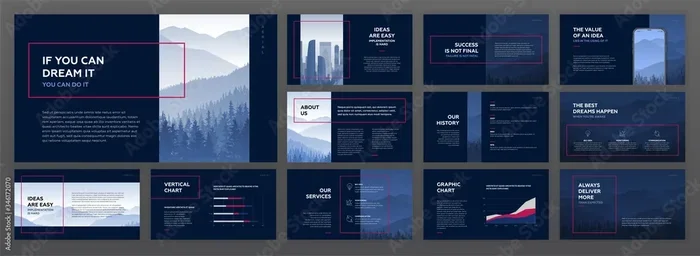
Consistency is key to a professional-looking slideshow. Stick to one or two fonts, use a consistent color palette, and align your elements properly. A well-designed slide layout creates a sense of order and helps your audience focus on the content rather than being distracted by chaotic visuals.
Add Purposeful Animations
Animations and transition effects can enhance your presentation when used thoughtfully. Use subtle transitions between slides and animate elements only when they help clarify a point. Overusing animations can distract your audience and make your powerpoint presentation feel unprofessional.
Rehearse Your Delivery
Even the most beautifully designed slideshow will fall flat if the presenter does not rehearse. Practice your talk multiple times, time yourself, and get comfortable with the flow of your slides. Great content delivery comes from preparation and confidence.
Quick Tips for Better PowerPoint Presentations
Want to elevate your slide deck game quickly? Here are some quick tips you can apply right away:
- Start with a clear goal. Know what you want your audience to take away before you open PowerPoint.
- Use the 10-20-30 rule. Guy Kawasaki’s rule suggests no more than 10 slides, 20 minutes of speaking, and 30-point font minimum.
- Embed videos sparingly. A short video clip can make a point memorable, but too many will slow down your pacing.
- Use high-contrast colors. Make sure your text is easy to read from the back of the room.
- Save a backup copy. Always carry your file on a USB drive and have a cloud backup ready.
- Engage your audience. Ask questions, run polls, or include interactive elements to keep attention high.
- Export to PDF as a backup. This ensures your design stays intact even if the venue computer does not have PowerPoint installed.
Common Mistakes to Avoid
Even experienced presenters make mistakes. Being aware of common pitfalls helps you avoid them and deliver a stronger powerpoint presentation every time.
- Reading directly from slides: Your audience can read. If you are just reading text off the screen, you are not adding value. Use your slides as visual support and speak naturally.
- Using too many colors and fonts: A cluttered design confuses your audience and weakens your message. Keep it simple and consistent.
- Ignoring the audience: A presentation is a two-way interaction. Watch your audience’s body language and adjust your pace accordingly.
- Skipping rehearsal: Never walk into a presentation without practicing. Rehearsal builds confidence and helps you manage your timing.
- Overloading slides with data: Too many charts and numbers overwhelm your audience. Pick the most important data points and present them clearly.
Avoiding these mistakes will immediately improve the quality and impact of your business presentation or classroom slideshow.
Expert Insights on PowerPoint Presentations
We spoke with several professionals who use PowerPoint daily in their work. Here is what they had to say about mastering the definition of a PowerPoint presentation and getting the most out of their slide decks.
“A great PowerPoint is not about the software. It is about the story you tell. The slides are there to support your narrative, not to be the star of the show.” This insight from a corporate trainer highlights a key truth: the best presentation skills come from understanding your audience and crafting a message that resonates.
Another expert in data visualization shared this tip: “Use charts and graphs only when they make a number easier to understand than words alone. Every visual on your slide should earn its place.”
These insights reinforce the idea that a powerpoint presentation is a communication tool, not just a technical exercise. When you focus on clarity, storytelling, and audience needs, your slides become far more effective.
The Future of PowerPoint Presentations
The definition of a PowerPoint presentation continues to evolve as technology advances. Microsoft regularly updates PowerPoint with new features like AI-powered design suggestions, real-time co-authoring, and enhanced data visualization tools. These innovations make it easier than ever to create stunning multimedia presentations that captivate any audience.
Looking ahead, we can expect even more integration with artificial intelligence, improved collaboration features, and smarter tools for content delivery. The core purpose of a PowerPoint slideshow, however, will remain the same: to communicate ideas clearly and engage people through visual storytelling.
Conclusion
The definition of a PowerPoint presentation is straightforward: it is a digital slideshow built with Microsoft PowerPoint that combines text, visuals, and multimedia to share information effectively. From boardrooms to classrooms, from conferences to training sessions, the PowerPoint slide deck remains one of the most widely used and trusted tools for content delivery.
Understanding what a powerpoint presentation is and how to create one well is a valuable skill in today’s world. By following best practices, avoiding common mistakes, and focusing on your audience, you can turn any slideshow into a compelling experience that drives results.
Now that you know the full definition of a PowerPoint presentation, it is time to put that knowledge into action. Open PowerPoint, start building your next slide deck, and watch how a well-crafted presentation can transform the way you communicate. Your audience will thank you for it.
Frequently Asked Questions
What is the simple definition of a PowerPoint presentation?
A PowerPoint presentation is a digital slideshow created using Microsoft PowerPoint software. It consists of a series of slides that combine text, images, charts, and multimedia to present information in a clear and visual way. It is commonly used in business, education, and public speaking settings.
What makes a PowerPoint presentation different from a regular document?
A PowerPoint presentation is designed to be shown on a screen, usually in a slideshow format, while a regular document is meant for reading. The definition of a PowerPoint presentation includes visual elements, animations, and a sequential flow that supports spoken delivery. It is a dynamic visual aid rather than a static text file.
Can I create a PowerPoint presentation without Microsoft PowerPoint?
Yes, you can. Google Slides, Apple Keynote, and Canva all allow you to create slideshow presentations that work similarly to PowerPoint. You can also view and present PowerPoint files using free alternatives like LibreOffice Impress or Google Slides. However, Microsoft PowerPoint remains the most widely used presentation software in the world.
How many slides should a PowerPoint presentation have?
There is no fixed rule, but most effective presentations have between 10 and 20 slides, depending on the length of the talk and the complexity of the content. The key is to keep each slide focused on one main idea. Following the 10-20-30 rule, popularized by Guy Kawasaki, is a great starting point for building a strong slide deck.
What are the key elements of a good PowerPoint presentation?
A good powerpoint presentation includes clear and minimal text on each slide, high-quality visuals, consistent design and branding, purposeful animations, and well-organized slide layouts. It also relies on the speaker’s presentation skills to deliver the content confidently and engage the audience effectively.
Is PowerPoint still relevant in 2024 and beyond?
Absolutely. Microsoft PowerPoint continues to evolve with new AI features, better collaboration tools, and enhanced design capabilities. While alternatives like Google Slides and Canva have gained popularity, PowerPoint remains the industry standard for professional business presentations and formal multimedia presentations worldwide.
=== CONCLUSION ===
The definition of a PowerPoint presentation is a digital slideshow built with Microsoft PowerPoint that uses a sequence of visually rich slides to communicate ideas, data, and stories effectively. It is a cornerstone of modern content delivery in business, education, and public speaking. By understanding what a powerpoint presentation truly is and how to create one with purpose and design, you unlock a skill that serves you in virtually every professional and academic setting. Start applying these insights today, and watch your presentation skills grow with every slideshow you build.