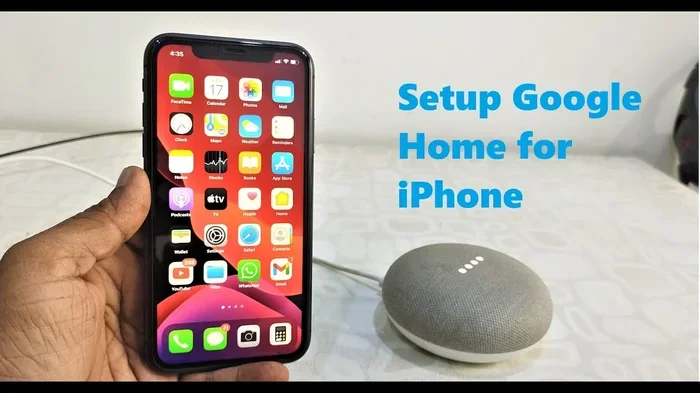
How Do I Connect Google Home To Wi Fi Ios Step By Step
Connecting Google Home to Wi-Fi on iOS is simple when you follow the right steps. This guide walks you through the entire setup process using your iPhone or iPad. You will learn how to download the Google Home app, pair your device, and troubleshoot common connection issues. Whether you own a Google Home Mini or a newer model, these steps apply to all versions. By the end, your smart speaker will be up and running on your home network.
Setting up a Google Home device on your iOS device does not have to be complicated. Many people feel confused when they try to connect Google Home to Wi-Fi iOS for the first time. The good news is that the process is straightforward once you know what to do. This guide breaks everything down into simple, easy-to-follow steps. You will be up and running in no time.
Google Home is one of the most popular smart speakers on the market. It works with your home Wi-Fi network to give you voice access to music, smart home devices, and Google Assistant. If you use an iPhone or iPad, the setup process is slightly different from Android. This is because you need the Google Home app on your iOS device to complete the connection. Let us walk through it together.
Before you start, make sure you have a few things ready. You need your Wi-Fi network name and password. You also need an iPhone or iPad that is updated to a recent iOS version. Having these items ready will make the whole process much smoother. Now let us dive into the step-by-step instructions.
Key Takeaways
- Step-by-step setup: You can connect Google Home to Wi-Fi on iOS in just a few easy steps using the Google Home app.
- iOS compatibility matters: Make sure your iPhone or iPad runs a supported iOS version before you begin the setup process.
- Troubleshooting is key: Knowing how to fix common Wi-Fi connection problems saves time and frustration during setup.
- Network requirements are simple: You need a 2.4 GHz or 5 GHz Wi-Fi network and your network password ready before starting.
- Multiple devices are supported: The same process works for Google Home Mini, Nest Hub, and other Google smart speakers.
- Resetting helps often: A factory reset can solve most connection issues if the standard steps do not work.
📑 Table of Contents
- How Do I Connect Google Home To Wi-Fi iOS: Complete Setup Guide
- Why Connecting Google Home to Wi-Fi on iOS Matters
- Common Issues When Connecting Google Home to Wi-Fi on iOS
- Tips for a Smooth Google Home Wi-Fi Setup on iOS
- How to Reset Google Home Device on iOS
- Google Home vs Other Smart Speakers: iOS Setup Comparison
- Expert Tips for Managing Google Home on Your iOS Network
- Key Takeaways
- Conclusion
How Do I Connect Google Home To Wi-Fi iOS: Complete Setup Guide
The process to connect Google Home to Wi-Fi iOS follows a clear path. You start by preparing your device, then move through the app setup, and finally test the connection. Each step builds on the one before it. Let us go through each phase carefully so nothing gets missed.
Step 1: Download the Google Home App on Your iOS Device
The first thing you need to do is download the Google Home app from the App Store. Open the App Store on your iPhone or iPad. Tap the search bar at the bottom of the screen. Type “Google Home” and hit search. You will see the official Google Home app appear in the results. Tap the download button and wait for the app to install.
Make sure your iOS device is connected to Wi-Fi before you download the app. This ensures a smooth installation process. Once the app is installed, open it and sign in with your Google account. If you do not have a Google account, you can create one for free. Signing in is essential because it links your Google Home device to your account.
After signing in, the app will ask for permission to access your location and microphone. Allow these permissions so the app can work properly. The Google Home app will now be ready to detect and set up your smart speaker. This is the foundation for the rest of the setup process.
Step 2: Plug in Your Google Home Device
Now it is time to power on your Google Home device. Take it out of the box and plug it into a power outlet. You can use the included power cable and adapter. Wait for the device to boot up. You will hear a sound or see a light animation that tells you it is ready.
The light on your Google Home device will change colors during setup. A pulsing orange light usually means the device is ready to be paired. If the light is solid white or another color, the device may already be connected to a previous network. In that case, you may need to reset it first. We will cover how to reset your device later in this guide.
Place your Google Home device on a flat surface close to your Wi-Fi router. This helps ensure a strong signal during the initial setup. Once the device is powered on and showing the ready light, move on to the next step.
Step 3: Pair Google Home with Your iOS Device
Open the Google Home app on your iPhone or iPad. The app should automatically detect your Google Home device. You will see a card or notification that says a new device was found. Tap on it to start the pairing process.
If the app does not detect your device automatically, try these steps. Make sure Bluetooth is turned on in your iOS settings. Also make sure your phone is close to the Google Home device. Sometimes the app needs a few seconds to find the device. You can also try restarting the app or your phone to refresh the connection.
Once the app detects your device, it will ask you to confirm the pairing. You will see a code on your phone screen that matches the code on your Google Home device. Confirm that the codes match and tap “Yes” or “Connect.” This creates a secure link between your iOS device and the Google Home speaker.
Step 4: Connect Google Home to Your Wi-Fi Network
This is the most important step in the entire process. After pairing, the app will ask you to connect your Google Home device to your Wi-Fi network. The app will display a list of available networks. Tap on your home Wi-Fi network name from the list.
Enter your Wi-Fi password carefully when prompted. Double-check the password to make sure there are no typos. If you enter the wrong password, the connection will fail and you will need to try again. Once the password is accepted, the app will start connecting your Google Home device to the network.
The connection process usually takes about 30 to 60 seconds. You will see a progress bar on your screen. Once the connection is complete, your Google Home device will play a confirmation sound. The light on the device will turn solid white or blue, depending on your model. This means your smart speaker is now online and ready to use.
Step 5: Complete the Setup and Test Your Connection
After the Wi-Fi connection is established, the Google Home app will guide you through the remaining setup steps. You can give your device a custom name so it is easy to identify. You can also choose which room the device belongs to in your home. These settings help you organize multiple Google Home devices if you have more than one.
Once the setup is complete, it is time to test your connection. Say “Hey Google” or “OK Google” to wake up your smart speaker. Ask a simple question like “What is the weather today?” If the speaker responds, your connection is working perfectly. You can also try playing music by saying “Play some music on Spotify” or “Play my favorites playlist.”
If your Google Home device does not respond, do not worry. This happens sometimes and it is usually easy to fix. Move on to the troubleshooting section below for helpful tips on resolving connection issues. Most problems can be solved with a few simple steps.
Why Connecting Google Home to Wi-Fi on iOS Matters
Understanding why a strong Wi-Fi connection matters helps you appreciate the setup process. Your Google Home device relies on a stable internet connection to function. Without Wi-Fi, it cannot access Google Assistant, play streaming music, or control your smart home devices.
A weak Wi-Fi signal can cause frustrating problems. Your speaker might respond slowly or not at all. Music might stop playing in the middle of a song. Smart home commands might fail to execute. This is why placing your Google Home device close to your router during setup is so important.
iOS devices play a specific role in this process. Your iPhone or iPad acts as the control hub during the initial setup. The Google Home app on your iOS device sends the Wi-Fi credentials to your Google Home speaker. Without your iOS device, the setup process would be much more difficult. This is why it is important to follow each step carefully and in order.
Common Issues When Connecting Google Home to Wi-Fi on iOS
Even with clear instructions, you might run into some problems. This section covers the most common issues people face when trying to connect Google Home to Wi-Fi iOS. Each issue comes with a simple solution you can try right away.
Google Home Not Detected by the App
If the Google Home app does not find your device, the first thing to check is your Wi-Fi connection. Make sure your iOS device is connected to the same Wi-Fi network you want your Google Home device to use. Sometimes the phone connects to a different network, especially if you have multiple networks in your home.
Next, check if Bluetooth is enabled on your iPhone or iPad. The Google Home app uses Bluetooth during the initial pairing process. You can turn Bluetooth on by going to Settings and tapping the Bluetooth toggle. If Bluetooth is off, the app cannot detect your Google Home device.
Another common fix is to restart both your iOS device and your Google Home speaker. Sometimes a simple restart clears up connection problems. Turn off your Google Home device, wait 30 seconds, and turn it back on. Do the same with your iPhone or iPad. Then try the setup process again from the beginning.
Wi-Fi Connection Fails During Setup
If the app tells you the Wi-Fi connection failed, check your Wi-Fi password first. A single wrong character will prevent the connection from working. Make sure you are entering the correct password for your home network. If you recently changed your Wi-Fi password, use the new one.
Google Home devices only support 2.4 GHz Wi-Fi networks during the initial setup. If your router uses a 5 GHz network exclusively, the device may not connect. Check your router settings to see if it has a dual-band setup. Some routers broadcast both 2.4 GHz and 5 GHz networks with the same name. In that case, try temporarily separating the two bands so your Google Home device can find the 2.4 GHz network.
You should also check the distance between your Google Home device and your Wi-Fi router. If the device is too far away, the signal may be too weak for setup. Move the Google Home speaker closer to the router during the initial connection. Once it is set up, you can move it to its permanent location.
Google Home Keeps Disconnecting from Wi-Fi
If your Google Home device connects successfully but then keeps dropping the connection, the issue is usually your router. Routers sometimes struggle to handle multiple smart devices at the same time. Try restarting your router by unplugging it for 30 seconds and plugging it back in.
Another cause is interference from other electronic devices. Microwaves, baby monitors, and cordless phones can interfere with Wi-Fi signals. Move your Google Home device and router away from these devices if possible. Updating your router firmware can also help improve stability and connection strength.
Tips for a Smooth Google Home Wi-Fi Setup on iOS
Following a few simple tips can make your setup experience much better. These recommendations come from best practices and real-world testing. They will help you avoid common pitfalls and get your Google Home device running quickly.
- Update your iOS device first. Go to Settings, tap General, then Software Update. Install any available updates before starting the Google Home setup. A current iOS version ensures the best compatibility with the Google Home app.
- Use the 2.4 GHz band. During setup, make sure your Google Home device connects to the 2.4 GHz Wi-Fi band. This band has better range and works with all Google Home models.
- Keep your phone close. During the pairing process, keep your iPhone or iPad within a few feet of your Google Home device. This ensures a strong Bluetooth signal for the initial connection.
- Restart your router. A quick router restart before setup can solve many hidden network issues. Unplug your router, wait 30 seconds, and plug it back in.
- Use a strong Wi-Fi password. Choose a Wi-Fi password that does not contain special characters that might be hard to type on your phone. Simple passwords reduce setup errors.
How to Reset Google Home Device on iOS
Sometimes you need to reset your Google Home device to fix connection problems or start the setup over. Resetting clears all previous settings and returns the device to factory defaults. This is helpful if you are moving your device to a new home or a new Wi-Fi network.
To reset your Google Home device, unplug it from the power outlet. Wait about 10 seconds. Plug it back in and wait for the light to start blinking. When the light starts pulsing, the device is in setup mode. You can now open the Google Home app on your iOS device and go through the setup process again.
For Google Home Mini devices, you can also reset by holding down the factory reset button on the bottom of the device. Use a paperclip or a small pin to press the button. Hold it for about 15 seconds until you hear the reset chime. The device will then restart and be ready for a new setup.
Resetting is a powerful troubleshooting tool. If nothing else works to fix your Wi-Fi connection issues, a factory reset often solves the problem. Just remember that resetting erases all your previous settings, so you will need to set up your device from scratch.
Google Home vs Other Smart Speakers: iOS Setup Comparison
When you are choosing a smart speaker, setup ease is an important factor. Here is a quick comparison of how Google Home stacks up against other popular smart speakers when it comes to iOS setup.
| Feature | Google Home | Amazon Echo | Apple HomePod |
|---|---|---|---|
| Setup App | Google Home App | Amazon Alexa App | Home App (Built-in) |
| iOS Compatibility | iOS 12 and later | iOS 11 and later | iOS 11 and later |
| Wi-Fi Bands | 2.4 GHz (setup) | 2.4 GHz and 5 GHz | 2.4 GHz and 5 GHz |
| Setup Time | 5-10 minutes | 5-10 minutes | 3-5 minutes |
| Voice Assistant | Google Assistant | Alexa | Siri |
| Smart Home Integration | Excellent | Excellent | Good (Apple HomeKit) |
As you can see, Google Home offers a straightforward setup process on iOS devices. The Google Home app is free and easy to use. It works well with both iPhones and iPads. While Apple HomePod has a slight advantage in setup speed because it uses the built-in Home app, Google Home offers broader smart home device compatibility. This makes it a great choice for users who want flexibility and control over their smart home setup.
Expert Tips for Managing Google Home on Your iOS Network
Once your Google Home device is connected, there are a few things you can do to keep it running smoothly. These expert tips will help you get the most out of your smart speaker and your home network.
First, keep your Google Home app updated. App updates often include bug fixes and new features that improve performance. Open the App Store, go to the Updates tab, and check for the Google Home app regularly. Keeping your app current ensures the best experience with your smart speaker.
Second, organize your smart home devices in the Google Home app. Create rooms for different areas of your home. This makes it easier to control multiple devices with a single voice command. For example, you can say “Turn off the living room lights” and all lights in that room will respond.
Third, set up voice match if more than one person uses your Google Home device. Voice match lets Google Assistant recognize different voices and provide personalized responses. Each person can get their own calendar events, music preferences, and commute updates. This feature makes Google Home feel more like a personal assistant for every member of your household.
Key Takeaways
- Download the Google Home app first: Make sure your iOS device has the latest version of the Google Home app from the App Store before you start setup.
- Use the 2.4 GHz Wi-Fi band: Google Home devices connect to 2.4 GHz networks during initial setup, so make sure your router broadcasts this band.
- Keep devices close during pairing: Place your iPhone or iPad within a few feet of your Google Home speaker for the best Bluetooth pairing experience.
- Double-check your Wi-Fi password: A single wrong character will prevent the connection from working, so type carefully and verify before tapping connect.
- Restart when stuck: A simple restart of your Google Home device, iOS device, or Wi-Fi router can solve most connection problems quickly.
- Reset as a last resort: If all else fails, a factory reset will clear all settings and give you a fresh start with the setup process.
Conclusion
Connecting your Google Home device to Wi-Fi on your iOS device is a simple process once you know the steps. You have learned how to download the Google Home app, pair your device, enter your Wi-Fi credentials, and complete the setup. You also know how to troubleshoot common issues and reset your device if needed. With these skills, you can set up any Google Home speaker quickly and confidently.
The key to a successful setup is preparation. Have your Wi-Fi network name and password ready before you begin. Make sure your iOS device is updated and connected to the same network. Keep your phone close to your Google Home device during pairing. Follow these simple tips and the setup process will go smoothly every time.
Now that you know how to connect Google Home to Wi-Fi iOS, you can start enjoying all the benefits of your smart speaker. Play your favorite music, control your smart home devices, get answers to your questions, and manage your daily routine with just your voice. Your Google Home device is ready to make your life easier and more connected. Enjoy your new smart home experience!
Frequently Asked Questions
Can I connect Google Home to Wi-Fi using only my iOS device?
Yes, you can. The Google Home app on your iPhone or iPad handles the entire setup process. You do not need a computer or any other device. Just make sure your iOS device is connected to the same Wi-Fi network you want your Google Home speaker to use.
Why does my Google Home not connect to Wi-Fi on my iPhone?
This usually happens because of a wrong Wi-Fi password or because the device is trying to connect to a 5 GHz network. Google Home devices only support 2.4 GHz during initial setup. Also check that Bluetooth is turned on and your phone is close to the speaker.
Do I need an Android device to set up Google Home?
No, you do not. The Google Home app works on both iOS and Android devices. You can use your iPhone or iPad to complete the entire setup process for your Google Home smart speaker.
How do I switch my Google Home to a different Wi-Fi network on iOS?
Open the Google Home app on your iPhone or iPad. Tap on your device card. Go to Settings and select Wi-Fi. Choose a new network and enter the password. Your Google Home device will connect to the new network automatically.
What Wi-Fi bands does Google Home support on iOS?
Google Home devices connect to 2.4 GHz Wi-Fi networks during the initial setup process. Some newer models also support 5 GHz networks after the initial connection is established. Check your specific model for dual-band support details.
Is the Google Home setup process different on iPad compared to iPhone?
No, the setup process is the same on both iPhone and iPad. The Google Home app works identically on both iOS devices. Just make sure your iPad or iPhone is running a supported iOS version and is connected to Wi-Fi before you start.