How Do I Connect My Cell Phone To My Speakers Wirelessly
Discover how to connect your cell phone to your speakers wirelessly in just a few simple steps. This guide covers Bluetooth pairing, Wi-Fi streaming, AirPlay, and Chromecast methods so you can enjoy wireless music anywhere. Whether you use an iPhone or Android, you will find clear instructions that work every time. Say goodbye to cables and hello to seamless wireless audio streaming from your phone to any speaker.
There is nothing quite like filling a room with your favorite music. Whether you are hosting a party or just relaxing at home, wireless music playback makes everything better. The days of tangled cables and limited range are over. You can easily connect your cell phone to your speakers wirelessly and start streaming in minutes.
Maybe you just bought a new Bluetooth speaker. Perhaps you want to set up a whole home audio system. Whatever your reason is, this guide has you covered. You will learn every method, every tip, and every fix you need. Let us get started.
Key Takeaways
- Bluetooth is the fastest and easiest way to connect most phones to speakers without any extra equipment.
- Wi-Fi streaming offers better sound quality and longer range compared to Bluetooth for home setups.
- AirPlay and Chromecast are great options for users in the Apple and Google ecosystems respectively.
- NFC pairing lets you connect with a single tap if both your phone and speaker support it.
- Common issues like lag or disconnections can usually be fixed with simple troubleshooting steps.
- Keeping your phone and speaker software updated ensures the smoothest wireless connection experience.
📑 Table of Contents
- Why Wireless Connection Matters
- How Bluetooth Connection Works
- How Do I Connect My Cell Phone to My Speakers Wirelessly via Bluetooth
- Alternative Wireless Connection Methods
- Tips for Better Wireless Audio Quality
- Common Wireless Connection Problems and Fixes
- Expert Insights on Wireless Speaker Connectivity
- Key Takeaways
- Conclusion
Why Wireless Connection Matters
Wired connections still work. But wireless streaming gives you freedom. You can move around your room without dragging a cord behind you. You can answer calls and keep listening. The convenience factor is huge.
Here are some reasons why going wireless makes sense:
- No cables needed — you can place your speaker anywhere in the room.
- Multiple device support — connect your phone, tablet, and laptop to the same speaker.
- Portability — take your speaker to the backyard, the beach, or a picnic.
- Cleaner setup — no messy wires cluttering your living space.
- Quick pairing — most modern devices connect in under ten seconds.
The wireless connectivity options available today are better than ever. Bluetooth has improved a lot over the years. Wi-Fi streaming now supports high-resolution audio. You truly have more choices than before. Let us look at those options next.
How Bluetooth Connection Works
Understanding the Basics
Bluetooth is a short-range wireless technology. It uses radio waves to send data between devices. When you pair your phone with a speaker, they create a direct link. No internet connection is needed for basic Bluetooth streaming.
Here is what happens behind the scenes:
- Your phone sends a signal to discover nearby Bluetooth devices.
- The speaker responds and becomes visible for pairing.
- You confirm the connection on both devices.
- Audio data flows wirelessly from your phone to the speaker.
Most modern phones and speakers use Bluetooth 5.0 or newer. This means better range, faster transfer, and lower power use. The typical range is about 30 feet indoors. Walls and obstacles can reduce that distance.
Bluetooth vs. Wi-Fi for Audio Streaming
Both Bluetooth and Wi-Fi can stream audio. But they work differently. Bluetooth uses less bandwidth and is great for portable setups. Wi-Fi supports higher audio quality and longer range. Here is a quick comparison:
- Bluetooth — easy to set up, low latency, short range, works offline.
- Wi-Fi — better sound quality, longer range, needs a network, supports multi-room audio.
For most people, Bluetooth is the go-to choice. It is simple and reliable. But if you want the best sound quality at home, Wi-Fi streaming is worth exploring.
How Do I Connect My Cell Phone to My Speakers Wirelessly via Bluetooth
Bluetooth is the most popular method for wireless speaker connection. It works with almost every phone and speaker made today. The process is straightforward. Follow these steps for both iPhone and Android devices.
Step-by-Step Bluetooth Pairing Guide
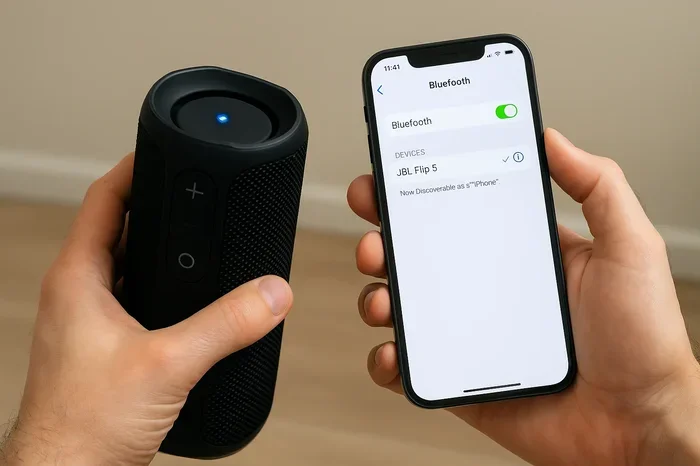
Here is exactly how to pair your phone with a Bluetooth speaker:
- Turn on your speaker and put it in pairing mode. Most speakers have a dedicated Bluetooth button. Check the manual if you are unsure.
- Open Bluetooth settings on your phone. On iPhone, go to Settings and tap Bluetooth. On Android, swipe down from the top and tap the Bluetooth icon.
- Wait for your speaker to appear in the list of available devices.
- Tap the speaker name to initiate pairing.
- Confirm the connection if prompted. Some speakers require a PIN, often 0000 or 1234.
- Start playing music on your phone. The audio should now come through the speaker.
That is it. You are connected. The whole process takes less than a minute once you have done it a few times.
iPhone Bluetooth Speaker Setup
iPhone users have a slightly streamlined experience. Apple devices use AirPlay as a bonus option. But for standard Bluetooth, the steps are simple. Open Control Center by swiping down from the top right. Tap the Bluetooth icon to turn it on. Then tap the speaker name in the music controls. Your iPhone will connect instantly if the speaker is nearby.
One nice iPhone feature is automatic reconnection. If you paired the speaker before, it will connect again when you turn Bluetooth on. This saves you from repeating the pairing process every time.
Android Bluetooth Speaker Setup
Android phones work similarly but with a few differences. Go to Settings, then Connections, then Bluetooth. Toggle Bluetooth on. Your phone will scan for available devices. Tap the speaker name when it appears. Some Android phones let you long-press the Bluetooth icon for quick access. This is a handy shortcut.
Android also supports Bluetooth multipoint on some devices. This means you can connect to two speakers or a speaker and headphones at the same time. Check your phone settings to see if this feature is available.
Alternative Wireless Connection Methods
Bluetooth is not the only way to go wireless. Several other methods offer different advantages. Let us explore them.
Using Wi-Fi Speakers and Streaming Protocols
Wi-Fi speakers connect to your home network. They do not need Bluetooth at all. Popular brands include Sonos, Google Nest, and Amazon Echo. These speakers offer excellent sound quality and multi-room capabilities.
To connect your phone to a Wi-Fi speaker, you typically use an app. The Sonos app, Google Home app, or Amazon Alexa app handles the setup. Once connected, you can stream music from any app on your phone directly to the speaker.
The advantage of Wi-Fi is clear. You get better audio quality and no range limitations within your home. The speaker stays connected as long as it is powered on and on the same network.
AirPlay for Apple Users
If you have an iPhone and an AirPlay-compatible speaker, you are in luck. AirPlay wireless streaming is built into iOS. It lets you send audio to compatible speakers and Apple TVs over Wi-Fi.
Here is how to use AirPlay:
- Make sure your phone and speaker are on the same Wi-Fi network.
- Open the music app or any app that plays audio.
- Tap the AirPlay icon (a triangle with circles above it).
- Select your speaker from the list.
- Your audio will now stream wirelessly through the speaker.
AirPlay supports high-quality audio streaming. It also lets you control playback from your phone. The latency is low, making it great for videos and games too.
Chromecast Built-In Speakers
Google Chromecast is another excellent wireless option. Many modern speakers come with Chromecast built-in. This lets you cast audio from your phone using the Google Home app.
The setup is simple:
- Download the Google Home app on your phone.
- Make sure your phone and speaker are on the same Wi-Fi network.
- Follow the on-screen instructions to pair the speaker.
- Once paired, tap the Cast icon in any compatible app.
- Choose your speaker and start streaming.
Chromecast is great for Android users. But it also works with iPhones. The audio quality is excellent, and you can control volume and playback from your phone.
NFC Tap-to-Connect
Near Field Communication, or NFC, is a quick pairing method. If both your phone and speaker support NFC, you can connect with a single tap. Simply hold your phone close to the NFC spot on the speaker. A prompt will appear on your screen. Tap it to confirm the connection.
NFC pairing is super fast. It is perfect for guests who want to play music quickly at a gathering. Not all phones and speakers support NFC, so check your device specs first.
Tips for Better Wireless Audio Quality
Wireless audio has come a long way. But you can still improve your listening experience. Here are some practical tips to get the best sound from your wireless speaker setup.
Keep Your Devices Close
Bluetooth works best within 30 feet. The closer your phone is to the speaker, the stronger the signal. Walls and furniture can weaken the connection. Try to keep them in the same room for the best results.
Reduce Interference
Other wireless devices can interfere with your audio signal. Microwaves, baby monitors, and even USB 3.0 cables can cause issues. If you notice static or dropouts, move away from these devices. Switching to a less crowded Wi-Fi channel can also help.
Update Your Software
Keeping your phone and speaker firmware updated is important. Updates often include Bluetooth speaker connection improvements and bug fixes. Check for updates regularly on both devices. This simple step can solve many audio problems.
Use High-Quality Streaming Apps
The app you use to play music matters. Streaming apps like Spotify, Apple Music, and Tidal offer high-quality audio. They optimize the audio stream for wireless playback. Avoid using low-bitrate sources if you want the best sound.
Adjust Speaker Settings
Many speakers have companion apps with built-in EQ settings. Use these to fine-tune the sound. You can boost bass, adjust treble, or choose preset sound profiles. This gives you more control over your listening experience.
Quick Tips for Better Sound
- Place the speaker on a flat surface for better bass response.
- Avoid corner placement, which can muddy the sound.
- Keep the speaker away from walls if possible.
- Use lossless audio formats when streaming over Wi-Fi.
- Clean the speaker grille regularly for clear output.
Common Wireless Connection Problems and Fixes
Even with the best setup, you may run into issues occasionally. Here are the most common problems and how to solve them.
Speaker Not Showing Up in Bluetooth List
This is a common issue. First, make sure your speaker is in pairing mode. Check the indicator light — it usually flashes when ready. Also, make sure Bluetooth is turned on your phone. If the speaker still does not appear, try turning Bluetooth off and on again. Restarting both devices often fixes this problem too.
Audio Delay or Lag
Audio latency can be frustrating, especially when watching videos. Bluetooth has inherent delay because of how it compresses audio. To reduce lag, move closer to the speaker. Also, check if your speaker has a low-latency mode. Some speakers offer this feature in their companion app.
Connection Keeps Dropping
Intermittent disconnections are annoying. The most common cause is distance or interference. Move closer to the speaker and remove any obstacles between them. Also, check if other devices are hogging the Bluetooth bandwidth. Disconnecting unused devices can stabilize the connection.
Poor Audio Quality
If the sound is muffled or distorted, try these fixes:
- Move closer to the speaker.
- Check if the speaker battery is low — low battery can affect sound quality.
- Switch to a different audio app to rule out app issues.
- Reset the Bluetooth connection and re-pair the devices.
- Update the speaker firmware through its companion app.
Phone Won’t Stop Playing Through the Speaker
Sometimes your phone keeps routing audio to the speaker even after disconnecting. Go to your phone’s Bluetooth settings and forget the speaker. Then re-pair if needed. On iPhone, you can also go to Control Center and tap the AirPlay icon to switch back to the phone speaker.
Expert Insights on Wireless Speaker Connectivity
Audio professionals agree that wireless technology has matured significantly. The days of choppy Bluetooth audio are mostly behind us. Modern codecs like aptX and LDAC deliver near-lossless quality over Bluetooth. These codecs are supported by many flagship phones and premium speakers.
When choosing a wireless speaker, look for these features:
- Bluetooth 5.0 or higher — ensures stable and fast connections.
- Multipoint pairing — lets you connect two devices at once.
- Wi-Fi support — enables high-resolution streaming and multi-room audio.
- Companion app — gives you EQ controls and firmware updates.
- Good battery life — at least 10 hours for portable use.
The wireless music playback experience depends heavily on your devices. A premium phone paired with a quality speaker will sound amazing. Even budget devices can deliver great sound if you follow the tips in this guide.
One thing experts emphasize is the importance of speaker compatibility. Not all speakers work equally well with all phones. Check the specifications before buying. Look for reviews that test the specific pairing you plan to use.
Key Takeaways
- Bluetooth pairing is the easiest and most universal method to connect your cell phone to speakers wirelessly.
- Wi-Fi streaming offers superior audio quality and is ideal for home setups with Sonos, Google Nest, or similar speakers.
- AirPlay and Chromecast provide ecosystem-specific wireless streaming options for Apple and Google users.
- NFC tap-to-connect is a quick and convenient option for compatible devices.
- Audio quality improves when you keep devices close, reduce interference, and use high-quality streaming apps.
- Most connection issues can be resolved by restarting devices, updating software, or re-pairing the connection.
- Regular firmware updates keep your speaker performing at its best and fix known bugs.
Conclusion
Connecting your cell phone to your speakers wirelessly is simpler than you might think. Whether you use Bluetooth, Wi-Fi, AirPlay, or Chromecast, the process is straightforward. You can be streaming your favorite music within minutes of unboxing a new speaker.
The key is to choose the right method for your needs. Bluetooth works for almost everyone and everywhere. Wi-Fi streaming is perfect for home audio enthusiasts. AirPlay and Chromecast add convenience for users in those ecosystems. And NFC offers a quick tap-and-play experience.
Remember the tips we covered. Keep your devices updated. Reduce interference. Use quality streaming apps. These small steps make a big difference in your wireless speaker connection experience.
Now that you know how to set everything up, go ahead and try it. Put on your favorite playlist, grab a drink, and enjoy the music. Wireless audio is meant to be effortless. And now it is effortless for you too.
Frequently Asked Questions
Can I connect my cell phone to any speaker wirelessly?
Most modern speakers support Bluetooth or Wi-Fi connectivity. If your speaker has wireless capabilities, you can connect your phone. Check the speaker specs to confirm it supports wireless pairing before purchasing.
Why is there a delay when I play music wirelessly?
Bluetooth has inherent audio latency due to data compression. This delay is usually unnoticeable for music but can be visible when watching videos. Using Wi-Fi streaming or speakers with low-latency modes can reduce this delay significantly.
How many devices can I connect to a wireless speaker at once?
This depends on the speaker model. Many modern speakers support multipoint pairing, which allows two phone connections simultaneously. Some speakers also let multiple phones take turns playing music through the same speaker.
Does wireless audio quality compare to wired connections?
Modern Bluetooth codecs like aptX and LDAC deliver excellent audio quality close to wired connections. Wi-Fi streaming supports even higher quality audio. For most listeners, the difference is minimal and hardly noticeable in everyday use.
What is the best range for a Bluetooth speaker connection?
Bluetooth 5.0 offers a typical range of about 30 feet indoors. Walls, furniture, and other obstacles can reduce this distance. Wi-Fi speakers have a much longer range, usually covering your entire home as long as the Wi-Fi signal reaches.
How do I disconnect my phone from a wireless speaker?
Go to your phone’s Bluetooth settings and tap the speaker name. Select Disconnect or Forget Device. Alternatively, you can turn off Bluetooth on your phone entirely. The speaker will automatically stop receiving audio from your phone.