How Do I Get Rid Of SOS On My iPhone Once And For All
SOS on your iPhone can be frustrating, especially when it triggers accidentally. This guide shows you exactly how do I get rid of SOS on my iPhone using simple, proven steps. You will learn to disable emergency SOS, adjust settings, and prevent accidental calls for good.
Have you ever been sitting quietly, and suddenly your iPhone dials emergency services? That SOS feature on your iPhone can feel like a nightmare, especially when it happens by accident. If you have been searching for how do I get rid of SOS on my iPhone, you are in the right place.
This guide walks you through every method, setting, and trick to stop SOS calls on your iPhone. We keep things simple and practical. No confusing jargon. Just clear steps you can follow right now.
Whether SOS keeps popping up on your lock screen or your phone randomly makes emergency calls, we have you covered. Let us dive in and fix this once and for all.
Key Takeaways
- Easy Fix: You can turn off SOS on your iPhone in just a few taps through the Settings app.
- Accidental Triggers: Most SOS calls happen by mistake when pressing the side button too long.
- Multiple Methods: There are several ways to disable SOS, including toggles, button adjustments, and carrier settings.
- Keep It If You Need It: SOS is a life-saving feature worth keeping if you travel or live in risky areas.
- Prevent Future Issues: Simple habits and settings changes can stop SOS from triggering again.
- Works Across iOS: The steps apply to most iPhone models running recent versions of iOS.
📑 Table of Contents
- What Is SOS On iPhone And Why Does It Keep Appearing?
- Step-By-Step Guide To Disable SOS On Your iPhone
- Common Reasons SOS Keeps Triggering On iPhone
- SOS On iPhone Vs SOS On Other Devices
- Expert Tips To Prevent Accidental SOS Calls
- Common Mistakes People Make When Trying To Disable SOS
- Should You Keep SOS Enabled On Your iPhone?
- How To Re-Enable SOS If You Change Your Mind
- Final Thoughts On Getting Rid Of SOS On iPhone
What Is SOS On iPhone And Why Does It Keep Appearing?
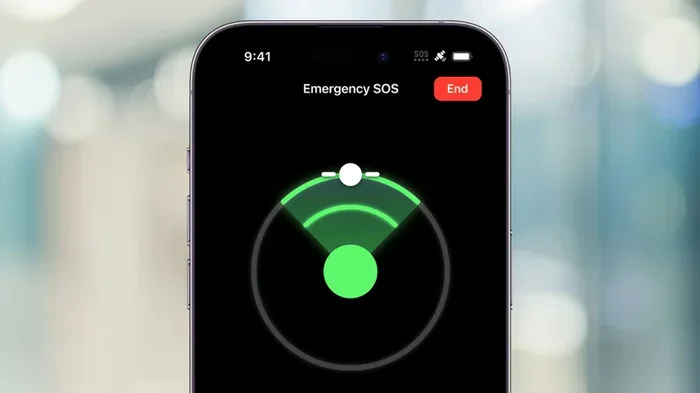
The SOS feature on iPhone is a safety tool. It connects you to emergency services when you need help the most. When you trigger SOS, your phone calls local emergency numbers. It also sends your location to your emergency contacts.
But here is the problem. This feature can activate when you do not want it to. A quick press of the side button five times can start the SOS countdown. That means your phone might call 911 or your local emergency number by accident.
How SOS Works On iPhone
Apple designed SOS to work in dangerous situations. Here is how it normally functions:
- You press and hold the side button and one of the volume buttons.
- An SOS countdown slider appears on screen.
- If you do not cancel it, your iPhone calls emergency services.
- Your phone shares your current GPS location automatically.
- Your emergency contacts get a text message with your location.
This is a great feature when you are in real danger. But it can cause big problems when it triggers accidentally. Many iPhone users complain about SOS going off in their pockets, bags, or during normal daily use.
So when you search how do I get rid of SOS on my iPhone, you are not alone. Thousands of people face this exact issue every day.
Why Does SOS Appear So Often?
SOS appears frequently because Apple made the trigger very sensitive. The goal is to make it easy to call for help in an emergency. But that sensitivity means accidental triggers happen often too.
Common reasons SOS appears on your iPhone include:
- Pressing the side button too long by mistake.
- Sitting on your phone in a tight pocket.
- Accidental button presses when handling your phone.
- Using certain phone cases that press the buttons.
- Having SOS set to “Countdown Sound” which adds pressure.
Understanding why SOS triggers helps you choose the right fix. Now let us look at exactly how to turn it off.
Step-By-Step Guide To Disable SOS On Your iPhone
If you want to know how do I get rid of SOS on my iPhone, the answer is simpler than you think. Apple gives you direct access to SOS settings inside the iPhone Settings app. Let us walk through each method carefully.
Method 1: Turn Off Emergency SOS Through Settings
This is the most direct way to stop SOS calls. Follow these steps exactly:
- Open the Settings app on your iPhone.
- Scroll down and tap Emergency SOS.
- You will see the toggle for Call with Side Button.
- Turn this toggle off by tapping it.
- Also toggle off Auto Call if you want full protection from accidental calls.
Once you turn off Call with Side Button, pressing the side button five times will no longer trigger SOS. This is the single most effective fix for most users.
After you make this change, try pressing the side button a few times to confirm SOS no longer activates. This quick test gives you peace of mind.
Method 2: Disable SOS From The Lock Screen
Sometimes SOS still shows up on your lock screen even after changing settings. Here is how to remove it from there:
- Go to Settings on your iPhone.
- Tap Face ID & Passcode (or Touch ID & Passcode).
- Enter your passcode when prompted.
- Scroll down to the Emergency SOS section.
- Toggle off Emergency Call on the lock screen.
This stops the SOS slider from appearing when your phone is locked. It adds an extra layer of protection against accidental triggers.
Method 3: Adjust The Countdown Timer Settings
Apple includes a countdown sound before SOS calls. This gives you a few seconds to cancel. But the sound itself can be startling. Here is how to manage it:
- Open Settings.
- Go to Emergency SOS.
- Toggle off Countdown Sound.
- The countdown will now be silent.
Turning off the countdown sound does not stop SOS completely. But it reduces the chances of accidental calls significantly. This is a great middle-ground option if you want to keep SOS active for real emergencies.
Method 4: Use AssistiveTouch As An Alternative
If you rely on physical buttons but want to avoid SOS triggers, try AssistiveTouch. This accessibility feature adds a virtual button to your screen:
- Go to Settings > Accessibility > Touch.
- Tap AssistiveTouch and turn it on.
- Use the on-screen menu for most actions instead of physical buttons.
AssistiveTouch reduces how often you press the side button. This naturally lowers the risk of accidental SOS triggers. It is a smart workaround for people who want extra safety.
Common Reasons SOS Keeps Triggering On iPhone
Even after you try to fix SOS, it might keep coming back. Understanding the root causes helps you stop it for good. Let us look at the most common reasons SOS keeps triggering on iPhones.
Accidental Button Presses
The number one cause of SOS on iPhone is accidental button presses. The side button sits in a spot that is easy to press by mistake. When you carry your phone in a pocket or a tight bag, the button can get pressed repeatedly.
Apple’s five-press requirement is meant to prevent accidental triggers. But in practice, many people press the button five times without realizing it. This happens during normal phone handling, especially when taking the phone out of a pocket.
Phone Cases That Press The Side Button
Some iPhone cases put pressure on the side buttons. Thick or poorly designed cases can cause the button to stay partially pressed. This creates a situation where SOS can trigger without you doing anything.
If you notice SOS happening often, try removing your phone case. See if the problem stops. If it does, consider getting a case with better button clearance.
SOS Countdown Mode Still Active
Even if you think you turned off SOS, the countdown mode might still be active. Many users toggle off one setting but forget another. The key is to check all SOS-related settings:
- Call with Side Button
- Auto Call
- Countdown Sound
- Emergency Call on Lock Screen
Go through each one and make sure the ones you do not want are turned off. This thorough check prevents SOS from sneaking back.
Software Bugs After iOS Updates
Sometimes a new iOS update changes your SOS settings. Apple occasionally resets certain toggles during major updates. If SOS started appearing after an update, check your Emergency SOS settings again.
Restarting your iPhone after an update can also help. A fresh reboot clears temporary glitches that might cause SOS to behave unexpectedly.
Misunderstanding What SOS Means
Here is something many people do not realize. SOS on your iPhone does not always mean an emergency call. Sometimes SOS appears as a status indicator when your phone has no cellular connection. This is different from the emergency SOS feature.
When you see “SOS” in the status bar, it means your phone can only make emergency calls. It does not mean the SOS countdown feature is active. To fix this, you need to troubleshoot your cellular connection instead.
Check your signal strength, restart your phone, or contact your carrier if SOS appears as a status indicator. This is a common point of confusion.
SOS On iPhone Vs SOS On Other Devices
SOS features vary across devices. Understanding how iPhone SOS compares to other platforms helps you make better decisions about your settings.
| Feature | iPhone | Android |
|---|---|---|
| Trigger Method | Five side button presses | Varies by brand |
| Countdown Timer | Yes, with sound | Usually no countdown |
| Location Sharing | Automatic to emergency contacts | Manual or automatic |
| Disable Option | Settings > Emergency SOS | Varies by manufacturer |
| Lock Screen Access | Yes, SOS slider | Varies |
| Cellular Fallback | Yes, when no signal | Depends on carrier |
iPhone SOS is more structured than most Android SOS features. Apple gives you clear settings to manage it. Other brands handle SOS differently, which means the steps to disable it vary widely across Android devices.
If you switch between iPhone and Android, the SOS behavior will feel very different. iPhone gives you more control over the feature through the Settings app.
Expert Tips To Prevent Accidental SOS Calls
Beyond just turning off SOS, there are smart habits that prevent accidental triggers. These expert tips help you keep your iPhone working smoothly without unexpected emergency calls.
Use A Slim Phone Case
Thick or bulky phone cases put pressure on the side buttons. A slim, well-designed case reduces accidental button presses. Look for cases that have precise cutouts for all buttons.
Popular brands like Apple Silicone Case and OtterBox offer good button clearance. Avoid cases that squeeze the buttons too tightly.
Keep Your Phone In A Front Pocket
Sitting on your phone in a back pocket is a common SOS trigger. The pressure pushes the side button for extended periods. Carrying your phone in a front pocket or a bag with a dedicated phone compartment helps a lot.
Enable Touch Sensitivity Adjustments
iPhone has a setting that adjusts touch and button sensitivity. This can reduce accidental presses:
- Go to Settings > Accessibility > Touch.
- Look for Touch Sensitivity or similar options.
- Adjust the sensitivity to a level that feels comfortable.
Higher sensitivity means lighter touches register. Lower sensitivity requires firmer presses. Find the sweet spot that works for you.
Restart Your iPhone Regularly
A simple restart fixes many minor software glitches. If SOS starts acting up without explanation, restart your phone. This clears temporary cache and resets button behavior.
Make it a habit to restart your iPhone at least once a week. This keeps everything running smoothly and prevents unexpected behavior.
Update iOS To The Latest Version
Apple releases iOS updates that fix bugs and improve stability. If SOS is triggering randomly, check for updates:
- Go to Settings > General > Software Update.
- Download and install the latest iOS version.
- Check your SOS settings after updating.
New updates often include fixes for accidental button presses and SOS behavior. Staying current keeps your iPhone running its best.
Quick Tips
- Always double-check all Emergency SOS toggles after an iOS update.
- Remove your phone case if SOS keeps triggering unexpectedly.
- Keep your phone out of tight pockets to avoid accidental presses.
- Use AssistiveTouch if you want to minimize side button use.
- Restart your iPhone weekly to prevent software glitches.
Common Mistakes People Make When Trying To Disable SOS
Many people make mistakes when trying to turn off SOS on their iPhone. Avoid these common errors to save time and frustration.
Only Turning Off One Setting
The biggest mistake is turning off just one SOS setting. You need to disable multiple toggles for complete protection. Check Call with Side Button, Auto Call, and Emergency Call on Lock Screen.
If you only turn off one setting, SOS might still trigger through another path. Take the time to go through every option in the Emergency SOS menu.
Confusing SOS Status Indicator With SOS Feature
Remember that SOS in your status bar is different from the SOS countdown feature. One means no cellular signal. The other means emergency calling is active. Treating them the same way leads to wrong fixes.
If SOS appears in your status bar, troubleshoot your cellular connection. If the SOS countdown triggers, disable the feature through Settings.
Not Testing After Making Changes
Many users change settings and never verify the fix works. Always test your changes by pressing the side button a few times. Confirm that SOS no longer activates before assuming the problem is solved.
Testing takes only a few seconds. It saves hours of wondering if the fix actually worked.
Ignoring The Role Of Your Phone Case
A bad phone case can undo all your SOS fixes. If you change settings but SOS still triggers, your case might be the culprit. Remove it temporarily and see if the problem stops.
This is a simple check that many people overlook. It can save you from unnecessary troubleshooting.
Should You Keep SOS Enabled On Your iPhone?
Before you fully disable SOS, consider whether you really want to turn it off. SOS is a valuable safety feature that can save your life in emergencies.
Here are situations where keeping SOS enabled makes sense:
- You travel to areas with limited cell coverage.
- You live in a neighborhood with higher crime rates.
- You hike or spend time in remote outdoor areas.
- You have children or elderly family members who might need help.
- You work alone in potentially dangerous environments.
In these cases, SOS is a lifeline. The accidental triggers might be annoying, but the safety benefit outweighs the inconvenience.
A balanced approach works best for most people. Keep SOS enabled but take steps to reduce accidental triggers. Use a slim case, carry your phone carefully, and adjust sensitivity settings.
This way you get the safety protection of SOS without the frustration of accidental calls. You get the best of both worlds.
How To Re-Enable SOS If You Change Your Mind
What if you disable SOS now but want it back later? Re-enabling is just as easy as disabling it:
- Open Settings on your iPhone.
- Go to Emergency SOS.
- Turn Call with Side Button back on.
- Toggle Auto Call on if you want automatic emergency dialing.
- Test the feature by pressing the side button five times.
Your SOS feature is fully restored. You can switch back and forth as your needs change. This flexibility is one of the best things about iPhone SOS settings.
Many people keep SOS disabled during daily use and re-enable it when they travel. This practical approach gives you control without sacrificing safety.
Final Thoughts On Getting Rid Of SOS On iPhone
Learning how do I get rid of SOS on my iPhone is easier than most people think. The key is understanding the settings and making the right changes. You now have multiple methods to choose from, depending on your situation.
Start with the Settings app and disable Call with Side Button. Add the lock screen adjustment for extra protection. Check your phone case and button habits. Follow the expert tips to prevent future accidental triggers.
Remember that SOS exists for a reason. If you decide to keep it enabled, just manage it smartly. The goal is to have SOS work when you need it and stay quiet when you do not.
Take action today. Open your Settings app, follow the steps in this guide, and enjoy an SOS-free iPhone experience. Your phone will feel more predictable and less frustrating to use every single day.
Share this guide with friends and family who struggle with SOS on their iPhones. A simple fix like this can make a huge difference in daily phone use. Help others solve the problem and spread the knowledge.
Frequently Asked Questions
What does SOS mean on iPhone?
SOS on iPhone stands for Emergency SOS. It is a safety feature that automatically calls emergency services when triggered. It also sends your location to your emergency contacts. SOS can appear as a countdown feature or as a status indicator when you have no cellular signal.
Can SOS damage my iPhone if it triggers accidentally?
No, SOS cannot damage your iPhone. It is a software feature that uses your phone’s calling capabilities. Accidental triggers may cause a brief call to emergency services, but they do not harm your device or its components in any way.
Will disabling SOS affect my ability to call emergency services?
No, disabling SOS does not stop you from making emergency calls. You can still dial 911 or your local emergency number manually from the Phone app or the lock screen. SOS is just a shortcut. Removing it does not remove your ability to call for help.
Why does SOS keep turning back on after I disable it?
SOS might re-enable after an iOS update or a factory reset. Apple sometimes resets certain settings during software updates. The best way to prevent this is to check your Emergency SOS settings after every major iOS update and reapply your preferences.
Is there a way to stop SOS without going into Settings?
Not directly. You need to access Settings to fully disable SOS features. However, using a slim phone case, keeping your phone in a front pocket, and being mindful of side button pressure can reduce accidental triggers without touching Settings.
Does SOS work the same way on all iPhone models?
SOS works similarly across most iPhone models, including iPhone 11, iPhone 12, iPhone 13, iPhone 14, and iPhone 15 series. The steps to disable it are the same. Older models like iPhone SE and iPhone 8 also have the same Emergency SOS settings path.
=== CONCLUSION ===
Getting rid of SOS on your iPhone is straightforward once you know the right steps. You learned how to disable Emergency SOS through Settings, adjust lock screen options, and prevent accidental triggers. You also discovered common mistakes to avoid and expert tips that make a real difference.
The primary method to answer how do I get rid of SOS on my iPhone is to go to Settings > Emergency SOS and turn off Call with Side Button. Combine this with the other tips in this guide for a complete solution.
Take a few minutes right now to check your SOS settings. Apply the changes, test them, and enjoy a more peaceful iPhone experience. Your phone should work the way you want it to, not the way Apple designed it to surprise you.
Share this article with anyone who struggles with SOS on their iPhone. Together, we can help more people take control of their device settings and enjoy a simpler, frustration-free mobile experience.