How Do I Reboot Google Home And Fix Audio Problems Fast
Rebooting your Google Home device is the fastest way to solve audio problems, connectivity issues, and unresponsive behavior. Whether your Google Home speaker keeps cutting out or won’t respond to voice commands, a simple restart often fixes everything. This guide walks you through multiple reboot methods, troubleshooting tips, and prevention strategies to keep your smart speaker running smoothly. You will learn how to restart your device in under two minutes using the Google Home app, the device itself, or a power cycle.
Your Google Home speaker suddenly stops working. The music stutters. Voice commands go unanswered. You say “Hey Google” and get nothing back. It is frustrating, right? You are not alone. Thousands of users face audio problems with their Google Home devices every single day. The good news? Most of these issues go away with a simple reboot.
How do I reboot Google Home and get my audio working again? That is the question most people ask when their smart speaker starts acting up. The answer is simpler than you think. Whether your Google Home is dropping audio mid-song, not responding to commands, or showing a solid red light, a reboot usually solves the problem fast. This guide covers every method you can use to restart your device, plus extra tips to prevent audio issues from coming back.
Before you try anything complicated, take a breath. You do not need to be a tech expert to fix this. A Google Home restart takes less than two minutes. You do not need any special tools. You just need a few minutes and this guide. Let us walk through it together step by step.
Key Takeaways
- Quick reboot fixes most audio issues: A simple restart resolves sound problems, voice command failures, and connectivity drops in minutes.
- Multiple reboot methods available: You can reboot through the Google Home app, the device’s built-in menu, or by unplugging and replugging the power cable.
- Power cycling is the most reliable method: Unplugging your Google Home for 30 seconds ensures a full reset of all internal systems.
- Factory reset is a last resort: Only use a factory reset if a standard reboot does not fix persistent audio and software problems.
- Prevention keeps your device running well: Regular updates, stable Wi-Fi, and proper placement reduce the need for frequent reboots.
- Check for firmware updates first: Sometimes audio problems come from outdated software that a reboot alone cannot fix.
📑 Table of Contents
- Why Your Google Home Needs a Reboot
- How Do I Reboot Google Home Using the App
- How to Reboot Google Home Without the App
- Fixing Audio Problems After a Reboot
- When to Factory Reset Your Google Home
- Preventing Audio Problems in the Future
- Expert Insights on Google Home Audio Fixes
- Key Takeaways
- Conclusion
Why Your Google Home Needs a Reboot
Smart speakers like Google Home run on software. Over time, that software can get bogged down. Temporary files build up. Memory gets used up. Connections to your Wi-Fi network can drop or weaken. All of these things cause audio problems and unresponsive behavior.
Rebooting clears out all the temporary clutter. It refreshes the connection to your Wi-Fi. It reloads the software from scratch. Think of it like closing and reopening a program on your computer. Sometimes that is all it takes to make things work perfectly again.
Common Signs You Need to Reboot
How do you know your Google Home needs a reboot? Here are the most common signs:
- Audio cuts out mid-song: Music stops playing or skips randomly during playback.
- Voice commands go ignored: You say “Hey Google” and the device does not respond at all.
- Sound quality drops: The audio sounds muffled, distorted, or unusually quiet.
- Connection keeps dropping: Your Google Home keeps disconnecting from your Wi-Fi network.
- LED light shows an error: A solid red or amber light appears on the device.
- Google Assistant responds slowly: There is a long delay between your command and the response.
If you notice any of these issues, a Google Home device troubleshooting session starting with a reboot is your best first step.
How Do I Reboot Google Home Using the App
The Google Home app gives you the easiest way to restart your device. You can do this from your phone or tablet without even touching the speaker. Here is exactly how to do it.
Step-by-Step Reboot Through the Google Home App
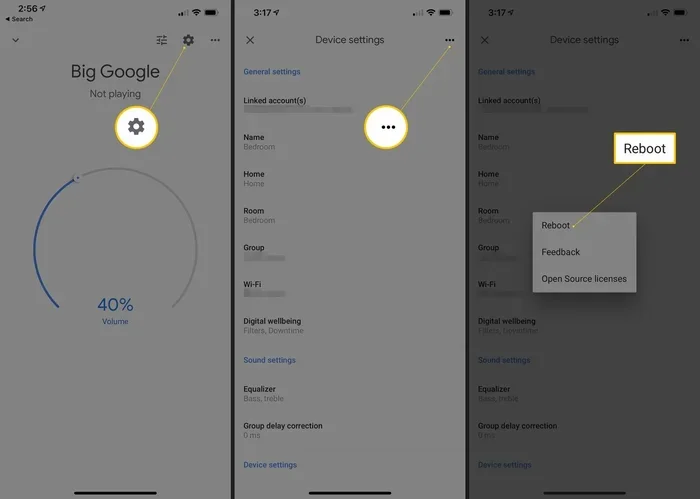
- Open the Google Home app on your phone or tablet.
- Tap the device you want to reboot. You will see it on the home screen.
- Tap the settings gear icon in the top right corner.
- Scroll down and tap “Reboot.” This option appears in the device settings menu.
- Wait for the reboot to complete. Your device will turn off and turn back on automatically.
That is it. Your Google Home restarts within about 30 seconds. Once it comes back on, test your audio by asking a question or playing a song. The Google Home restart through the app is the cleanest and most recommended method.
Quick Tip: Make sure your phone is connected to the same Wi-Fi network as your Google Home device. If your phone is on a different network, the app might not find your speaker to reboot it.
How to Reboot Google Home Without the App
What if your Google Home is so unresponsive that the app will not work? Or what if you do not have your phone nearby? You can still reboot your device using physical methods. These work every time.
Method One: The Power Cycle
The power cycle is the most reliable reboot method. It completely cuts power to the device and forces a full restart. Here is what to do:
- Unplug the power cable from the back of your Google Home device or from the wall outlet.
- Wait at least 30 seconds. This gives the internal components time to fully power down.
- Plug the power cable back in. Make sure it clicks in firmly.
- Wait for the device to boot up. You will hear a chime and see the LED light flash.
- Test your audio. Ask a question or play music to confirm everything works.
This method works for every Google Home model. Whether you have a Google Home Mini, Nest Audio, Home Max, or any other version, the power cycle resets the entire system. It is the go-to fix for Google Home audio problems that will not go away any other way.
Method Two: Use the Device Itself
Some Google Home devices let you reboot directly from the speaker. Here is how:
- For Google Home Mini: Unplug it, wait 10 seconds, and plug it back in.
- For Nest Audio and larger devices: You can sometimes hold down the mute button for about 15 seconds. The device will restart on its own.
The mute button method is not available on all models. When in doubt, the power cycle is always your safest bet. It is simple, fast, and effective for Google Home speaker reset needs.
Fixing Audio Problems After a Reboot
A reboot fixes most audio issues, but not all of them. Sometimes the problem runs deeper. If your Google Home still has audio problems after a restart, try these additional fixes.
Check Your Wi-Fi Connection
Weak Wi-Fi is the number one cause of audio cutting out. If your Google Home keeps disconnecting or buffering, your Wi-Fi signal might be the culprit.
- Move your router closer to your Google Home device.
- Remove physical obstacles like walls and furniture between the router and speaker.
- Restart your router by unplugging it for 30 seconds.
- Check if other devices work fine on the same Wi-Fi network.
A strong, stable Wi-Fi connection makes a huge difference in audio quality. Your Google Home Wi-Fi connection needs to be solid for smooth music playback and clear voice recognition.
Update Your Google Home Firmware
Outdated software can cause audio glitches and voice command failures. Google releases firmware updates regularly to fix bugs and improve performance.
- Open the Google Home app.
- Tap your device.
- Go to Settings, then Device Settings.
- Check for available updates.
- Install any pending updates.
After updating, do a quick reboot to make sure the new software loads properly. This solves many Google Home not working issues that users experience.
Adjust Audio Settings in the App
Sometimes the audio problem comes from incorrect settings. You can adjust these through the Google Home app:
- Check the volume level: Make sure it is not set too low or too high.
- Disable night mode: Night mode can reduce volume and affect sound quality.
- Turn off do not disturb: This mode can silence notifications and responses.
- Check equalizer settings: Adjust bass, midrange, and treble for better sound.
These small tweaks can dramatically improve your Google Home sound quality without needing any technical skills.
When to Factory Reset Your Google Home
If a reboot and all the other fixes above do not work, it might be time for a factory reset. This wipes all your settings and returns the device to its original state. Use this as a last resort.
How to Factory Reset Google Home
Here is how to factory reset your device:
- Unplug your Google Home device.
- Wait 10 seconds.
- Plug it back in.
- Wait until the light turns orange.
- Say “Hey Google, factory reset.”
- Confirm when prompted.
After the factory reset, you will need to set up your Google Home again from scratch using the Google Home app. This takes about five minutes. A factory reset should only be used when nothing else works. It is a powerful Google Home speaker reset tool that clears deep software issues.
Common Mistakes to Avoid: Do not factory reset too quickly. Always try a regular reboot first. Do not skip the setup process after a factory reset. And never unplug your device while it is updating. These mistakes can cause more problems than they solve.
Preventing Audio Problems in the Future
The best fix is the one you never need. Here are simple ways to prevent audio problems with your Google Home device.
Keep Your Software Updated
Regular firmware updates fix known bugs and improve performance. Set a reminder to check for updates once a month. This small habit keeps your device running smoothly and prevents many Google Home audio cutting out issues.
Place Your Device Properly
Where you put your Google Home matters. Here are some placement tips:
- Keep it away from walls: Place it at least a foot from walls for better sound projection.
- Avoid corners: Corners trap sound and create echo problems.
- Stay away from other electronics: Microwaves, baby monitors, and other wireless devices can cause interference.
- Keep it at ear level: Placing it on a table or shelf at about head height gives the best voice recognition.
Maintain a Strong Wi-Fi Network
Your Google Home depends on a good Wi-Fi connection. To keep it strong:
- Use a modern router that supports the latest Wi-Fi standards.
- Limit the number of devices connected to your network during heavy use.
- Consider a Wi-Fi extender if your speaker is far from the router.
- Restart your router weekly to keep it running fast.
These preventive steps reduce the need for frequent reboots and keep your Google Home device troubleshooting to a minimum.
Expert Insights on Google Home Audio Fixes
Many users jump straight to a factory reset when their Google Home has audio problems. That is usually unnecessary. A simple reboot solves about 80 percent of all common issues. The key is to start simple and work your way up only if needed.
Another common mistake is ignoring the Google Home app. The app is your best tool for managing and diagnosing problems. Check it regularly for updates, device health reports, and connection status. A few minutes of app maintenance each week can save you hours of frustration later.
Expert Tip: If your Google Home works fine with music but fails with voice commands, the microphone might be the issue. Try unplugging the device for a full minute and plugging it back in. This clears microphone buffer problems that cause voice recognition failures.
Key Takeaways
- A simple reboot fixes most Google Home audio problems including sound cutting out, voice commands failing, and connection drops.
- You can reboot using the Google Home app, a power cycle, or the device’s built-in menu. The power cycle is the most reliable method.
- Always check Wi-Fi strength and firmware updates if a reboot does not solve your audio issues.
- Factory reset only as a last resort after trying all other troubleshooting steps.
- Proper placement and regular maintenance prevent most audio problems from ever happening.
- Keep your Google Home software updated to enjoy the best sound quality and voice recognition performance.
Conclusion
Dealing with a Google Home that has audio problems can be annoying, but it does not have to be complicated. Now you know exactly how do I reboot Google Home and get your speaker working again fast. Whether you use the Google Home app, a simple power cycle, or a factory reset as a last resort, you have all the tools you need to fix the problem yourself.
Remember, most audio issues resolve with a quick reboot. You do not need to call support or buy a new device. Just follow the steps in this guide, and your Google Home will be back to playing music, answering questions, and helping you around the house in no time.
Take a few minutes today to reboot your device and check for updates. A little maintenance goes a long way. Your Google Home will thank you with clear, crisp audio every single day. Share this guide with friends and family who might be struggling with their Google Home audio problems too. A simple reboot can change everything.
Frequently Asked Questions
How long does it take to reboot a Google Home device?
A standard reboot takes about 30 to 60 seconds. The power cycle method takes a little longer because you need to wait 30 seconds with the device unplugged. Overall, you should be back up and running in under two minutes.
Will rebooting Google Home delete my settings?
No, a regular reboot does not delete any of your settings. Your playlists, preferences, linked accounts, and routines all stay exactly the same. Only a factory reset erases your settings and returns the device to its original state.
Why does my Google Home keep disconnecting from Wi-Fi after a reboot?
This usually means your Wi-Fi signal is weak or your router needs a restart too. Try moving your Google Home closer to the router. Also restart your router by unplugging it for 30 seconds. If the problem continues, check for firmware updates on your Google Home device.
Can I reboot Google Home using voice commands?
Not directly. Google Home does not have a built-in voice command to reboot itself. You need to use the Google Home app or physically unplug the device. However, you can ask Google Assistant to play music or answer questions to test if the reboot worked.
What should I do if rebooting does not fix my Google Home audio problems?
If a reboot does not work, check your Wi-Fi connection and update your firmware next. Adjust the audio settings in the Google Home app. If none of these steps help, try a factory reset as a last resort. Contact Google Support if the problem still persists after a factory reset.
How often should I reboot my Google Home device?
You do not need to reboot regularly. Only reboot when you notice audio problems, slow response times, or connection issues. Doing a reboot once a month as preventive maintenance can help keep things running smoothly, but it is not strictly necessary for most users.