How Do I Reconnect My Google Home Wifi Without Stress
Reconnecting your Google Home to WiFi doesn’t have to be stressful. This guide walks you through every step, from simple restarts to factory resets. You will learn how to fix common WiFi problems, optimize your router settings, and keep your smart speaker connected for good. Whether you are a tech beginner or a seasoned user, these tips will save you time and frustration.
Your Google Home suddenly goes offline. You try to say “Hey Google,” but nothing happens. The screen stays dark, and your smart speaker feels useless. You start wondering, how do I reconnect my Google Home WiFi? The good news is that you are not alone. Thousands of users face this same problem every day. And the fix is usually simpler than you think.
Whether your Google Home lost connection after a power outage, a router update, or just for no clear reason, this guide has you covered. You will learn every step to get your device back online. We will cover quick fixes, deeper troubleshooting, and tips to prevent this from happening again. No jargon. No complicated tech talk. Just clear, easy steps you can follow right now.
Let us get your Google Home working again. By the end of this article, you will know how do I reconnect my Google Home WiFi with confidence and without any stress.
Key Takeaways
- Restart First: A simple restart often fixes WiFi reconnection issues in minutes.
- Use the Google Home App: The app makes reconnecting your device quick and easy.
- Factory Reset When Needed: A reset solves deep connection problems but erases your settings.
- Check Your Router: Router issues are a leading cause of Google Home WiFi problems.
- Placement Matters: Where you put your Google Home affects signal strength and stability.
- Avoid Common Mistakes: Wrong passwords, wrong bands, and outdated apps cause most issues.
- Prevent Future Problems: A few simple habits keep your Google Home connected long-term.
📑 Table of Contents
Why Does Your Google Home Lose WiFi Connection?
Before you fix the problem, it helps to understand why it happens. Google Home devices connect to your home network wirelessly. Many things can interrupt that connection. Let us look at the most common reasons.
Common Reasons for WiFi Disconnections
Your Google Home might lose connection for any of these reasons:
- Router reboots or updates: Your router sometimes restarts on its own. This breaks the connection to all devices, including Google Home.
- WiFi password changes: If someone changed your network password, your Google Home will not know the new one.
- Signal interference: Microwaves, baby monitors, and even walls can weaken your WiFi signal.
- Outdated firmware: Google Home and your router both need software updates to work well together.
- Network overload: Too many devices on one network can slow things down and cause drops.
- Dual-band confusion: Google Home works best on 2.4GHz networks. If your router uses only 5GHz, it may not connect.
How to Tell if the Problem Is Your Router or Google Home
Not all WiFi problems come from your Google Home. Sometimes the router is the real issue. Here is a quick way to check:
- Try connecting your phone to the same WiFi network.
- If your phone also has issues, the problem is likely your router or internet service.
- If your phone works fine but Google Home does not, the issue is with the device itself.
This simple test saves you a lot of time. It helps you focus on the right fix instead of guessing.
How Do I Reconnect My Google Home WiFi Step by Step
Now let us get into the actual steps. How do I reconnect my Google Home WiFi? Follow these methods in order. Start with the easiest fix and work your way down.
Step 1: Check Your WiFi Network
Before touching your Google Home, make sure your WiFi is working. Open your phone or computer and check if you can go online. If your internet is down, restart your router first. Wait about 30 seconds, then plug it back in. Give it two minutes to fully start up before moving to the next step.
Also, check your network name and network password. If you recently changed either one, your Google Home will not connect with the old details. Make sure you have the correct WiFi name and password handy.
Step 2: Restart Your Google Home Device
A restart fixes most connection problems. It clears small glitches and forces the device to reconnect. Here is how to do it:
- Unplug the power cable from the back of your Google Home.
- Wait 30 seconds. This gives the device time to fully power down.
- Plug the cable back in. Wait for the light ring to turn solid white or start spinning.
- Check if it reconnects. The device should join your WiFi network within a minute or two.
If your Google Home comes back online, you are done. If not, move to the next step.
Step 3: Use the Google Home App to Reconnect
The Google Home app is your best tool for fixing WiFi problems. It gives you full control over your device settings. Here is how to use it:
- Open the Google Home app on your phone or tablet.
- Find your Google Home device on the home screen.
- Tap and hold the device icon until a menu appears.
- Tap the Settings gear icon in the top right corner.
- Select WiFi settings or Network settings.
- Choose Forget network or Remove network.
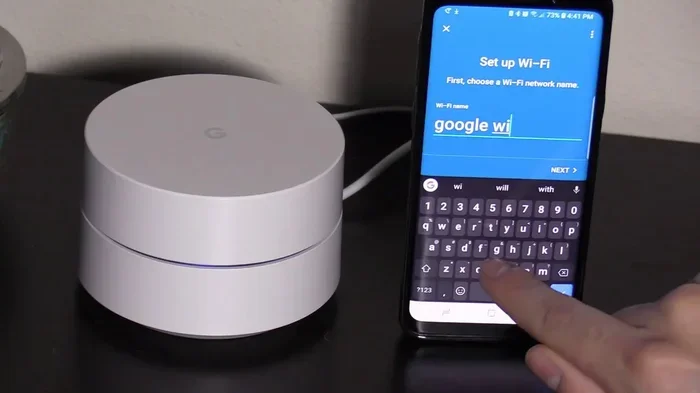
- Now tap Set up device or Add device.
- Follow the on-screen steps to reconnect to your WiFi.
This method works because it clears the old connection data and forces a fresh setup. It is one of the most effective ways to fix stubborn connection issues.
Step 4: Rejoin the WiFi Network Manually
Sometimes the Google Home app method does not work. In that case, you can try reconnecting manually. This involves putting your Google Home into pairing mode and setting it up as if it were brand new.
To do this, hold down the microphone mute button on top of your Google Home for about 15 seconds. The light ring will turn orange. This means the device is ready for a new setup. Open the Google Home app and follow the prompts to add the device again. During setup, you will enter your WiFi password and choose your network.
| Method | Difficulty | Time Needed | Success Rate |
|---|---|---|---|
| Restart Device | Easy | 2 minutes | High |
| Google Home App | Easy | 5 minutes | Very High |
| Manual Rejoin | Medium | 10 minutes | High |
| Factory Reset | Harder | 15 minutes | Highest |
As you can see, each method gets a bit more involved. But the success rate also goes up. Start with the easiest method first.
When to Factory Reset Your Google Home Device
If none of the steps above worked, a factory reset might be the answer. A factory reset wipes all your settings and returns the device to its original state. This sounds scary, but it solves most deep connection problems.
What Happens After a Factory Reset
After a factory reset, your Google Home will forget everything. It will lose your WiFi password, your preferences, and any linked accounts. You will need to set it up again from scratch. This means opening the Google Home app, going through the setup wizard, and reconnecting to your WiFi network.
Do not worry about losing your data. Google Home does not store personal data locally on the device. Your music playlists, preferences, and voice models live in the cloud. You can easily restore them after the reset.
How to Factory Reset Google Home
Here is how to perform a factory reset on your Google Home device:
- Unplug the device from power.
- Wait 10 seconds, then plug it back in.
- Wait for the light ring to start spinning. This means the device is booting up.
- Say “Hey Google, factory reset.” The device will confirm and start the reset process.
- Wait about two minutes. The device will restart and return to factory settings.
After the reset, open the Google Home app and set up the device again. Choose your WiFi network, enter your password, and let the device connect. This method almost always fixes connection issues that nothing else can solve.
Common Mistakes to Avoid
- Skipping the restart: Many people jump straight to a factory reset. Always try a simple restart first.
- Using the wrong WiFi band: Google Home does not work well on 5GHz-only networks. Make sure your router broadcasts a 2.4GHz signal.
- Entering the wrong password: WiFi passwords are case-sensitive. Double-check before entering.
- Ignoring app updates: An outdated Google Home app can cause connection problems. Always keep it updated.
- Placing the device too far from the router: Distance and walls weaken your WiFi signal. Keep your Google Home within good range.
Fixing Common WiFi Problems That Block Reconnection
Sometimes the problem is not your Google Home at all. It is your WiFi network. Here are the most common network issues and how to fix them.
Router Issues and Solutions
Your router is the heart of your home network. If it has problems, every connected device suffers. Here are some common router issues:
- Router needs a restart: Unplug your router for 30 seconds, then plug it back in. This clears its memory and refreshes connections.
- Outdated router firmware: Check your router manufacturer’s app or website for firmware updates. Updated firmware improves compatibility with smart home devices.
- Too many connected devices: Some routers struggle with more than 20 or 30 devices. Consider upgrading to a mesh WiFi system if you have many smart home gadgets.
WiFi Signal Strength and Placement
Where you put your Google Home matters a lot. A weak signal means frequent disconnects. Follow these placement tips:
- Keep your Google Home in the same room as your router, if possible.
- Avoid placing it near microwaves, cordless phones, or baby monitors.
- Do not hide it inside a cabinet or behind thick walls.
- Elevate it on a shelf or table instead of placing it on the floor.
- Keep it away from large metal objects and water sources.
Good placement alone can solve many connection problems. Try moving your device closer to the router and see if the connection improves.
Dual-Band WiFi and Google Home Compatibility
Most modern routers use dual-band WiFi. This means they broadcast on two frequencies: 2.4GHz and 5GHz. Google Home devices work best on the 2.4GHz band. Here is why:
- 2.4GHz has a longer range and better wall penetration.
- 5GHz is faster but has a shorter range and struggles with obstacles.
- Google Home does not support 5GHz on most models.
If your router only broadcasts on 5GHz, you may need to change your router settings. Log into your router’s admin panel and enable the 2.4GHz band. This is often called “band steering” or “dual-band mode.” Check your router’s manual for specific instructions.
Expert Insight: The Best Router Settings for Google Home
Network engineers recommend a few specific settings for optimal Google Home performance. First, set your router to WPA2 security. This is the most compatible encryption type for smart home devices. Second, disable AP isolation or client isolation. This feature blocks devices from talking to each other, which can prevent Google Home from connecting properly. Third, enable UPnP (Universal Plug and Play) in your router settings. This allows smart devices to open ports automatically for smoother communication.
Quick Tips to Keep Your Google Home Connected
Prevention is always better than fixing. Here are some quick tips to keep your Google Home WiFi connection strong and stable.
Quick Tips for a Stable Connection
- Restart your router once a month: This keeps your network running smoothly and prevents memory buildup.
- Keep the Google Home app updated: Updates fix bugs and improve compatibility with new WiFi standards.
- Use a strong WiFi password: A weak password can let unauthorized devices slow down your network.
- Limit bandwidth-heavy activities during setup: Avoid streaming 4K video while setting up your Google Home. It can interfere with the connection process.
- Name your WiFi network simply: Avoid special characters or spaces in your network name. They can cause connection issues with smart devices.
How to Prevent Future WiFi Problems
Once you get your Google Home reconnected, you want to keep it that way. Here are a few habits that help:
- Check your router’s firmware monthly and update when available.
- Keep your Google Home device in a consistent location.
- Avoid moving your router frequently.
- Monitor the number of devices connected to your network.
- Reboot your router and Google Home occasionally, even when things seem fine.
These small habits make a big difference over time. They keep your smart home running smoothly without constant troubleshooting.
When to Call for Help
Most WiFi reconnection issues are easy to fix at home. But sometimes you need professional help. Here is when to reach out for support.
Contacting Google Support
If you have tried every step in this guide and your Google Home still will not connect, it is time to contact Google Support. You can reach them through the Google Home app. Go to Settings, then Help & Feedback, and select your device. From there, you can chat with a support agent or schedule a callback.
Google Support can also help if your device has a hardware defect. In that case, they may offer a replacement if your device is still under warranty.
Checking Your Internet Service Provider
If the problem is with your internet connection itself, contact your internet service provider (ISP). They can check if there is an outage in your area or if your modem needs a reset. Sometimes the issue is on their end and not related to your Google Home at all.
Conclusion
Reconnecting your Google Home to WiFi does not have to be a stressful experience. You now know how do I reconnect my Google Home WiFi through simple restarts, the Google Home app, manual reconnection, and factory reset methods. You also understand the common causes of WiFi disconnections and how to prevent them in the future.
Start with the easiest fix and work your way up. Most of the time, a simple restart or app-based reconnection solves the problem. If not, a factory reset almost always does the trick. Keep your router updated, place your device well, and follow the quick tips we shared. Your Google Home will stay connected and ready to help you every day.
Take action now. Pick the method that fits your situation and try it. You will have your smart speaker back online in no time. And next time the WiFi drops, you will know exactly what to do.
Frequently Asked Questions
Why won’t my Google Home connect to WiFi even after a restart?
This usually means your device has stored incorrect network data. Open the Google Home app, forget the network, and set it up again. This clears the old connection details and forces a fresh join. If it still fails, try the factory reset method described in this guide.
Can I reconnect my Google Home to a different WiFi network?
Yes, you can. Use the Google Home app to remove the old network and add the new one. You will need the new network name and password. Follow the setup steps in the app to complete the switch. This works whether you are moving to a new home or just changing your internet plan.
How long does it take to reconnect Google Home to WiFi?
A simple restart usually takes less than two minutes. Using the Google Home app takes about five minutes. A factory reset and full setup can take 15 to 20 minutes. The time depends on the method you choose and how many devices you have.
What should I do if my Google Home shows but will not connect to WiFi?
This is a common issue that usually means your password is wrong or your router is blocking the device. Double-check your WiFi password and make sure it is correct. Also, check if your router has a device limit or parental controls that might be blocking Google Home. Restarting both the router and the device often fixes this.
Does Google Home work with mesh WiFi systems?
Yes, Google Home works well with mesh WiFi systems like Google Nest WiFi and Eero. Mesh systems provide strong coverage throughout your home, which helps keep your Google Home connected. Just make sure your mesh network broadcasts a 2.4GHz band, as Google Home relies on it for the best connection.
How do I know if my Google Home is connected to WiFi?
You can check in two ways. First, look at the light ring on your Google Home. A solid white or softly glowing ring means it is connected. Second, open the Google Home app and check the device status. It will show whether the device is online or offline. If it shows online, your connection is working properly.