Can You Connect Beats To Any Phone Here Is The Answer
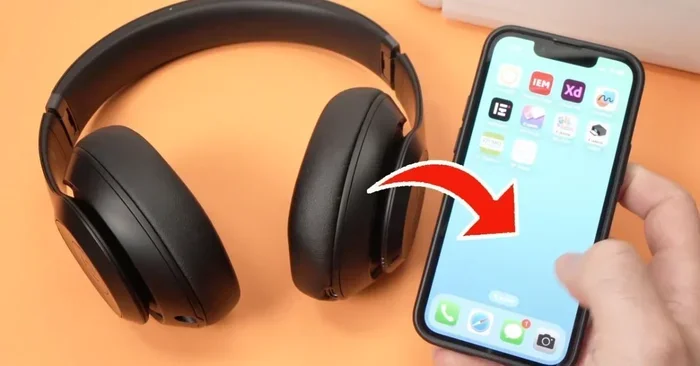
Yes, you can connect Beats to any phone that supports Bluetooth. Whether you use an iPhone, Android device, or even a basic smartphone, your Beats headphones and earphones will pair up quickly. This guide walks you through the simple steps, common issues, and expert tips to make the wireless connection work perfectly every time.
Have you ever wondered, “Can you connect Beats to any phone?” The short answer is yes. Beats headphones, earphones, and speakers use Bluetooth, which is a universal wireless technology. This means almost any phone made in the last decade can pair with your Beats. Whether you own a top-of-the-line iPhone or a budget Android, the wireless connection process is simple and straightforward.
But here is the thing. While the basic pairing works on any Bluetooth-enabled phone, some features work better on certain devices. For example, if you use Beats with an Apple iPhone, you get seamless auto-switching and battery pop-ups. On an Android phone, you might need the Beats app to unlock those same features. Either way, your Beats will still deliver great sound on any phone you choose.
In this article, we will walk you through everything you need to know. We will cover how to pair Beats with different phones, what to do when things go wrong, and which Beats models work best with which devices. By the end, you will have all the answers you need about connecting Beats to any phone.
Key Takeaways
- Universal Bluetooth Compatibility: Beats headphones work with virtually any phone that has Bluetooth, including iPhones and Android devices.
- Simple Pairing Process: Putting your Beats into pairing mode takes only a few seconds and works the same way across most phone brands.
- Some Features Are Phone-Specific: Certain Beats features like auto-switching and battery monitoring work best with Apple devices but still function on Android.
- Firmware Updates Matter: Keeping your Beats updated ensures the best performance and fixes common connection bugs.
- Resetting Fixes Most Issues: A simple reset solves the majority of Bluetooth connection problems between Beats and any phone.
- Multiple Devices Are Supported: You can connect Beats to more than one phone, but only one device plays audio at a time.
📑 Table of Contents
- Understanding How Beats Connect to Phones
- How to Connect Beats to Any Phone
- Which Beats Models Work with Which Phones
- Common Problems When Connecting Beats to Phones
- How to Update Beats Firmware for Better Phone Connectivity
- Expert Tips for the Best Beats Phone Connection
- Can You Connect Beats to Any Phone: Final Verdict
Understanding How Beats Connect to Phones
Before you dive into the pairing steps, it helps to understand how Beats connect to phones in the first place. All Beats models use Bluetooth technology to communicate wirelessly. This is the same technology your phone uses to connect to speakers, car systems, and other accessories. The connection happens through a short-range radio signal that stays stable within about 30 feet.
What Bluetooth Version Do Beats Use?
Most modern Beats models use Bluetooth 5.0 or newer. This means stronger signals, longer range, and less battery drain. Older Beats models may use Bluetooth 4.2, which still works fine but has a slightly shorter range. The Bluetooth version on your phone also matters. If your phone has an older Bluetooth version, it will still connect to your Beats, but you might notice a few limitations.
Here are the Bluetooth versions found in popular Beats models:
- Beats Studio Buds: Bluetooth 5.0
- Beats Fit Pro: Bluetooth 5.1
- Beats Solo Pro: Bluetooth 5.0
- Beats Flex: Bluetooth 5.0
- Beats Powerbeats Pro: Bluetooth 5.0
- Beats Solo3 Wireless: Bluetooth 4.2
As you can see, most newer Beats models use the latest Bluetooth standards. This makes them compatible with almost any modern phone. Even if you have an older phone, your Beats will likely still connect without any issues.
How to Connect Beats to Any Phone
Connecting your Beats to a phone is a quick process. It works the same way whether you have an iPhone, Samsung, Google Pixel, or any other phone. The key is putting your Beats into pairing mode. Once they are in that mode, your phone will find them and you can connect with just a few taps.
Step-by-Step Pairing Guide
Follow these simple steps to connect your Beats to any phone:
- Turn on your Beats. Press and hold the power button until you see the LED light flash.
- Put your Beats into pairing mode. For most models, you hold down the power button or the Bluetooth button for about five seconds. The LED will start flashing white, which means the Beats are ready to pair.
- Open Bluetooth on your phone. Go to your phone settings and turn on Bluetooth.
- Find your Beats on the list. Your phone will scan for nearby devices. Look for your Beats model name in the list.
- Tap to connect. Select your Beats from the list. You will see a confirmation message once the connection is made.
That is it. In less than a minute, your Beats are connected to your phone and ready to play music. The process is the same for Beats headphones, Beats earphones, and Beats speakers.
Connecting Beats to iPhones
If you use an iPhone, connecting your Beats is even easier. Apple devices are designed to work seamlessly with Beats. When you open your Beats near your iPhone, a setup animation appears on your screen. Just tap “Connect” and you are done. You do not even need to go into your Bluetooth settings. This magic happens because of Apple’s H1 and W1 chip technology found in many Beats models.
Once connected, your iPhone will show your Beats battery level right in the widget. You will also get automatic switching between your iPhone and your iPad or Mac if you use multiple Apple devices. This is one of the biggest advantages of using Beats with an Apple ecosystem.
Connecting Beats to Android Phones
Connecting Beats to an Android phone is just as easy, but you will need to do it manually through Bluetooth settings. There is no automatic setup like on iPhones. However, once connected, the audio quality and performance are the same.
For the best experience on Android, we recommend downloading the Beats app from the Google Play Store. The app lets you:
- Check your battery level
- Update your Beats firmware
- Customize sound settings
- Access the “Find My Beats” feature
Without the app, you will still get great sound, but you will miss out on some of these handy extras. The Beats app works on most Android phones running version 8.0 or higher.
Which Beats Models Work with Which Phones
Not all Beats models are the same, and some work better with certain phones than others. Here is a breakdown of how different Beats models pair with different types of phones.
Beats Studio Buds
The Beats Studio Buds are a popular choice because they work well with both iPhones and Android phones. They support both Apple’s Fast Fuel feature and Android’s standard Bluetooth protocols. If you switch between an iPhone and an Android phone often, the Studio Buds are a great pick. They remember up to eight devices and can connect to two at the same time.
Beats Fit Pro
The Beats Fit Pro uses the Apple H1 chip, which gives it a special connection with iPhones. You get automatic device switching and battery status pop-ups. On Android phones, the Fit Pro still delivers excellent sound, but you lose the auto-switching feature. The Beats app for Android helps fill in some of the gaps, though.
Beats Solo Pro
The Beats Solo Pro works with any phone that has Bluetooth. It has a built-in Apple W1 chip for seamless iPhone pairing, but it also works fine on Android. The Solo Pro offers great noise cancellation and sound quality on both platforms. The Beats app is available for Android users who want to customize their experience.
Beats Flex
The Beats Flex is a budget-friendly option that works with any phone. It uses Bluetooth 5.0 and has a simple USB-C charging port. Because it does not have a smart chip like the H1 or W1, it connects the same way to every phone. This makes it a truly universal choice if you want a simple wireless connection without any hassle.
Beats Powerbeats Pro
The Powerbeats Pro are designed for active users. They hook over your ears and stay secure during workouts. They work with any phone that supports Bluetooth. On iPhones, they pair quickly thanks to the H1 chip. On Android, you simply go through the standard Bluetooth pairing process. The sound quality and battery life remain excellent on both platforms.
Common Problems When Connecting Beats to Phones
Even though connecting Beats to any phone is usually easy, sometimes things go wrong. Here are the most common problems and how to fix them.
Beats Not Showing Up on Phone
If your Beats do not appear in the Bluetooth list, try these steps:
- Make sure your Beats are in pairing mode. The LED should be flashing.
- Turn Bluetooth off and back on your phone.
- Move closer to your phone. Bluetooth range is about 30 feet.
- Restart your phone and try again.
- Check if your Beats are connected to another device. Disconnect them from other devices first.
Audio Cutting In and Out
If your audio keeps cutting out, the Bluetooth signal might be weak. Here is what you can do:
- Move closer to your phone.
- Remove any obstacles between your phone and Beats.
- Turn off other Bluetooth devices nearby that might cause interference.
- Make sure your phone and Beats firmware are up to date.
Beats Connected But No Sound
If your Beats show as connected but you hear nothing, try this:
- Check your phone volume. Make sure it is not muted.
- Check the Beats volume by pressing the volume buttons.
- Disconnect and reconnect the Beats.
- Restart both your phone and your Beats.
One Beat Not Working
If only one side of your Beats plays audio, try resetting them. For most models, you hold the power button and the volume down button together for 10 seconds. The LED will flash, and your Beats will reset. After that, pair them again with your phone.
How to Update Beats Firmware for Better Phone Connectivity
Keeping your Beats firmware updated is one of the best ways to ensure smooth Bluetooth connectivity with any phone. Firmware updates fix bugs, improve battery life, and add new features. Here is how to update your Beats depending on your phone type.
Updating Beats on iPhone
When you connect your Beats to an iPhone, firmware updates happen automatically. Your iPhone will check for updates in the background. Make sure your iPhone is connected to Wi-Fi and charging for the best results. You will see a notification when the update is complete.
Updating Beats on Android
On Android phones, you need to use the Beats app to update firmware. Open the app and go to the settings section. Look for a “Software Update” or “Firmware Update” option. If an update is available, follow the on-screen instructions. Keep your Beats in the case or on your ears during the update. Do not turn them off until the process is complete.
Regular firmware updates keep your Beats running smoothly with any phone. They also fix Bluetooth pairing issues that might have bothered you in the past.
Expert Tips for the Best Beats Phone Connection
Here are some pro tips that will help you get the most out of your Beats with any phone:
- Keep your Beats charged. Low battery can cause connection problems. Charge your Beats regularly for the best performance.
- Forget old devices. If your Beats are connected to a phone you no longer use, go to Bluetooth settings and “Forget” that device. This frees up space and prevents connection conflicts.
- Use the Beats app. Even if you have an iPhone, the Beats app gives you extra control over sound settings and noise cancellation.
- Reset regularly. A quick reset every few months keeps your Beats running smoothly. It clears out any minor glitches that build up over time.
- Store Beats in their case. When not in use, keep your Beats in the charging case. This protects them and preserves battery life.
- Avoid water damage. While many Beats models are sweat-resistant, they are not all waterproof. Keep them dry to maintain long-term performance.
Can You Connect Beats to Any Phone: Final Verdict
So, can you connect Beats to any phone? The answer is a clear yes. Beats headphones and earphones use standard Bluetooth technology, which means they work with virtually any phone. Whether you have an iPhone, Samsung Galaxy, Google Pixel, or even a basic phone, your Beats will connect without any special requirements.
While some features work best with specific phone brands, the core experience remains the same. You get great sound, reliable wireless connection, and easy controls on any device. The only differences are small extras like auto-switching and battery pop-ups, which are nice but not essential.
If you are shopping for new Beats or already own a pair, you can feel confident that they will work with your phone. Just follow the simple pairing steps, keep your firmware updated, and enjoy your music wherever you go. The wireless connection between Beats and any phone is one of the easiest and most reliable you will find in the headphone world.
Now that you know the answer, go ahead and connect your Beats to your phone. The music is waiting for you.
Frequently Asked Questions
Can I connect Beats to a phone without Bluetooth?
No, Beats headphones and earphones rely entirely on Bluetooth for wireless connections. However, some Beats models like the Beats Solo3 come with a 3.5mm audio cable that lets you connect to any phone with a headphone jack using a wired connection.
How many phones can Beats remember?
Most Beats models can remember up to eight devices. You can connect to two devices at the same time, but only one plays audio at a time. Switching between devices is quick and easy, especially on iPhones with the H1 or W1 chip.
Do Beats work with Windows phones?
Yes, Beats work with Windows phones that support Bluetooth. The pairing process is the same as with any other phone. You put your Beats in pairing mode and connect through the Windows phone Bluetooth settings.
Why do my Beats keep disconnecting from my phone?
Beats may disconnect due to low battery, interference from other devices, or outdated firmware. Try resetting your Beats, updating the firmware, and moving closer to your phone. These steps solve most disconnection issues.
Can I use Beats with a tablet instead of a phone?
Absolutely. Any device with Bluetooth can connect to Beats, including tablets like iPads and Android tablets. The connection process is the same, and you will get the same great sound quality.
Is there a Beats app for all phones?
The Beats app is available for both iPhone and Android phones. It is free to download from the App Store and Google Play Store. The app gives you access to battery status, firmware updates, and sound customization for supported Beats models.